Introduction
When a prescription reaches a patient record, NeuronCx reads the handwritten or printed order and turns it into a checklist of tests. That checklist isn’t sent anywhere on its own — it lands on the Prescription tab first, where a clinician or technician reviews it, corrects anything the read got wrong, and confirms before it goes back to the diagnostic centre. The parsing is automated; the decision stays with a person.Access
The Prescription tab (marked with a pin icon) sits on the patient record, alongside Summary, Attributes, and Orders. It populates automatically once a prescription is received, and stays pinned to the top of the record for quick access on repeat visits.Layout & Walkthrough
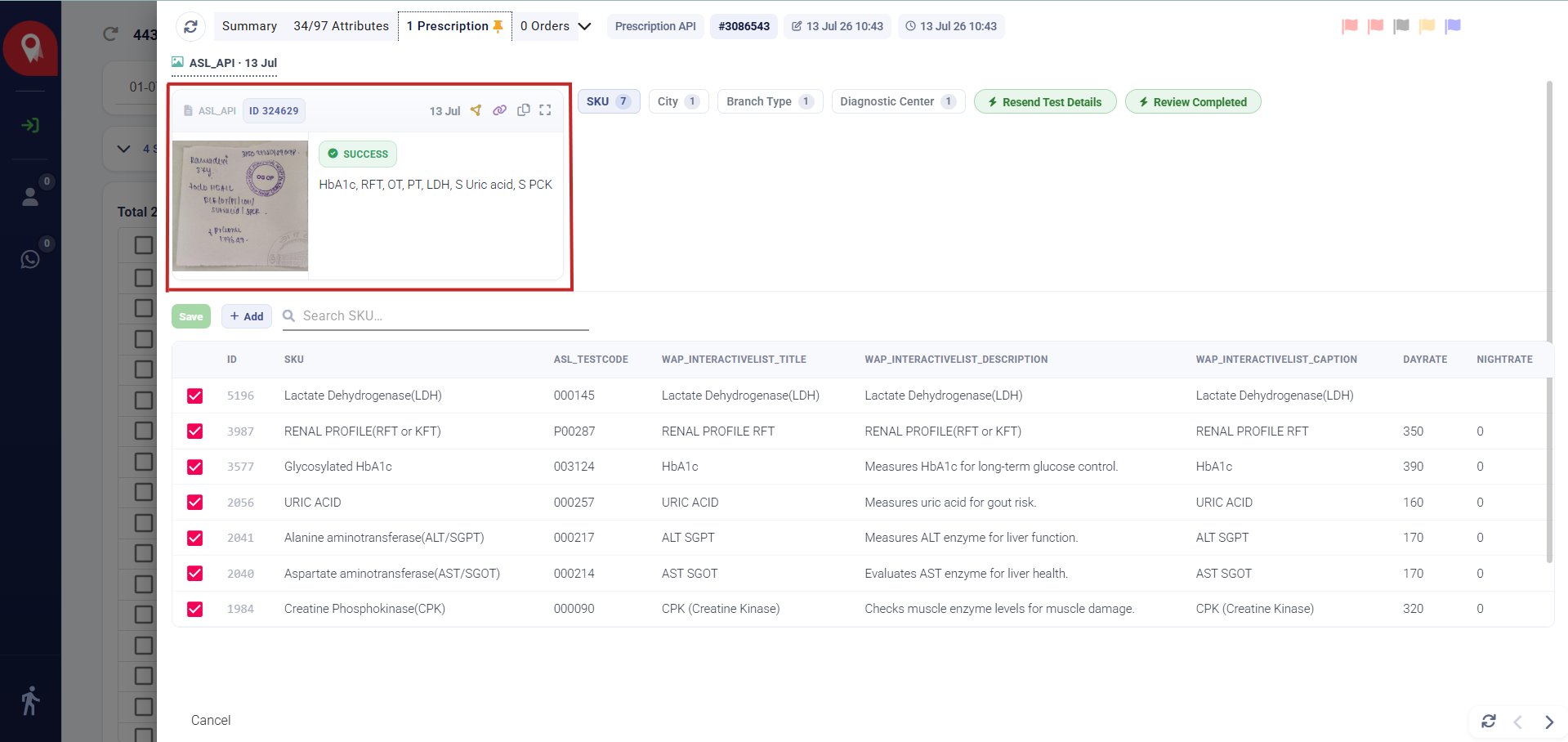
1. Source card Shows the uploaded prescription image alongside its source tag (e.g.ASL_API) and a SUCCESS status once parsing completes, with a plain-language summary of the tests identified from the handwriting (for example: ANA profile, C3/C4, CBC/CRP, S. creatinine, SGOT/SGPT, urine AM & PC ratio).
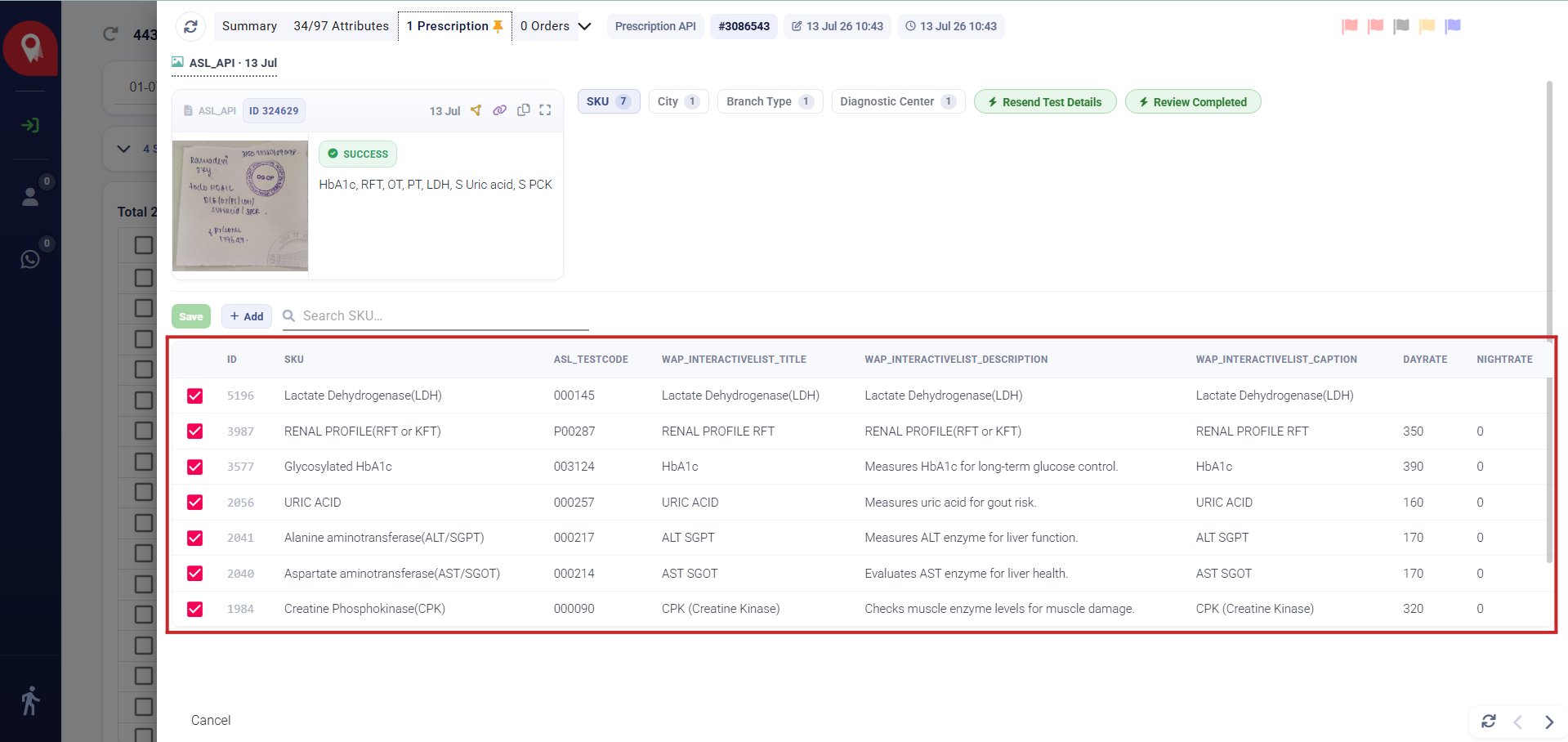
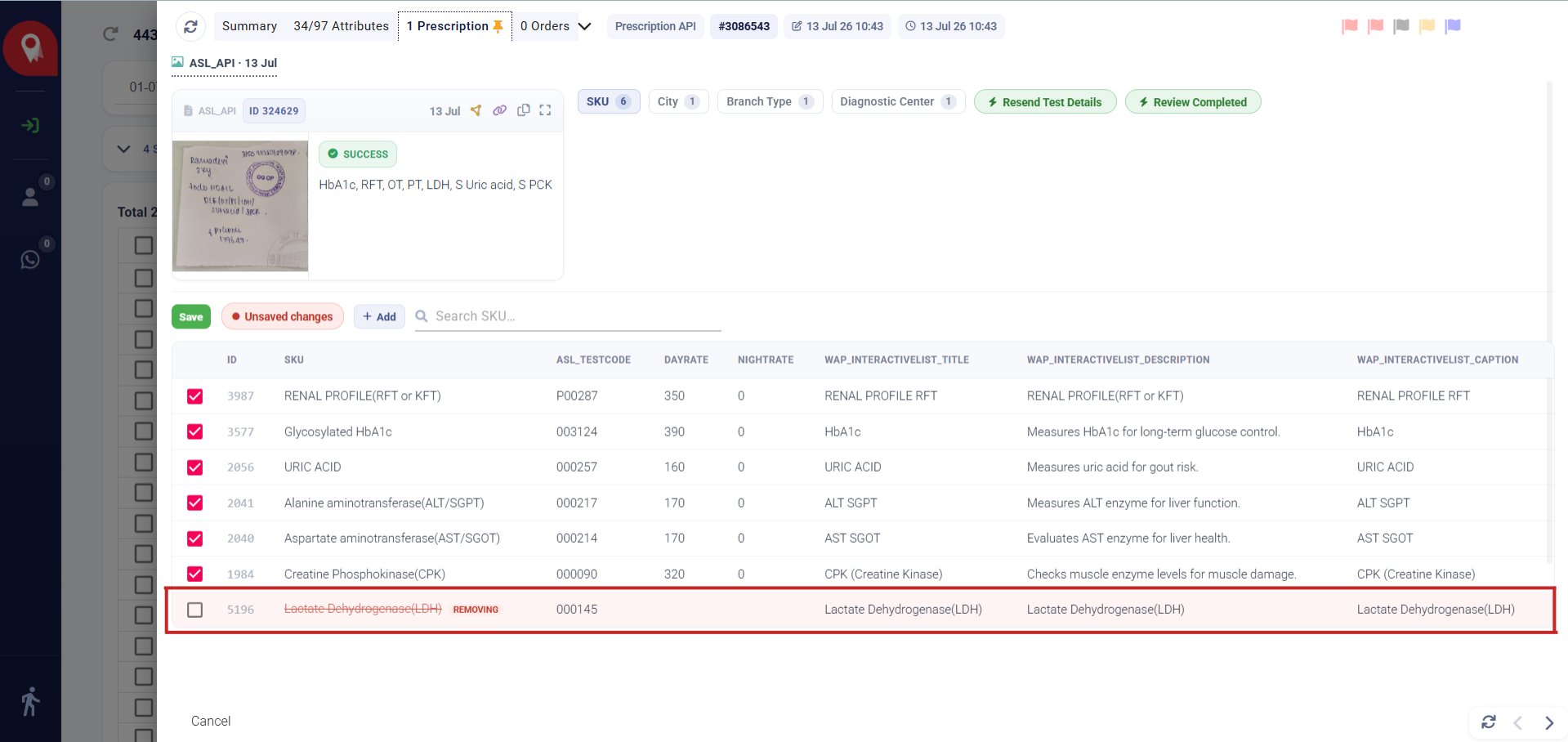
ID, SKU, ASL_TESTCODE, DAYRATE, NIGHTRATE, WAP_INTERACTIVELIST_TITLE, WAP_INTERACTIVELIST_DESCRIPTION, WAP_INTERACTIVELIST_CAPTION. A checkbox on each row controls whether that test is included.