
Step 1: Learn the Console Layout
Before you start working leads, familiarize yourself with the six key areas of the console interface.1
Date Range Selector
Location: Top center of the console.Use the Date Range Selector to pick a specific start date and end date. Narrowing the date window keeps your view focused on fresh, incoming traffic rather than the entire lead history.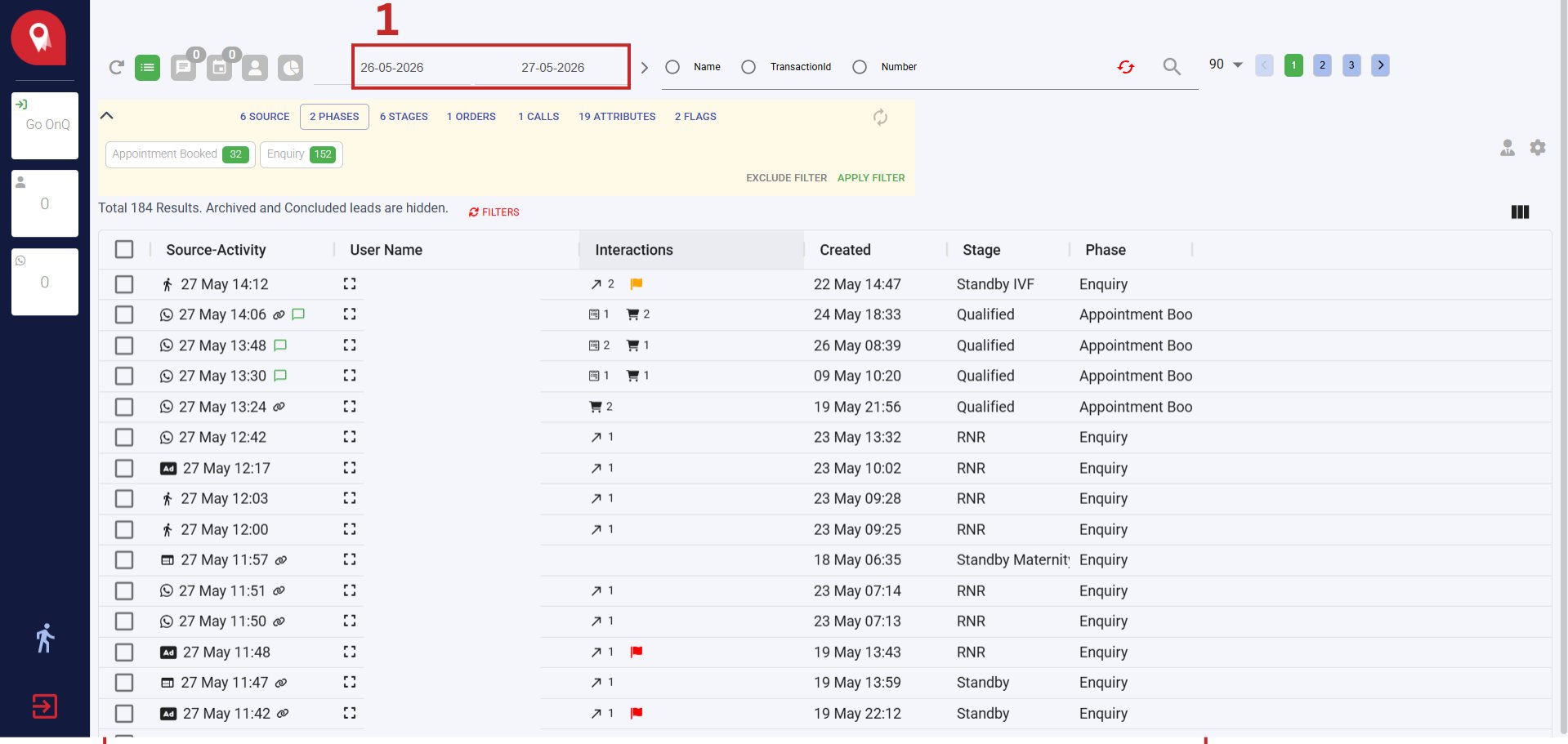
2
Advanced Search Bar
Location: Top right of the console.When you need to locate a specific patient immediately, use the Advanced Search Bar. Click one of the radio buttons to switch the search mode, then type your query: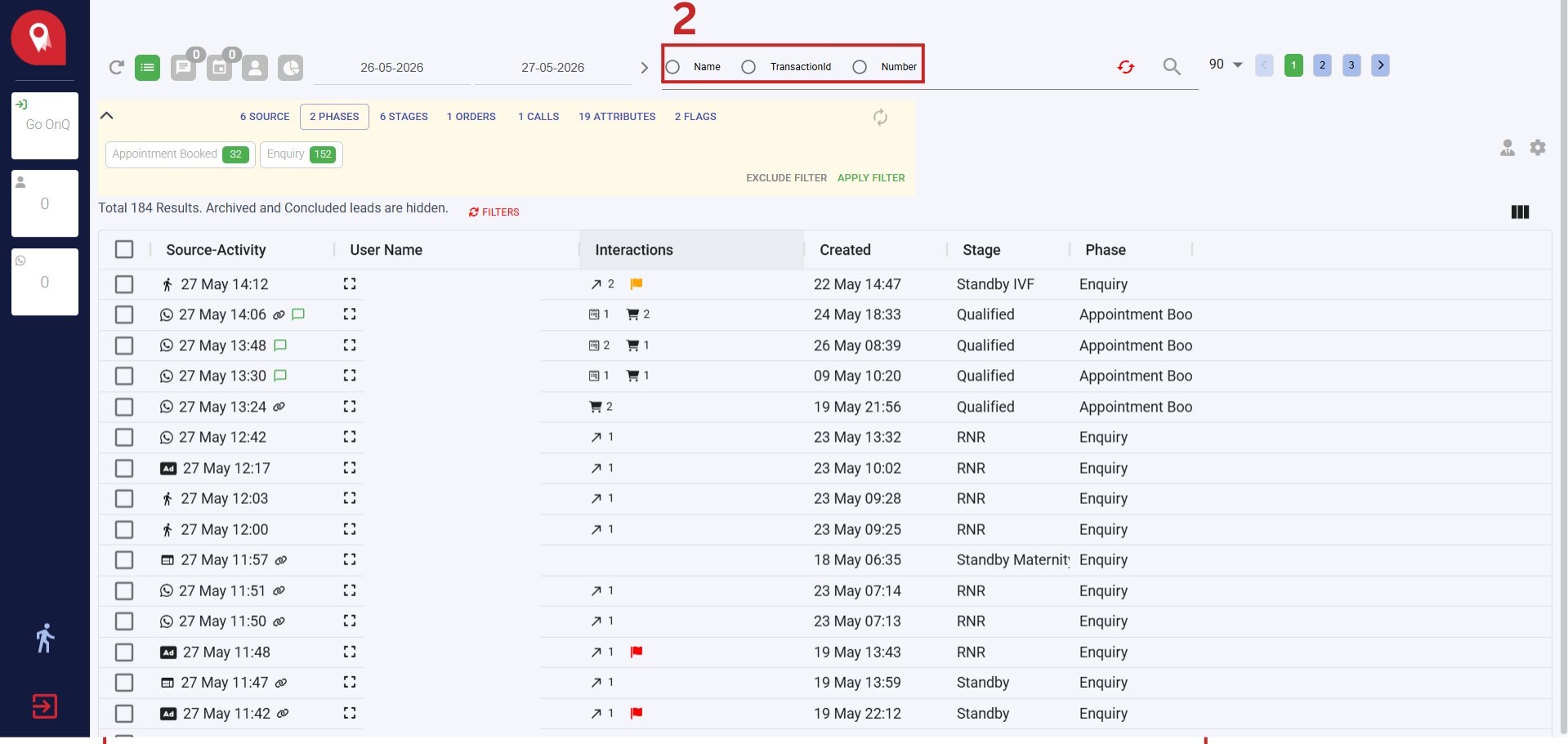
3
Pagination Controls
Location: Far top right of the console.The Pagination Controls let you set how many rows appear on each page (for example, 90 rows) and navigate between pages using the 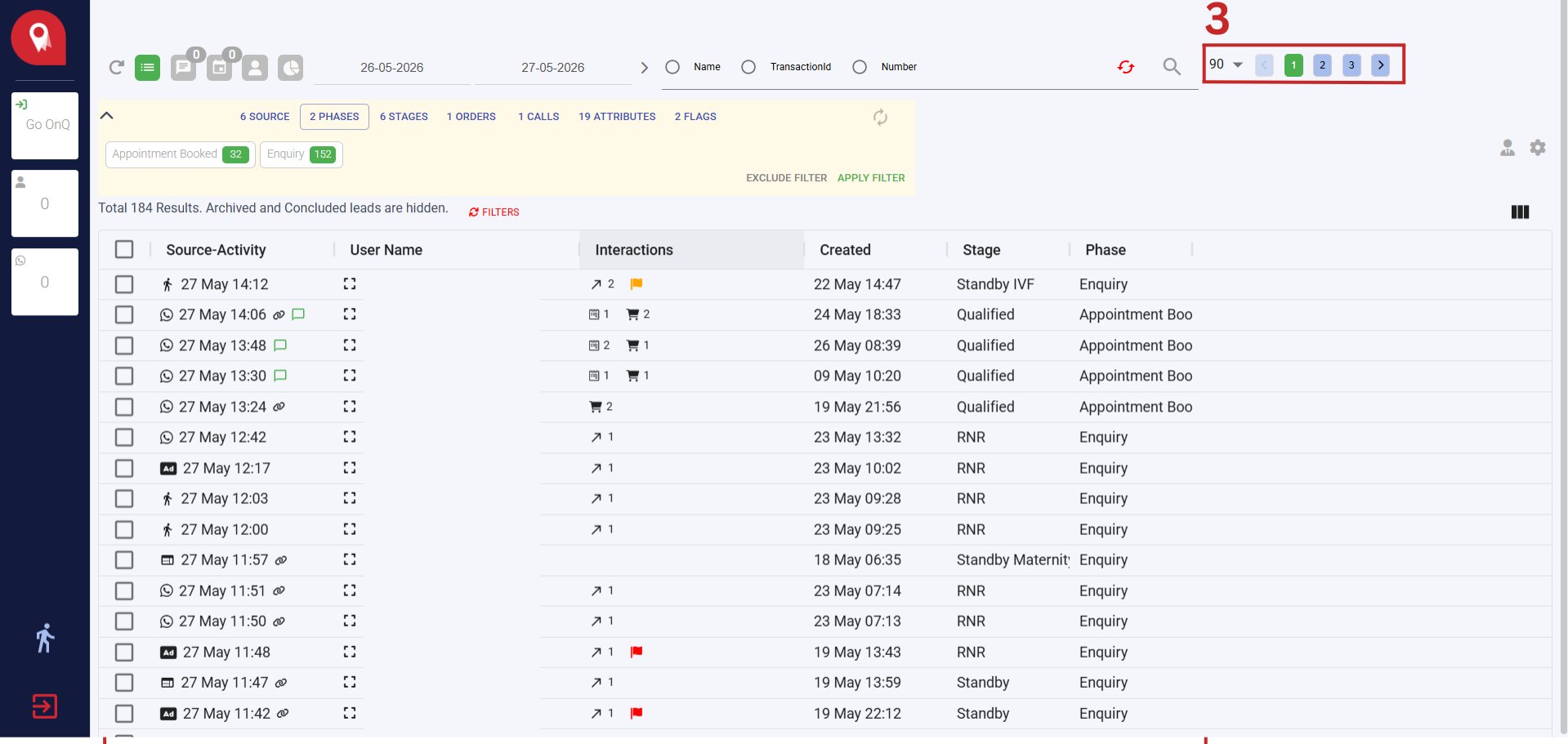
< and > arrows. Increase the row count when you want to scan a large batch of leads without clicking through many pages.4
Advanced Filter Section
Location: Directly below the date selectors.The Advanced Filter Section lets you narrow the lead table by clicking filter buttons for Sources, Phases, or Stages. For example, select Unattended under Stages to see only leads that have never been contacted. Click the green APPLY FILTER button to update the table.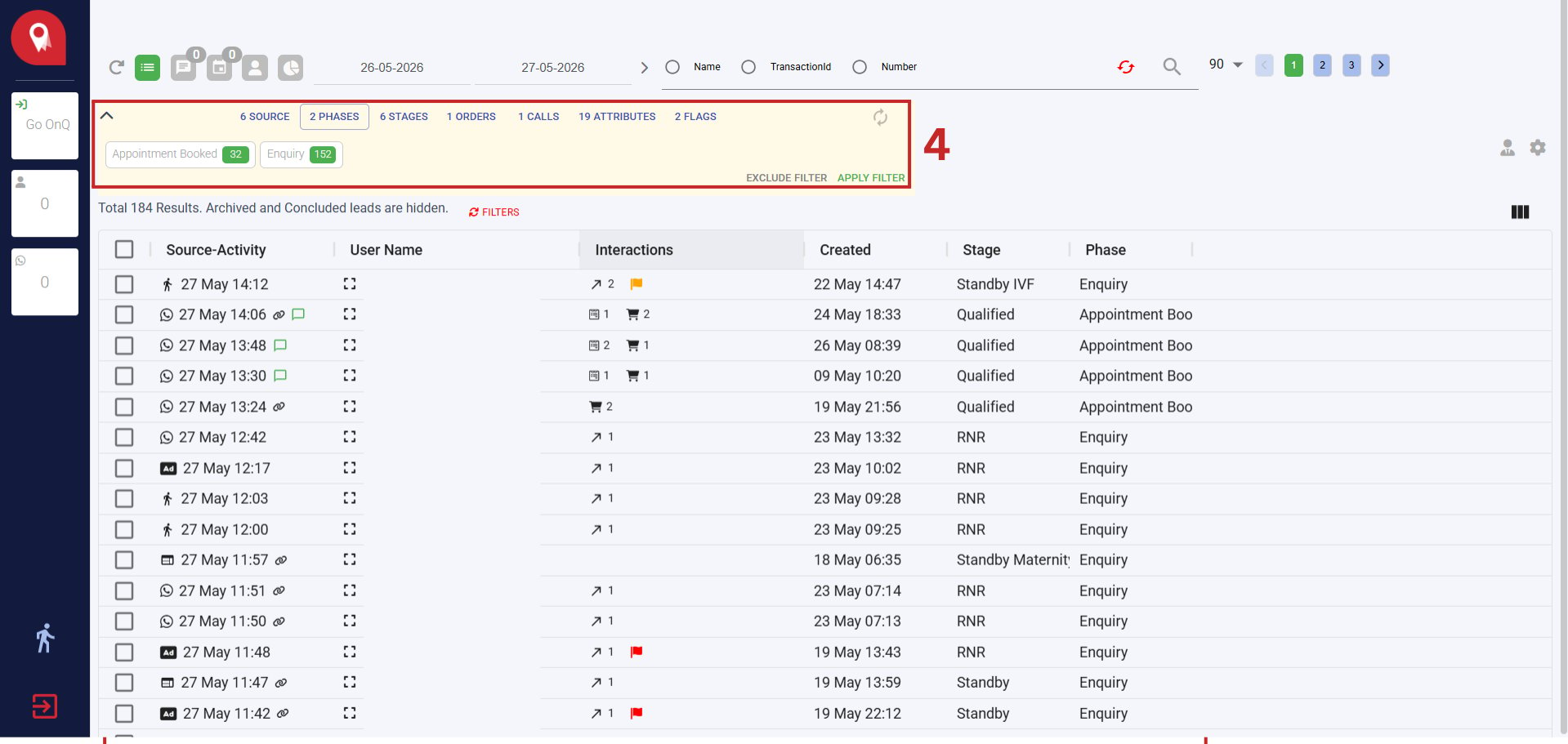
Filtering is optional but highly recommended at the start of each shift. It removes already-handled leads from view so you can focus on new calls.
5
Active Lead Table
Location: The large main table that fills most of the screen.The Active Lead Table organizes your entire lead queue. Each row represents one lead and shows their activity channel, username, interaction counts, current stage, and phase.Two date columns are particularly important: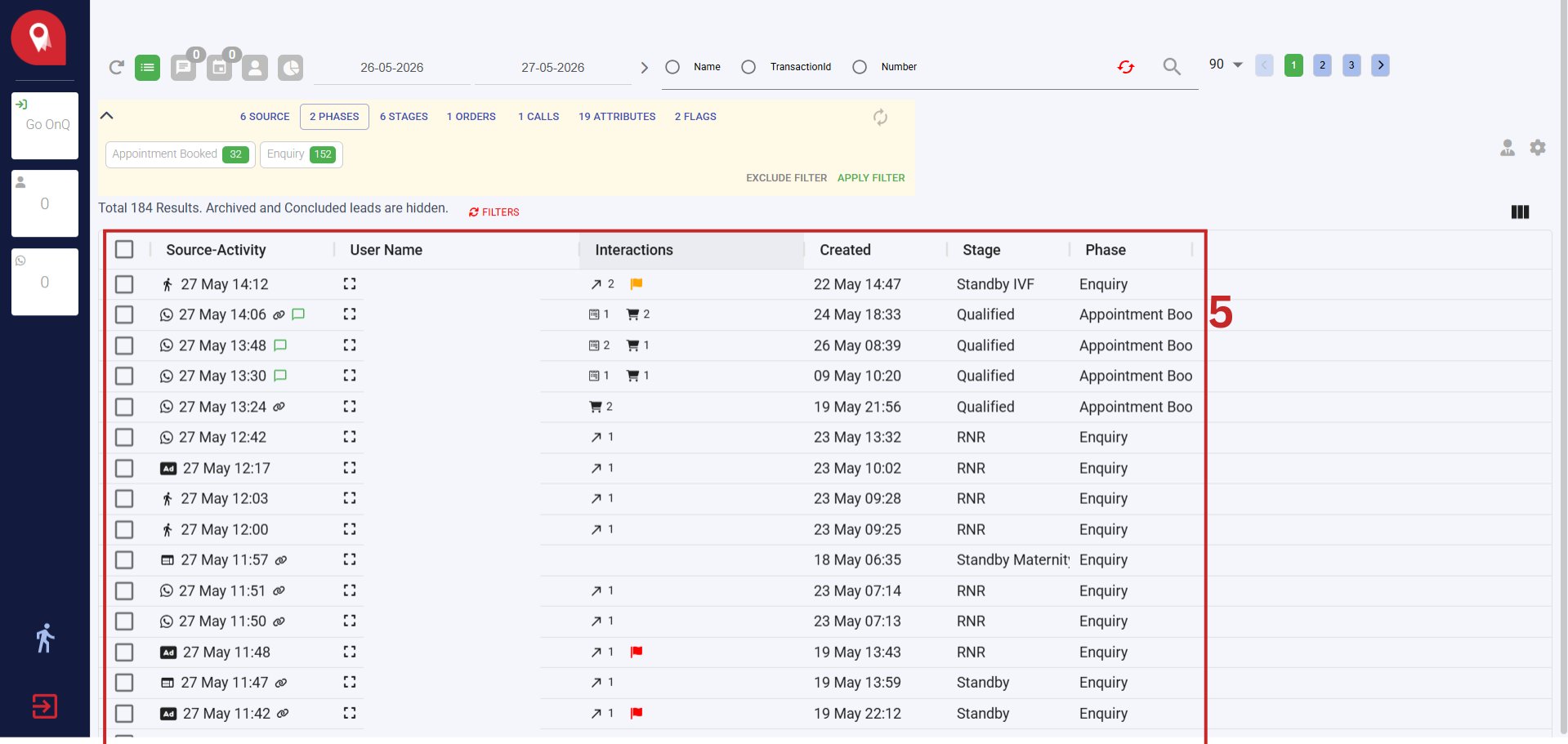
The table sorts by Source-Activity, not by Created date. A lead that received a new message today will rise to the top even if it was created months ago. New activity refreshes the Source-Activity date only — it does not automatically change the lead’s Stage or Phase. You must update those manually after each call.
6
Preference View Window Icon
Location: Right side of the screen, just below the Settings gear icon.Clicking this icon opens a column selector panel. Check or uncheck options to control which columns appear in your Active Lead Table: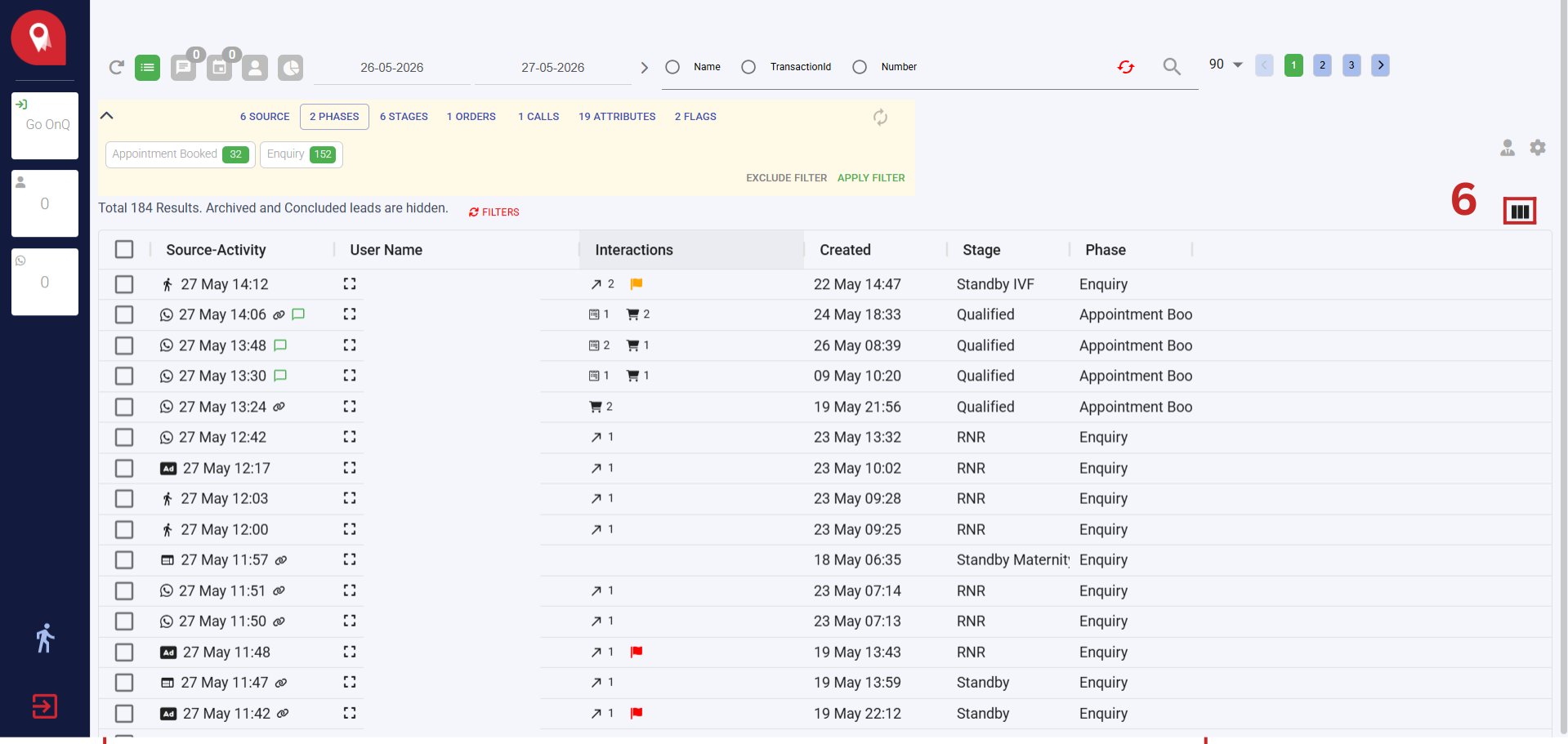
- Recommended Columns — The default set of most-used columns
- Attribute Columns — Custom attributes configured in Ontology
- All Columns — Every available data field
Step 2: Filter for Your Target Leads
Before making calls, narrow the lead table to the contacts you need to work today. This step is optional but helps you prioritize your queue efficiently.1
Set the date range
Go to the Date Range Selector at the top of the console and select today’s date as both the start and end date. This scopes the table to leads with recent activity.
2
Filter by Stage (optional)
In the Advanced Filter Section, click the Stages filter button and select Unattended. This removes leads that have already been contacted, leaving only fresh, untouched leads.
3
Apply the filter
Click the green APPLY FILTER button. The Active Lead Table refreshes instantly to match your selections.
Step 3: Open a Lead Workspace
Once you have your filtered list, you are ready to open individual leads. Find the lead’s row in the Active Lead Table, then click the small rectangle icon immediately to the right of the user’s name. This opens a split-screen workspace with all of the lead’s details on the left and their activity history on the right.The name displayed by default is the patient’s WhatsApp nickname — the display name they chose in the app. This is often different from their legal name. You must ask for and update their real name during the call before saving.
Step 4: Work the Lead — Talk, Verify, and Save
With the split-screen workspace open, follow this sequence for every call.1
Check the Activity Feed for history
Glance at the Activity Feed on the right side of the screen. It shows a chronological timeline of every message the patient sent, automated system events, and notes left by other agents.
If this is a brand-new number with no prior history, the Activity Feed will be empty. Skip the history review and proceed directly to making the call.
2
Dial the patient
Locate the phone number displayed in the profile box on the left side of the screen and dial it from your work phone.
3
Verify the real name
Ask the patient for their correct full name as it appears in their official records.
4
Update the patient_name attribute
In the attributes section on the left panel, find the
patient_name field and type in the verified real name.If 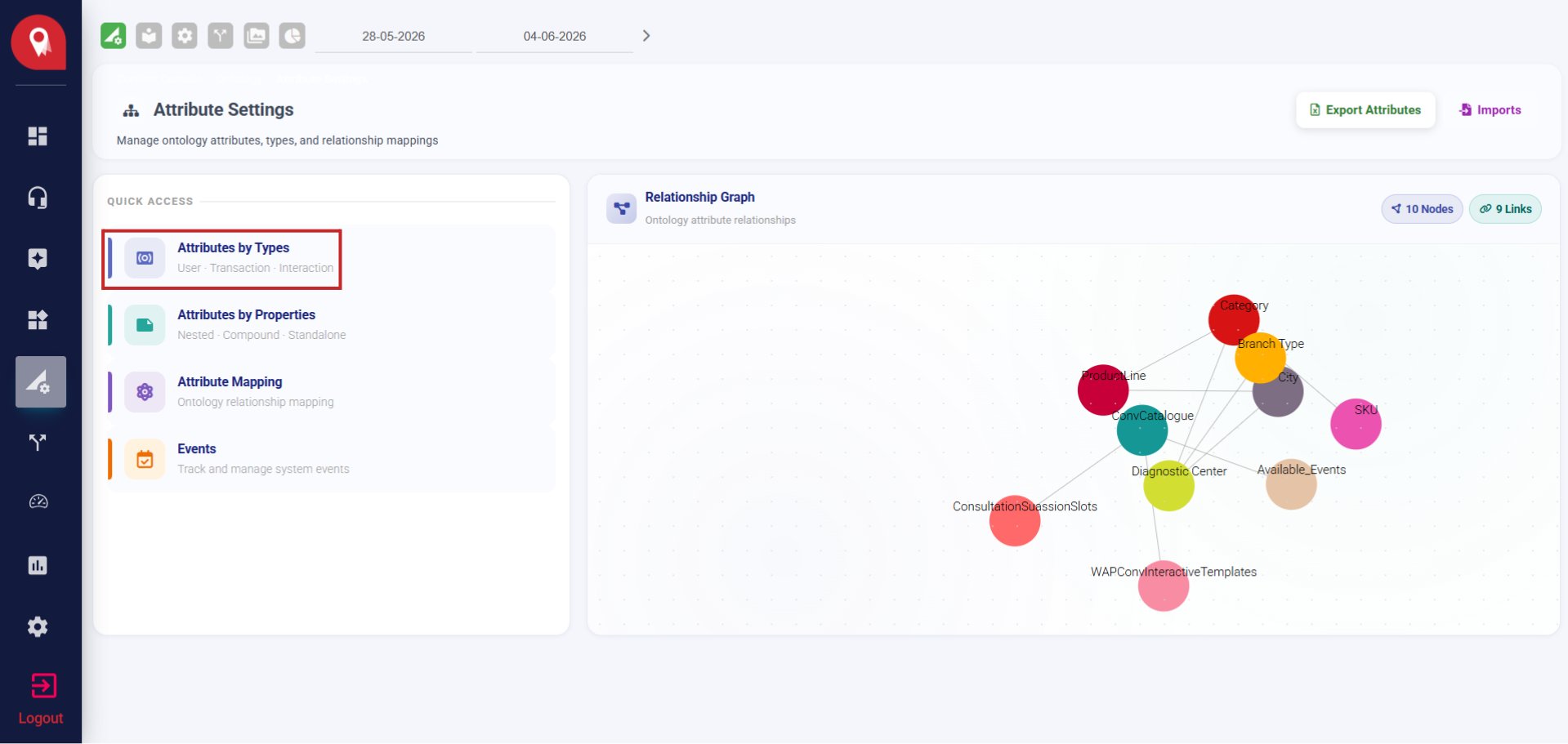

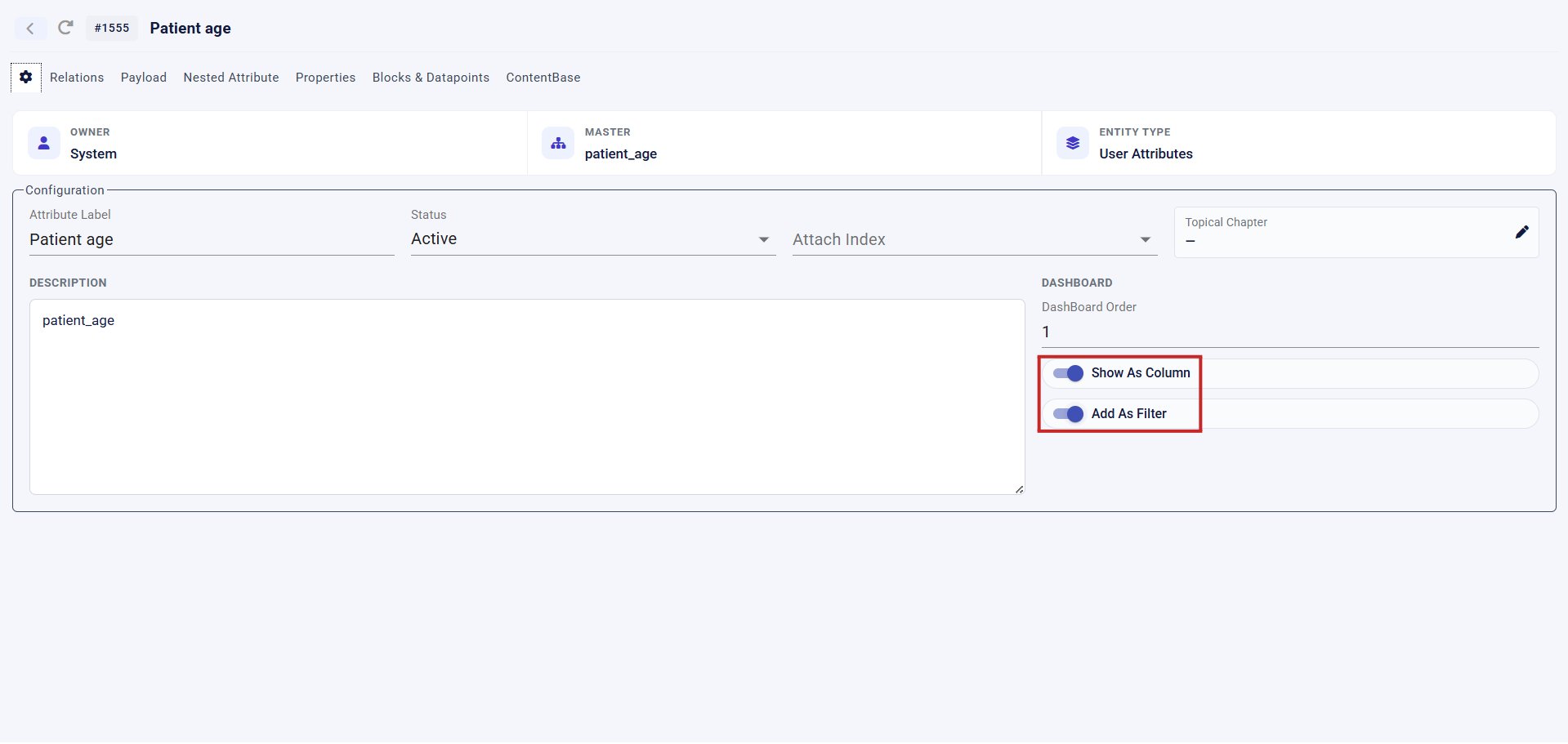
patient_name or any other attribute you need is not visible in the panel, you can make it appear through Ontology:- Navigate to Ontology from the left navigation menu. Open Attribute by Types.
- Find the attribute you want, then click the Settings (⚙️) icon next to its name.
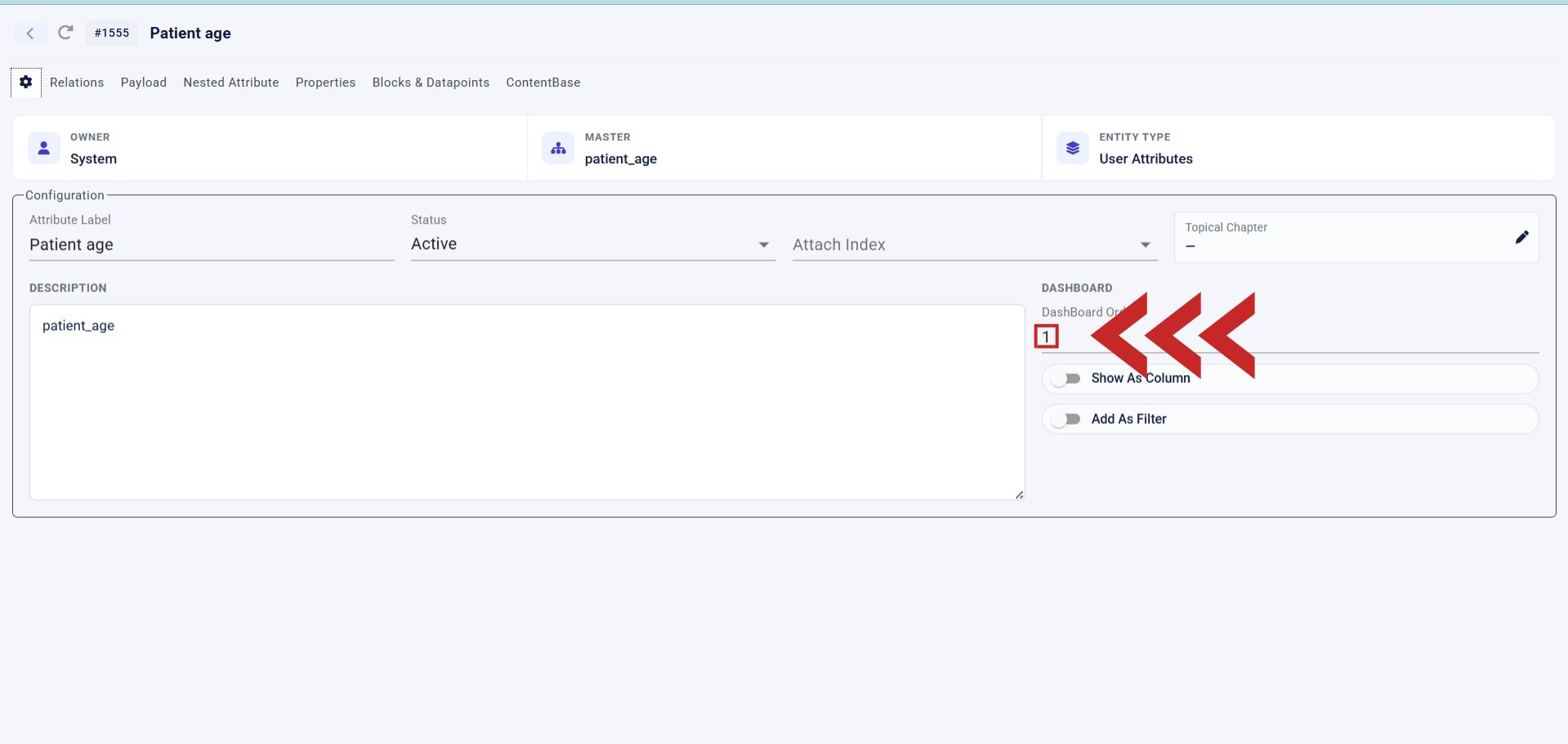
- Set the Dashboard Order value — enter
-1to hide the attribute, or a positive integer to show it (e.g.,1places it first in the panel,2places it second).
- Check Show as Column to make it visible as a column in the lead table.
- Add as Filter to make it available in the Advanced Filter Section.
5
Collect and enter the email address
Ask the patient for their email address. Type it into the email field in the summary panel on the left so the system can send them appointment details or follow-ups.
6
Set the Phase and Stage
Use the dropdown menus on the left panel to update the patient’s current position in the booking journey:
- Phase — Where they are in the overall process (for example, Appointment Initiated)
- Stage — What happened during this specific call (for example, Qualified)
7
Save all changes
Click the green SAVE ALL button at the bottom of the left panel.