
Overview
Attribution rules connect an incoming Smartflow call to the right agent in NeuronCX. Each rule has an Agent Identifier, and one or more agents can be attached to it. When a new agent needs to receive Smartflow calls, or an existing agent needs to be removed, you do this from the Attribution tab in the Supervisor Console. If the agent doesn’t exist in NeuronCX yet, you can create them from the same screen and enter their External ID at the same time, so the two systems are linked from the start.The External ID is the agent’s identifier in Smartflow. NeuronCX matches this ID against the rule’s Agent Identifier to route calls correctly.
Before you begin
- You’ll need access to the Supervisor Console.
- If you’re attaching a new agent, have their External ID from Smartflow ready.
1
Open the Supervisor Console
Go to Home > CX Ops > Supervisor Console.
2
Open the Attribution tab
Click the Attribution tab.
3
Open the rule
In the rules table, find the TATA Smartflow attribution rule and click the number in the Rules column (for example, 114) to open its list of agent identifiers.
Attach an existing agent
1
Open the rule for editing
Find the row for the Agent Identifier, and click the edit (pencil) icon to open the Edit rule dialog.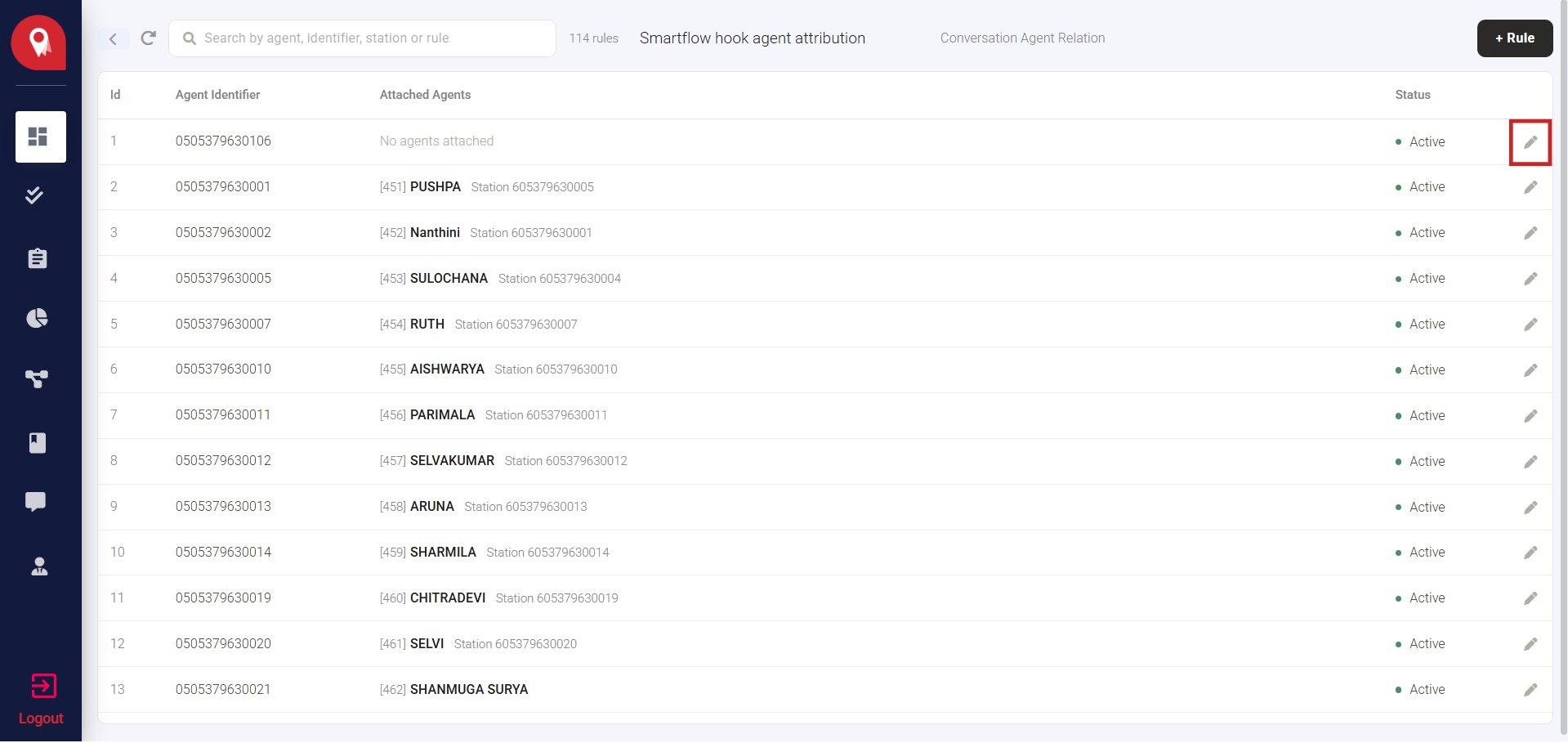
2
Find the agent
In the Attach agents panel on the right, search or scroll to find the agent.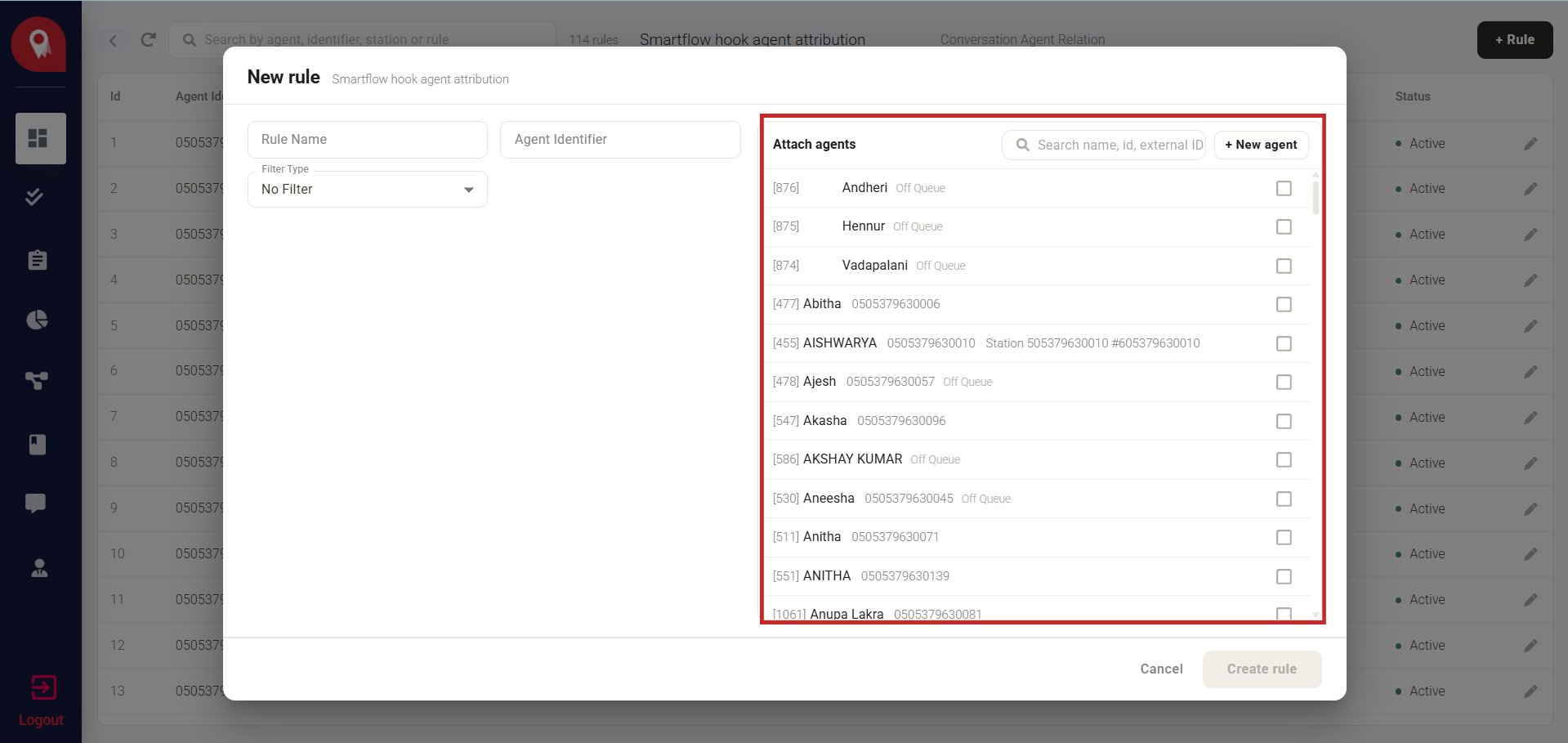
3
Select the agent
Check the box next to their name.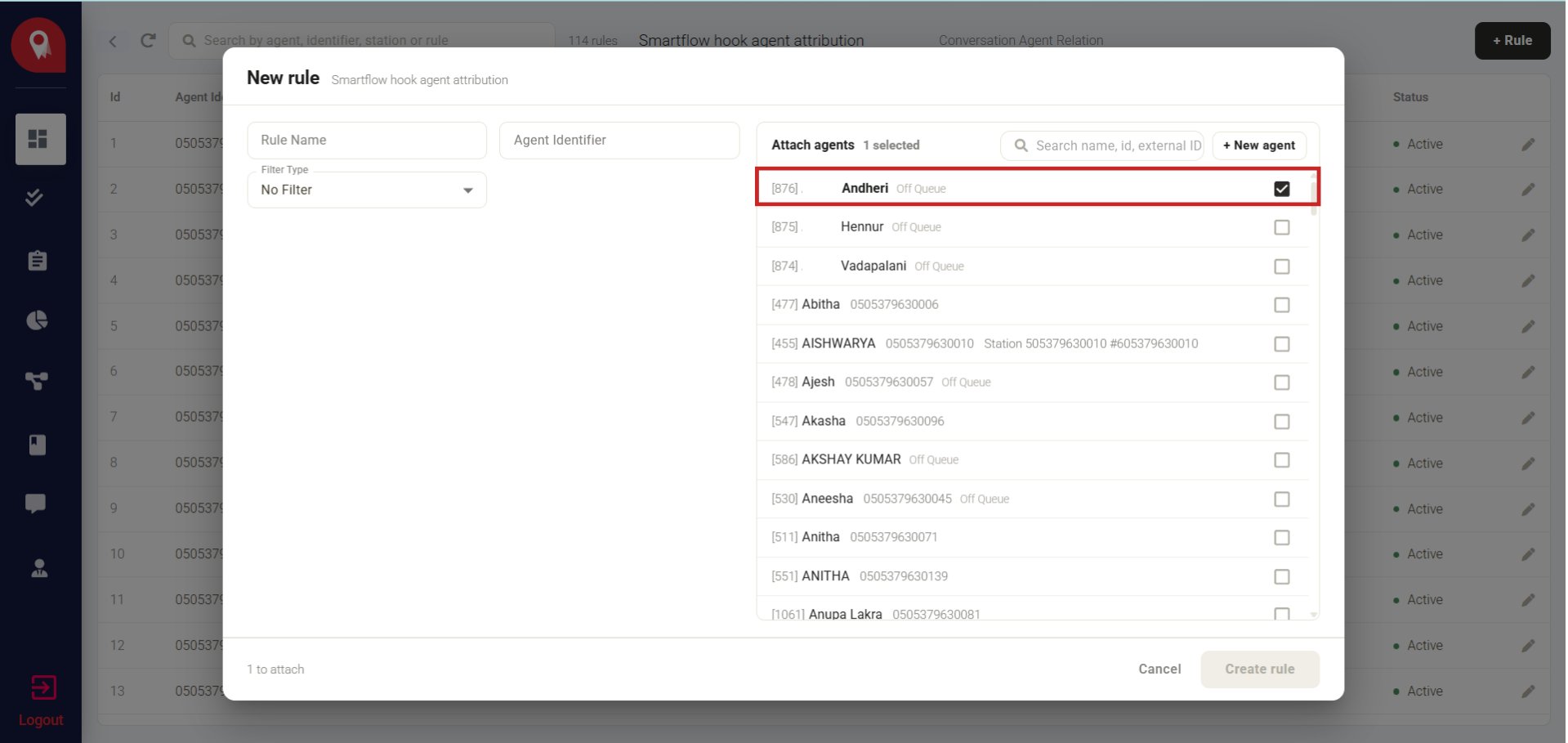
4
Save
Click Save.
Attach a new agent
Use this when the agent doesn’t exist in NeuronCX yet.1
Open the rule for editing
Click the edit (pencil) icon on the rule row.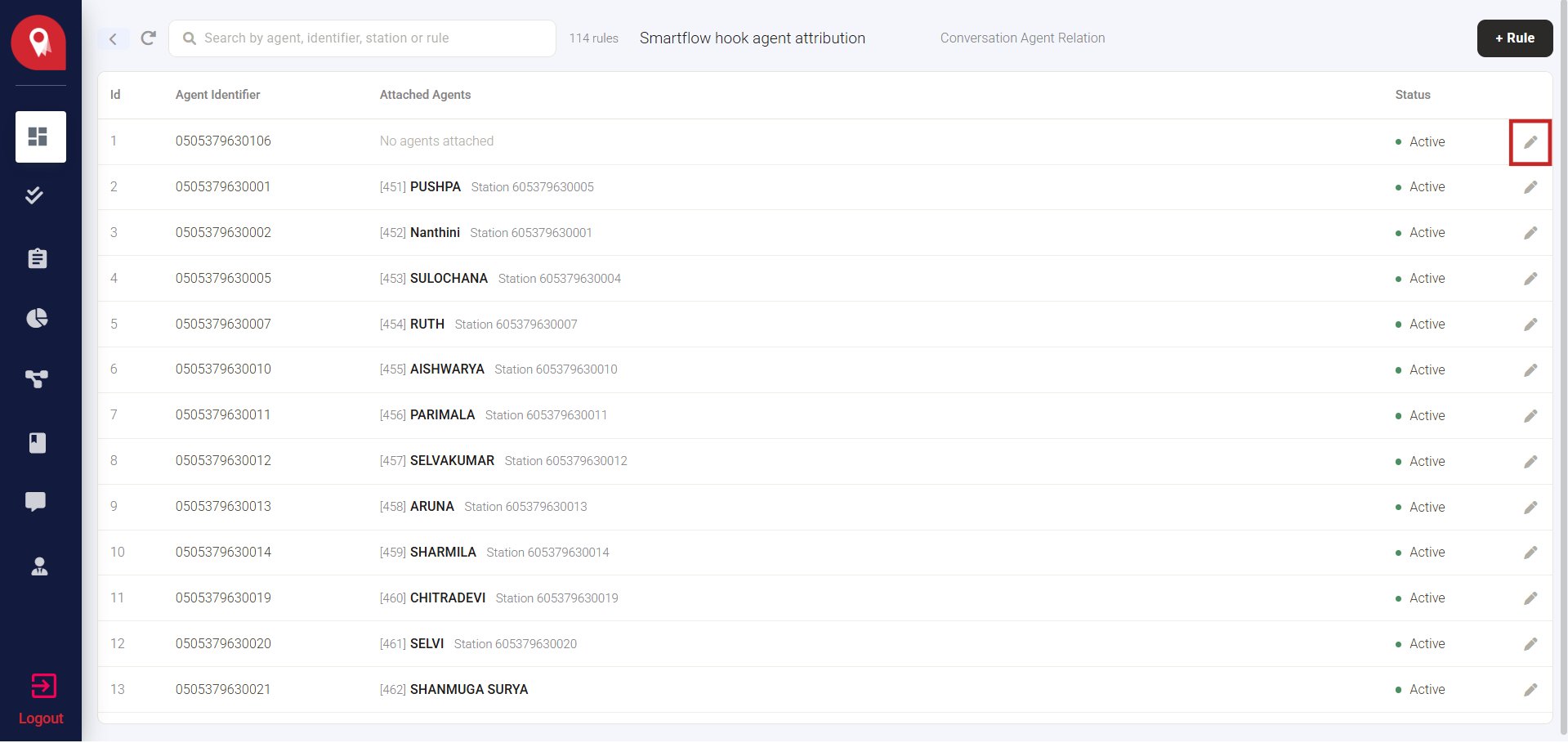
2
Start a new agent
Click + New agent in the Attach agents panel.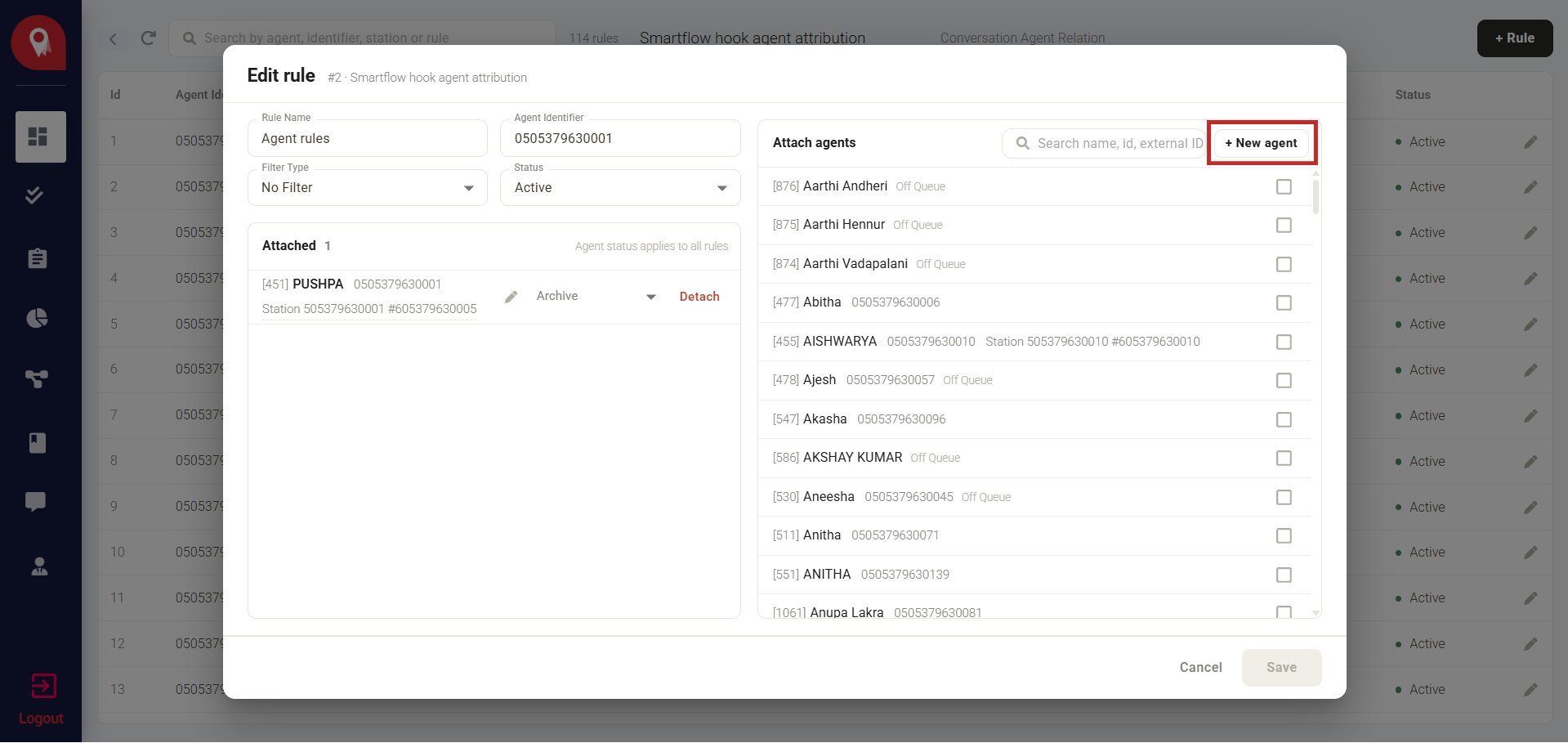
3
Fill in the agent's details
Enter their name, contact details, role, and status.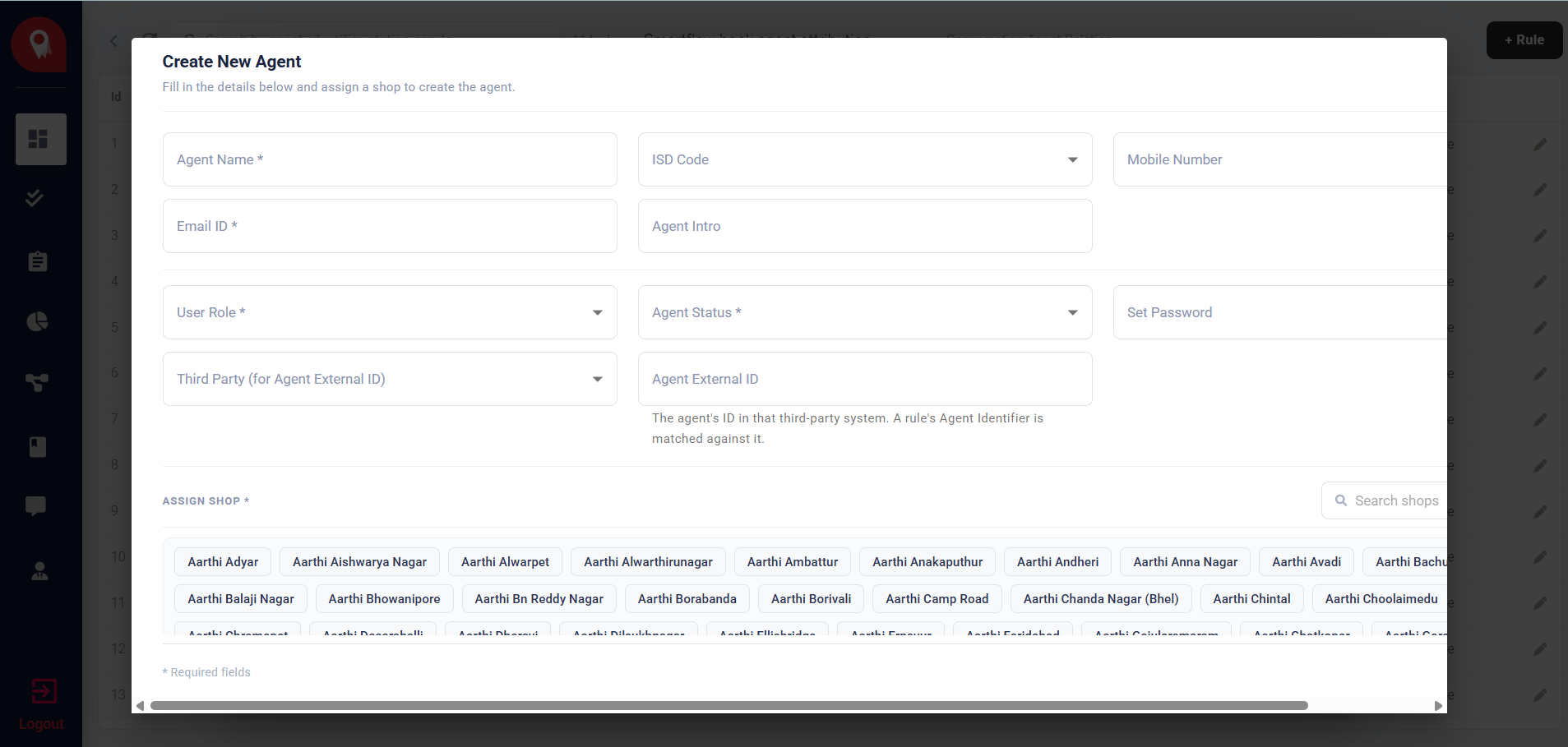
4
Add the External ID
Select the Third Party (for example, Smartflo), and enter the agent’s External ID. This is what links the agent to the external system.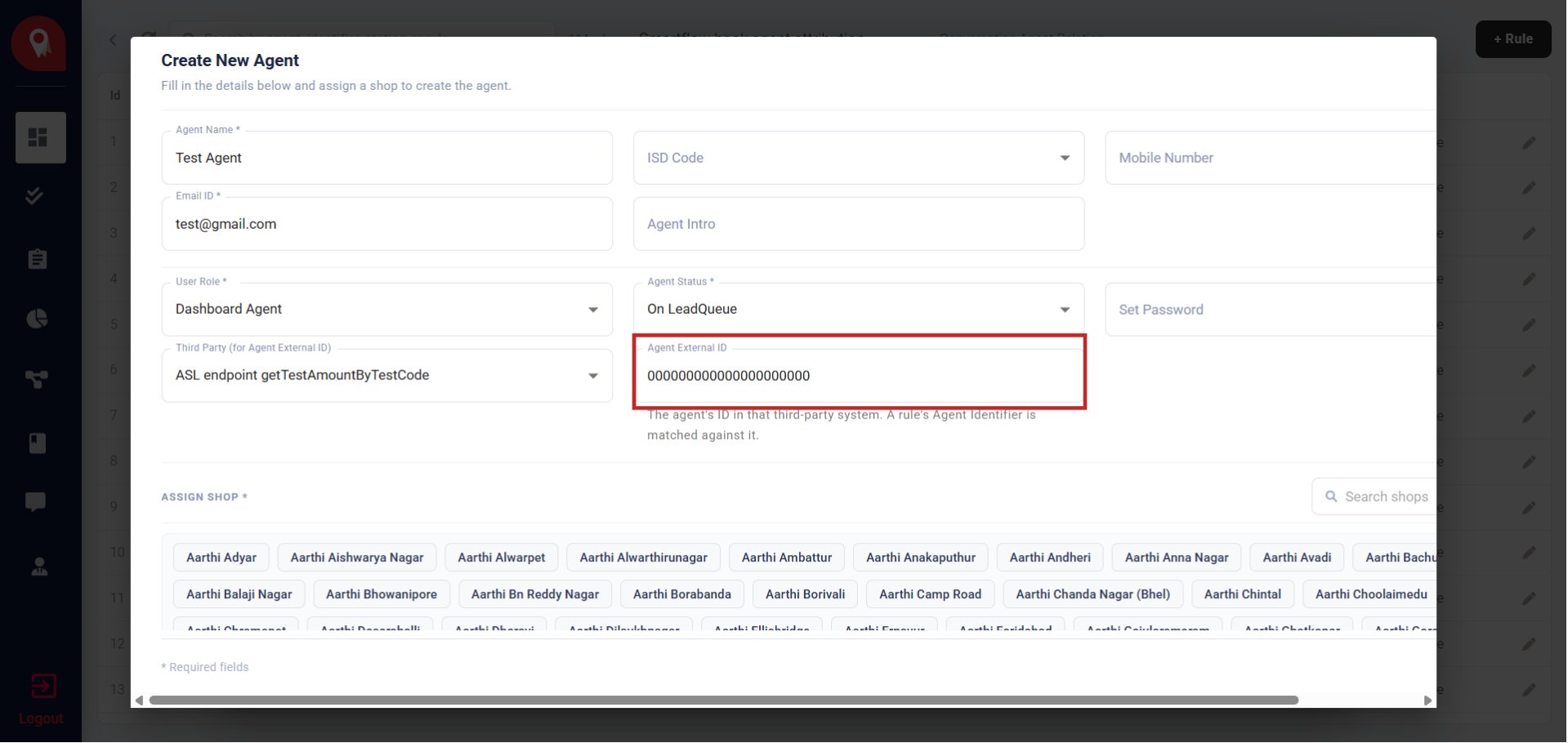
5
Assign a branch
Select the branch or shop the agent belongs to.
6
Create the agent
Click Create Agent. The new agent now appears in the Attach agents list.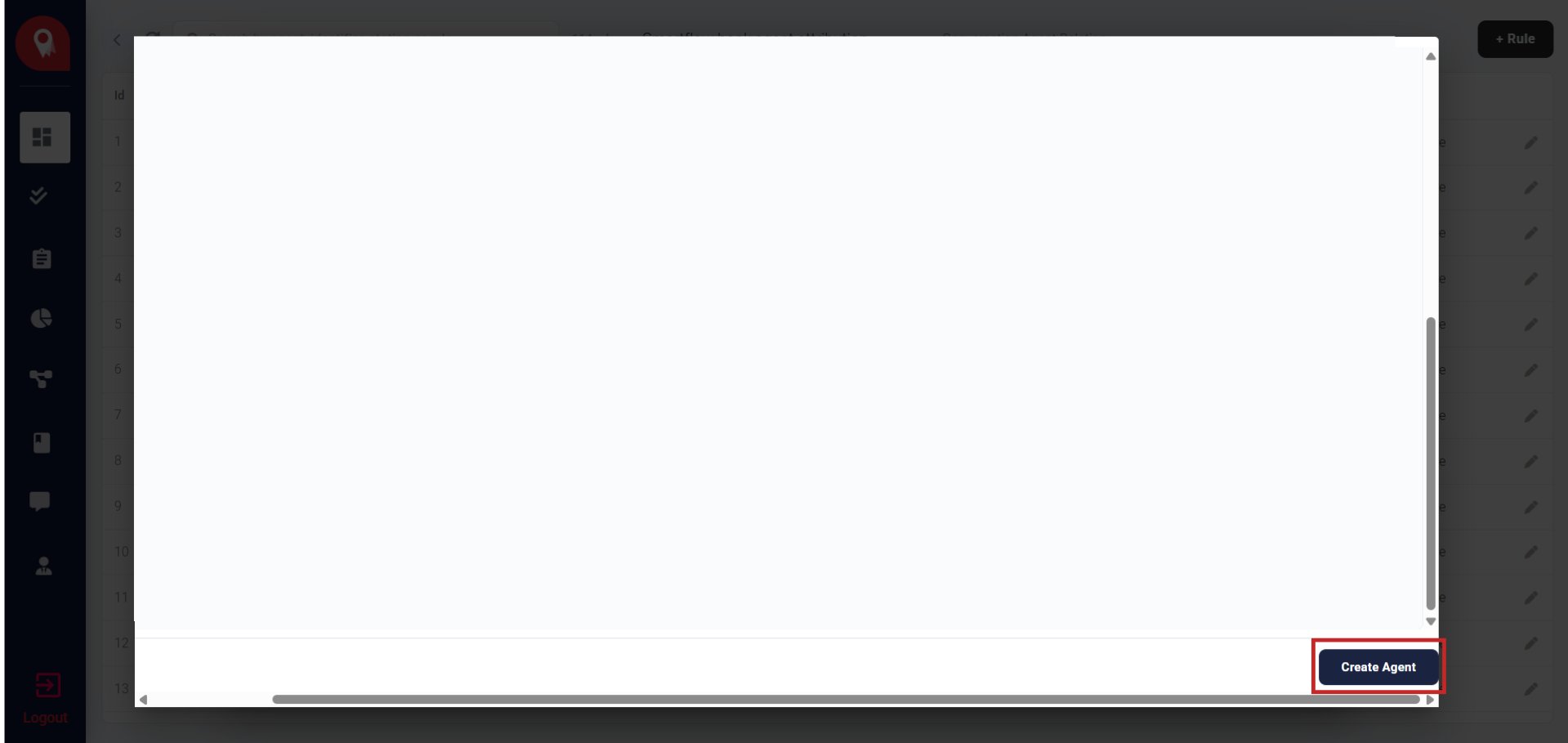
7
Attach the new agent
Check their box, and click Save to attach them to the rule.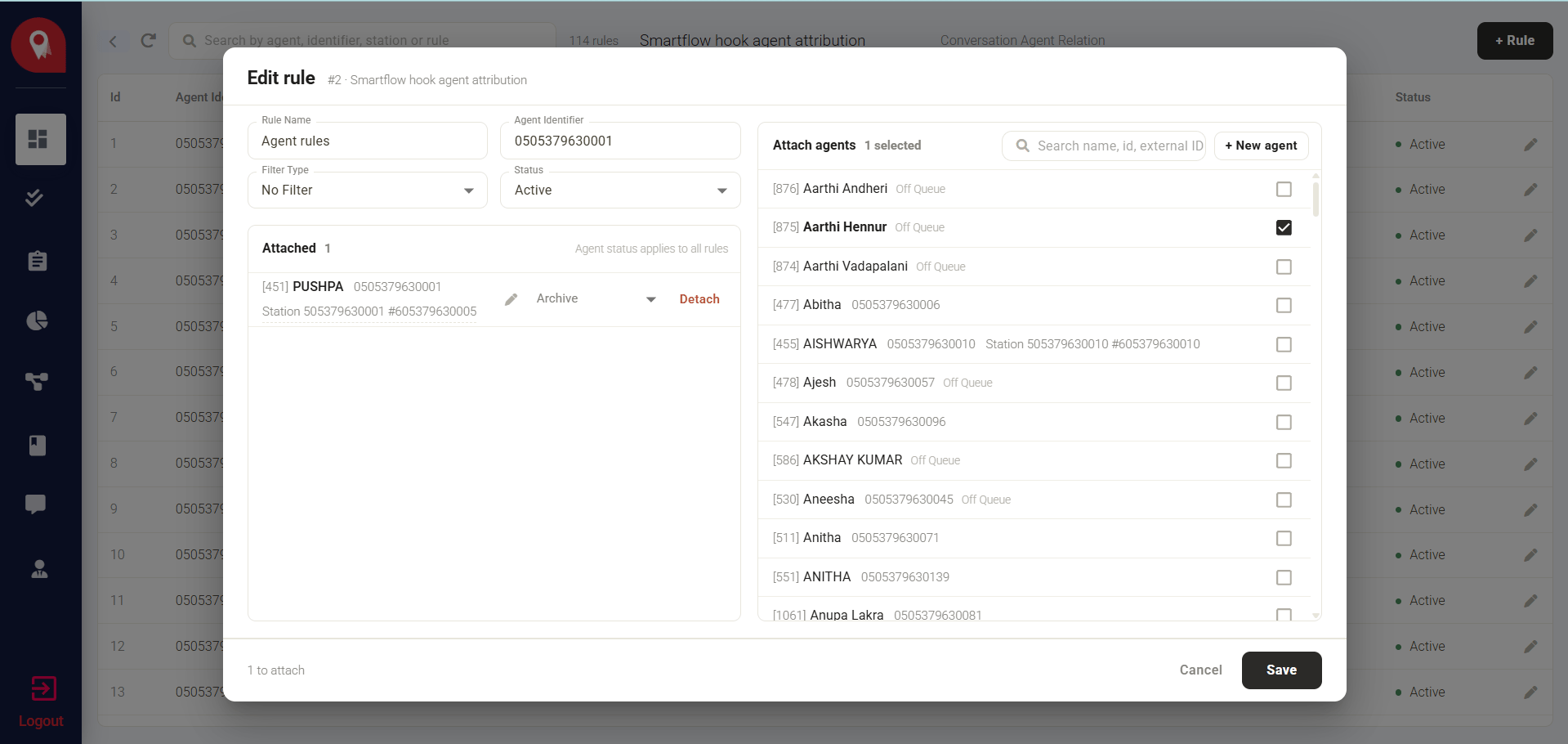
Detach an agent
1
Open the rule for editing
Click the edit (pencil) icon on the rule row.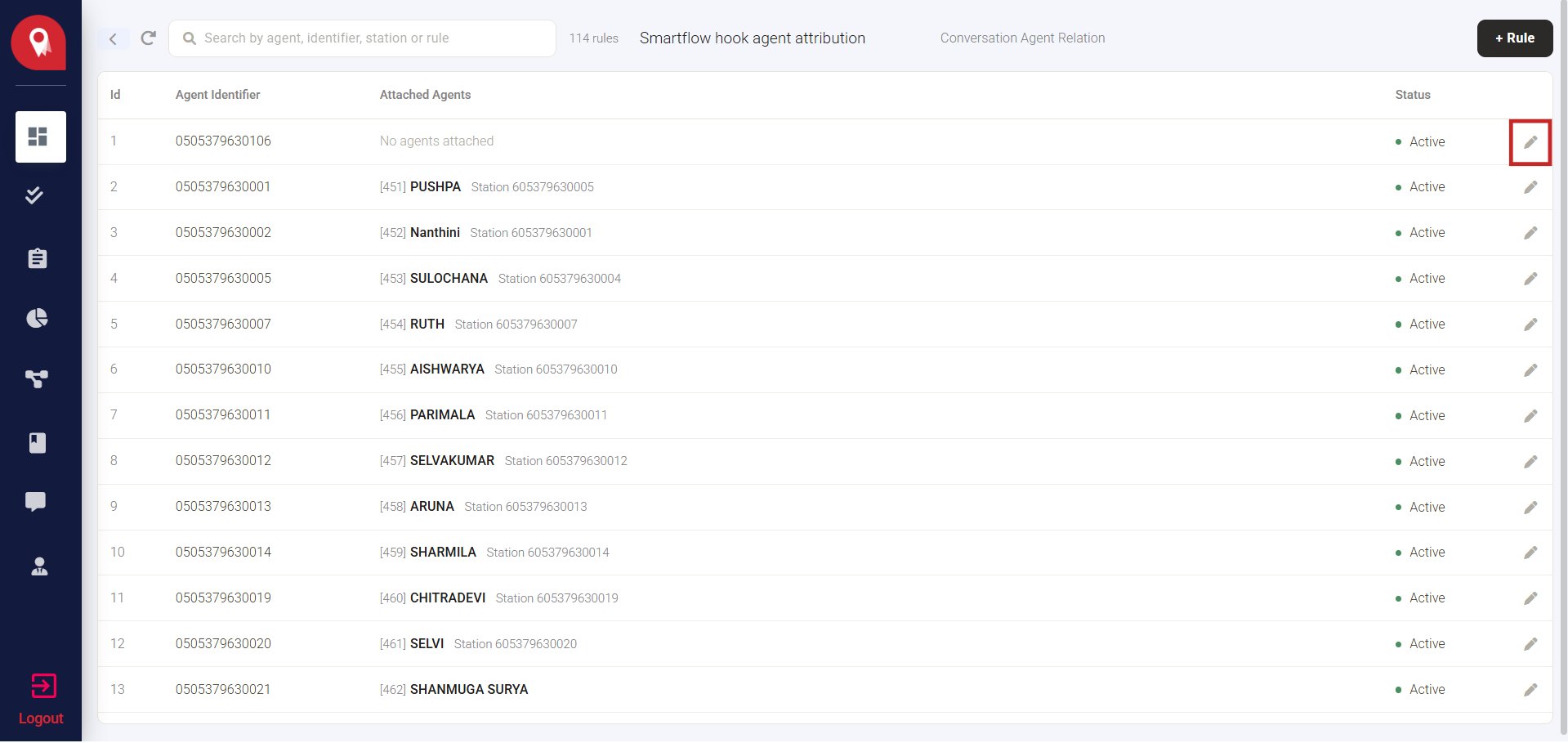
2
Set the agent's status to Archive
In the Attached list, click the edit icon next to the agent, and select Archive from the status dropdown.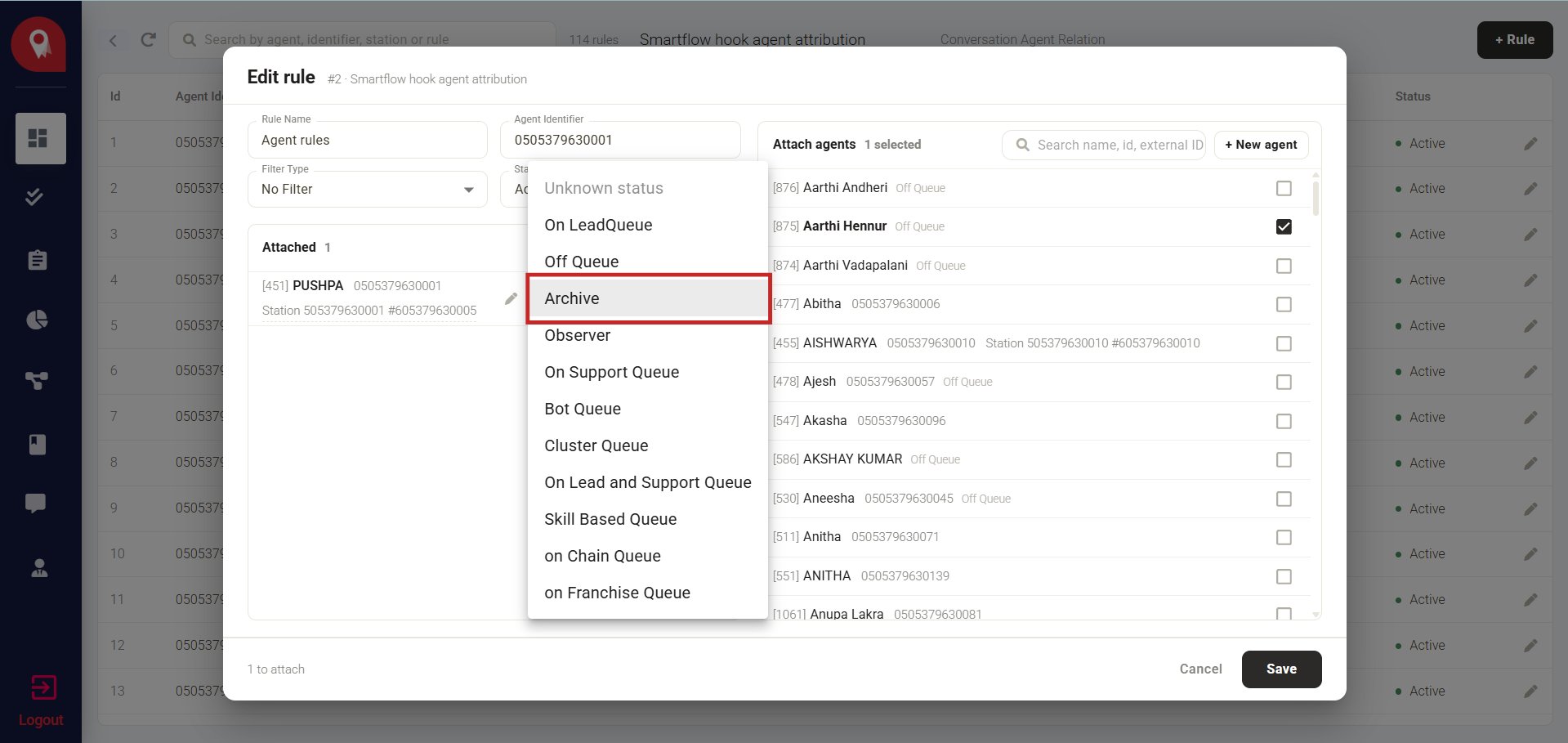
3
Detach the agent
Click Detach next to their name.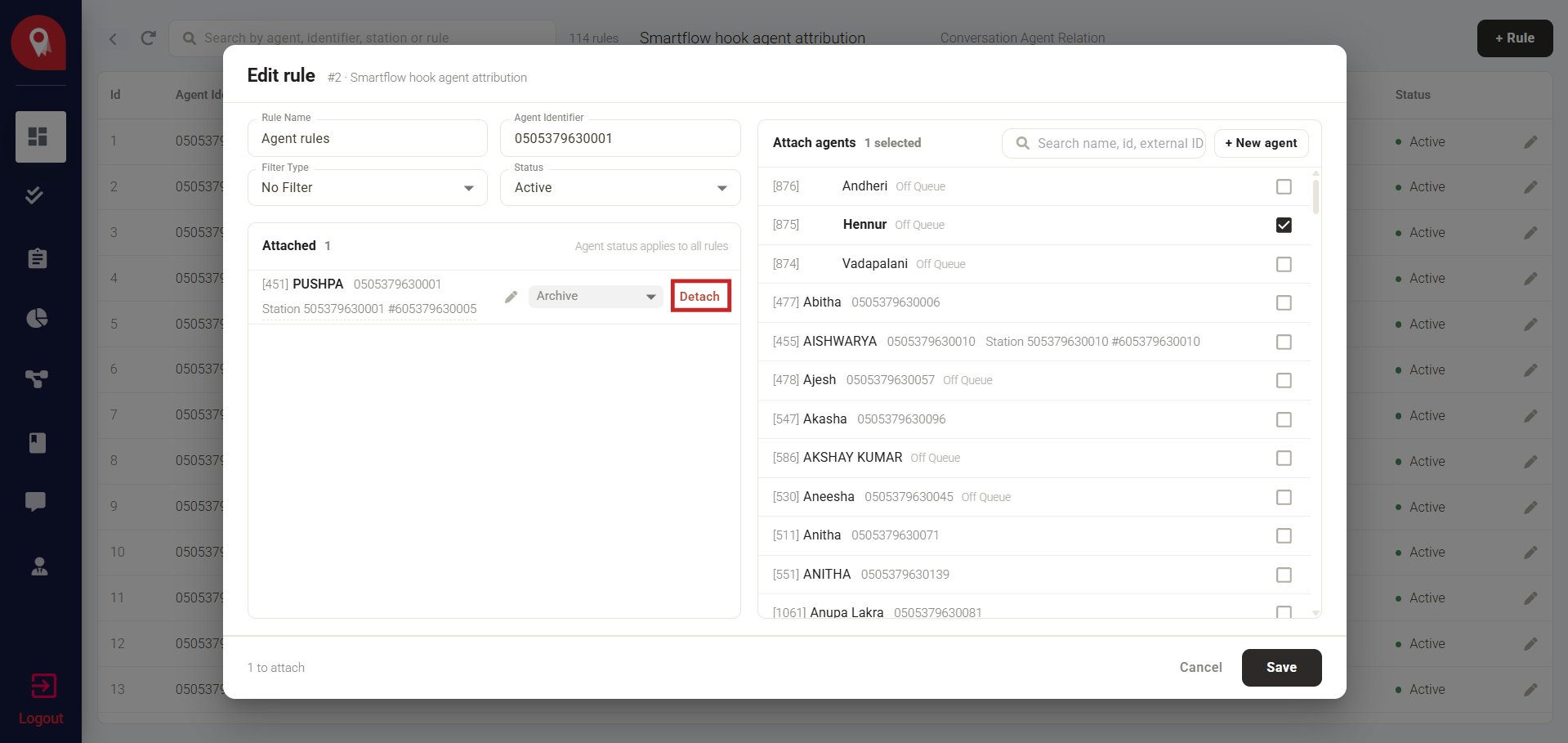
Related pages
Agent Settings
Manage agent roles, status, and access.
Station Management
View and assign the stations an agent is bound to.