How the Booking Flow Works
When a patient initiates a booking conversation on WhatsApp, Neuroncx AI guides them through a structured multi-step funnel. Each step is mapped to a topic in your Ontology, which in turn maps to a registered message template.1
Select Location
The patient chooses the clinic or hospital branch they want to visit. This step filters the available consultants and slots shown in subsequent steps.
2
Select Consultant
The patient picks their preferred doctor or specialist from the filtered list. If only one consultant is available for the chosen location, this step is skipped automatically.
3
View Available Slots
Neuroncx AI queries your scheduling integration and presents open appointment slots for the selected consultant. The patient chooses a date and time.
4
Confirmation
A confirmation message is sent summarising the booking details. The lead status is updated in the Transactions Console and the outcome is logged in the Channels Overview dashboard.
If a patient drops off at any step, the flow is recorded as Failed or Modified in the Booking Channel Performance panel, depending on whether a partial booking was saved. Use the step-level drop-off data to identify where patients are abandoning the conversation.
Message Types
WhatsApp business messaging distinguishes between three categories of messages. Each type has different use cases, template approval requirements, and cost implications — make sure your templates are registered under the correct category.- Marketing
- Service
- Utility
Marketing messages are promotional in nature. Use them to announce new services, share health campaigns, or re-engage inactive patients with offers or reminders.
- Require explicit opt-in from the patient before sending.
- Subject to stricter quality review by WhatsApp.
- Count against your marketing template rate limits.
Monitoring Rate Limits and Quality Errors
WhatsApp enforces rate limits and quality ratings at the business number level. Neuroncx AI surfaces both signals directly in the WhatsApp channel dashboard so you can act before your number gets restricted.Rate Limits
WhatsApp restricts the number of unique users you can message within a 24-hour rolling window. Your tier determines this limit, and it increases automatically as you demonstrate consistent, high-quality messaging. To increase your tier, maintain a low block rate and high message-read rate over several weeks. Avoid sending bulk marketing messages to users who have not recently engaged with your brand.Quality Errors
WhatsApp tracks how often recipients report your messages as spam or block your number. A decline in quality rating signals that your templates or targeting need adjustment.Topical Usage and Template Optimisation
The Topical Usage panel in the Channels Overview dashboard shows which intents — mapped to your registered templates — are being triggered most frequently. Common high-volume topics include AppointmentBook and AppointmentFollowup. Use topical data to:- Identify templates that handle the most traffic and prioritise keeping them up to date.
- Spot topics with high trigger counts but low success rates, which often point to a template that is confusing or poorly worded.
- Discover new intents that patients are expressing but that have no mapped template yet — these appear as unhandled or fallback interactions.
Connecting WhatsApp Templates to Ontology
Every message template used in a WhatsApp flow must be registered in the Ontology section of Neuroncx AI. The Ontology maps intent labels (topics) to specific templates, so the platform knows which message to send when a patient triggers a particular intent. If you create or modify a WhatsApp template in Meta Business Manager, update the corresponding Ontology entry to keep your flows in sync. Out-of-sync mappings are one of the most common causes of Failed outcomes in the Booking Channel Performance panel.Blocking a WhatsApp Number
You can block a phone number so it can no longer interact with your WhatsApp channel. This is useful for spam senders, abusive users, test numbers, or anyone who has asked not to be contacted.This is different from a patient blocking your business number, which is covered under Quality Errors above. Blocking a number here is an action you take, and it does not affect your quality rating.
Open the Block Number Page
1
Go to the WhatsApp channel
From the side menu, go to Home > Channels > WhatsApp.
2
Open Block Number
In the Action section, click Block Number.
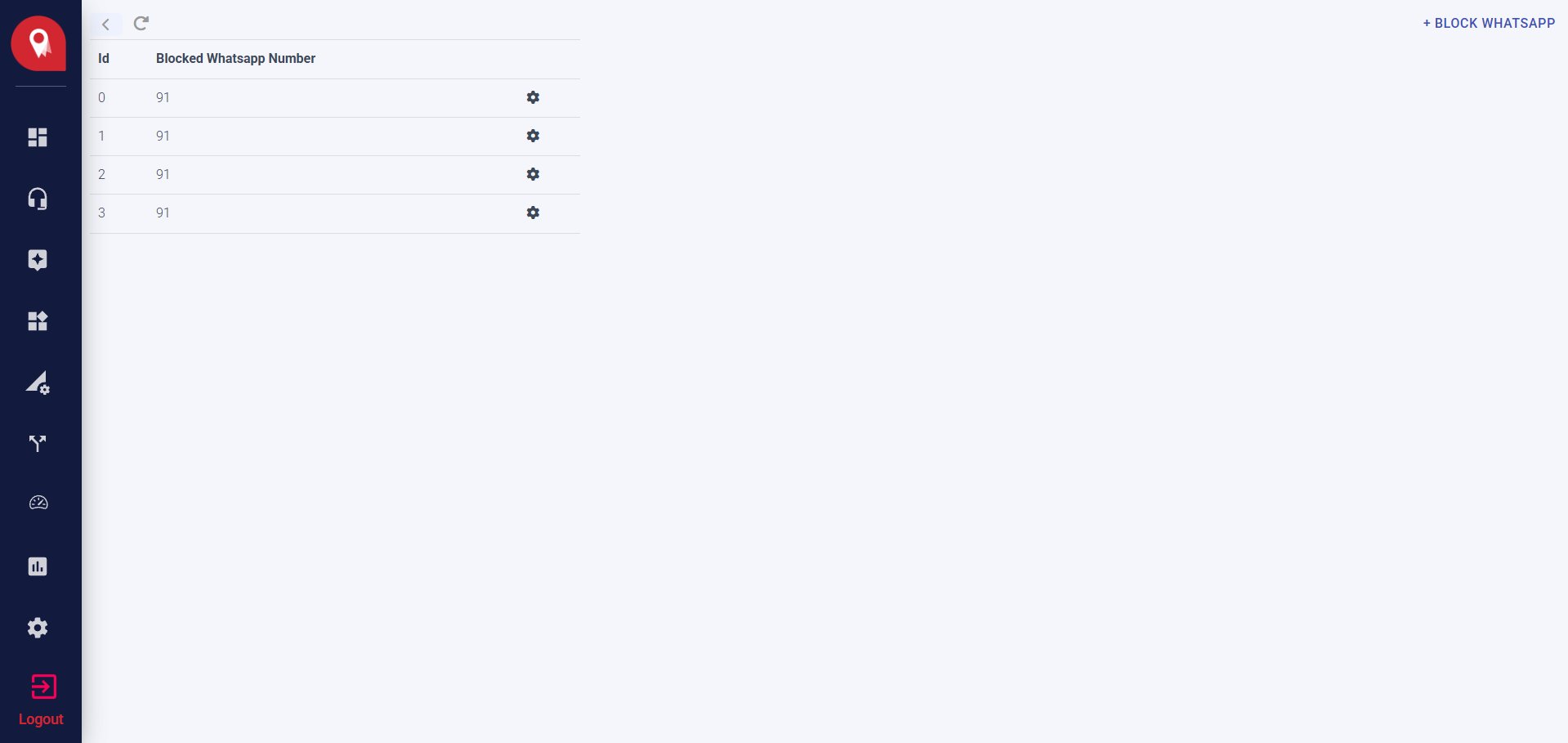
Block a Number
1
Open the block window
Click + Block WhatsApp at the top right of the page.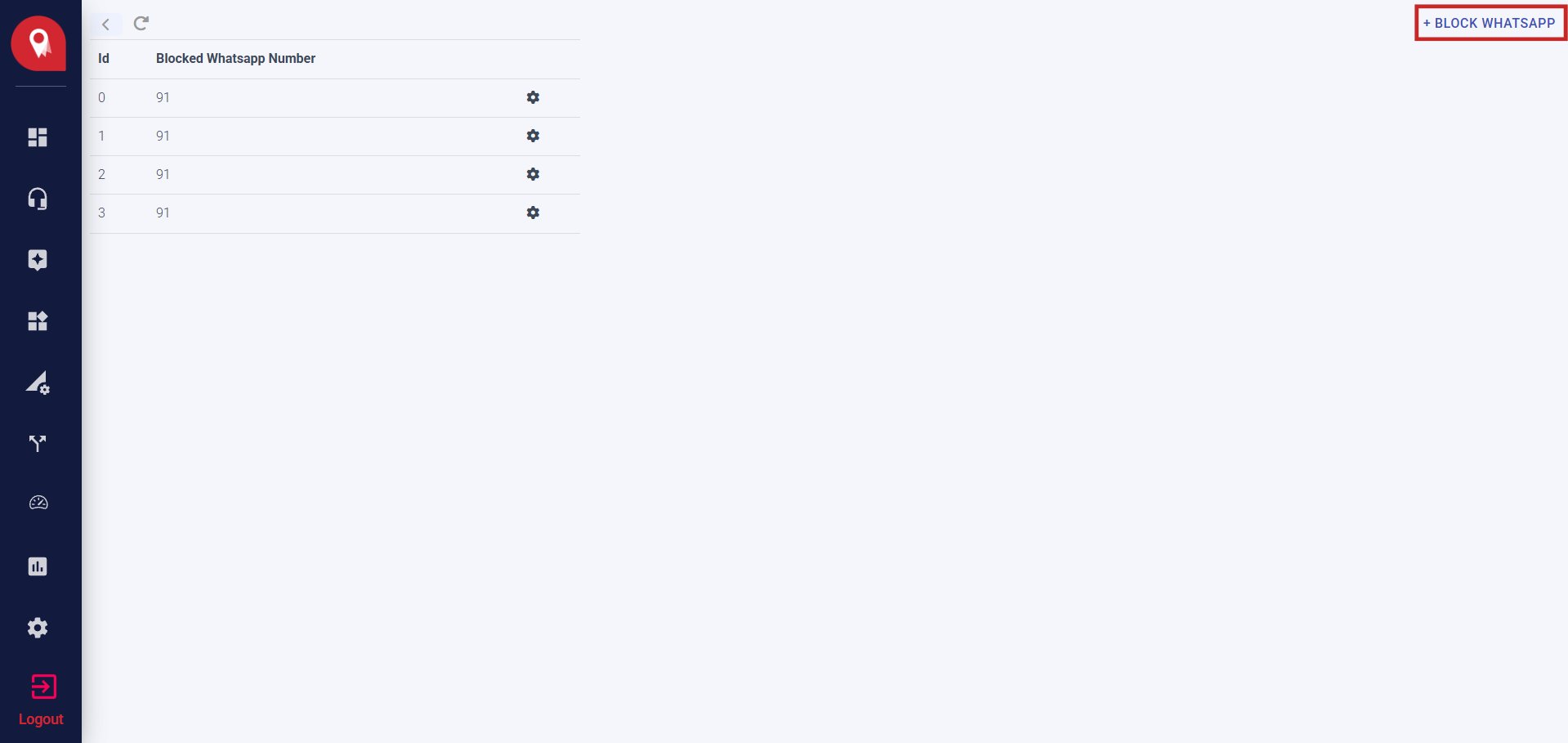
2
Choose Block
Make sure the Block tab is selected.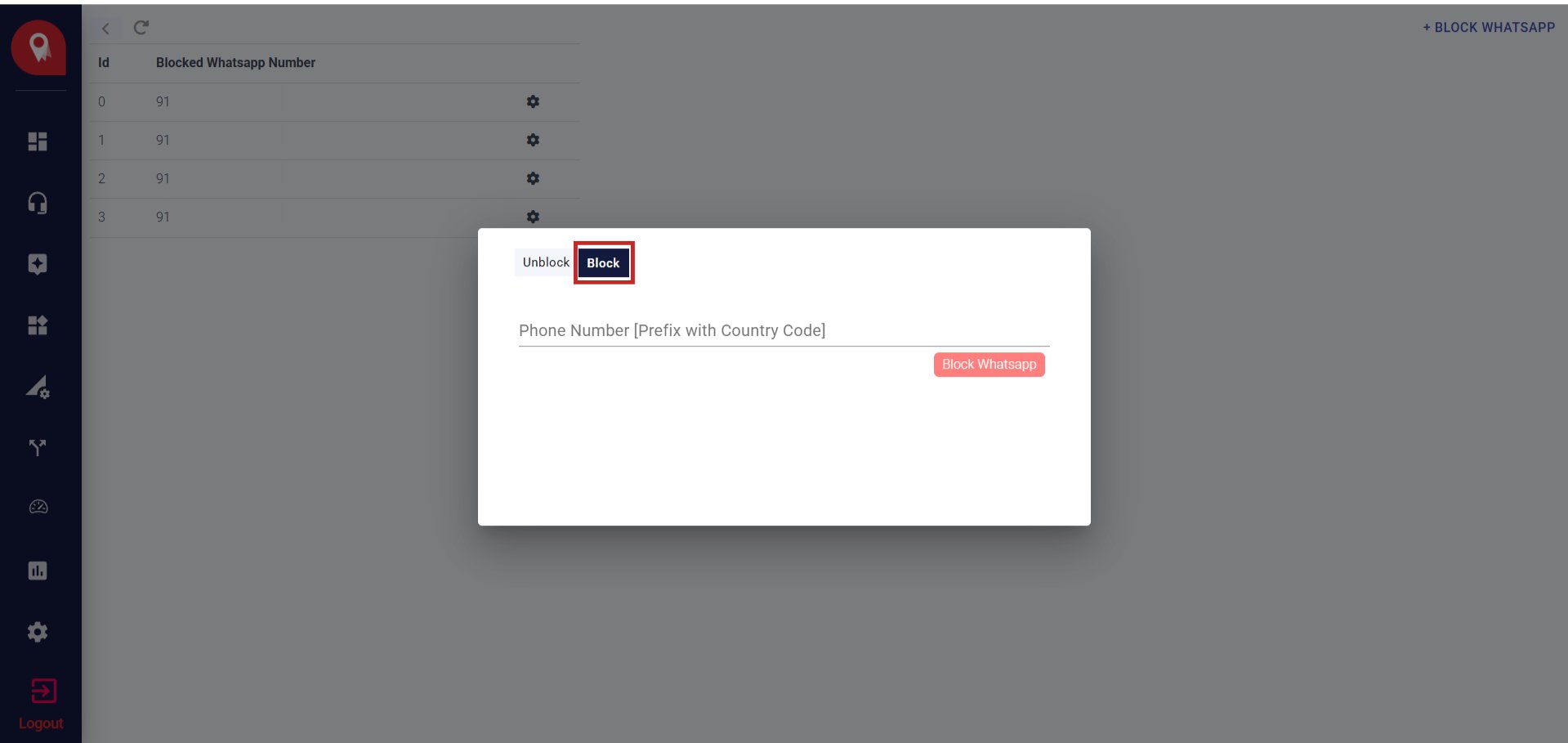
3
Enter the phone number
Type the number with the country code first, with no plus sign, spaces, or dashes. For example, an Indian number starts with 91 followed by the 10 digit number.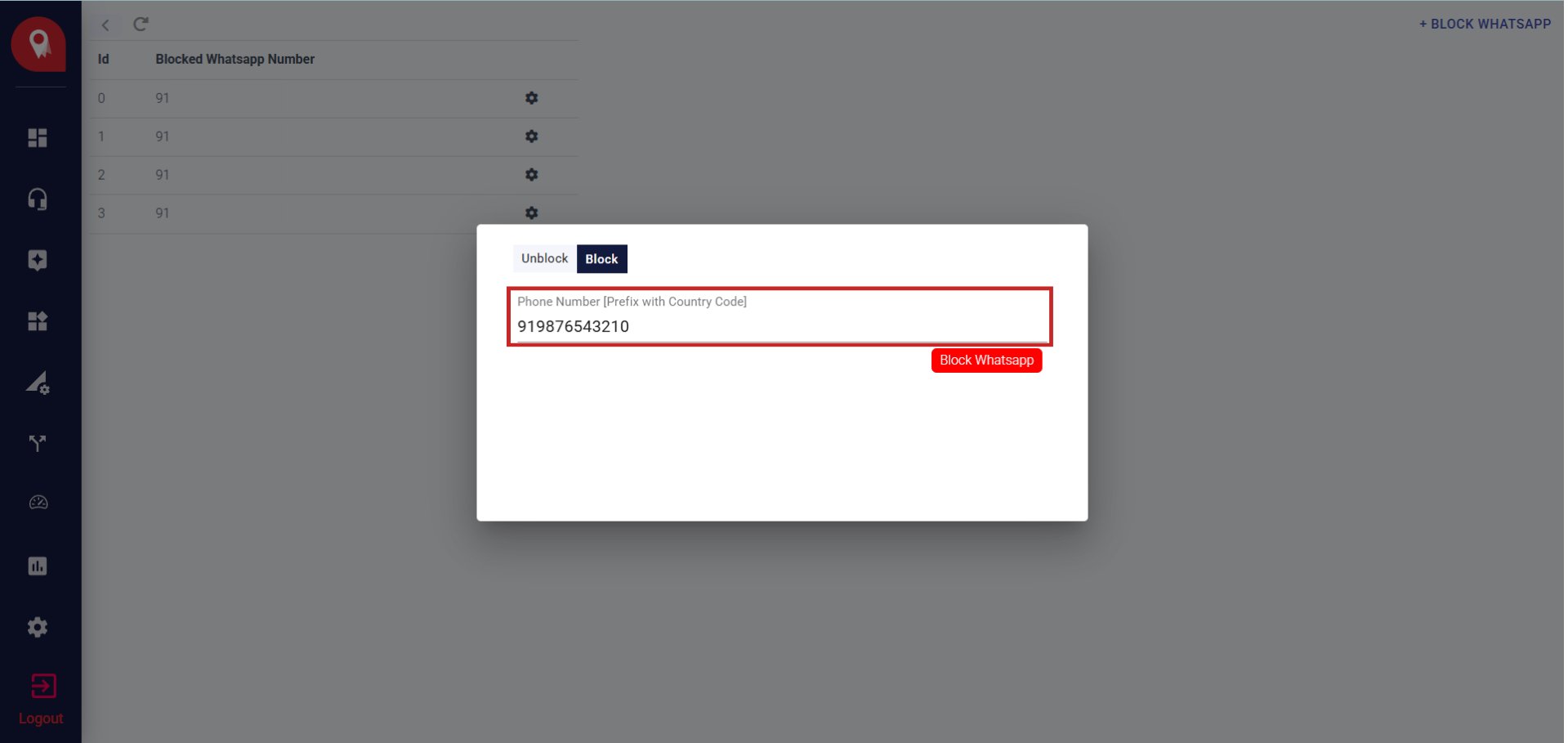
4
Block the number
Click Block Whatsapp. The number now appears in the blocked list.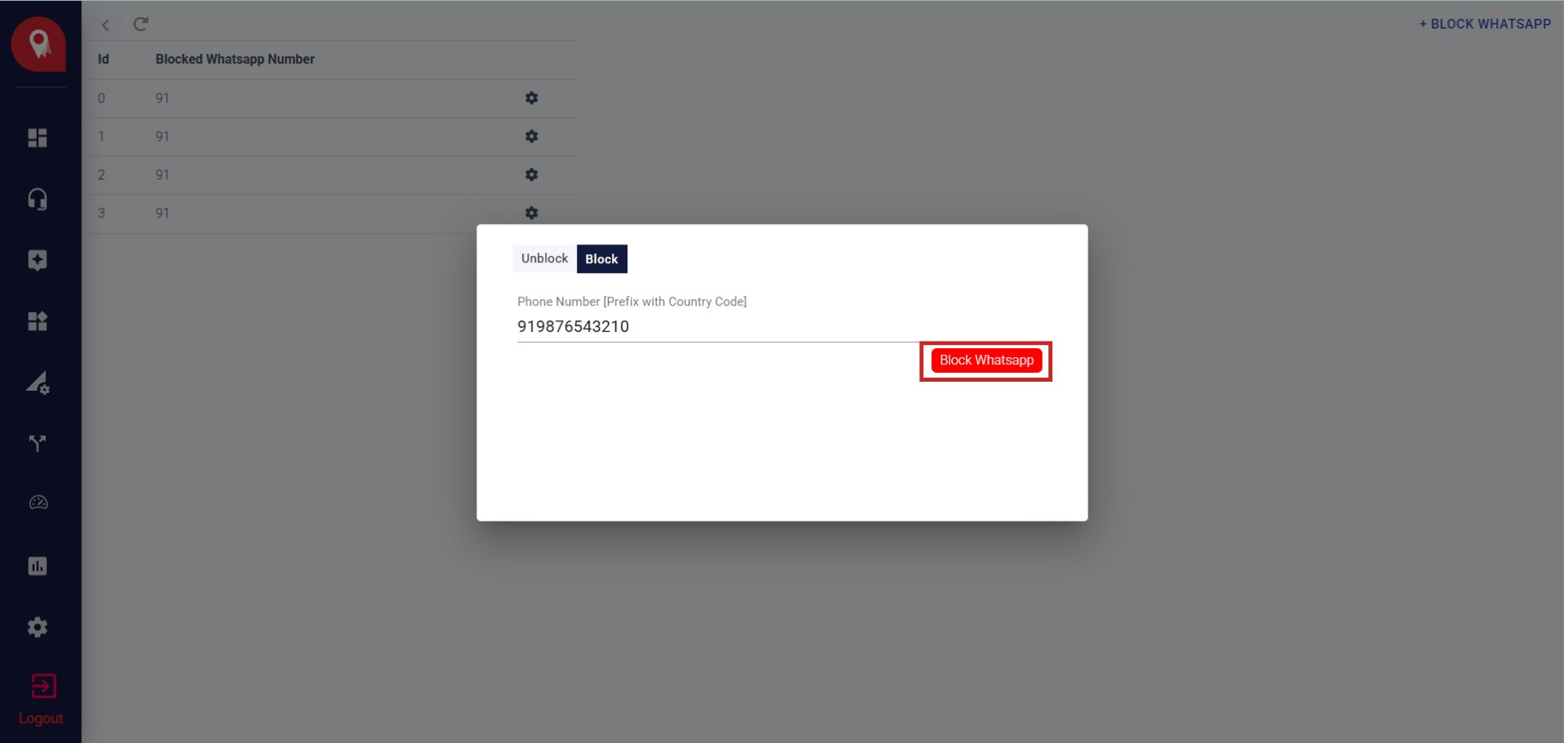
Unblock a Number
1
Open the block window
Click + Block WhatsApp at the top right of the page.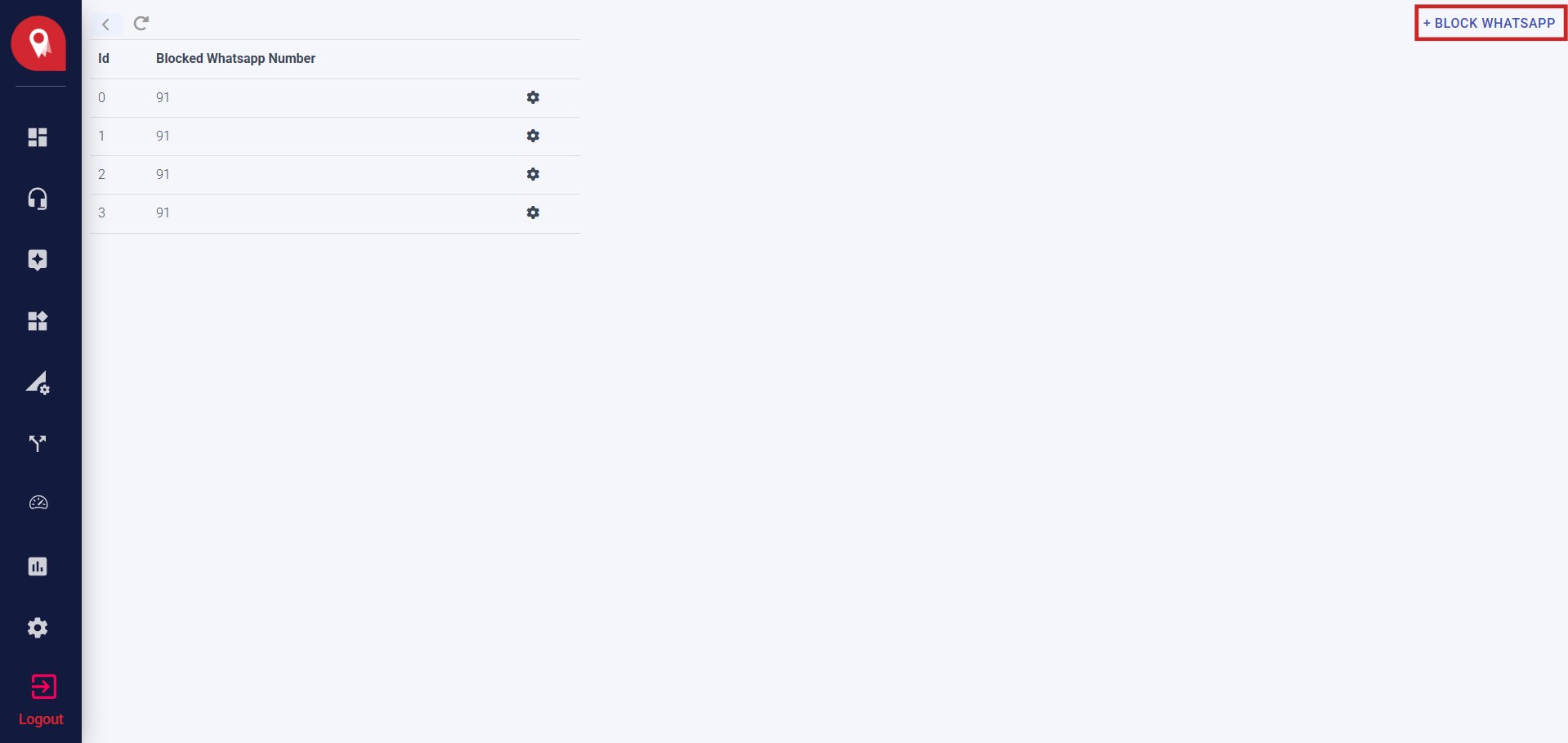
2
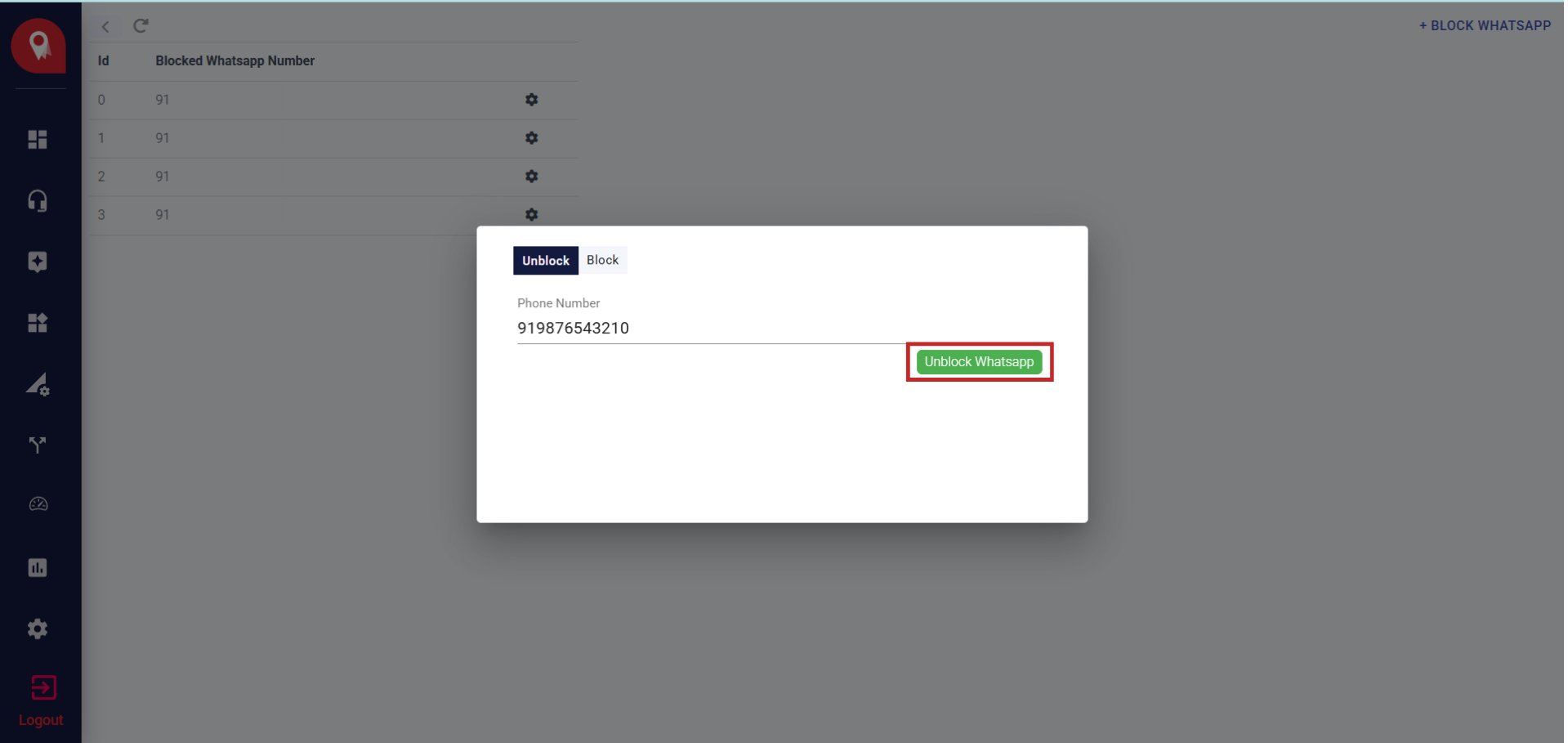
Choose Unblock
Select the Unblock tab.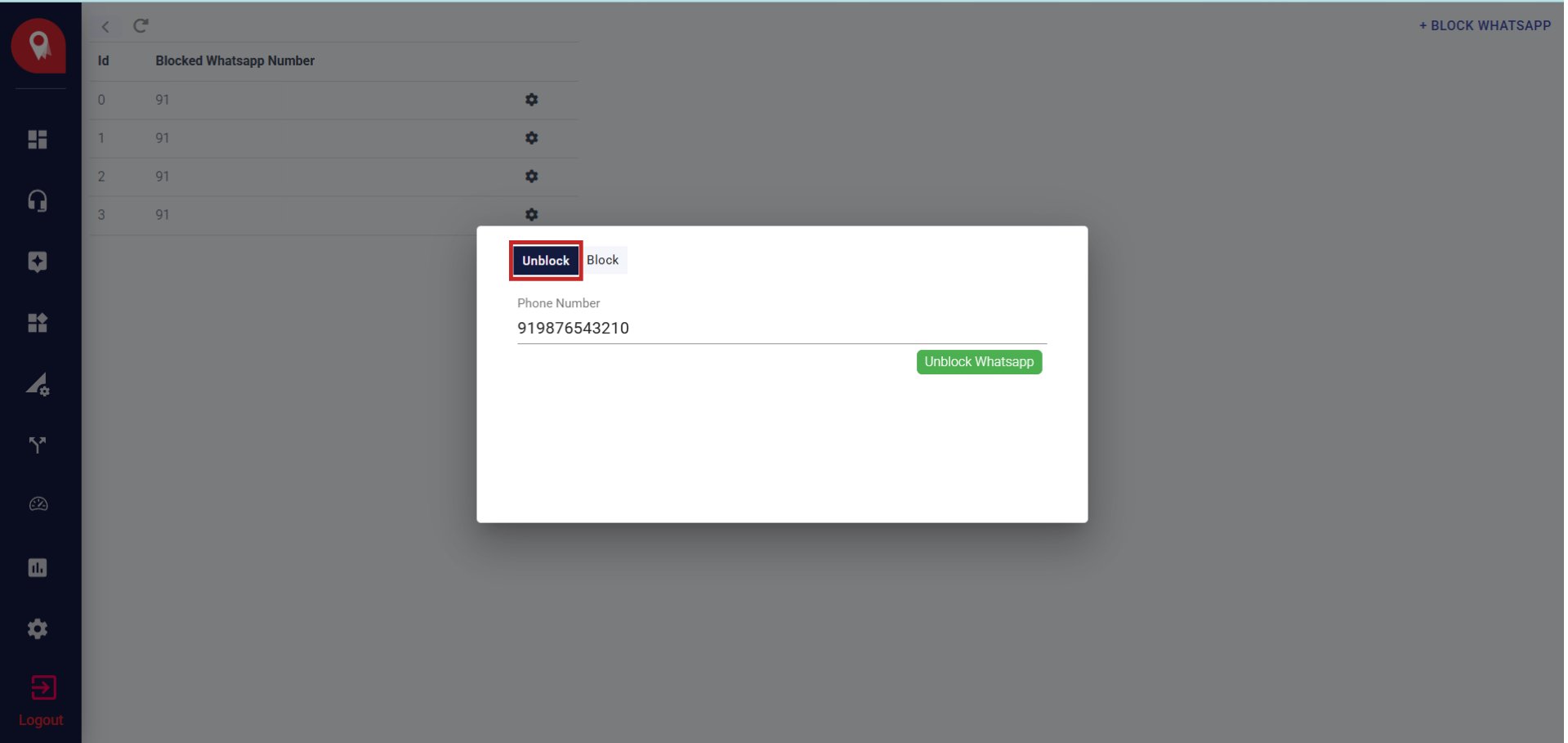
3
Enter the phone number
Type the number exactly as it appears in the blocked list.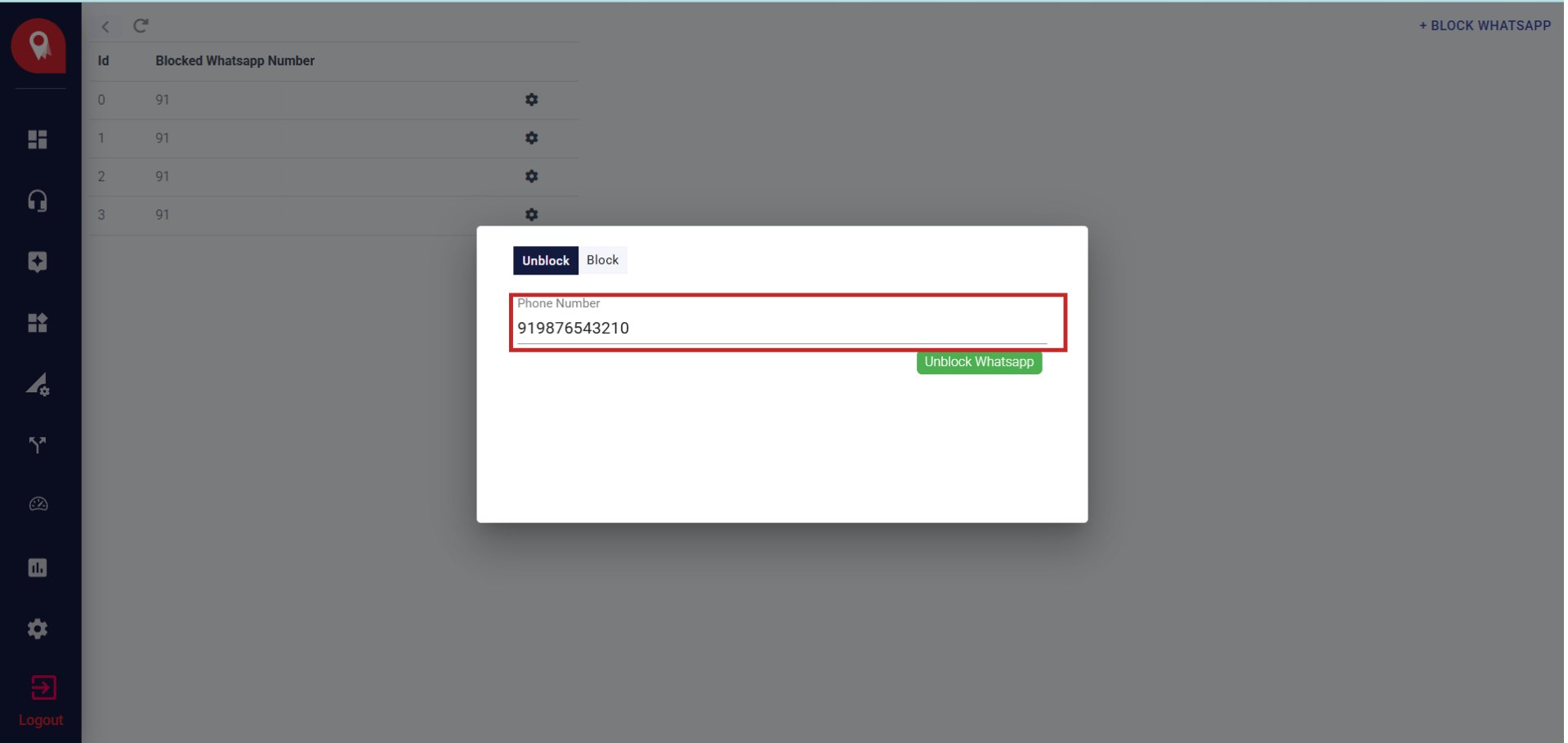
4
Unblock the number
Click Unblock Whatsapp. The number is removed from the blocked list.