
Navigating Channel Settings
Open Channels → Settings from the main navigation. The Settings page lists all channels registered to your account — WhatsApp, Email, Telephony, and Web View — along with their current active status. Click any channel row to open its configuration panel.Common Settings Across All Channels
Every channel shares a set of base configuration options that control its identity and availability within the platform.WhatsApp-Specific Settings
WhatsApp has additional configuration requirements because it operates through the Meta Business API. These settings must be correct for your WhatsApp flows to function.1
Business Number Configuration
Enter the WhatsApp Business phone number associated with your Meta Business Manager account. This is the number patients will see as the sender of all WhatsApp messages. Verify the number status — it must show as Connected before the channel can send messages.
2
Message Template Registration
Templates used in your WhatsApp flows must be registered and approved in Meta Business Manager before they can be assigned here. Once approved, they appear in the template assignment selector. Map each approved template to its corresponding Ontology topic to keep your flows in sync.
3
Opt-In Settings
Configure how patient opt-in consent is captured and stored. WhatsApp requires explicit opt-in for marketing message types. Set the opt-in collection method — web form, in-conversation consent, or imported consent flag — and ensure it is applied consistently across all patient records.
If a WhatsApp template is rejected by Meta during the approval process, it will not appear in the template assignment list. Review the rejection reason in Meta Business Manager and resubmit with the required changes before attempting to assign it in Neuroncx AI.
Email Settings
1
Sender Identity
Set the sender name and email address used for all outbound email from this channel. Use a name that patients will recognise — typically your clinic or brand name — to improve open rates.
2
Domain Verification
Neuroncx AI provides DNS records (SPF, DKIM, DMARC) that you must add to your domain registrar. The Settings page shows the verification status of each record. All records must show as Verified for optimal deliverability.
3
Unsubscribe Handling
Configure how unsubscribe requests are processed. By default, patients who click an unsubscribe link are immediately added to the suppression list for this channel and will not receive further email from this sender.
Telephony Settings
1
Caller ID Configuration
Set the phone number displayed to patients when an outbound call is placed from this channel. This number must be verified with your telephony provider before it can be used.
2
Recording and Transcription
Enable or disable call recording for this channel. Recording must be enabled for transcriptions to flow through the LLM pipeline and appear in Cx Ops. Ensure you have the necessary legal basis to record calls in your operating region.
3
Call Routing Rules
Define how inbound calls to your telephony number are routed — to a specific agent queue, an IVR flow, or directly to the automated conversation engine.
Web View Settings
1
Domain Allowlist
Add every domain that is permitted to embed the Web View widget. Requests from domains not on this list are rejected by the platform. Include both
www and non-www variants of your domain if both are in use.2
Widget Appearance
Customise the widget’s colour scheme, greeting message, and initial prompt to match your brand. The embed snippet updates automatically — you do not need to re-add it to your website after making appearance changes.
3
Session Timeout
Set how long an inactive Web View session remains open before it closes and the patient is prompted to start a new conversation. Shorter timeouts reduce incomplete session clutter in your Transactions Console.
Third-Party Integrations
Each channel can be connected to third-party systems — scheduling platforms, CRMs, payment gateways, or analytics tools — through the integrations panel within Channel Settings. Available integrations vary by channel. To add an integration, open the relevant channel’s Settings page, scroll to the Integrations section, and click Add Integration. You will be prompted to authenticate with the third-party service and authorise the required scopes. Once connected, the integration becomes available as an action or data source within your workflow configuration.Transaction Rules & Policies
Transaction Rules & Policies is where you define how incoming transactions are sourced, categorized, and routed through your Neuroncx AI platform. This section allows you to create custom transaction sources, set up event-based rules, and configure how different channels and external integrations feed data into your Transactions Console.Overview
Transaction Rules & Policies controls three main areas:- Sources — Define where transactions originate (WhatsApp, Phone, Web Ads, custom integrations, etc.)
- Transaction Stages — Configure the journey stages a transaction moves through (Inquiry, Qualified, Booking, Completed)
- External Webhooks — Link external systems and event handlers to process transaction changes in real-time
Creating a Channel Source for Transaction
A channel source represents the origin point of a transaction — such as WhatsApp, Phone, Web Ads, or a custom integration. Creating a source enables the system to track, categorize, and analyze interactions by their origin, and to route them to the correct team or workflow. This guide walks you through creating a new channel source and attaching it to your transaction processing pipeline.Step 1: Create Source Name
Navigate to the source creation interface to define your new transaction source. Navigation Path:Home > Channels > Settings > Transaction Rules & Policies > Source
Process
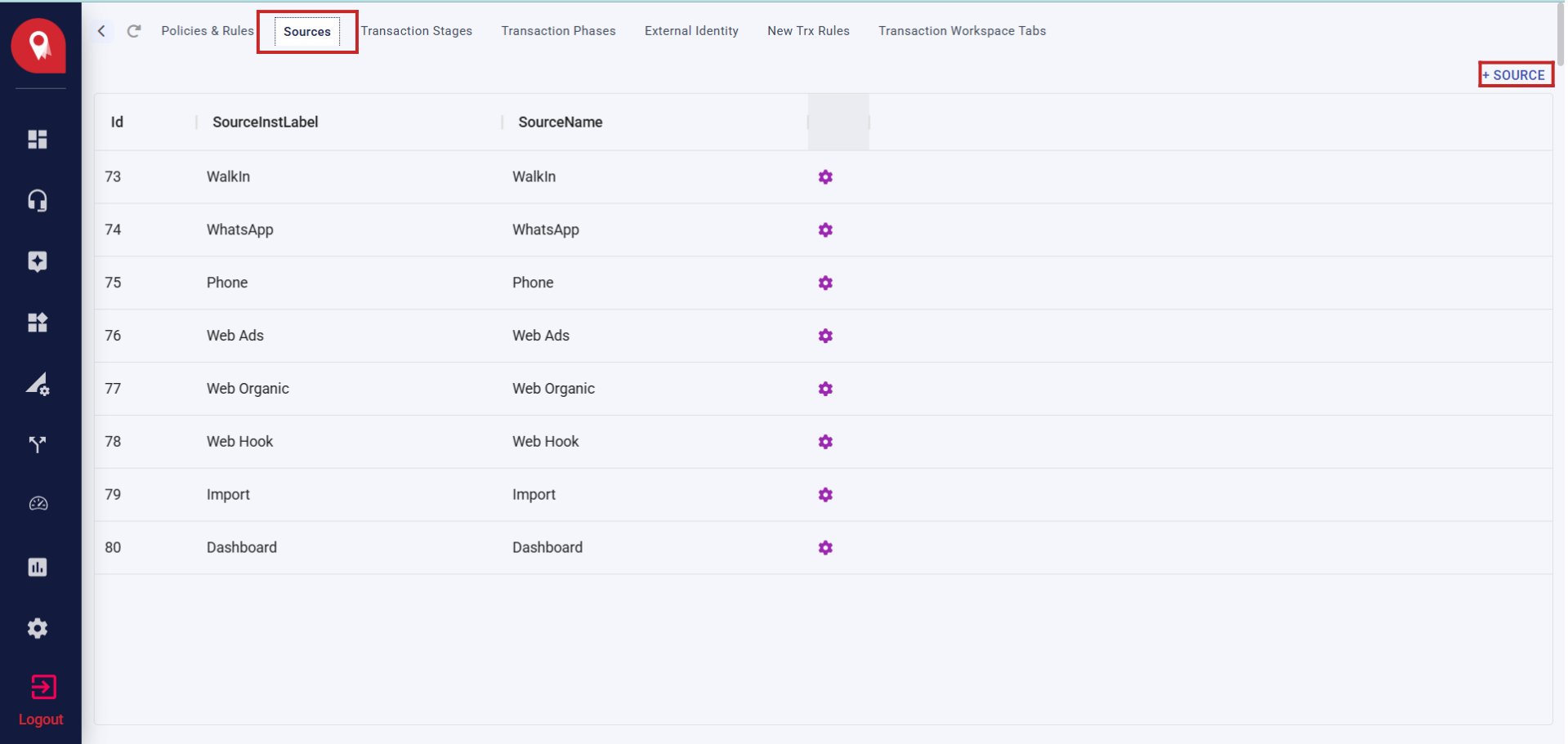
- Access the Sources Tab
- Open the Channels section from the main menu
- Go to Settings → Transaction Rules & Policies
- Click the Source tab
- Click ”+ SOURCE”
- Locate the + SOURCE button in the top-right corner
- A modal dialog will appear with two fields
- Fill in Source Details
- Save
- Click the Save button to create the source
- The source will now appear in the sources table below
Your source is now created and listed in the Transaction Rules & Policies > Source section.
Step 2: Attach Source Label and Channel Identifier
Link your newly created source to a webhook and configure how transactions from this source are processed. Navigation Path:Home > Channels > (External Webhooks section)
Process
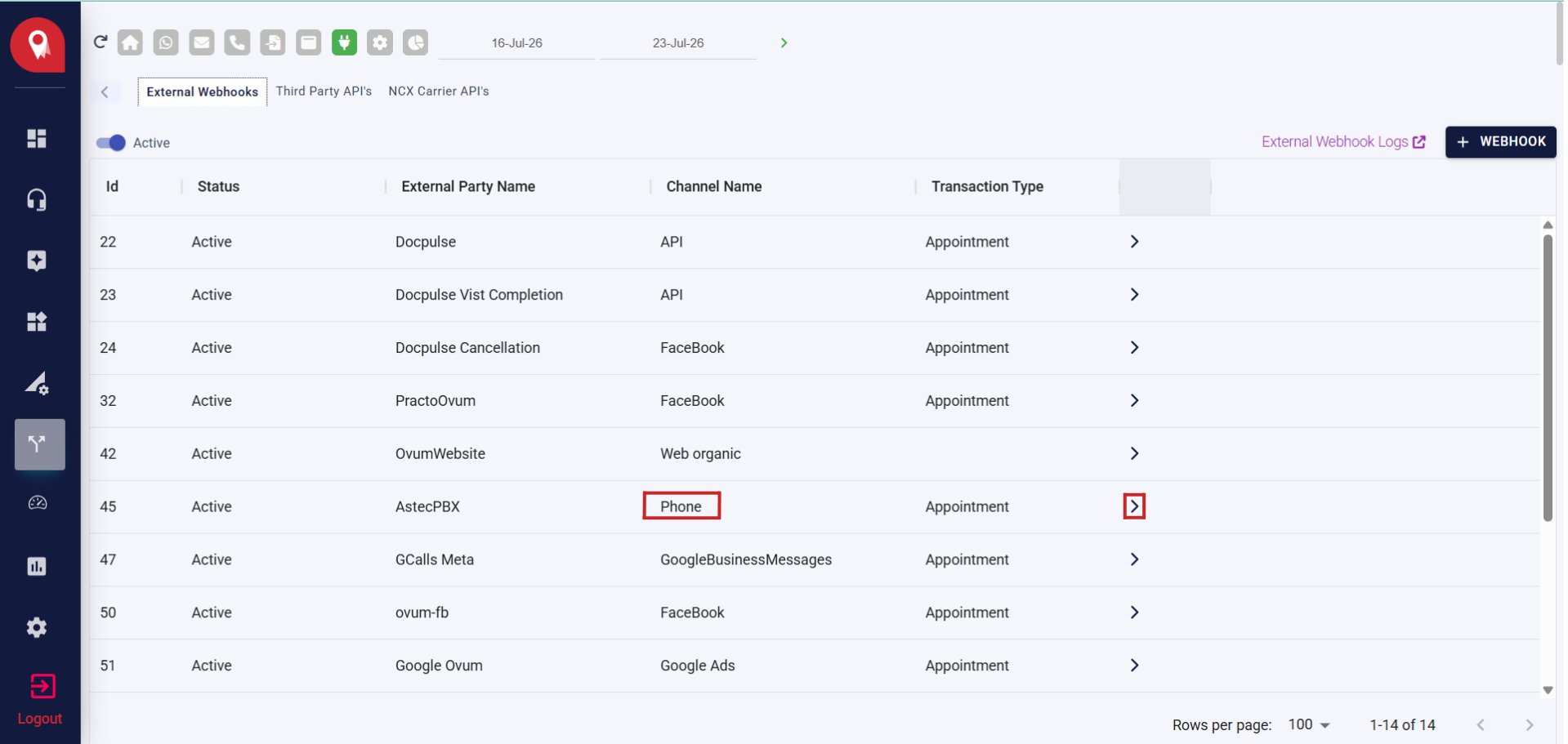
- Access External Webhooks
- From the main menu, go to Channels
- Navigate to the External Webhooks tab
- You’ll see a list of active webhooks with their configuration
- Select a Webhook
- Identify the webhook that matches your channel type (e.g., Phone webhook)
- Click on the webhook row to open its configuration
- Configure Event Handling
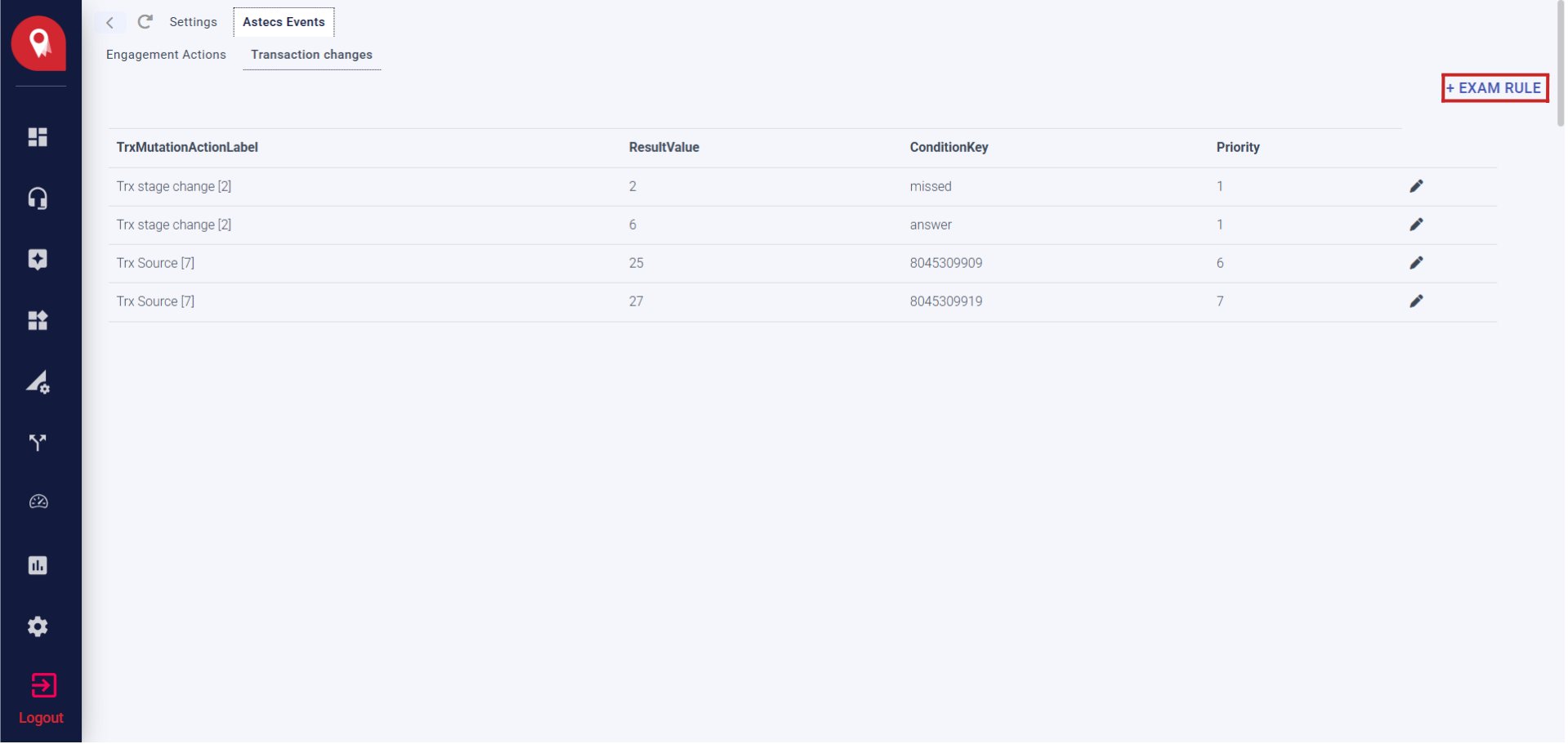
- The webhook settings page opens, showing multiple tabs: Settings, Astecs Events
- Click the Astecs Events tab
- Select the Transaction changes subtab to set up transaction-specific rules
- Add an Exam Rule
- Click the + EXAM RULE button in the top-right corner -* A modal form appears with the following fields:
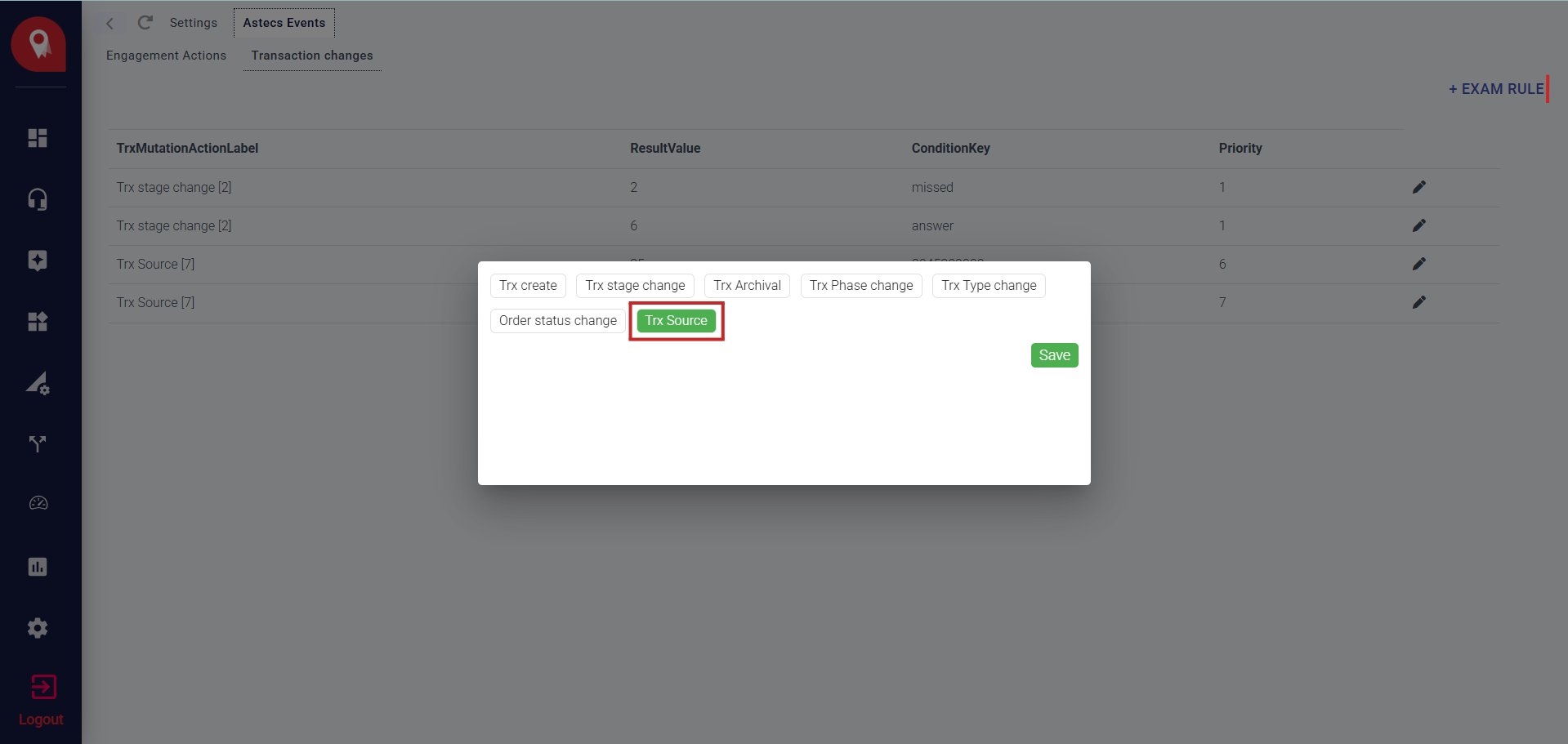
- Save the Exam Rule
- Click the Save button to add this rule to your webhook
- Configure Source Metadata (if applicable)
- Depending on your source type, you may need to add:
- Phone Number — If your source is phone-based
- Source Name — Confirm it matches your created source label
- Priority — Set the processing priority for this source
- Enter these details in the form fields provided
- Click Save to apply changes
- Depending on your source type, you may need to add:
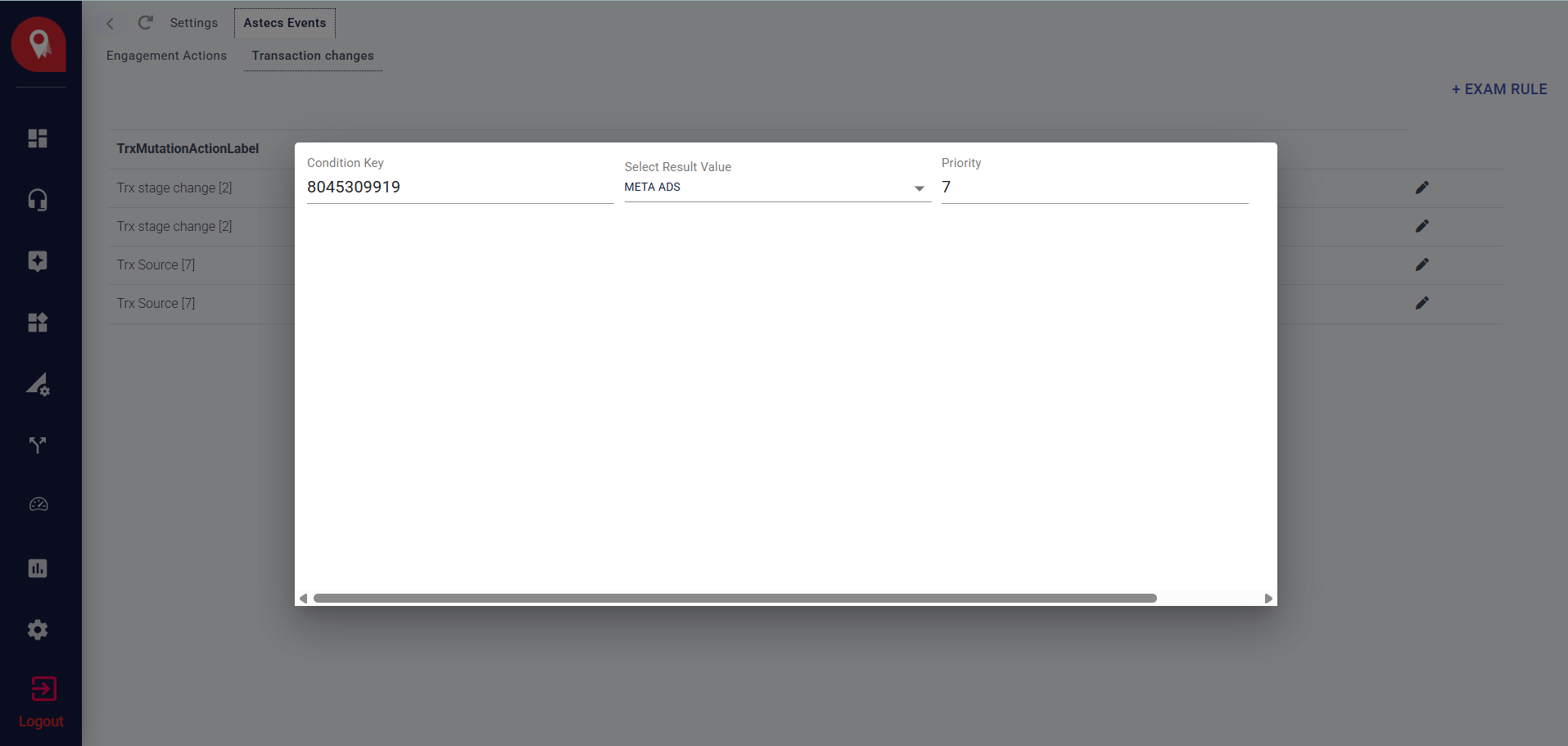
Your source is now linked to the webhook and configured to process transactions according to your exam rules.
Step 3: Verify in Transaction Console
Confirm that your new source is active and receiving transactions. Location:Home > Transactions Console
Process
- Open Transactions Console
- From the main menu, click Transactions or navigate to the Transactions Console
- The console displays all incoming leads and interactions
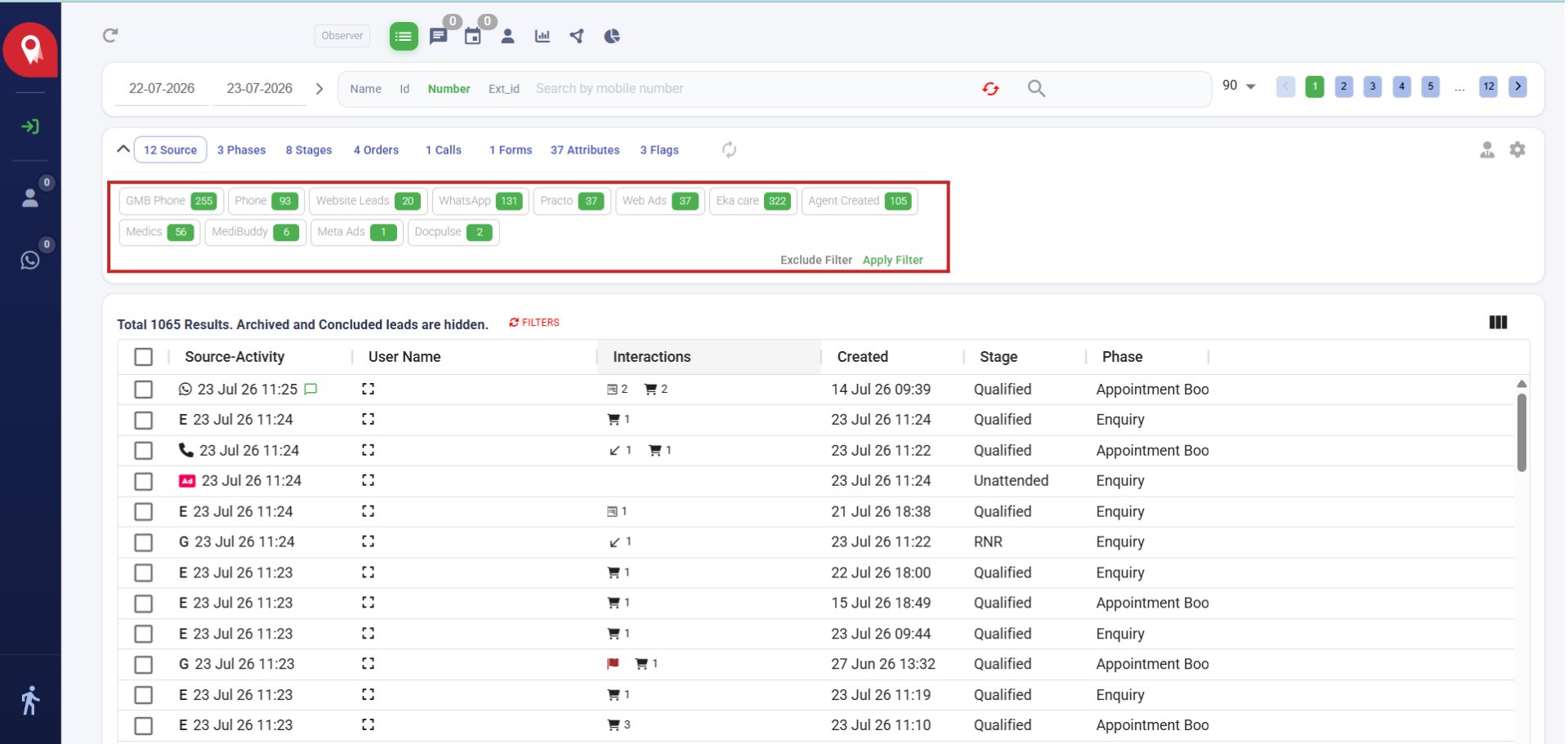
- Check the Source Filter
- Look at the Source filter section at the top of the console
- Your newly created source should appear as a badge or filter option
- Example sources visible: GMB Phone, WhatsApp, Website Leads, Web Ads, etc.
- Apply Source Filter (Optional)
- Click on your source name badge to filter transactions by that source
- The transaction table updates to show only interactions from your source
- Monitor the count to verify transactions are flowing through
- Review Source-Activity Column
- In the transaction table, the Source-Activity column displays the source icon and timestamp
- Confirm your source is appearing correctly for new transactions
Your channel source is successfully configured and receiving transactions. You can now see it active in the Transaction Console.
Best Practices
Use Descriptive Labels
Create source labels that are instantly recognizable. Include the channel type, location, or campaign name.
Organize by Channel Type
Group sources by their channel (e.g., all Phone sources together, all WhatsApp sources together) for easier management.
Set Clear Priorities
Establish a priority strategy for exam rules to ensure high-value sources or rules are processed first.
Test Before Full Deployment
Send a test transaction through the new source to verify it appears correctly in the console before rolling out to production.
Troubleshooting
Source doesn't appear in Transaction Console
Source doesn't appear in Transaction Console
- Verify the source was successfully saved in Step 1
- Confirm the webhook is Active in the External Webhooks section
- Check that the exam rule is saved and the webhook settings are applied
- Allow 5-10 minutes for the system to sync; refresh the page if needed
Transactions not showing the correct source label
Transactions not showing the correct source label
- Verify the Source Label in Step 2 matches exactly with your source configuration
- Check that the exam rule’s Result Value correctly references your source
- Review webhook logs for any processing errors
Exam rule not triggering
Exam rule not triggering
- Confirm the Condition Key in your exam rule matches incoming transaction data
- Verify the rule Priority isn’t being overridden by a higher-priority rule
- Check the webhook’s Transaction changes tab is selected and the rule is saved
Can't find the External Webhooks section
Can't find the External Webhooks section
- Ensure you’re in the Channels section (not Settings > Transaction Rules)
- Look for the External Webhooks tab alongside “Third Party API’s” and “NCX Carrier API’s”
- Verify your user role has permission to view webhook configurations