
PY_FAILED status — what it means, how to find affected leads, and how to investigate the exact reason for a payment failure.
PY_FAILED
PY_FAILED is an order status that flags leads where a payment was initiated but did not complete. Common reasons include an invalid card number, an expired card, or a gateway-level rejection.
Step 1 — Filter by PY_FAILED in the Transactions Console
Dashboard → Transactions → Orders filter → PY_FAILED → Apply Filter- Go to Transactions from the left navigation.
- In the filter bar, click 5 Orders to expand the order status options.
- Select PY_FAILED, then click Apply Filter.
- The console now shows only leads where a payment attempt has failed.
Step 2 — Investigate the failure
There are two ways to check why a payment failed for a specific lead.Method 1 — Orders tab
- Click the expand icon (⤢) to the left of the lead name to open the Lead Detail View.
- Click the Orders tab at the top of the detail panel.
- Under Payment for Order #XXXXXX, expand the FAILED entry.
- The Fail Reason field shows the exact error returned by the payment gateway.
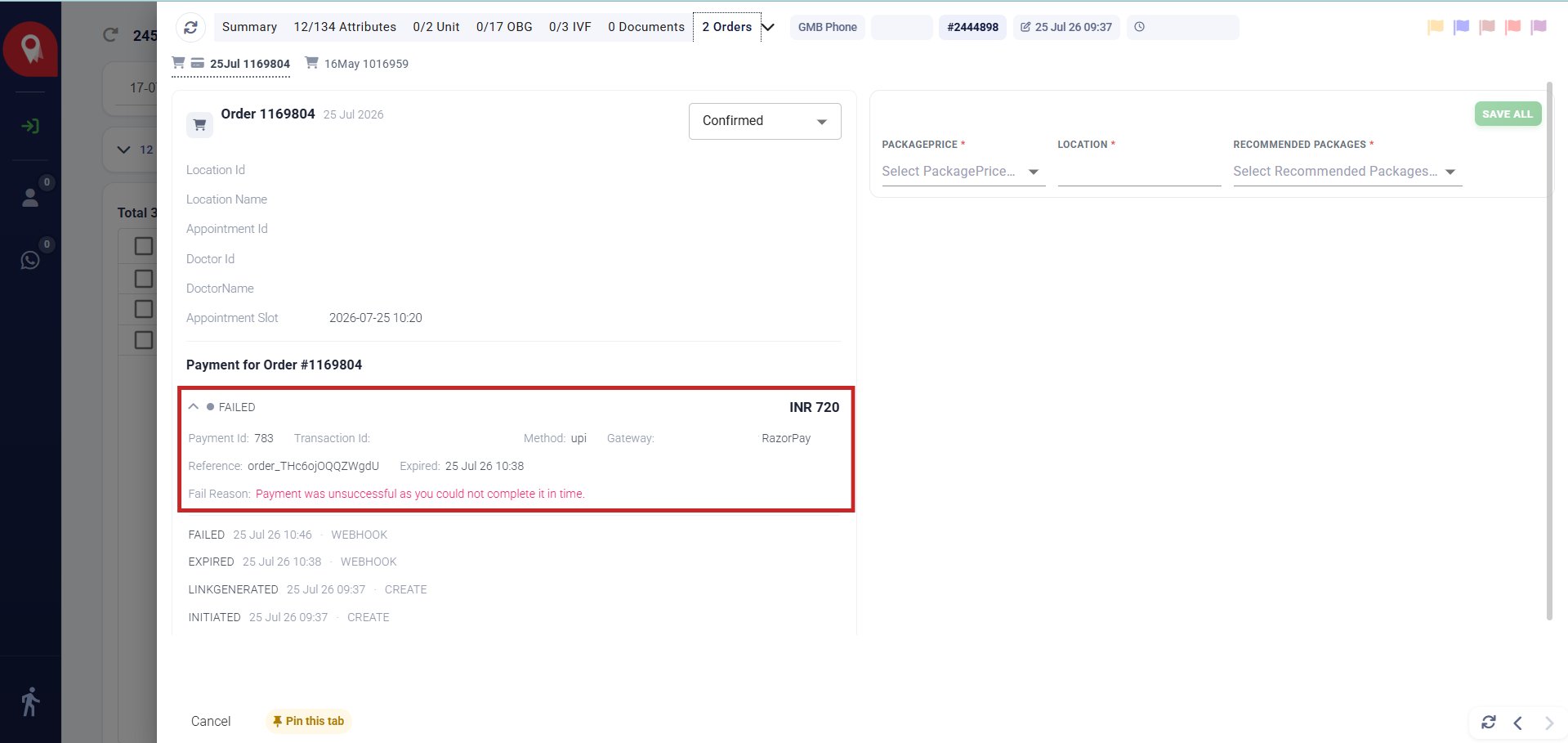
Method 2 — Activity Log
- Click the arrow (→) to the right of the lead name in the Transactions Console.
- This opens the Activity panel.
- Click the Activity Type dropdown and select Payments.
- The log shows the complete payment sequence in chronological order:
INITIATED→LINKGENERATED→FAILED, with the failure reason and gateway details inline.
The Activity Log also captures any discount adjustments applied before the payment attempt, and the exact gateway used (e.g. Razorpay). This is useful context when escalating a payment issue to your finance or tech team.