
The SLA page covers the last 30 days at most. All times are shown in IST. After an admin changes a rule, the page shows the change within about a minute.
Open the page and read the cards
1
Open the SLA page and pick the dates
Open Cx Ops and click the SLA icon (the gauge) in the row of icons at the top.Pick the start and end date in the two date boxes. If you pick a range older than 30 days, the page shows “This page shows the last 30 days only” with the dates it used.The small old view link at the top right opens the previous version of the page.
2
Read the cards
Each card is one SLA your admin has set up. Every card has the same parts: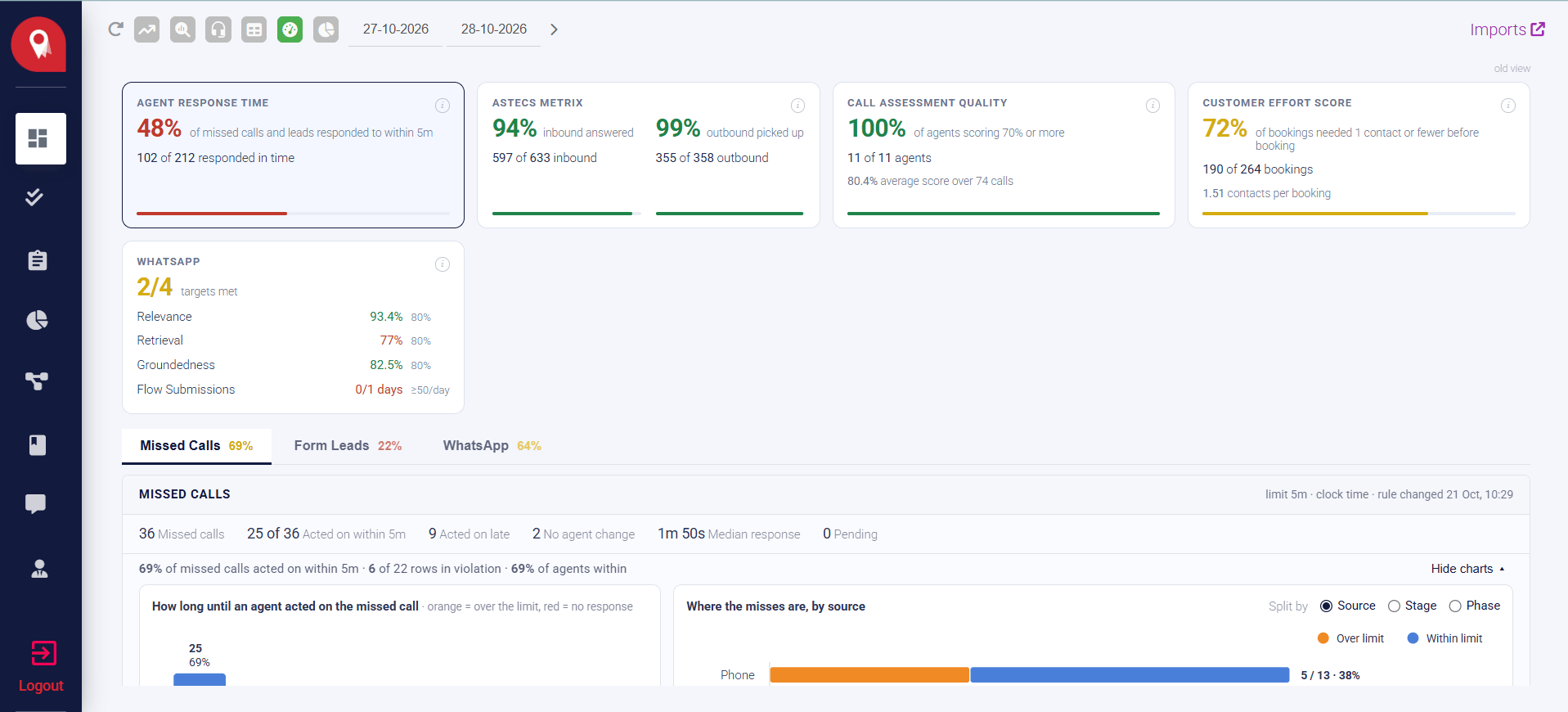
- The big percentage: how often the limit was met.
- The line after it: what the percentage means, with your limit, for example “of missed calls and leads responded to within 5m”.
- X of Y: the counts behind the percentage.
- A bar at the bottom.
- Agent Response Time: how often an agent responded to a missed call or a new lead within the limit. It has three tabs: Missed Calls, Form Leads and WhatsApp.
- Call Metrix: the share of inbound calls answered and the share of outbound calls the customer picked up.
- Call Assessment Quality: the share of agents whose average call assessment score is at or above the limit, for example 70%.
- Customer Effort Score: the share of bookings that needed no more than the limit of contacts before the booking, for example 1.
Your admin names the cards, so the names on your page may differ from the ones here.
Agent Response Time
1
Pick a tab
Under Agent Response Time, click Missed Calls, Form Leads or WhatsApp. Each tab shows its own percentage. The top right shows the limit and when the rule last changed, for example “limit 5m · clock time · rule changed 21 Oct, 10:29”.A response is the first thing an agent does on the lead after the clock starts: a stage or phase change, a comment, an edit, or a call to the customer. Your admin chooses which of these count.The clock starts:
- Missed Calls: when the call was missed.
- Form Leads: when the lead was created.
- WhatsApp: when the lead reached an agent.
2
Read the numbers
The numbers on the Missed Calls tab: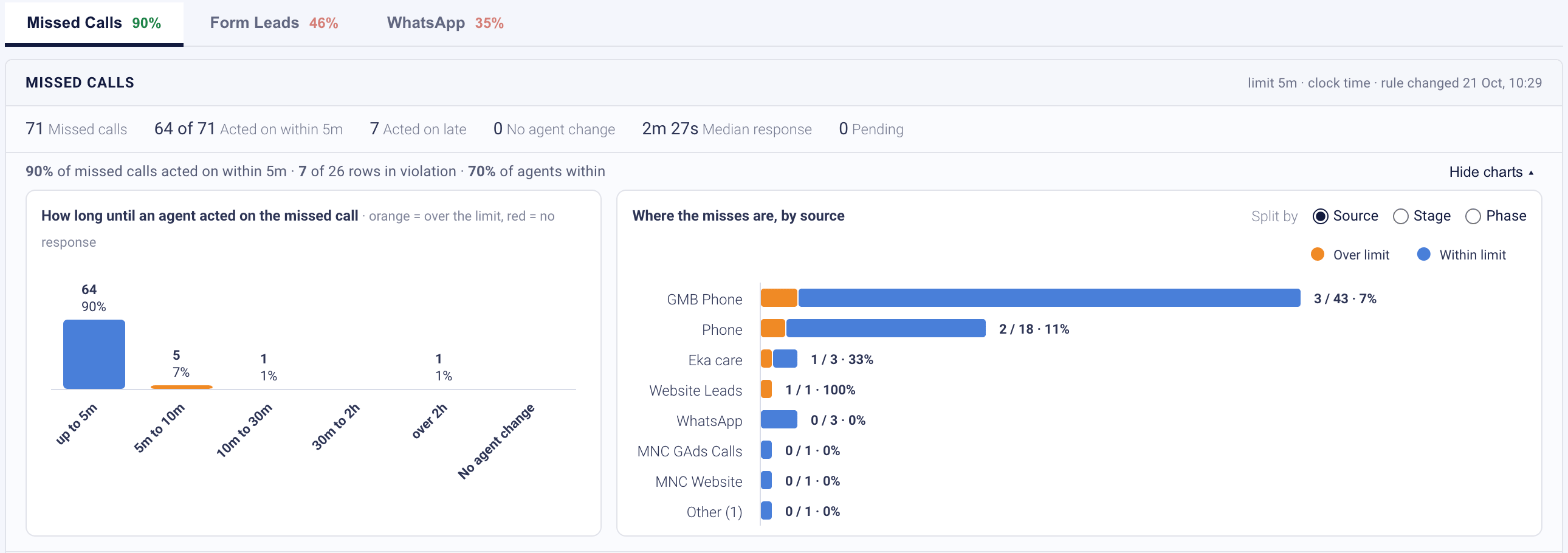
3
Choose who gets the credit
On Form Leads and WhatsApp, choose:
- Primary Agent: only the assigned agent’s own response counts.
- Any Agent: a response by a different agent also counts, credited to the assigned agent’s row.
4
Read the charts
Two charts sit above the list. Click Hide charts to fold them away.
- How long to respond (on Missed Calls, How long until an agent acted on the missed call): how many were answered in each time band. Blue is within the limit, orange is over the limit, red is no response.
- Where the misses are: one bar for each group, showing “misses / total · %”. Choose the grouping with the Split by buttons: Source, Stage or Phase. Source is chosen first unless your admin set another order.
5
Find the agents behind the numbers
Below the charts is one row for each agent.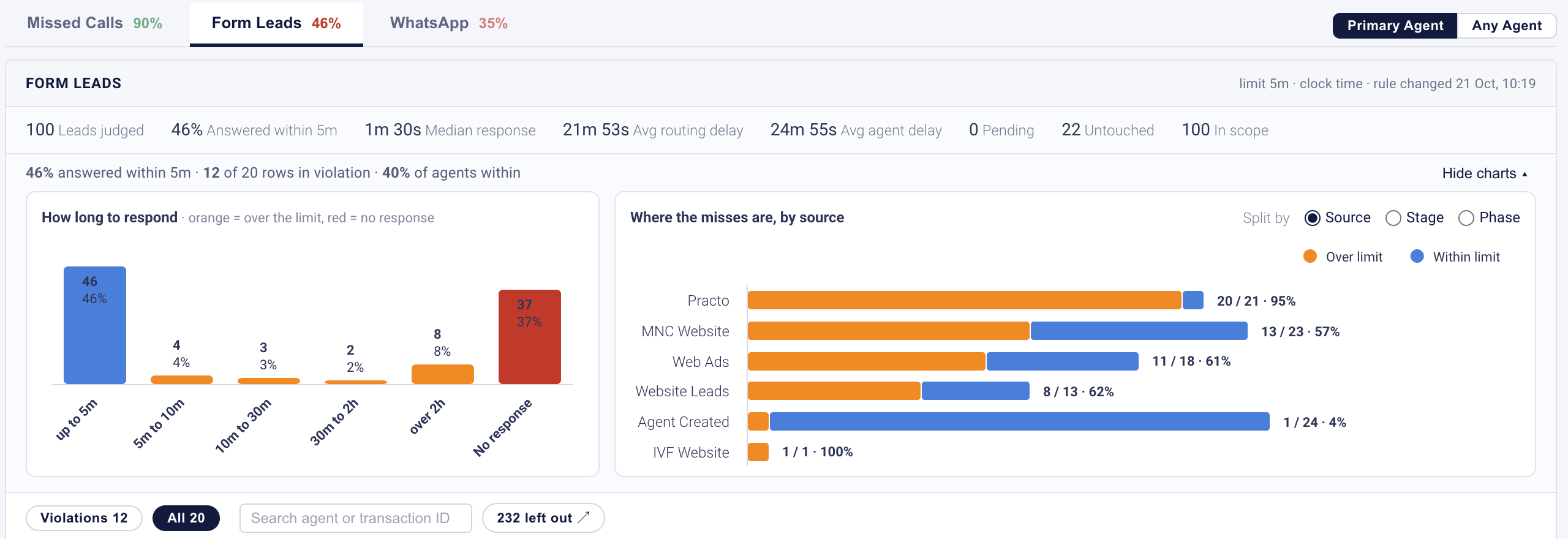
- Violations N shows only the agents with a missed limit. All N shows everyone.
- Search by agent name or transaction ID.
- A red dot marks an agent with a violation. Hover over the name to see why, for example “20 untouched past 5m”.
- No agent assigned collects items that were never assigned to anyone.
- Agents with nothing in the dates you picked show dashes.
6
Sort a column
Click any column heading. The first click sorts names from A to Z and numbers biggest first. A second click reverses the order. Empty values always stay at the bottom.Every list on the SLA page sorts the same way.
7
Open an agent's items
Click an agent’s row. A panel opens on the right with each item behind the numbers. On Missed Calls the columns are: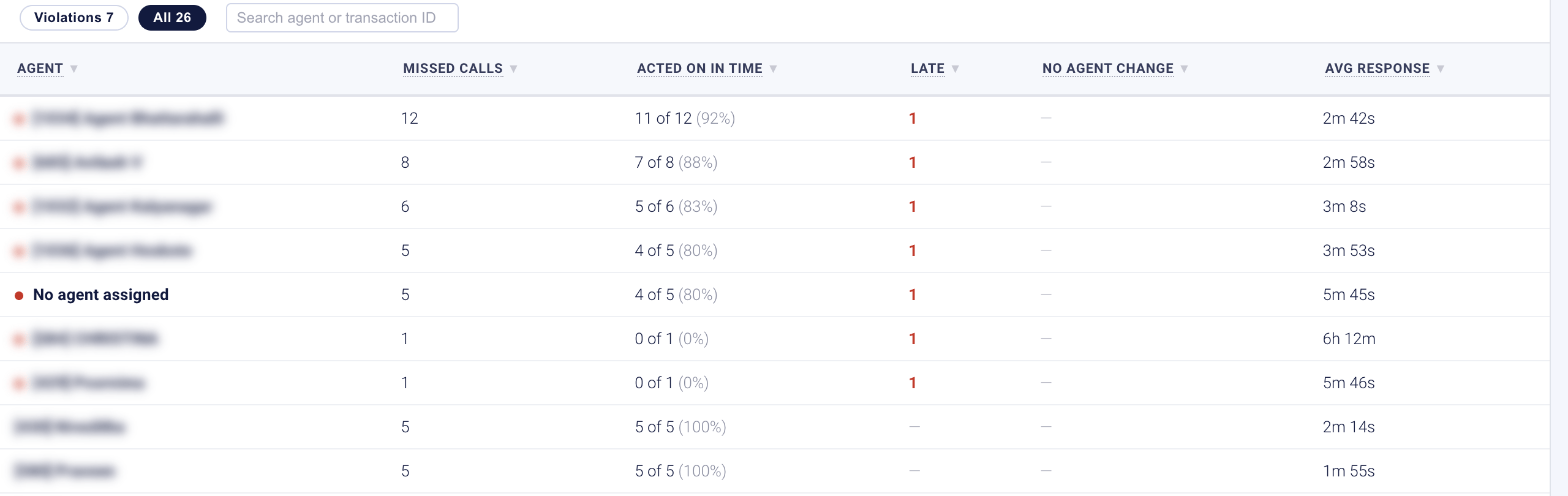
- Missed At: when the call was missed.
- Transaction: the transaction, with its source underneath. Click the number to open the transaction.
- Status: In time or Late.
- First Agent Change: when it happened, what it was (for example Stage Change) and who did it.
- Time: how long it took.
- Note.
8
See what was left out
Some leads are not judged at all. The chip next to the search box shows how many, for example 232 left out ↗. Click it to open the list. The Why column gives the reason: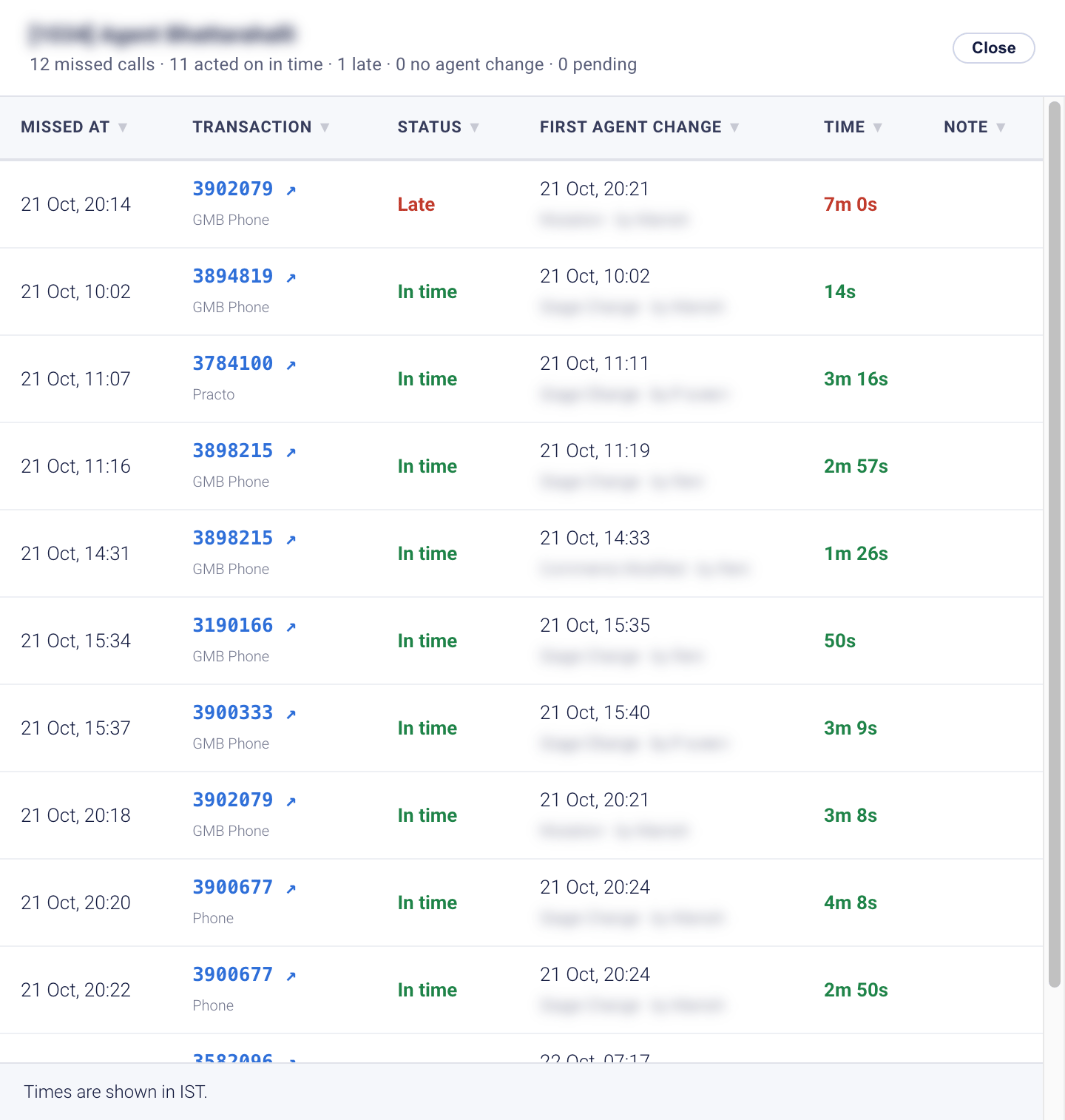
- contact-less source (comes in booked): the lead came from a partner whose leads arrive already booked, for example Eka care, Medics or MediBuddy. Nobody needs to respond to them, so they are not judged.
- The rule’s scope: your admin chose to leave out some stages, phases or sources. The panel subtitle shows the scope, for example “scope: Excl. source Eka care”.
The chip counts the leads left out for the main reason. The panel counts every reason, so its total can be a little higher.
Call Metrix
Click the Call Metrix card. It uses the phone system’s own call records.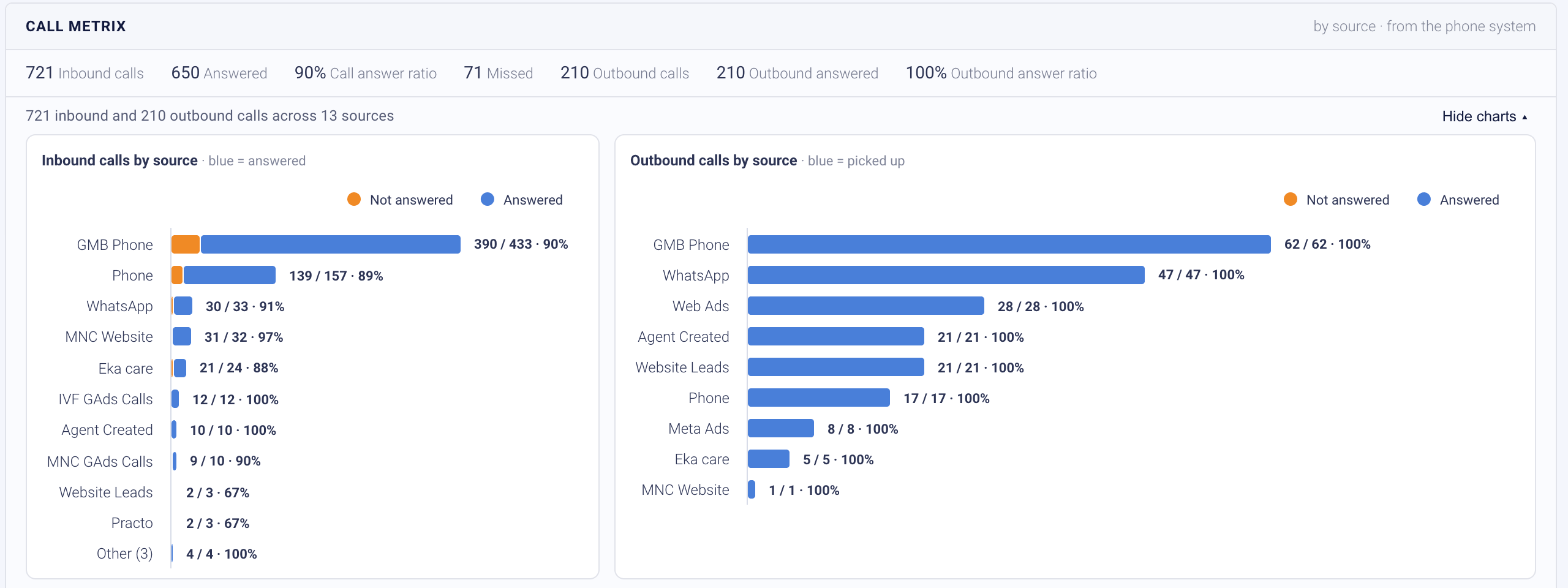
- The numbers: Inbound calls, Answered, Call answer ratio, Missed, Outbound calls, Outbound answered and Outbound answer ratio.
- Inbound calls by source and Outbound calls by source: blue is answered (outbound: picked up), orange is not answered.
- The table: one row for each source, with All sources as the last row. Columns are Source, Inbound, Answered, Missed, Answer Ratio, Outbound, Picked Up and Pick-up Ratio.
Call Assessment Quality
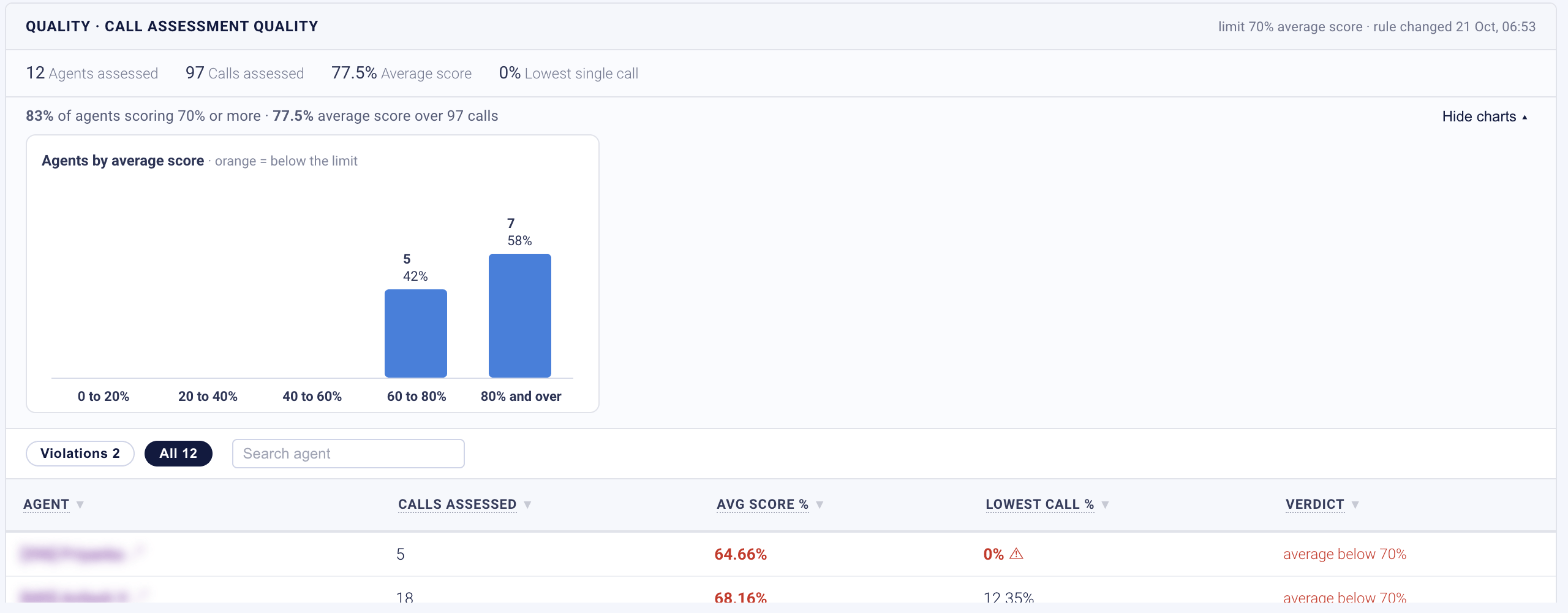
Click the Call Assessment Quality card.- The numbers: Agents assessed, Calls assessed, Average score and Lowest single call.
- Agents by average score: how many agents fall in each score band. Orange is below the limit.
- The list: Agent, Calls Assessed, Avg Score %, Lowest Call % and Verdict, for example “average below 70%”. A warning sign marks a very low single call.
Customer Effort Score
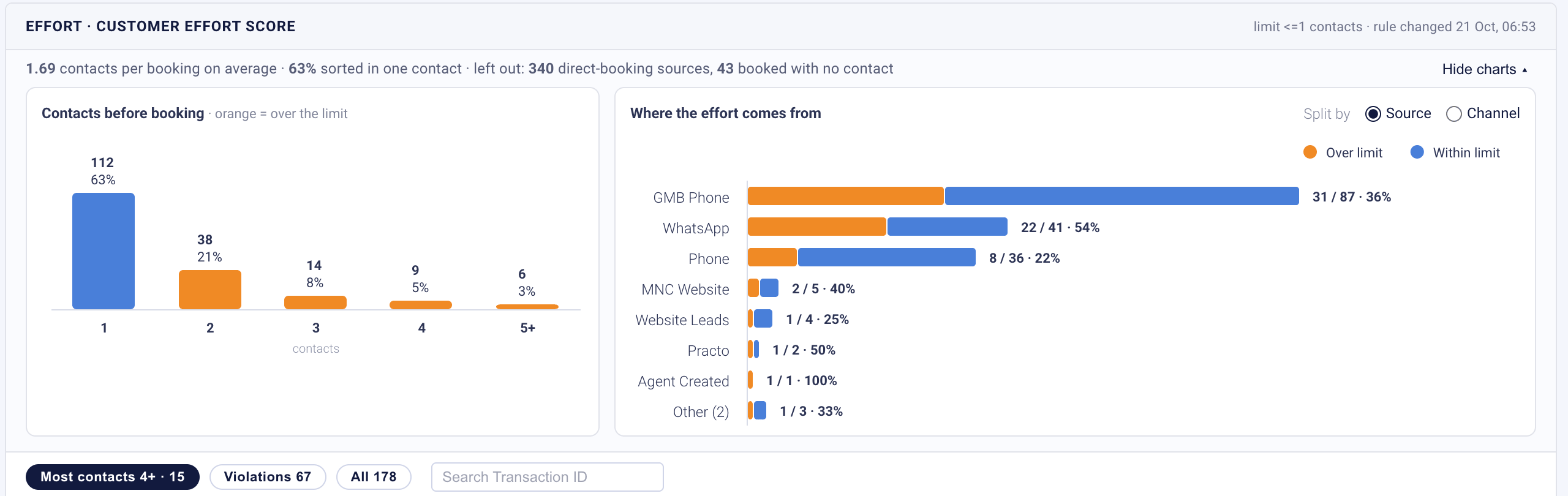
Click the Customer Effort Score card. It counts the contacts a customer needed before booking. A contact is the lead being assigned to an agent, a WhatsApp session or a call. Calls are counted by when they started.- The line under the title: the average contacts per booking, the share sorted in one contact, and what was left out, for example “left out: 340 direct-booking sources, 43 booked with no contact”.
- Contacts before booking: bookings by number of contacts (1, 2, 3, 4, 5+). Orange is over the limit.
- Where the effort comes from: Split by Source or Channel.
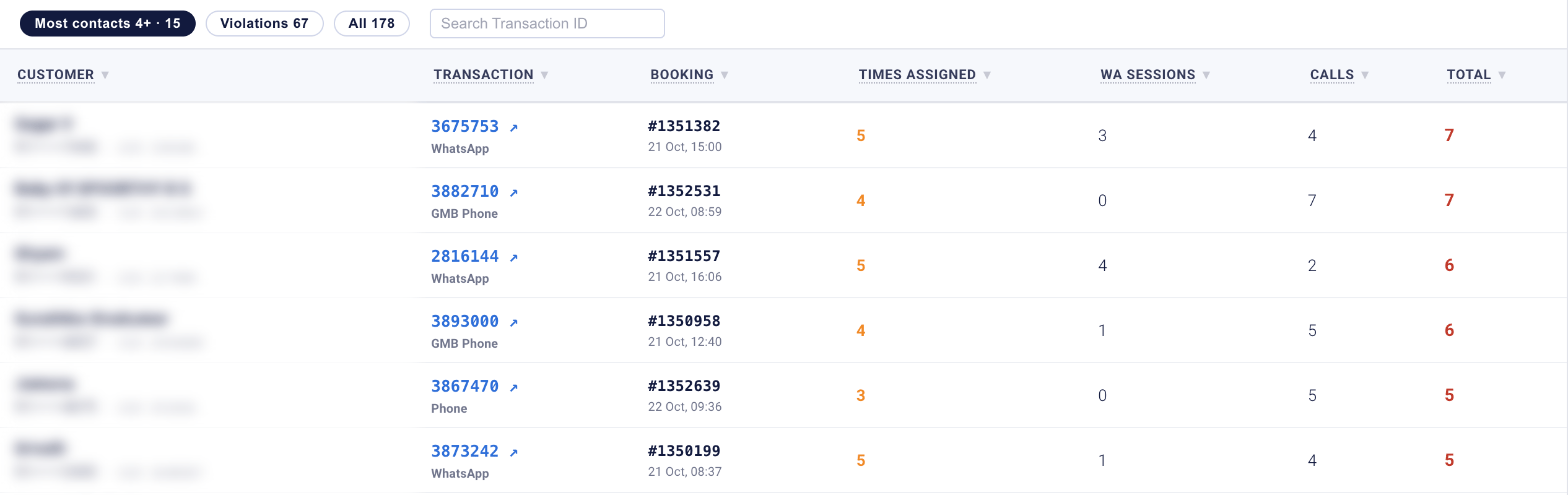
Every booking counts, whatever its order status, including failed and cancelled ones, because the agent’s effort was spent either way.
Item stages
The percentage is the in-time items out of all judged items.
If something looks wrong
Related pages
Set Up SLA Rules
Choose the rules, cards and tabs your SLA page shows.
Supervisor Console
Manage agents, attribution and SLAs.
Assessment
Review the call assessments behind Call Assessment Quality.