
Before you start
Four ideas to know first:- Rule: one limit. It is a standard plus a threshold, for example “form leads answered within 300 seconds”. Each rule belongs to one group.
- Standard: the kind of measurement. The list is fixed (see SLA standards).
- Group: a card on the SLA page. Response-time rules (Missed Calls, Form Leads, WhatsApp) in the same group share one card, with one tab for each rule. Any other group shows its one rule as the card.
- Status: only Active rules in Active groups reach the SLA page.
Set up your SLAs
1
Open Supervisor Console, SLAs
Open Supervisor Console and click SLAs in the top row. Four tabs open: Rules, Groups, Channel mapping and Working hours.The Rules list has these columns: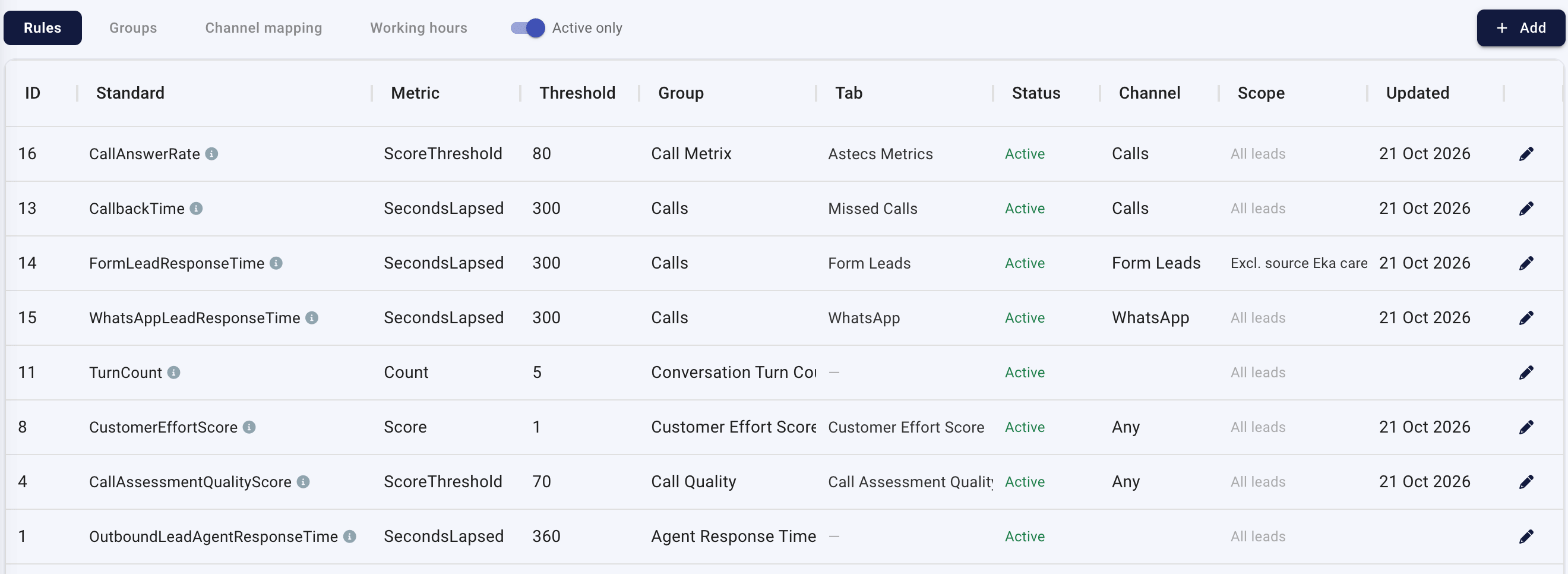
Keep Active only on to see only what reaches the SLA page. Switch it off to see every rule and group, including Passive and Archive ones.
2
Map each lead source to a channel
Click Channel mapping. Each lead source is counted under one channel on the SLA page: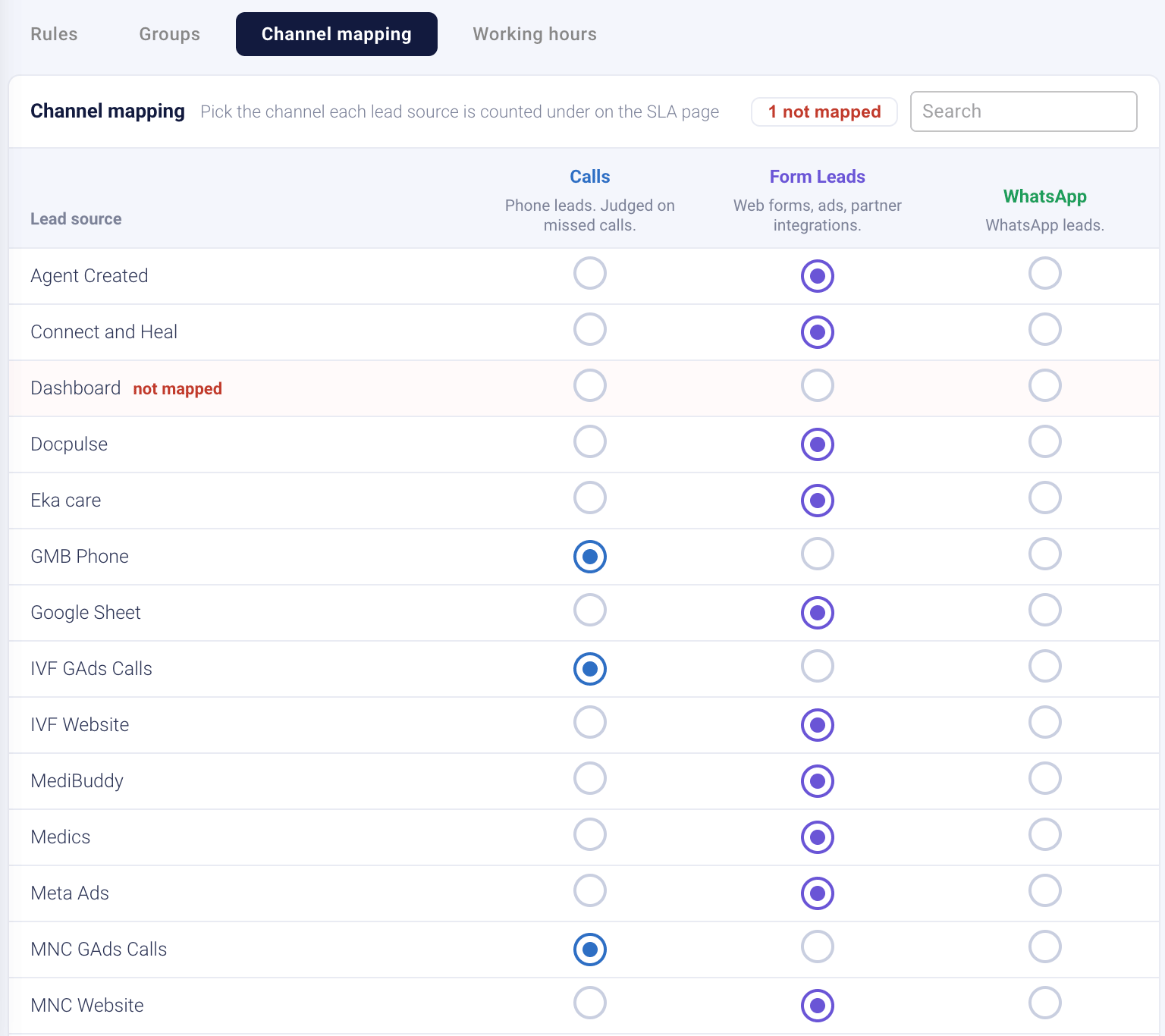
- Calls: phone leads, judged on missed calls.
- Form Leads: web forms, ads and partner integrations.
- WhatsApp: WhatsApp leads.
Changes show on the SLA page within a minute or two. The (i) on the response card counts the leads with no channel: “with no channel (not judged)”.
3
Set working hours and holidays (optional)
Click Working hours. With no hours set, the page says “None: clock runs 24x7”, and every minute counts.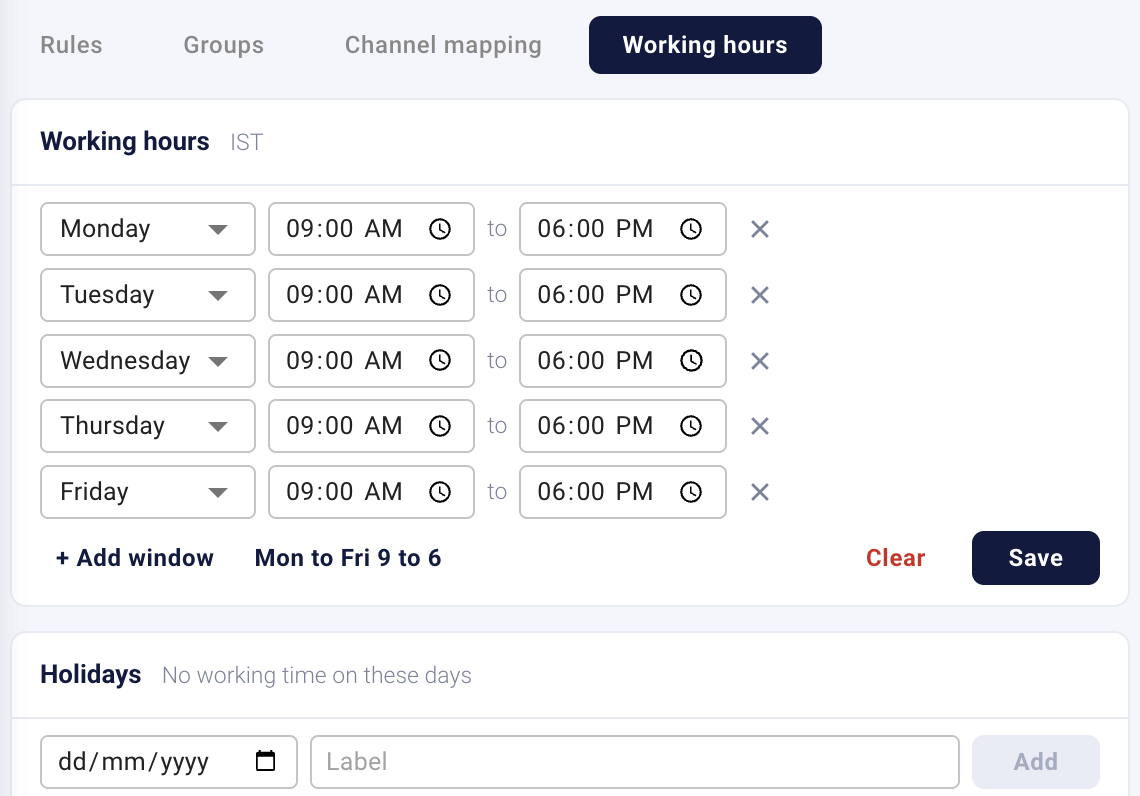
- Click Mon to Fri 9 to 6 for a quick start, or + Add window for one day at a time.
- Choose the day and the opening and closing times. Times are IST. The cross removes a window.
- Click Save.
4
Add a rule
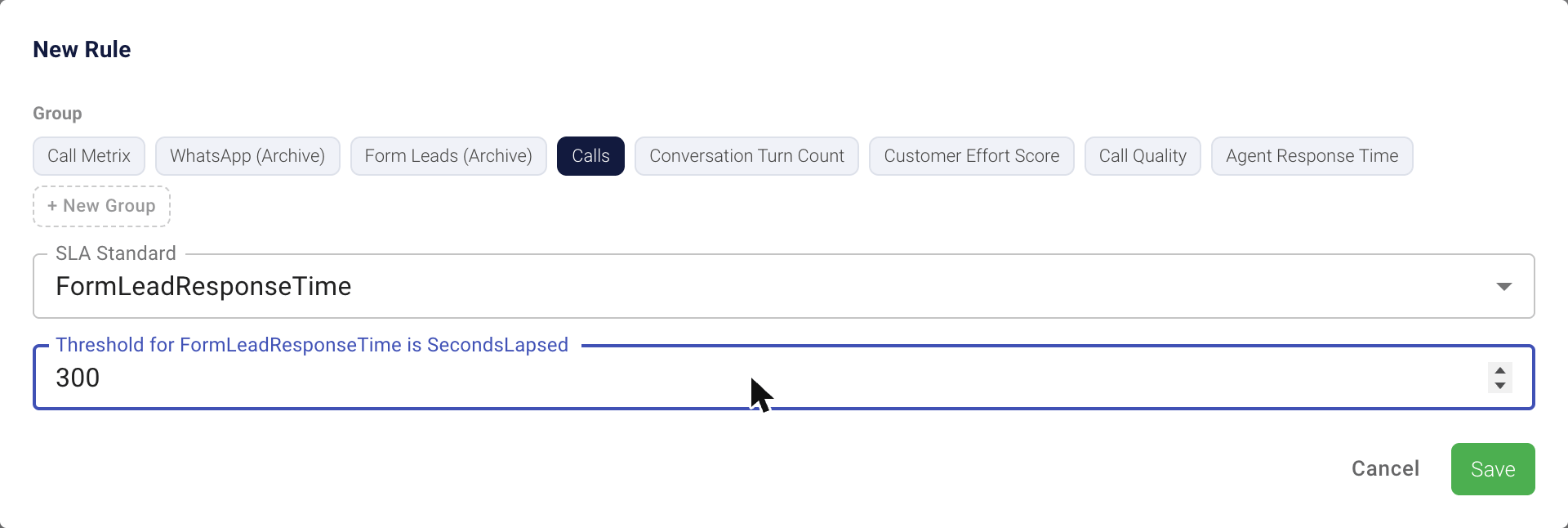
- On the Rules tab, click + Add. The New Rule window opens.
- Under Group, click the group (card) the rule belongs to. To make a new group, click + New Group, type the Group label and click Create.
- Choose the SLA Standard.
- Type the Threshold. The box says which unit it uses, for example “Threshold for FormLeadResponseTime is SecondsLapsed”.
- Click Save. Save stays grey until a group, a standard and a threshold are chosen.
5
Change a rule's limit, status, card or tab
Click the pencil on a rule’s row. The Edit Rule drawer opens. Its title line shows the rule number, the standard and the group.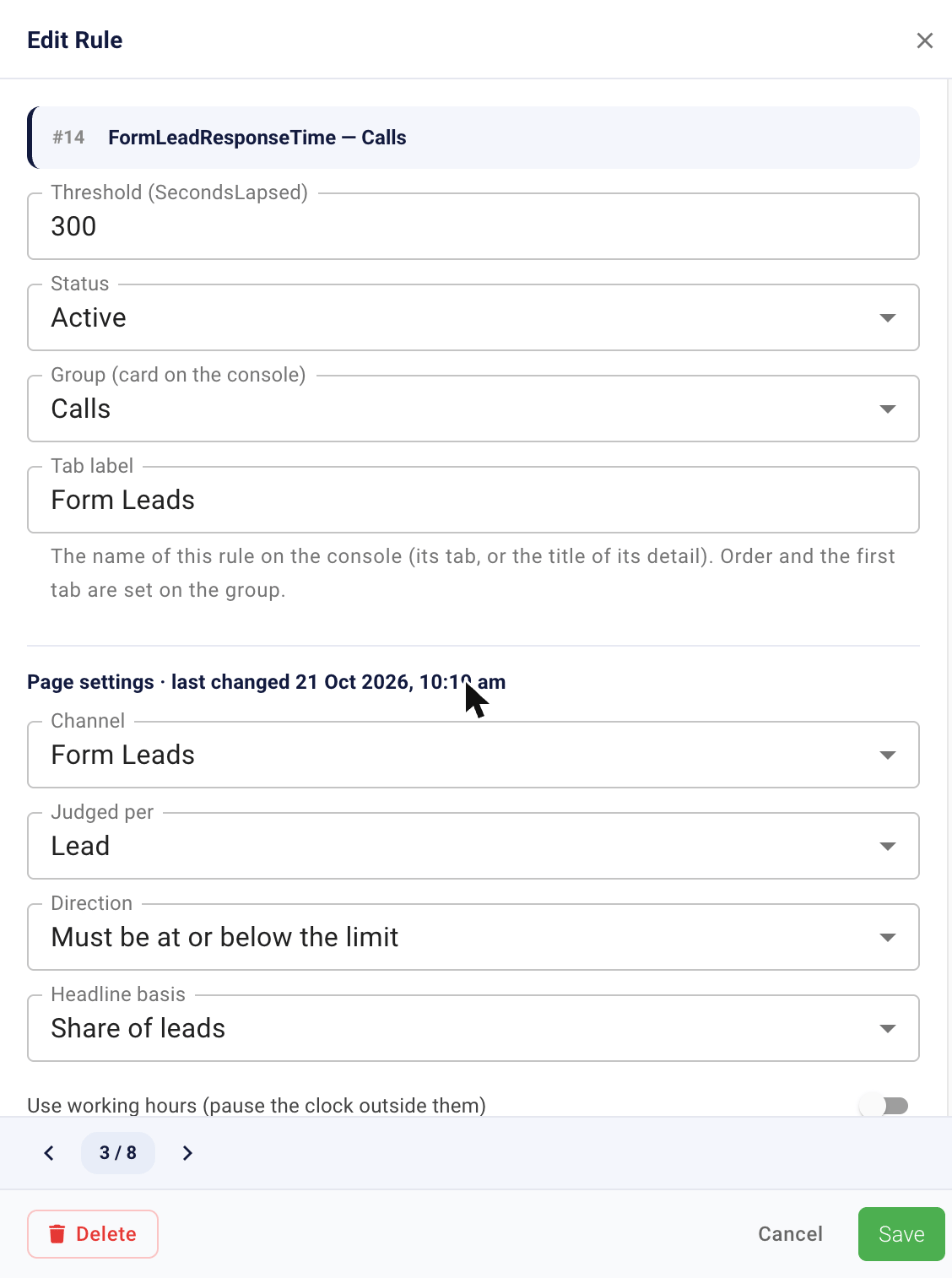
- Threshold: the limit, in the unit shown in brackets.
- Status: Active, Passive or Archive. Only Active rules reach the SLA page.
- Group (card on the console): the card the rule is on. Choose another group to move the rule to that card.
- Tab label: the name of the rule on the SLA page. It is the tab’s name, or the title of the detail when the card has one rule. Leave it empty to use the standard’s name.
6
Set how the rule judges
Scroll down in the same drawer to Page settings. This part has its own button, Save settings. The heading shows when it last changed.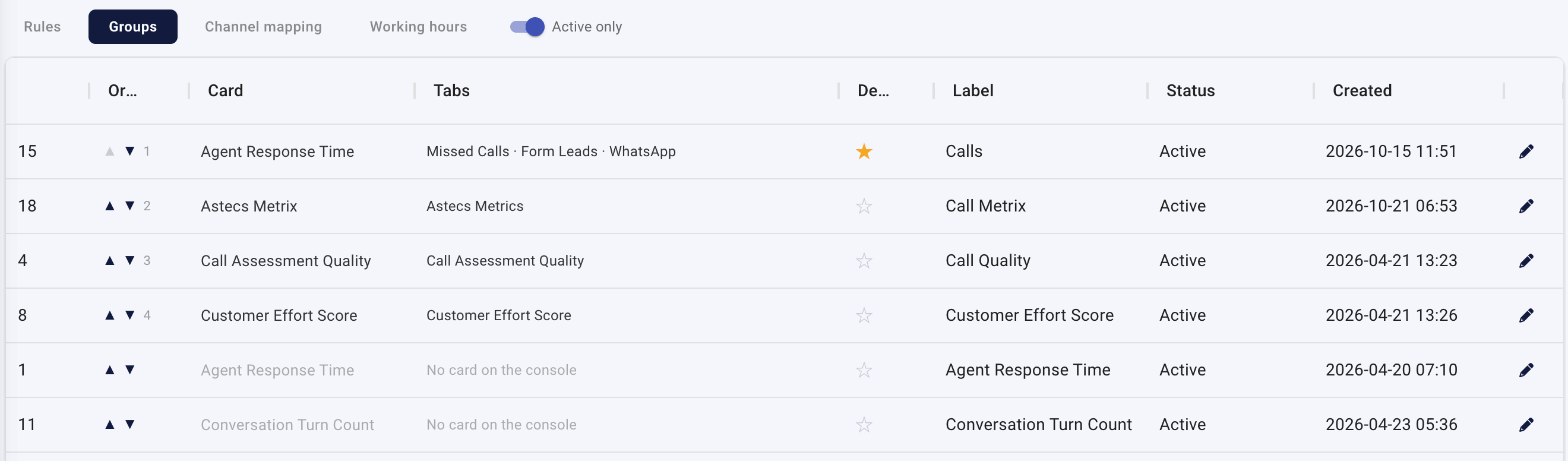
Scope
- Click + Add condition.
- Choose Exclude or Include, then the field: stage, phase, source, channel or queue.
- Type the value exactly as it appears on screen, for example “Eka care”.
- Click Preview last 7 days. It shows how many leads of the last 7 days the rule would count and leave out, before you save.
Leads from contact-less sources (partners whose leads arrive already booked) are always left out. You do not need a scope condition for them.
7
Order the cards and choose the one that opens first
Click Groups. Each row is a group, which is a card on the SLA page.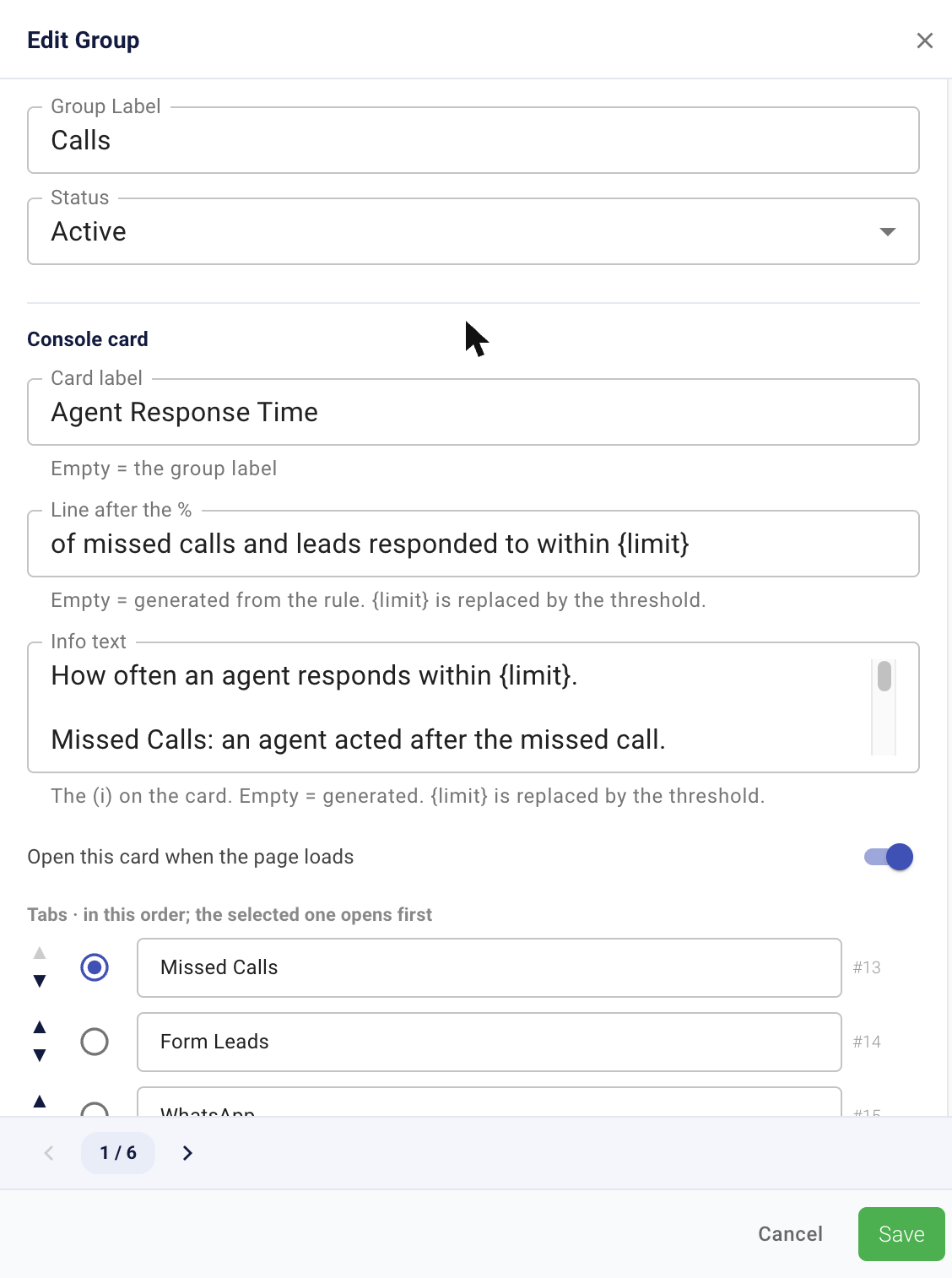
There is no + Add on this tab. You make a group from the New Rule window, in the Add a rule step above.
8
Set up a card and its tabs
Click the pencil on a group’s row. The Edit Group drawer opens.Group Label and Status are saved with the green Save at the bottom.Under Console card: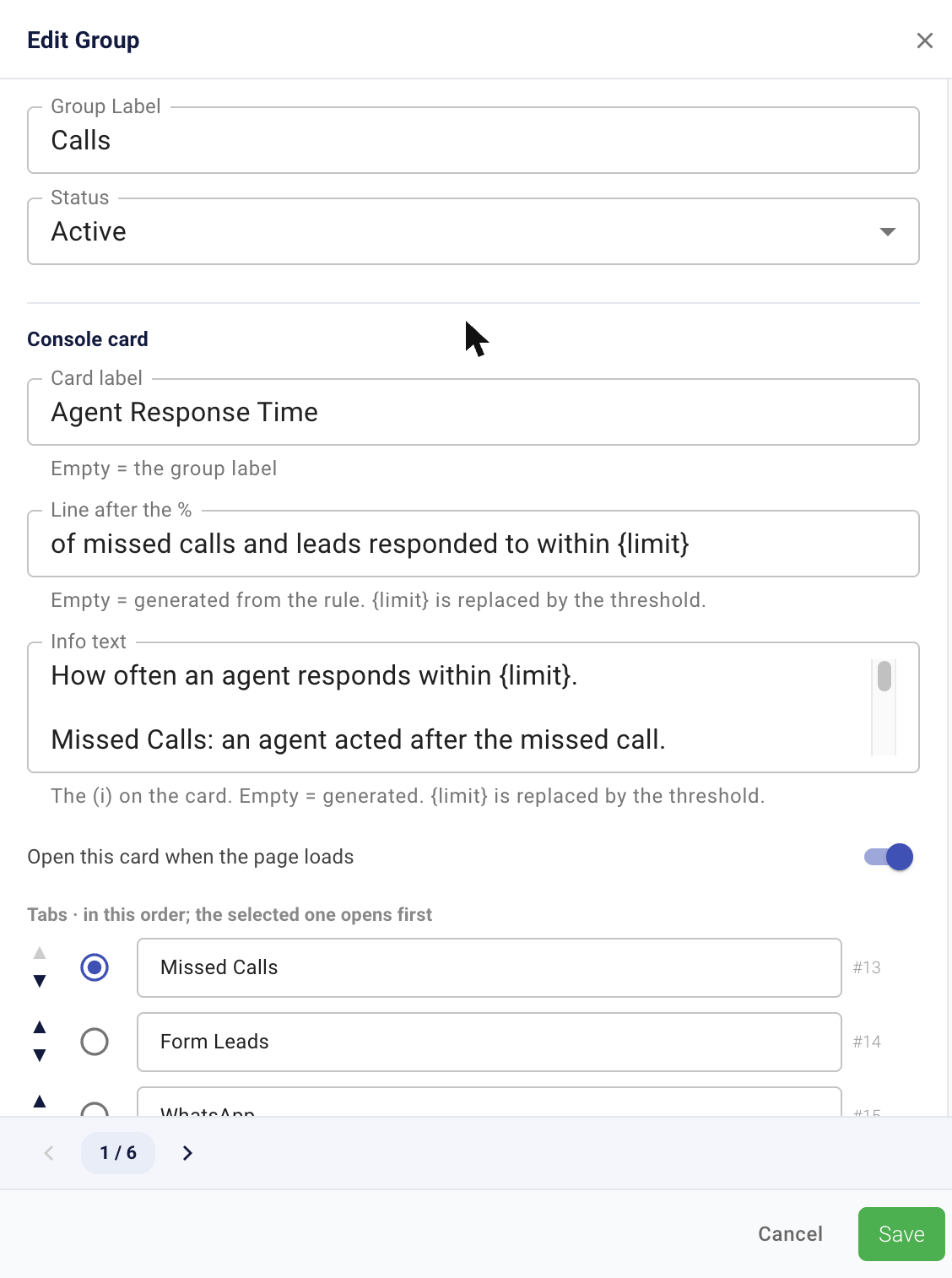
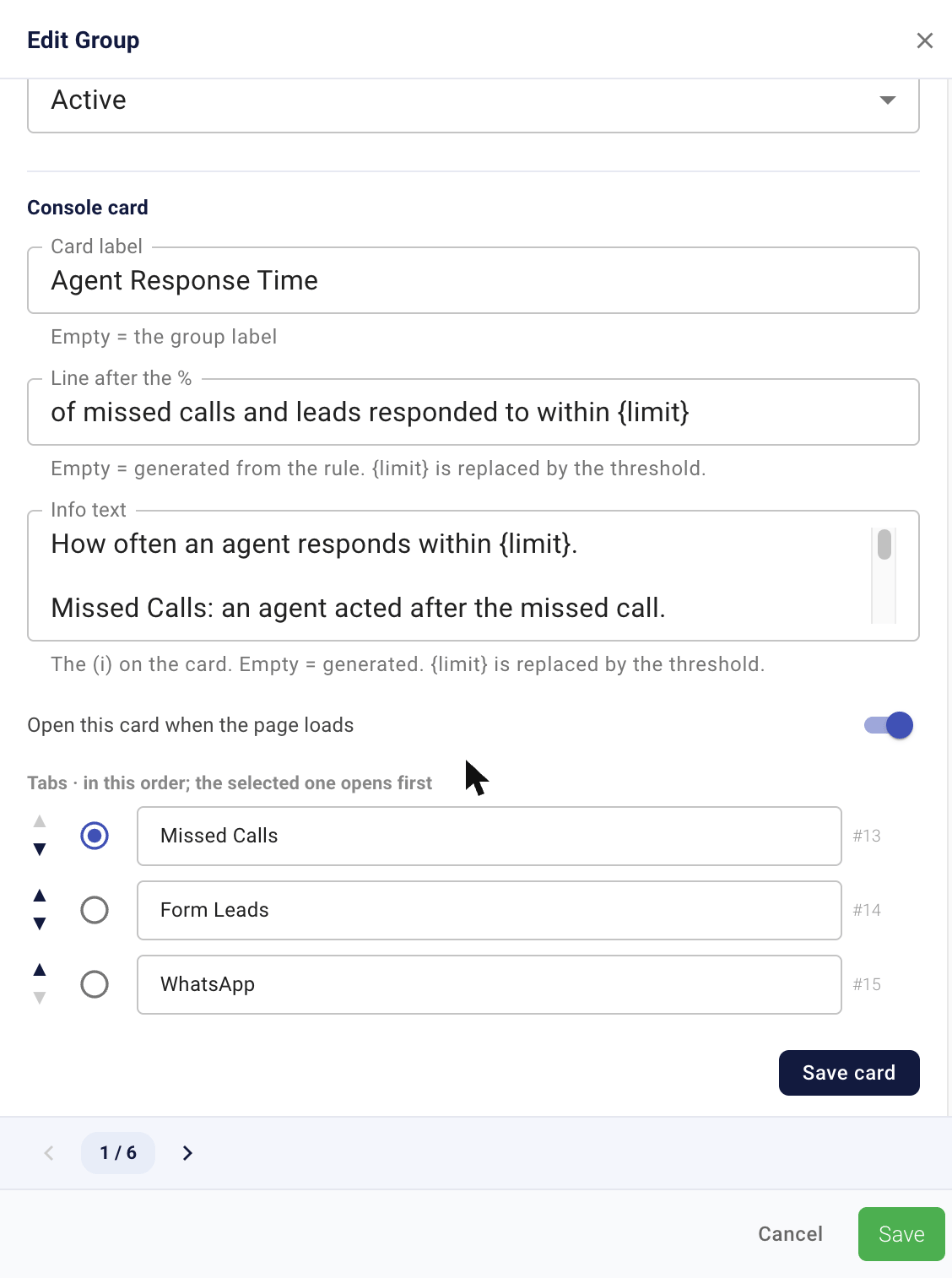
- Card label: the title of the card. Empty uses the group label.
- Line after the %: the line next to the percentage. Empty makes one from the rule. Type
{limit}where the threshold should appear, for example “of missed calls and leads responded to within{limit}”. - Info text: the text of the (i) on the card. Empty makes one from the rule.
{limit}works here too. - Open this card when the page loads: the same as the star on the Groups tab.
- Tabs · in this order; the selected one opens first: one box for each rule on the card. ▲ and ▼ change the order. The round button picks the tab that opens first. The box is the tab’s name, and the small number next to it is the rule’s number.
Only response-time rules (Missed Calls, Form Leads, WhatsApp) can share a card. If a group holds another kind of rule as well, only the first rule shows, with the message “Only the first rule is shown: only response-time rules can share a card.” Groups cannot be deleted. Set Status to Passive to take a card off the page.
9
Check the SLA page
Open the SLA page and reload it. Your changes show within about a minute. Check the card order, the card that opens first, the labels, the tabs and the limit in each tab’s top right line.
SLA standards
The standards you can choose in New Rule:Rule and group statuses
If something looks wrong
Screen quick reference
Related pages
Track Agent SLAs
Read the cards, tabs and lists on the SLA page.
Supervisor Console
Manage agents, attribution and SLAs.