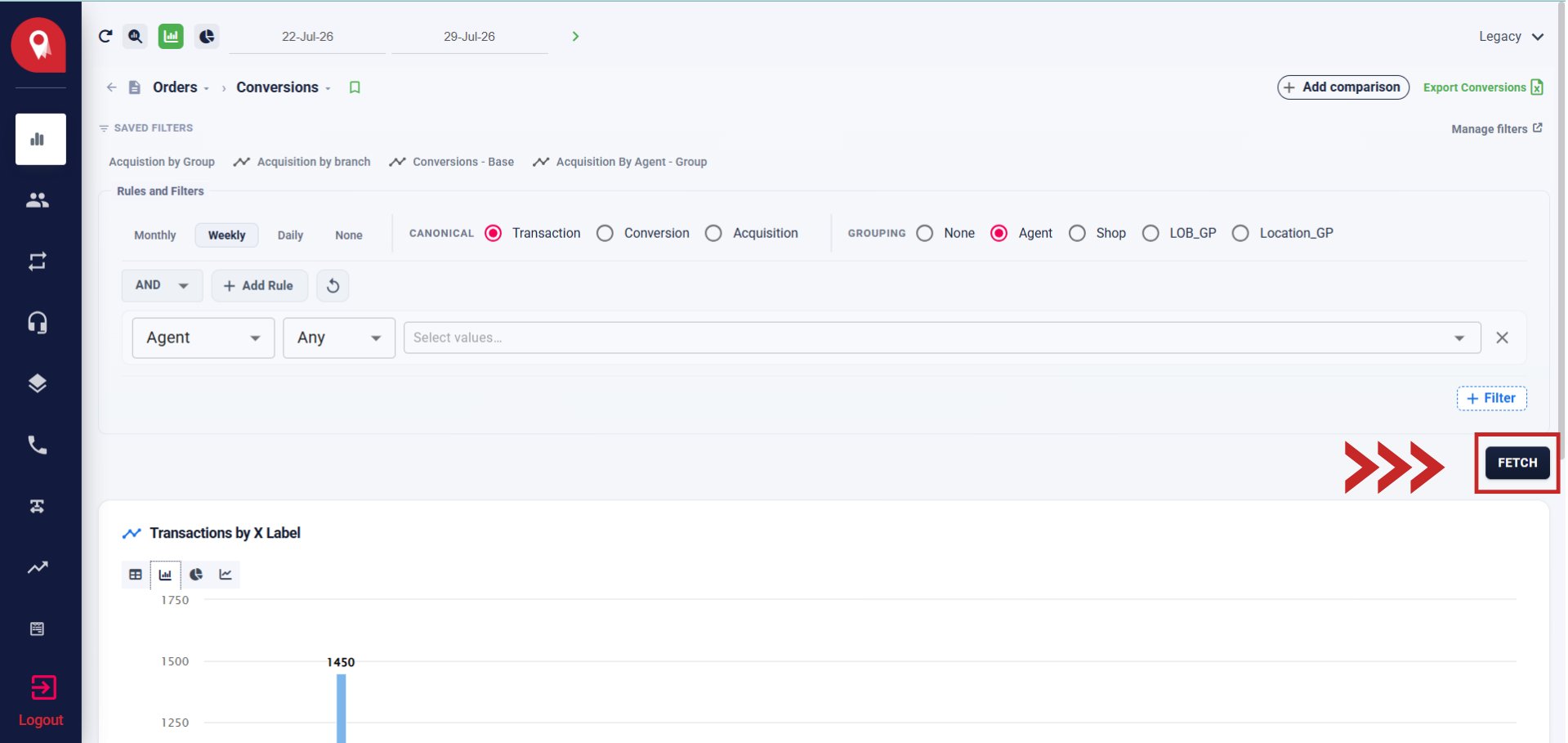
Reading the Results
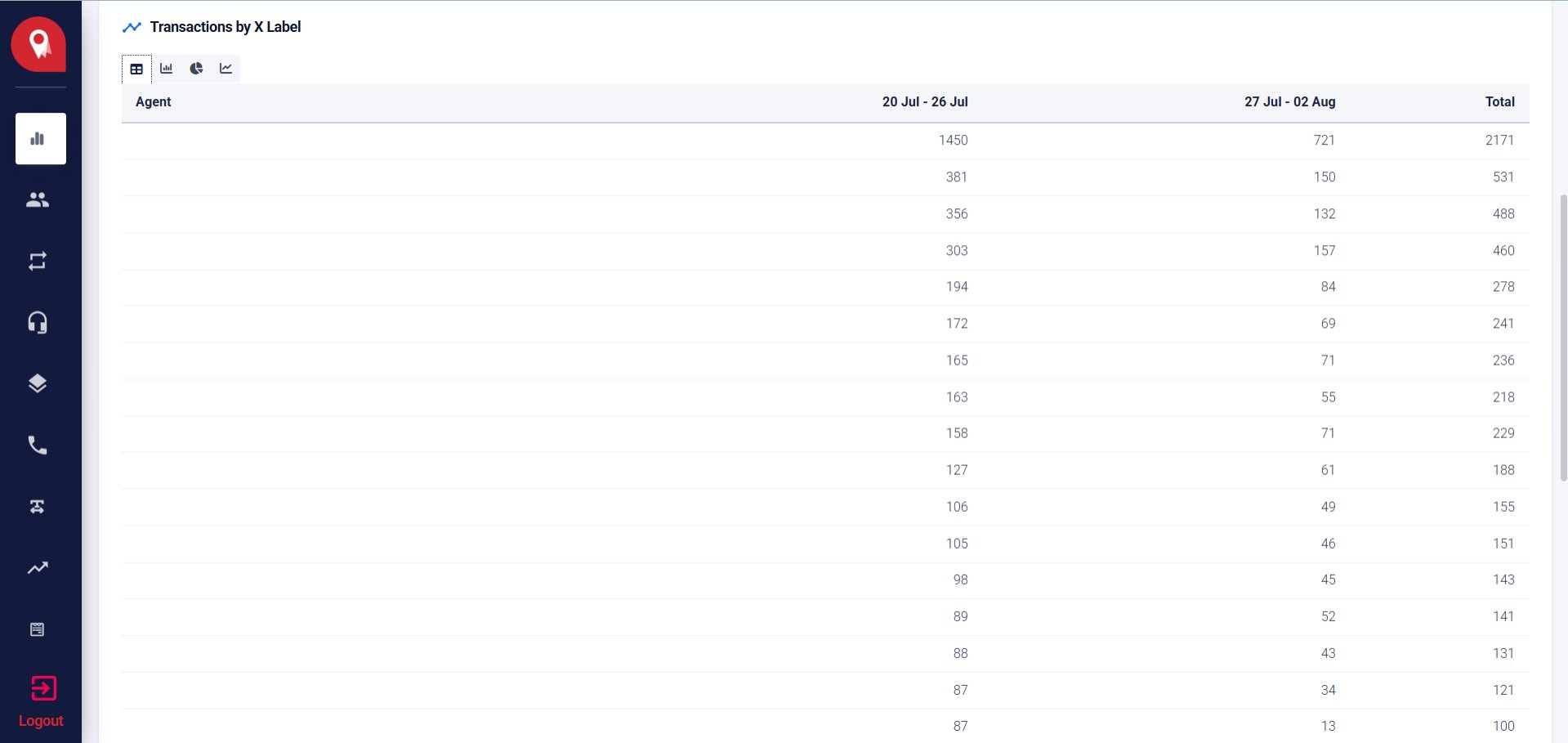
Results appear as Transactions by X Label, where X Label reflects the active grouping dimension (e.g. Agent). You can switch between four visualization types using the icons above the chart:
The table view shows each grouping value as a row, with columns per date period and a running Total column on the right.
Exporting Data
Click Export Conversions (top right of the query builder) to open the export modal. You can choose to export as Export All Records — which ignores your current filters and downloads the complete dataset — or Export Filtered Records — which honours your active rules and exports only the matching data. Both options download as a CSV file scoped to your selected date range.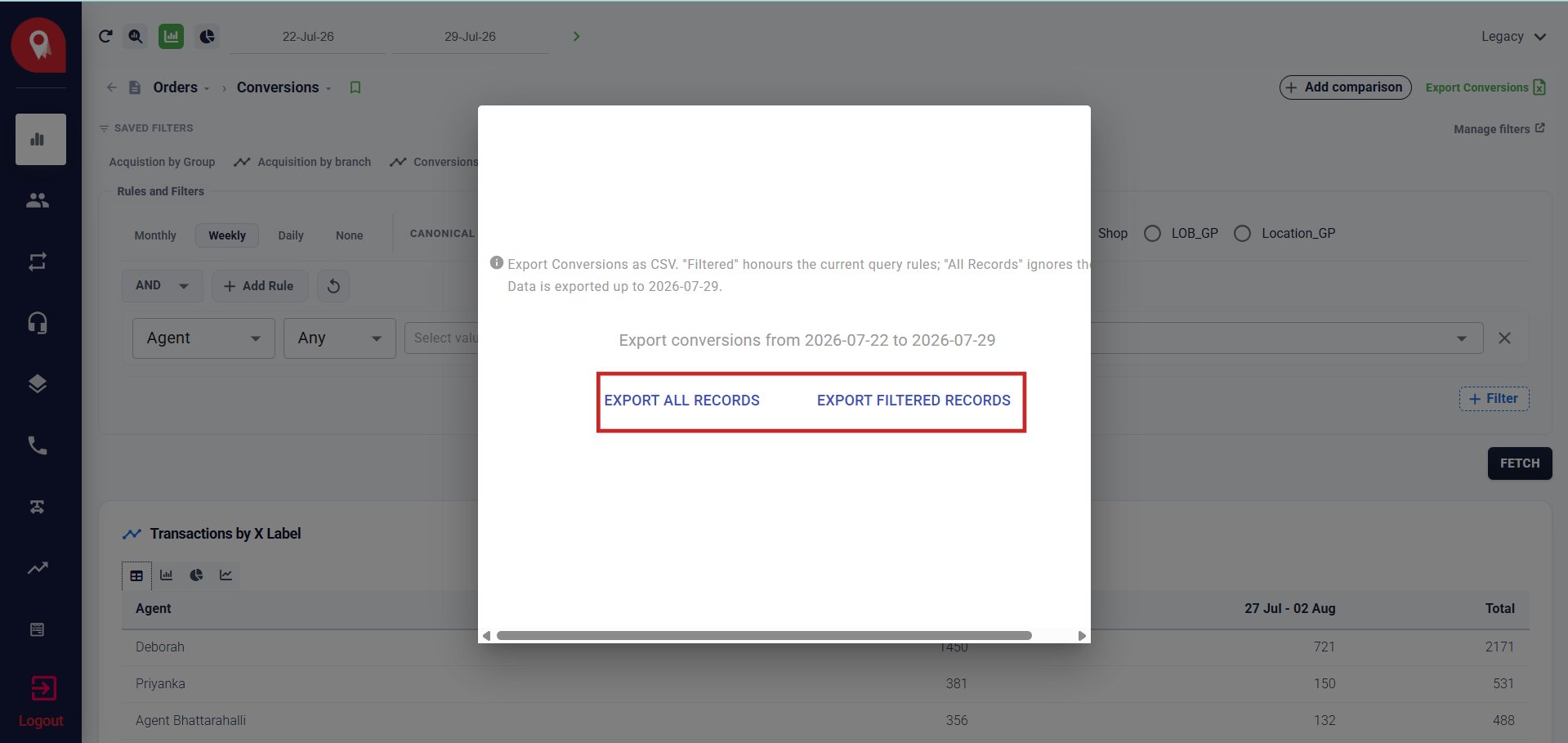
Comparing Periods
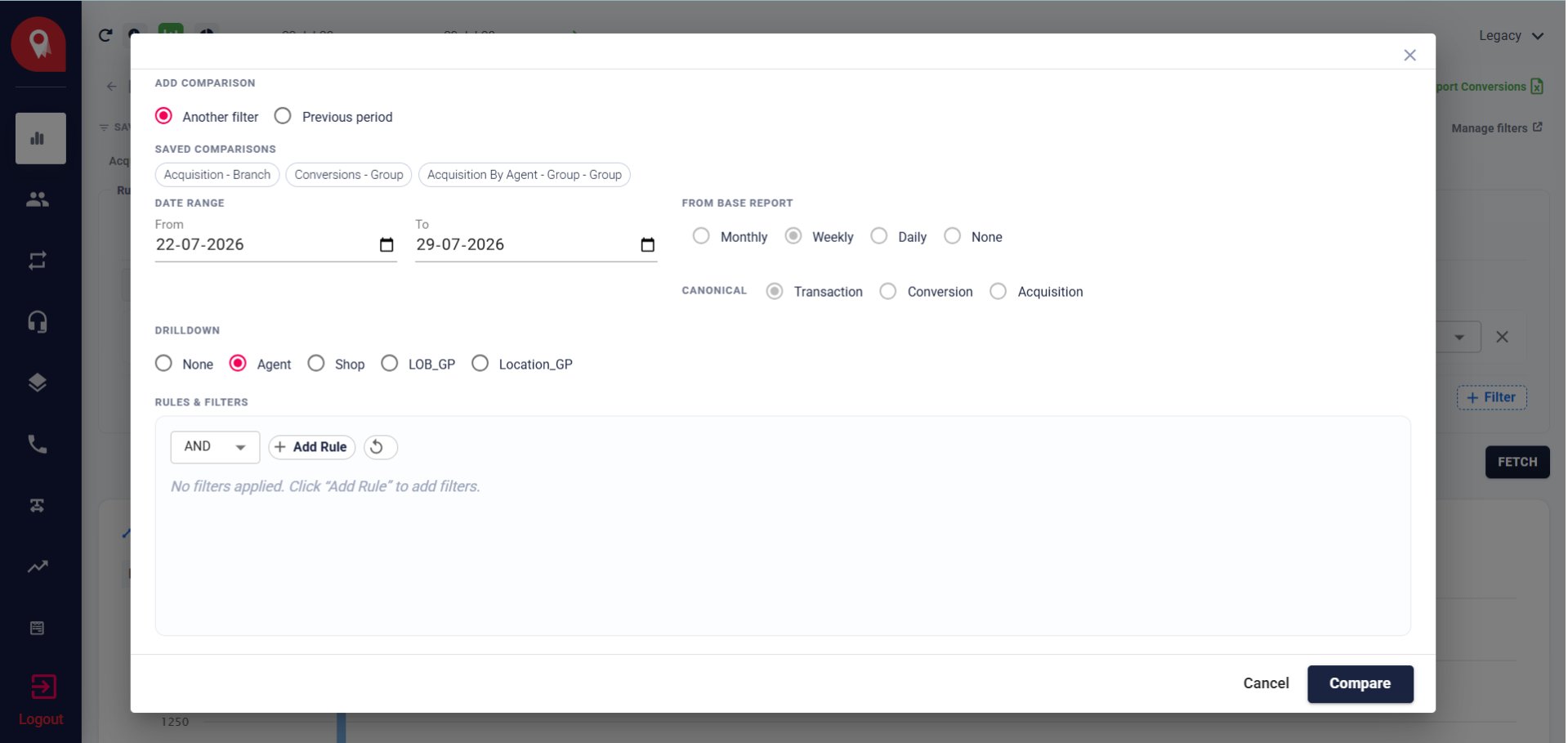
Click + Add Comparison (top right of the query builder) to open the comparison modal. You can compare against Another Filter — where you define a fully custom second query — or against the Previous Period, which auto-populates the date range for you. If you have saved comparisons like Acquisition - Branch or Conversions - Group, you can apply them directly from the Saved Comparisons row. The comparison runs its own independent configuration — you set the date range, granularity, canonical type, drilldown dimension, and any rules or filters you want applied. Once everything is set, click Compare to overlay the results on your existing query.