Date Range
The date range selector at the top of the screen controls which period your data covers. Use the left and right arrows to scroll across weeks. The currently selected window appears in the top bar.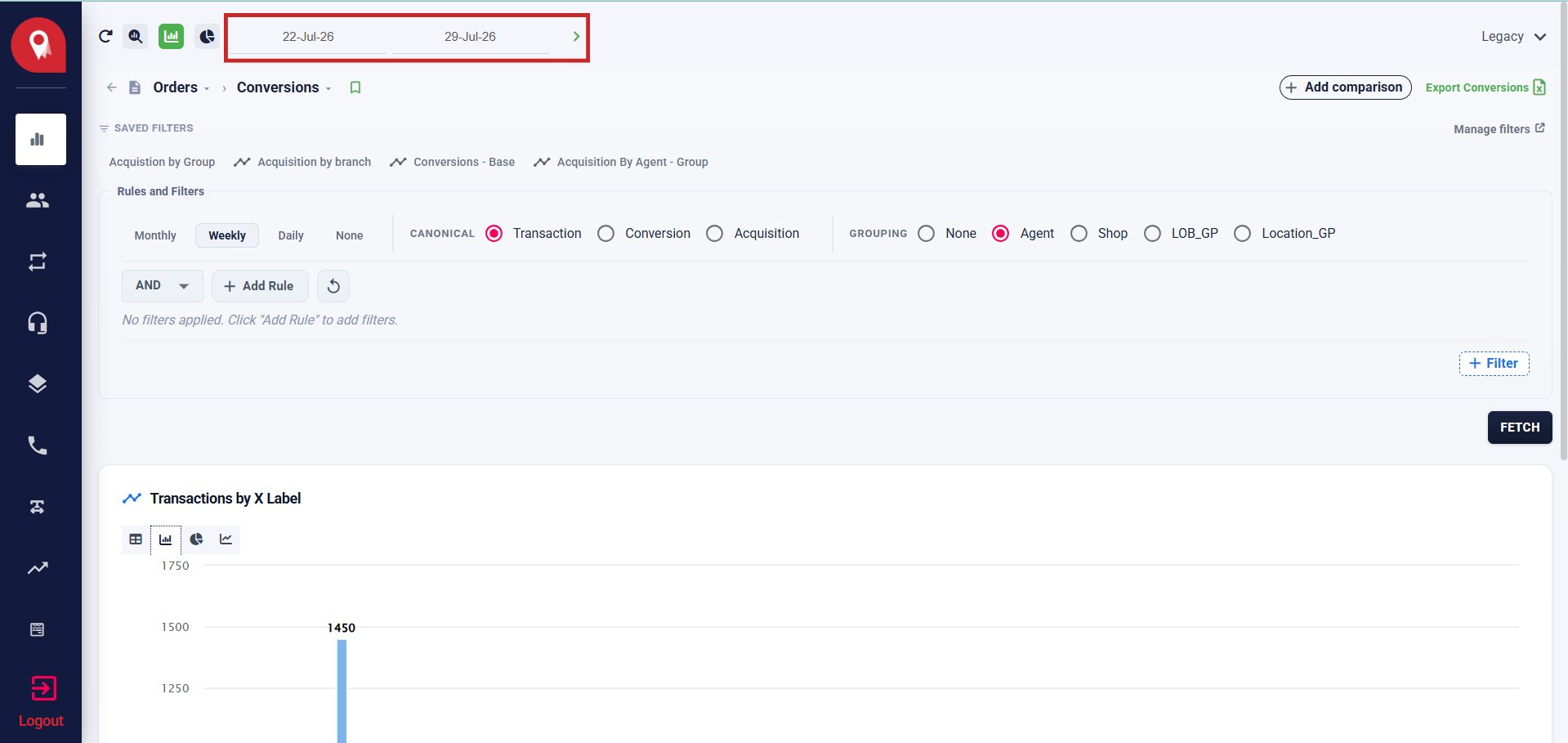
Time Granularity
Select how data is bucketed along the time axis: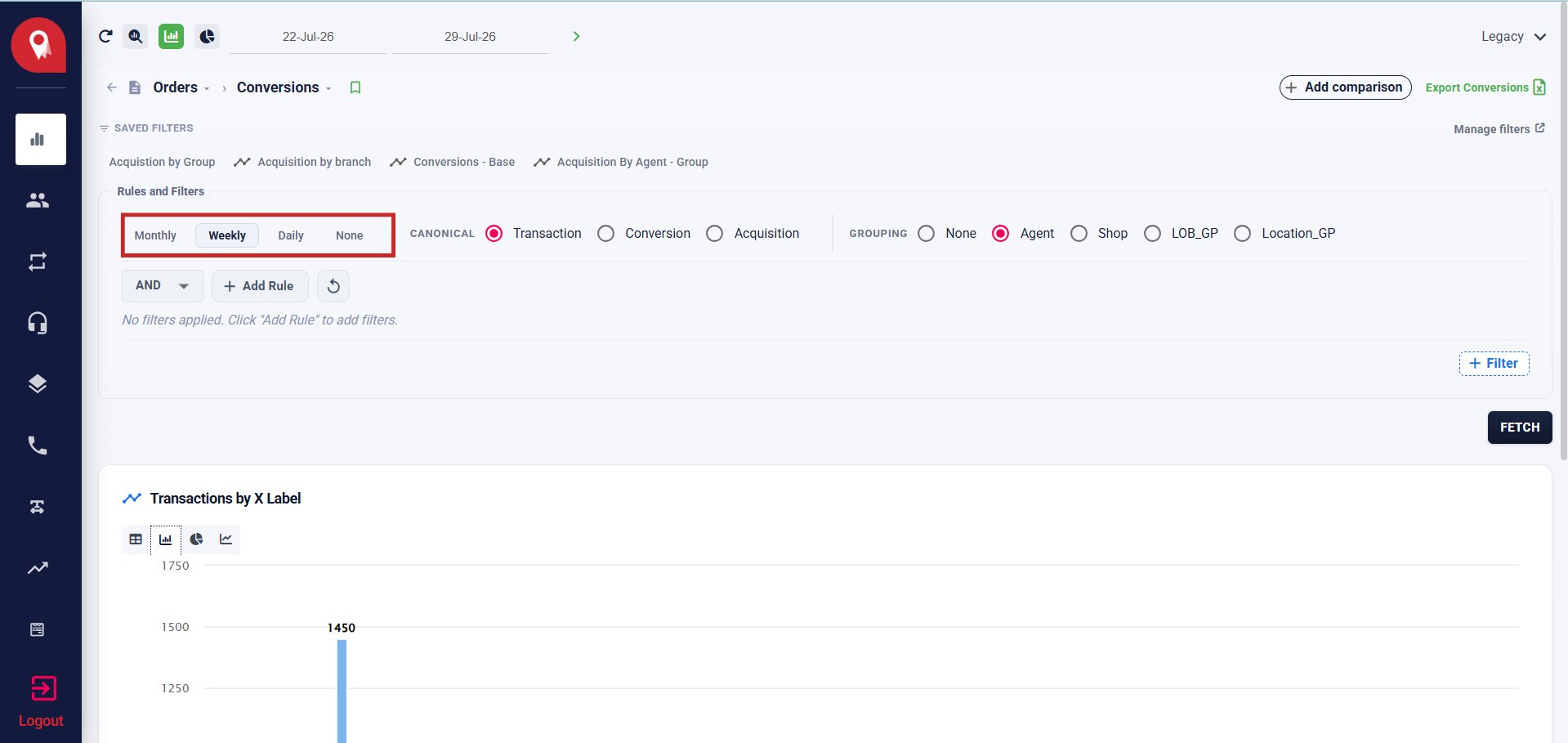
Canonical Filter
The Canonical selector determines which event type is the unit of measurement: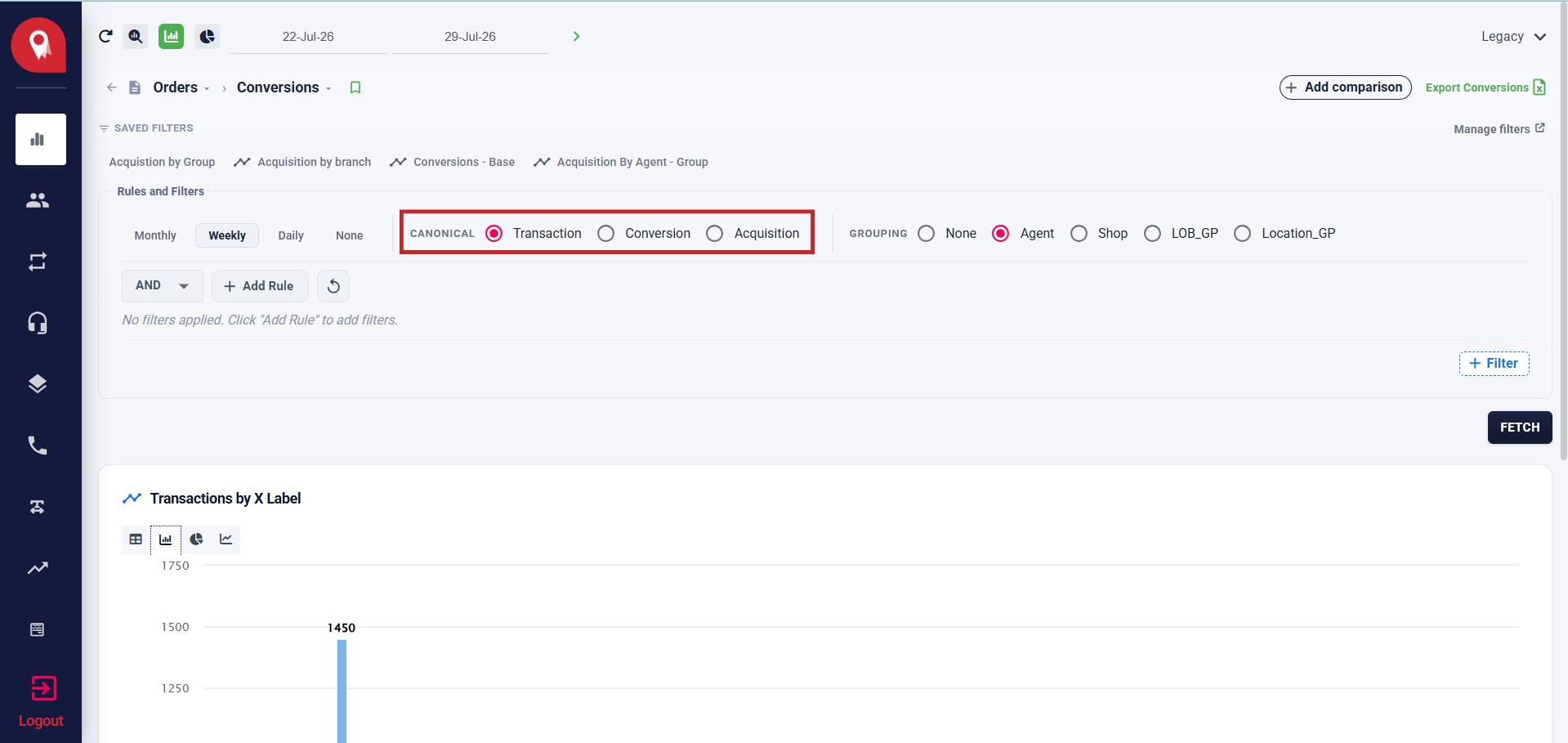
Grouping
The Grouping dimension sets how results are broken down in the chart and table: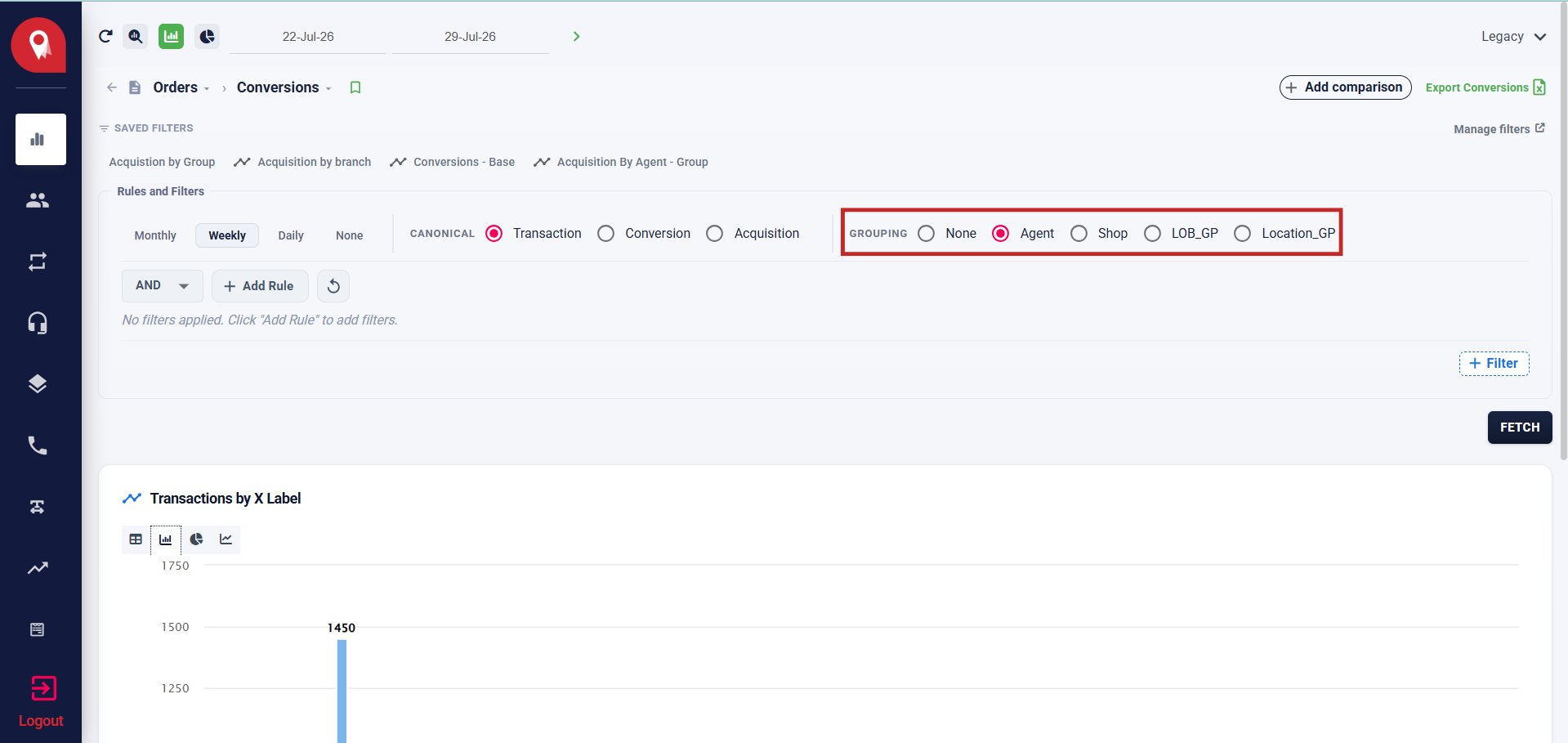
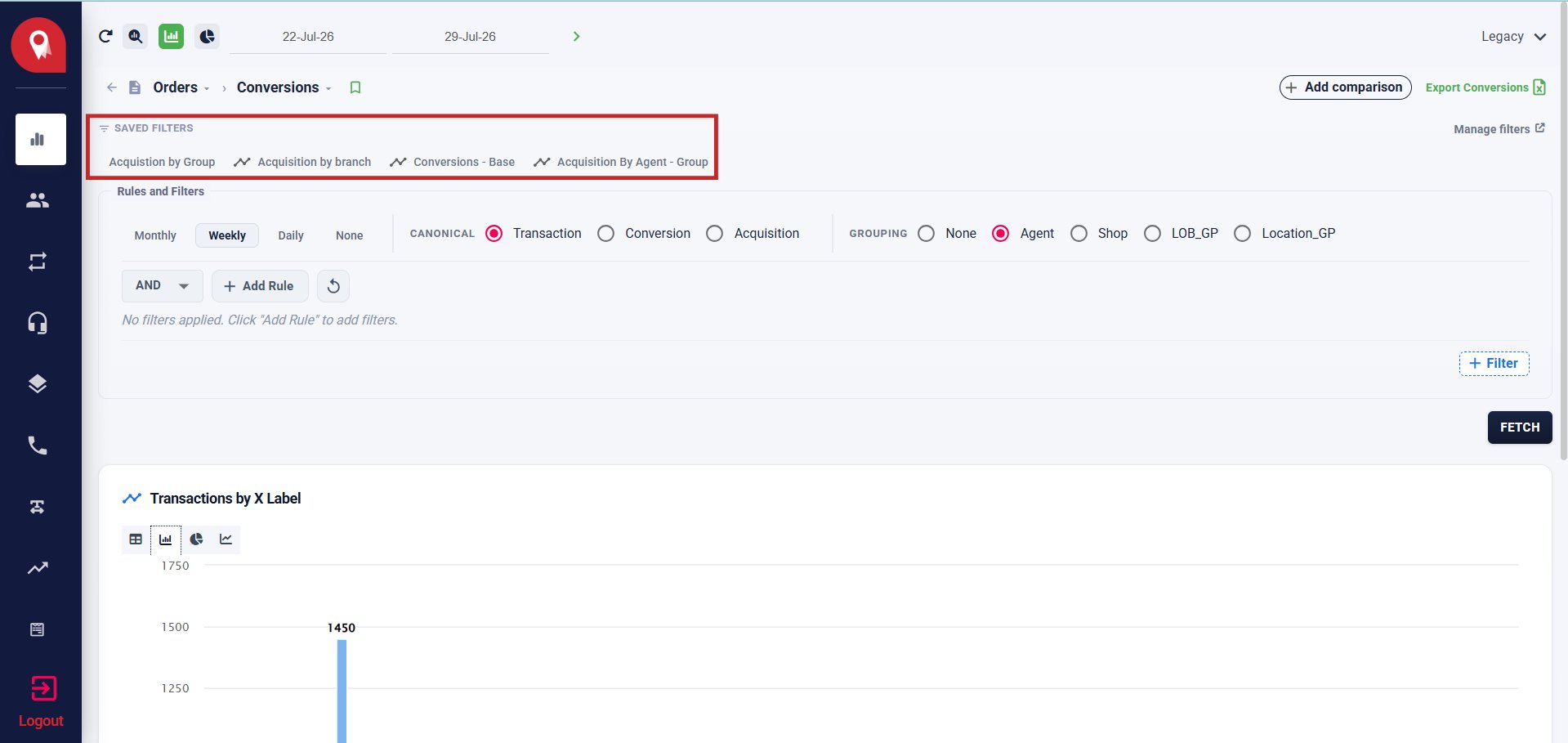
Saved Filters
Pre-configured filter combinations are available as quick-access tabs above the rules section. Example saved filters visible on this view:- Acquisition by Group
- Acquisition by Branch
- Conversions — Base
- Acquisition By Agent — Group
Rules and Filters
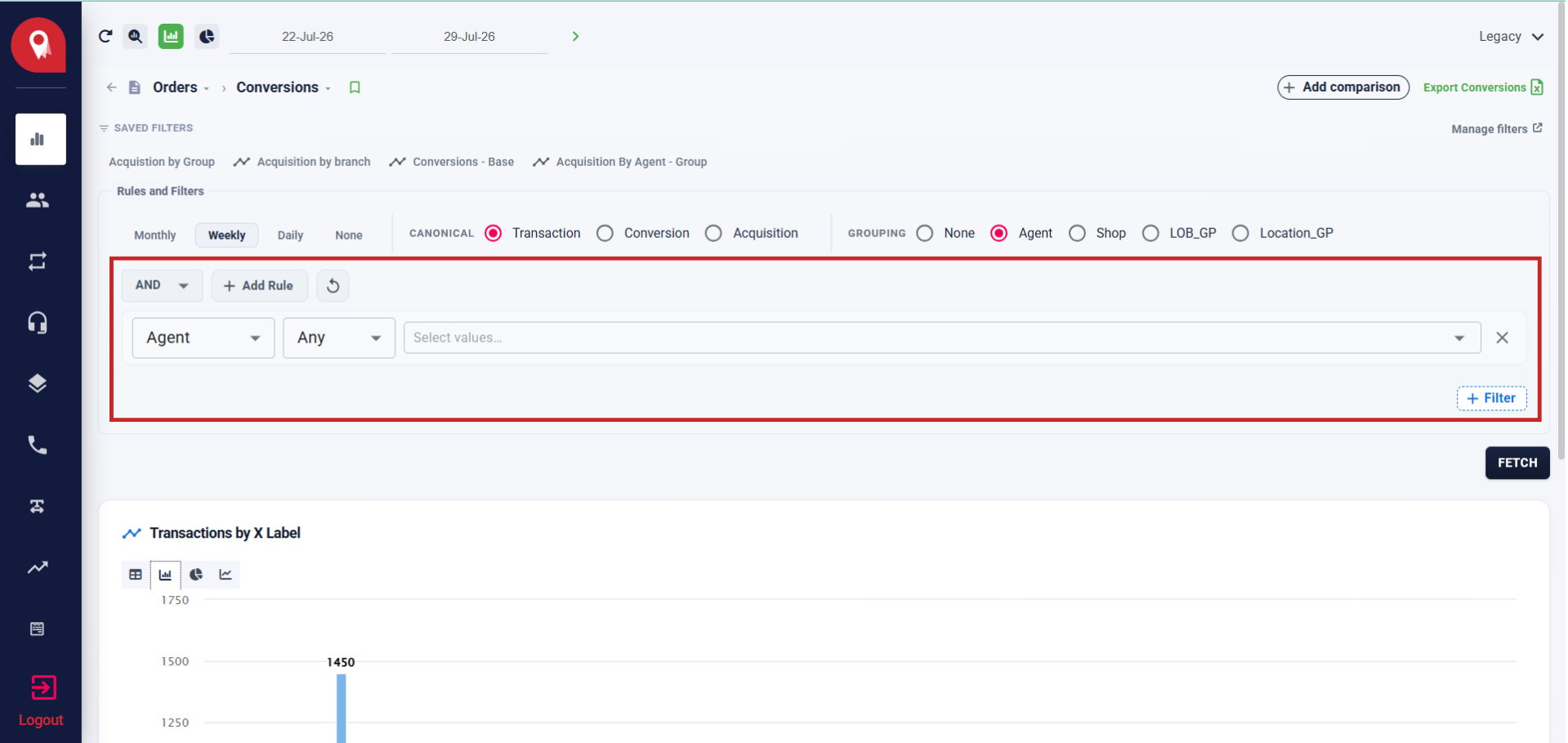
Use the Rules and Filters section to narrow the dataset with attribute-level conditions before fetching.Adding a Rule
- Click + Add Rule.
- Select the attribute to filter on. Available attributes include:
- Agent
- LOB
- Branch
- Transaction Phase
- Transaction Stage
- Order Status
- Grouping
- Source
- Archival Status
- Transaction Attributes
- UserRecency
- Payment Status
- Amount
- Allocation Type
- Select the operator for that attribute:
- Select or search for the value from the dropdown. For Agent, this populates a searchable list of all agents on the platform.
Combining Rules
Use the AND / OR logic toggle to control how multiple rules interact:- AND — all rules must be satisfied simultaneously
- OR — any one rule being satisfied is sufficient