
- A contact is one phone call, one WhatsApp conversation or one walk-in.
- A lead is a person (a transaction) who was contacted.
The report is built from a nightly load, so today’s contacts appear tomorrow. If a day in your date range has not been loaded yet, the report tells you above the chart.
Run the report
1
Open Channel Analytics
-
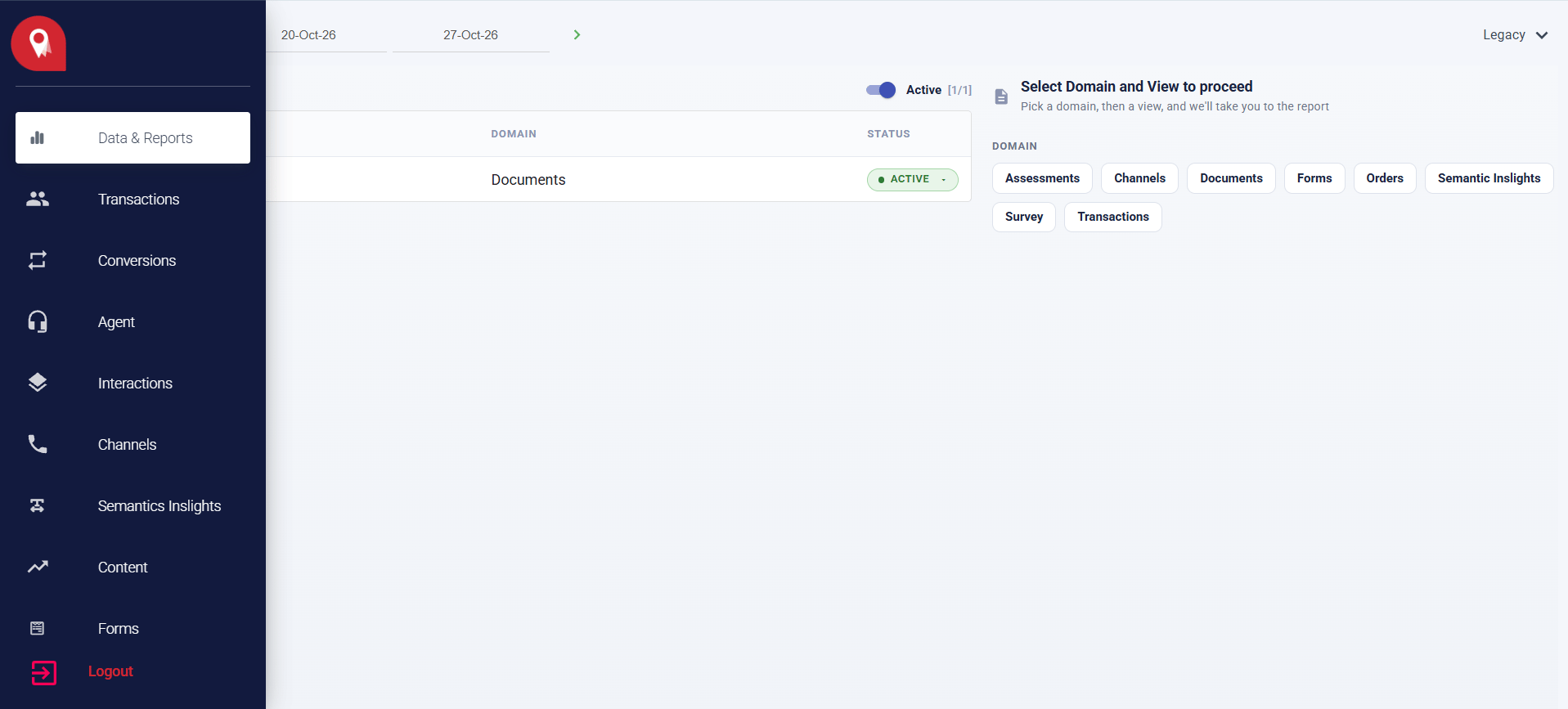
In the sidebar, click Data & Reports.
-
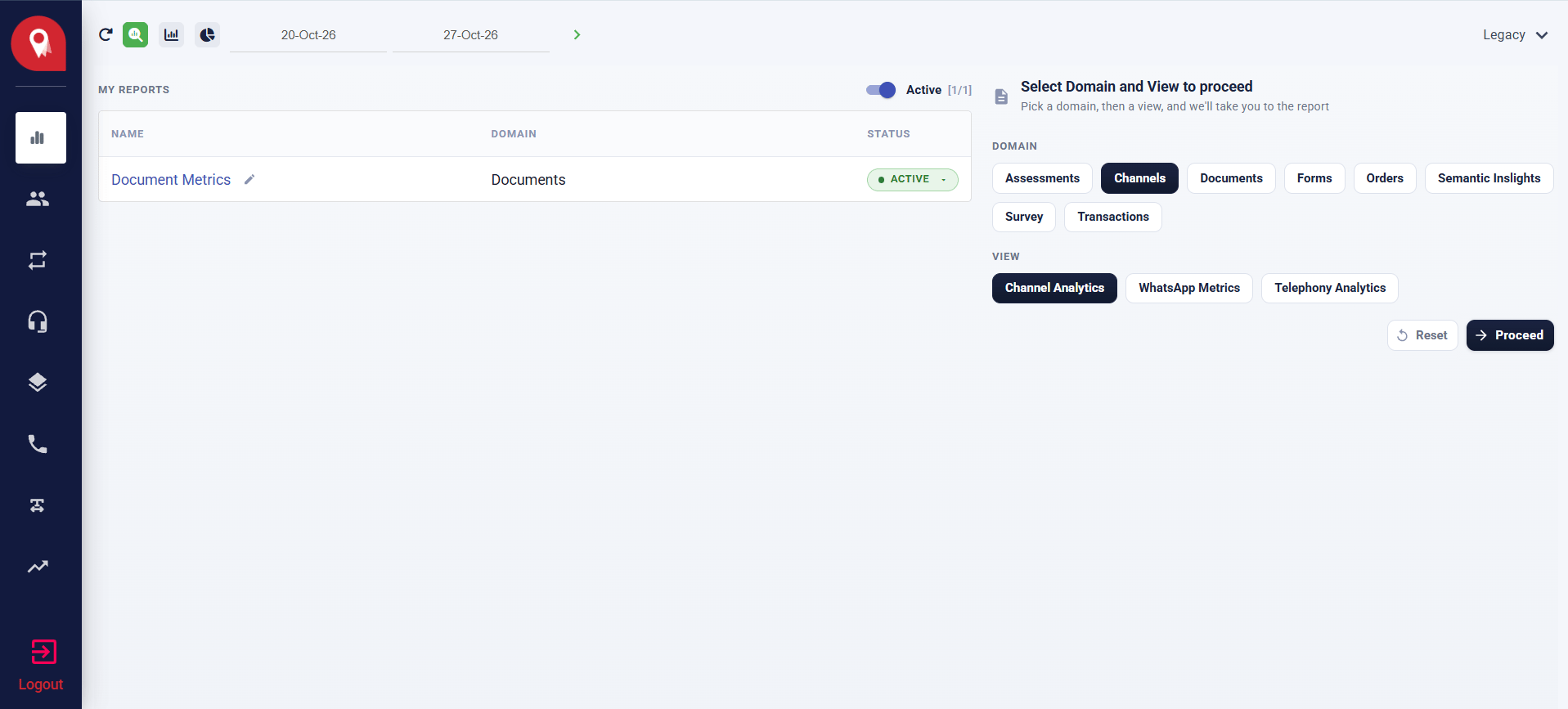
Choose the Channels domain. Channel Analytics opens first. Telephony Analytics and WhatsApp Metrics sit next to it.
2
Choose the dates and the period
Pick the From and To dates at the top.Then, at the left of Rules and Filters, choose how to show the numbers over time: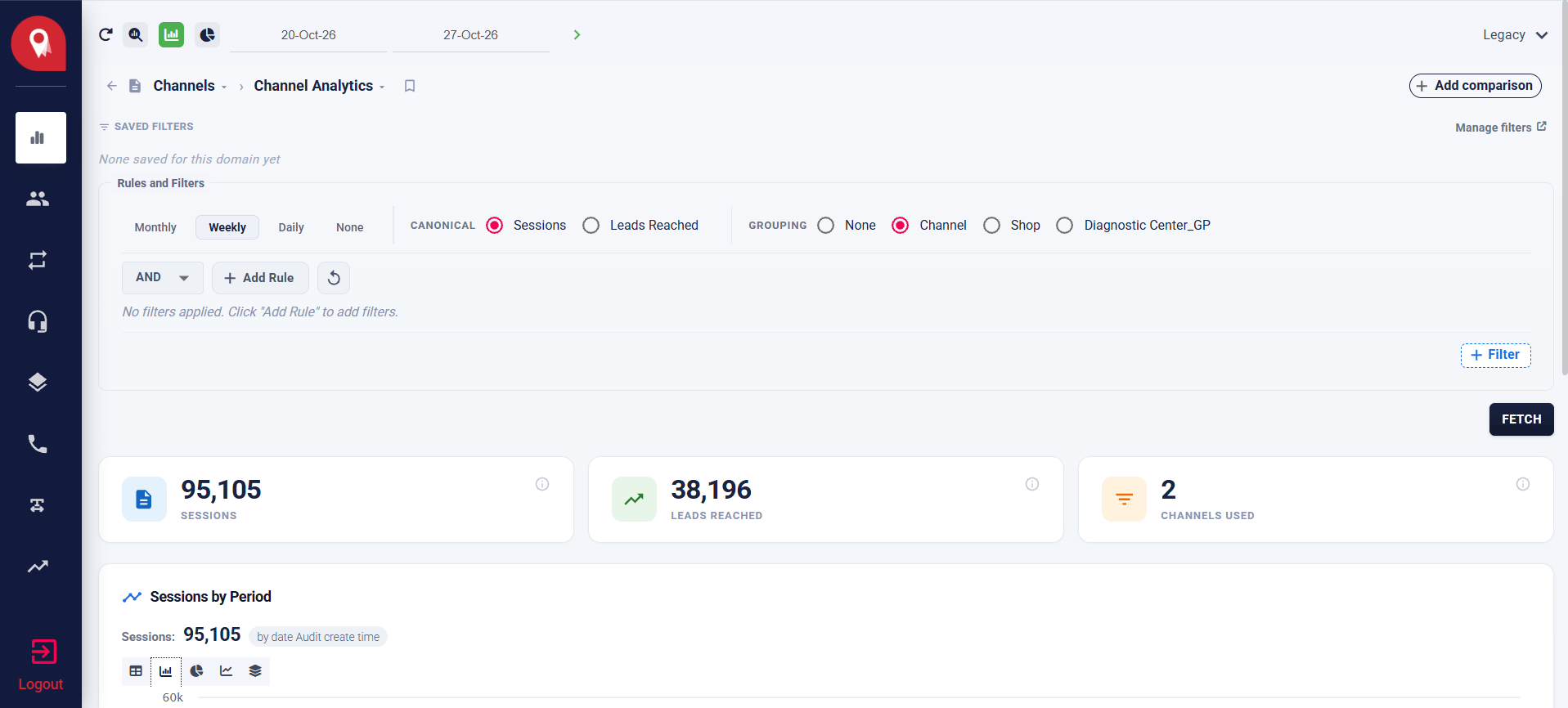
- Monthly, Weekly or Daily: one position on the chart for each month, week or day. Weeks start on Monday.
- None: one position for the whole date range.
3
Read the tiles
Three tiles above the chart show totals for the whole date range: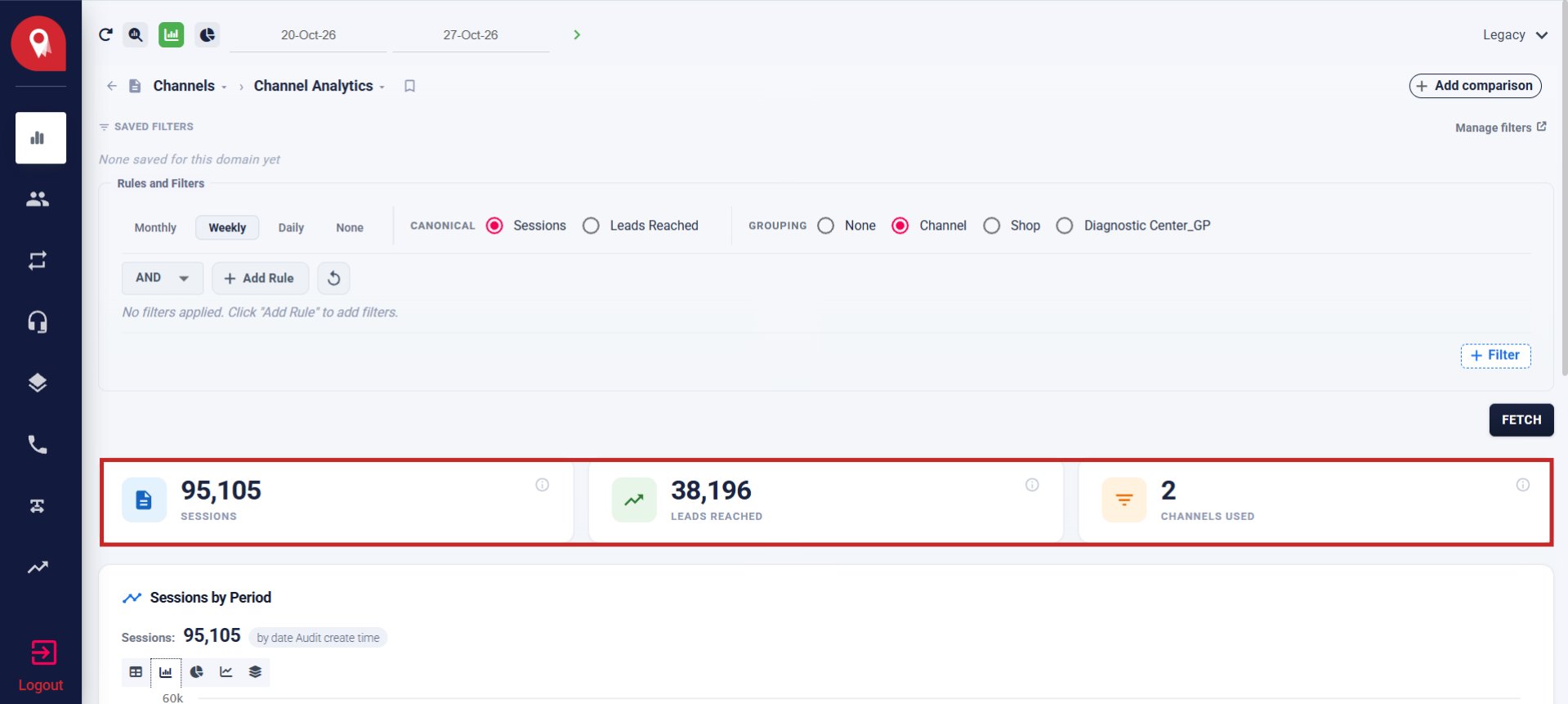
- Sessions: every call, WhatsApp conversation and walk-in in the range. This includes template messages your business sent. One customer chat counts once, however many messages it holds.
- Leads Reached: how many different leads were contacted. A lead contacted three times counts once.
- Channels Used: how many channels carried contacts. There are up to three: WhatsApp, HumanAgent (walk-ins) and Phone.
4
Split the numbers by a grouping
Under GROUPING, choose:
- Channel for one bar for each channel.
- Shop for one bar for each branch.
- One of your own groupings, if it is made of branches.
- None for one total.
- With None, you see one cluster of bars for the whole date range.
-
With Weekly, Monthly or Daily, you see a cluster for each period, with one bar for each group.
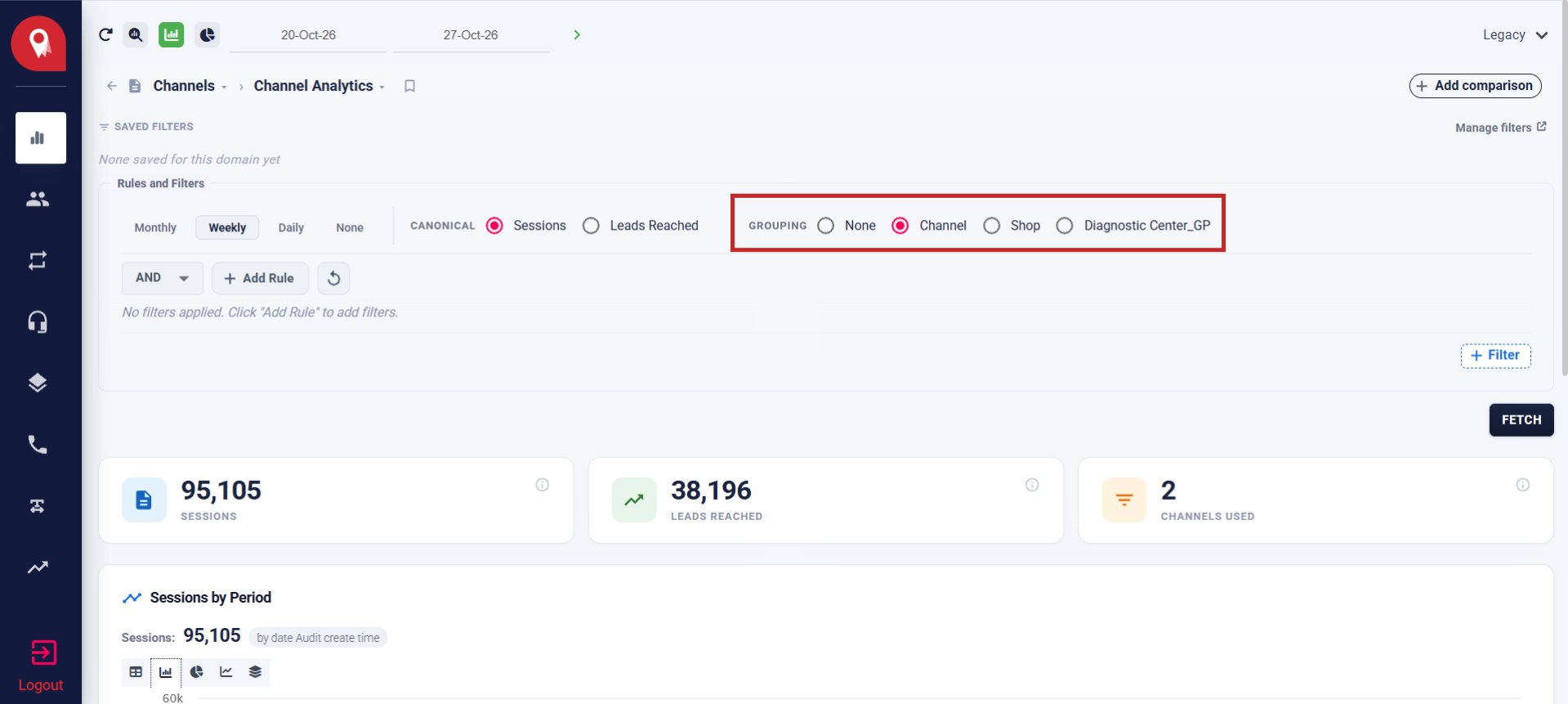
The bars do not always add up to the tile. Leads Reached counts each lead once, so a lead contacted on two channels shows in both bars but only once in the tile. A branch split leaves out contacts that have no lead yet, and a group such as IVF can contain several branches.
Filter, or split by a lead value
Under Rules and Filters:- Click Add Rule.
- Pick what to filter by: Channel, LOB, Branch, Transaction Phase, Transaction Stage or Source.
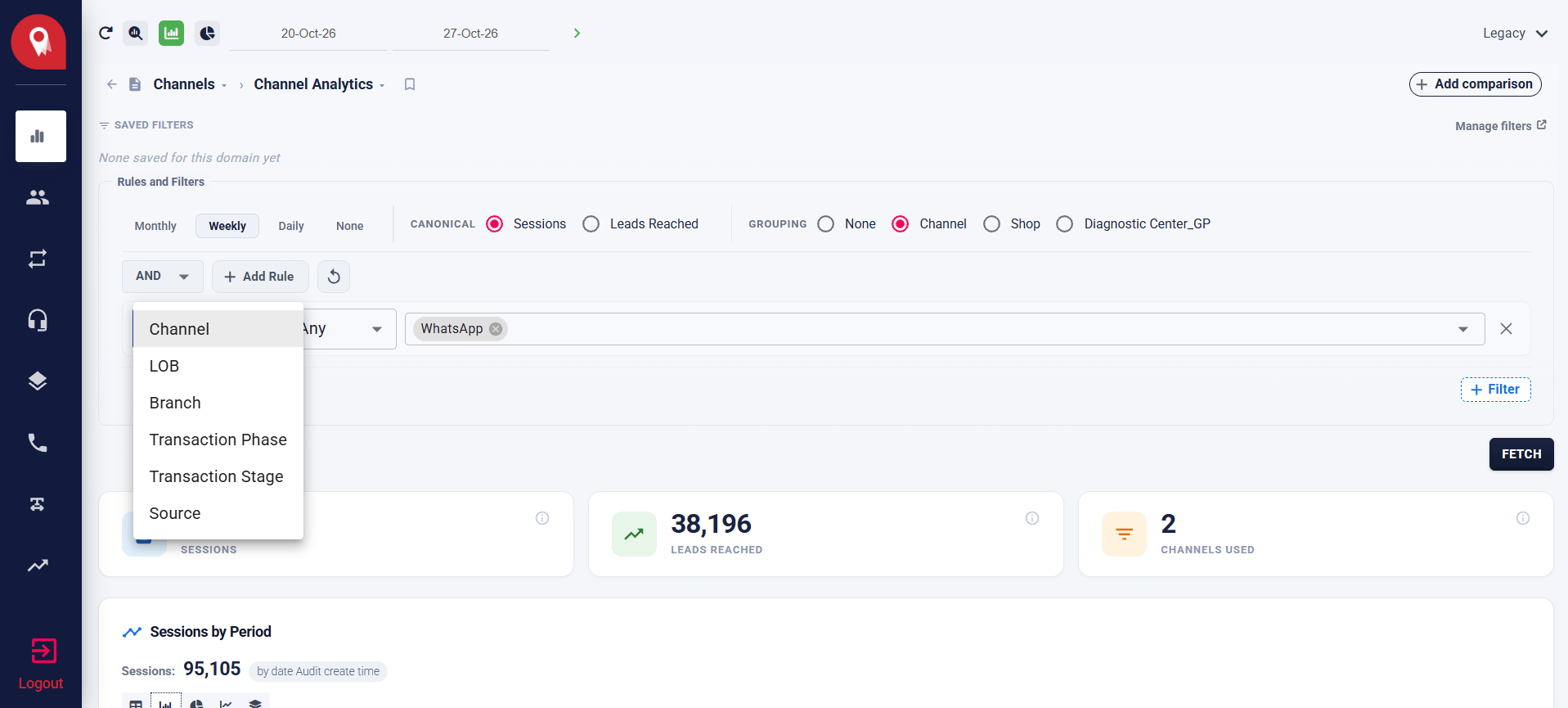
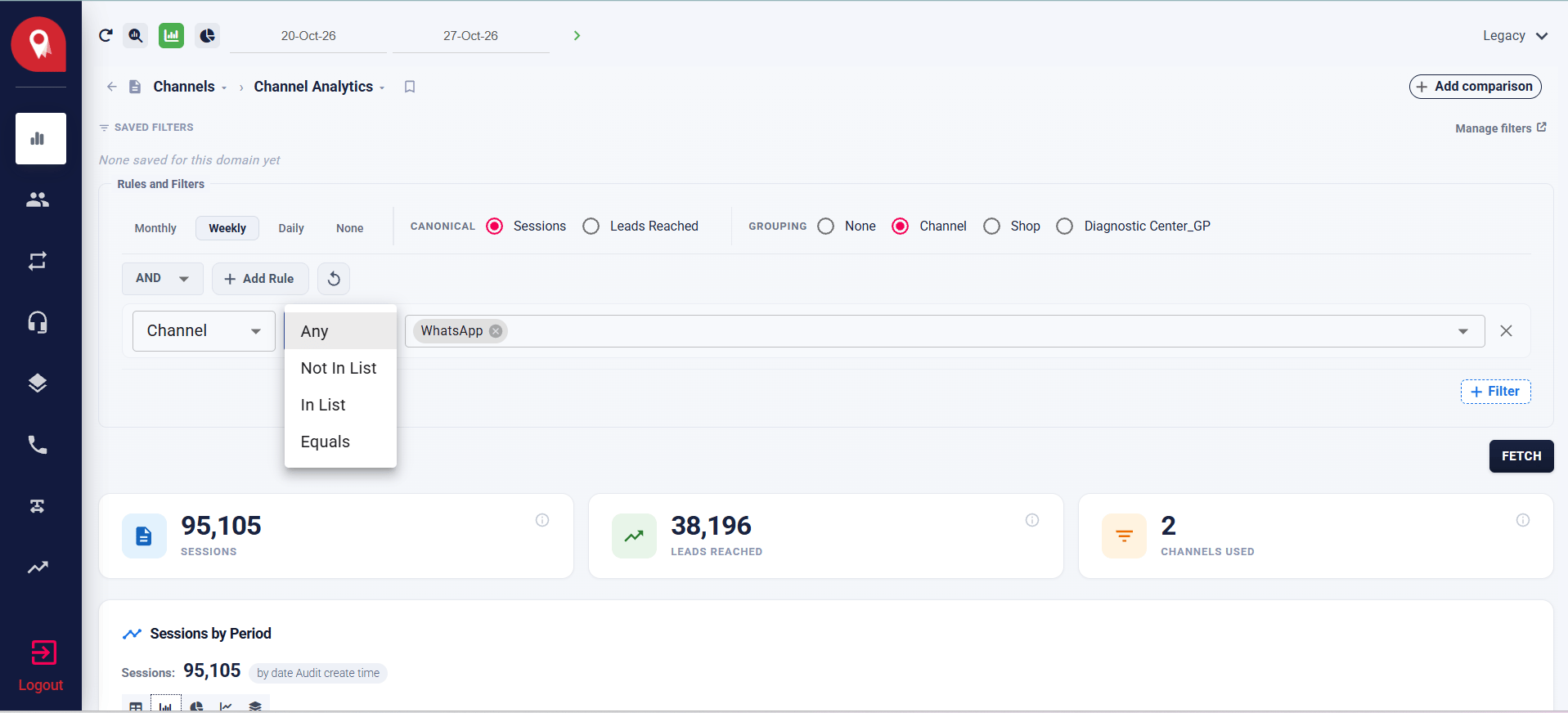
- Pick the match, for example In List or Not In List, and the values.
- Click FETCH.
Split the numbers with Any
Choose Any as the match on Source, Transaction Phase, Transaction Stage, Branch or Channel to split the numbers by that value. You get a bar for each source, phase or other value.- Any works together with a grouping. For example, Source with Any and the grouping Channel shows a bar for each source and channel pair.
- Contacts that have no lead yet show as No transaction.
- Only the first rule with Any splits the numbers. A second rule with Any only filters.
Combine rules
Use AND to keep contacts that match every rule, or OR to keep contacts that match any rule. The reset icon next to Add Rule clears all your rules.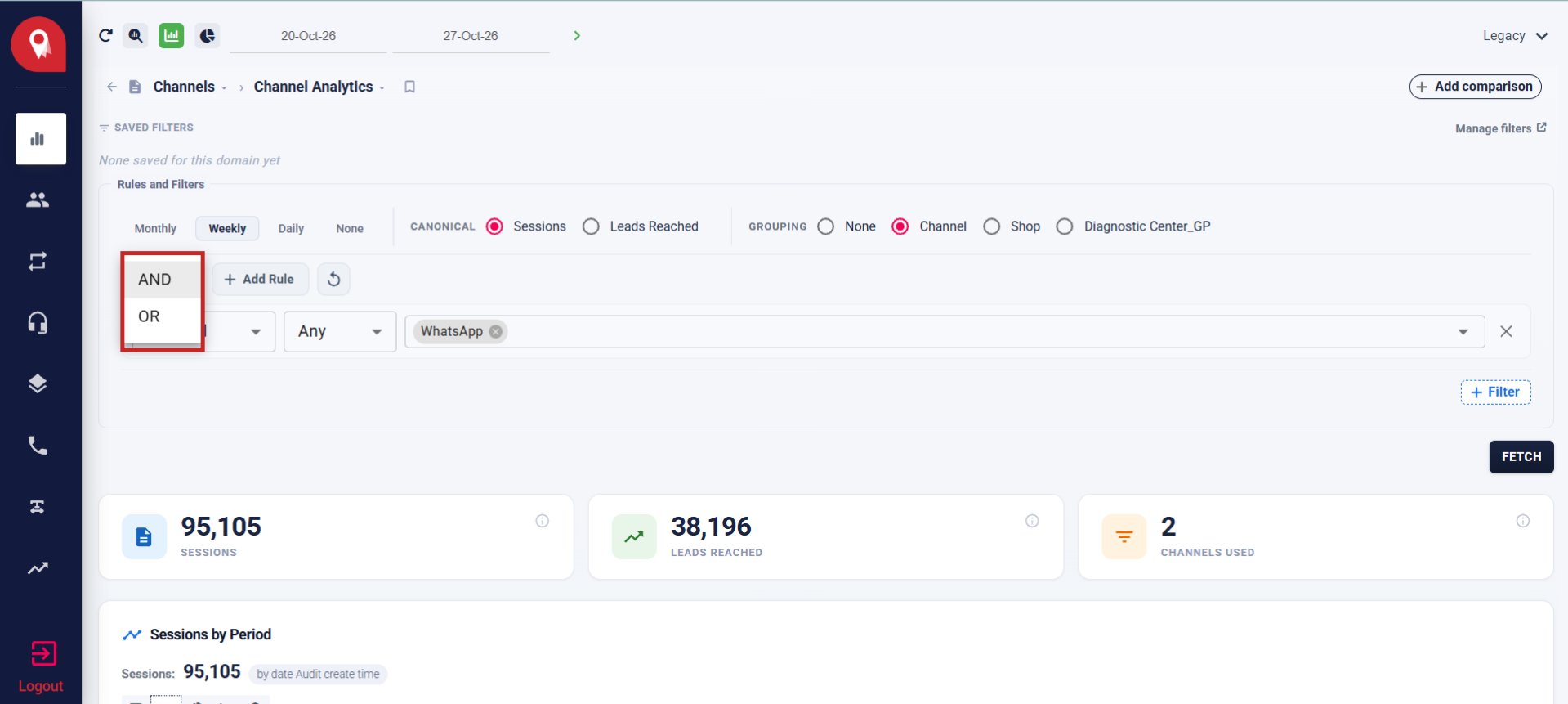
Read the notes above the chart
When the numbers need explaining, the report adds a short note above the chart. It tells you about:- Days that are not loaded yet, so the numbers cover only the loaded days.
- Contacts without a lead, which a branch or phase filter leaves out.
- A group that has no data in the date range.
Export the contacts
1
Click Export Channel Analytics
The button is at the top right of the report.
2
Choose what to export
- EXPORT ALL RECORDS ignores your rules.
- EXPORT FILTERED RECORDS keeps them.
3
Open the file
When the file is ready, open it from the export list.
What is in the file
The file has one row for each contact.
A contact without a lead has empty Branch, Stage, Source, Phase, Agent and lead detail columns.
How the row count matches the tiles
- With Sessions, the number of rows equals the Sessions tile.
- With Leads Reached, the file only has contacts that have a lead. It has more rows than the tile, because the tile counts each lead once.
In Excel, a long mobile number can show as
8.31E+09 and a time as ########. Widen the column, or import the column as text. The file itself is correct.If something looks wrong
Screen quick reference
Related pages
Data & Reports Overview
The domains, modes and controls shared by every report.
Query Builder
Build your own query on a domain.