
Introduction
The Payments report gives you a view of payment activity across your organisation for any selected date range. It tracks attempts, successful payments, collection amounts, and failures, grouped by branch, LOB, or shop, and lets you export the underlying records as a CSV. You can use this report to:- Review how much was collected in a given period
- Identify payment failure and drop-off trends
- Compare payment activity across branches or locations
- Export payment-level data for finance reconciliation
Opening the Report
Open Data and Reports from the left navigation bar, then select Orders as the domain and Payments as the view.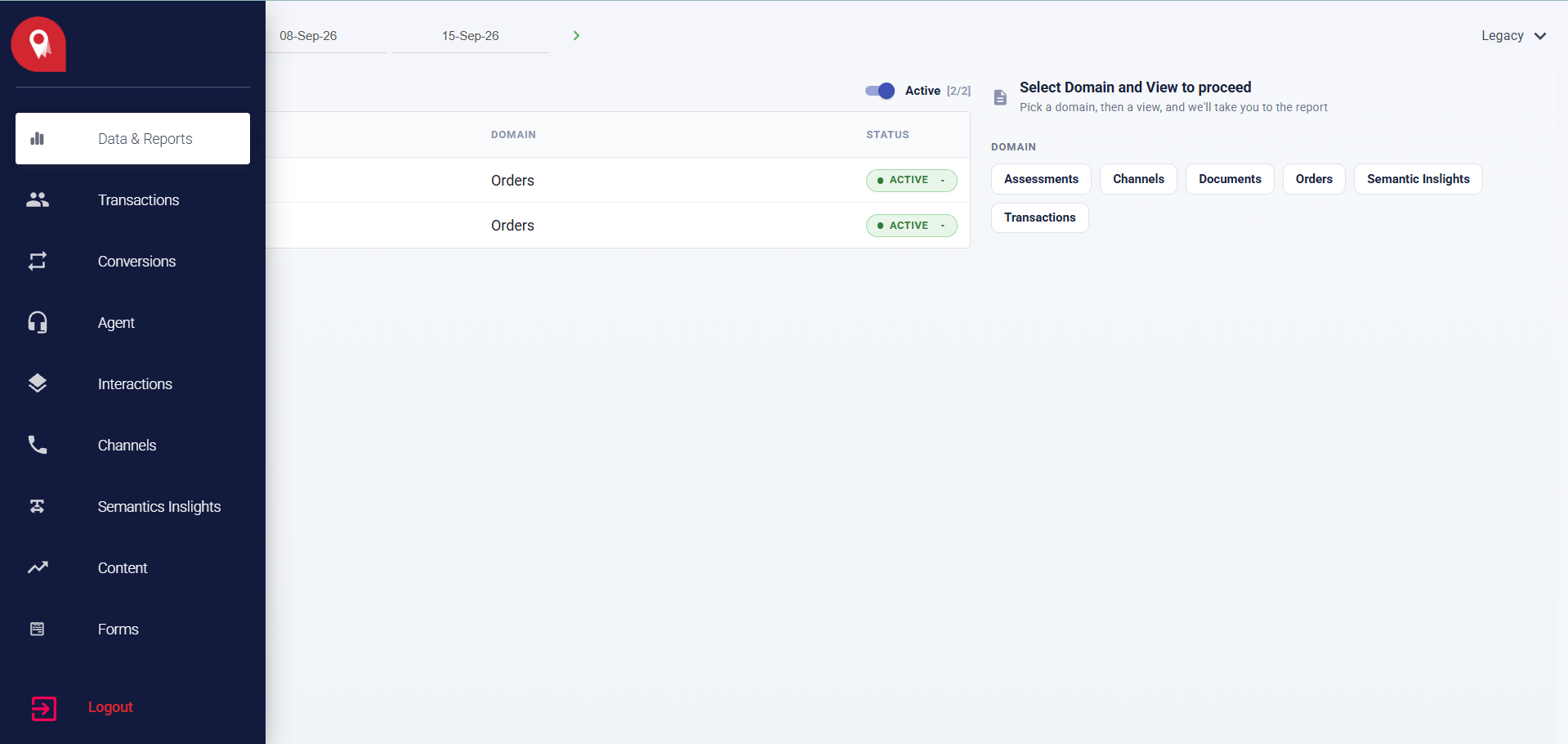
Page Layout
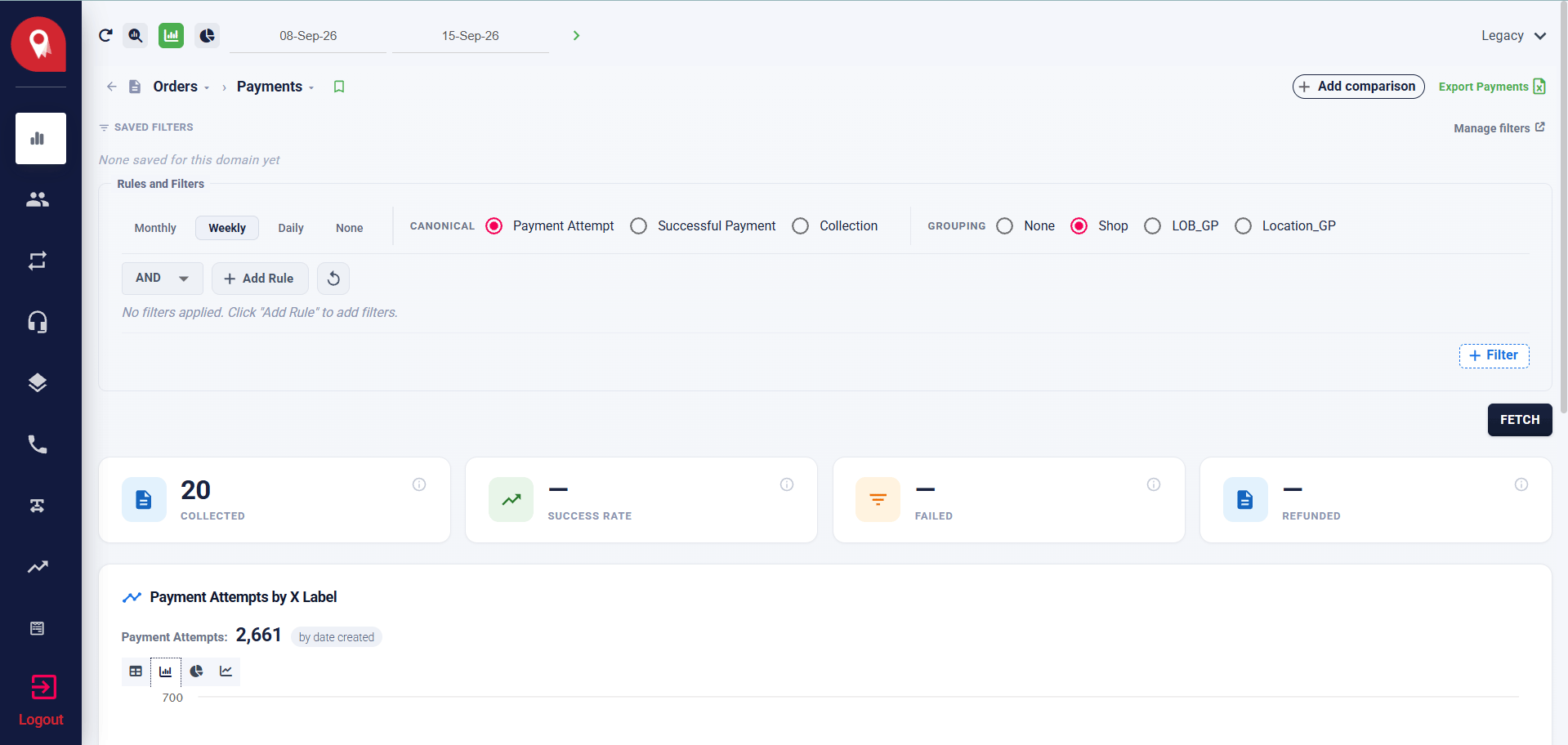
Configuring the Report
Set the Date Range
The date range selector sits in the top bar and applies across the entire report. Set your start and end date before running any query.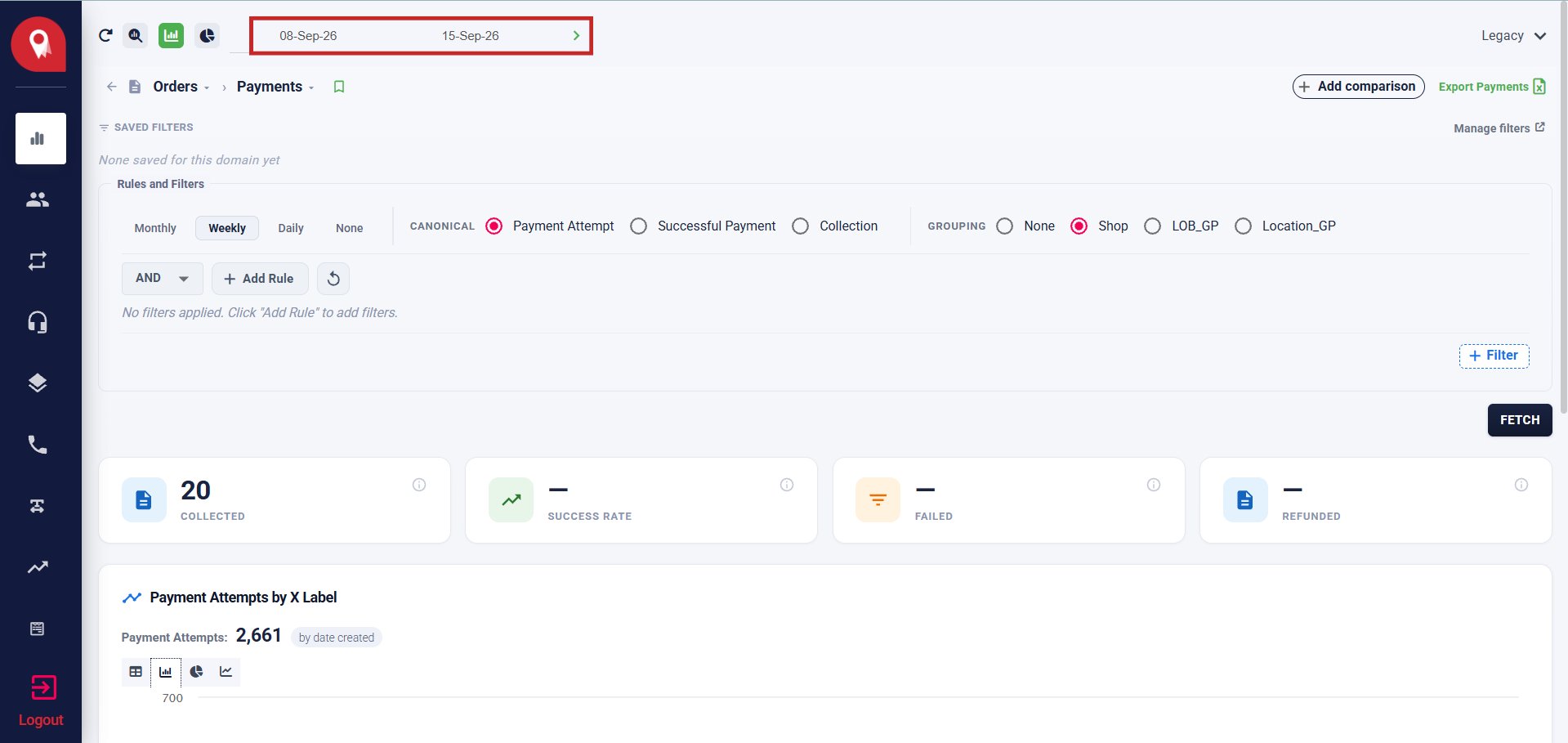
Saved Filters
Any filters previously saved for the Payments view appear as clickable tabs below the breadcrumb. Click a tab to load that filter set immediately. If no filters have been saved yet, the panel shows None saved for this domain yet. Click Manage filters (top right) to edit or delete saved filters.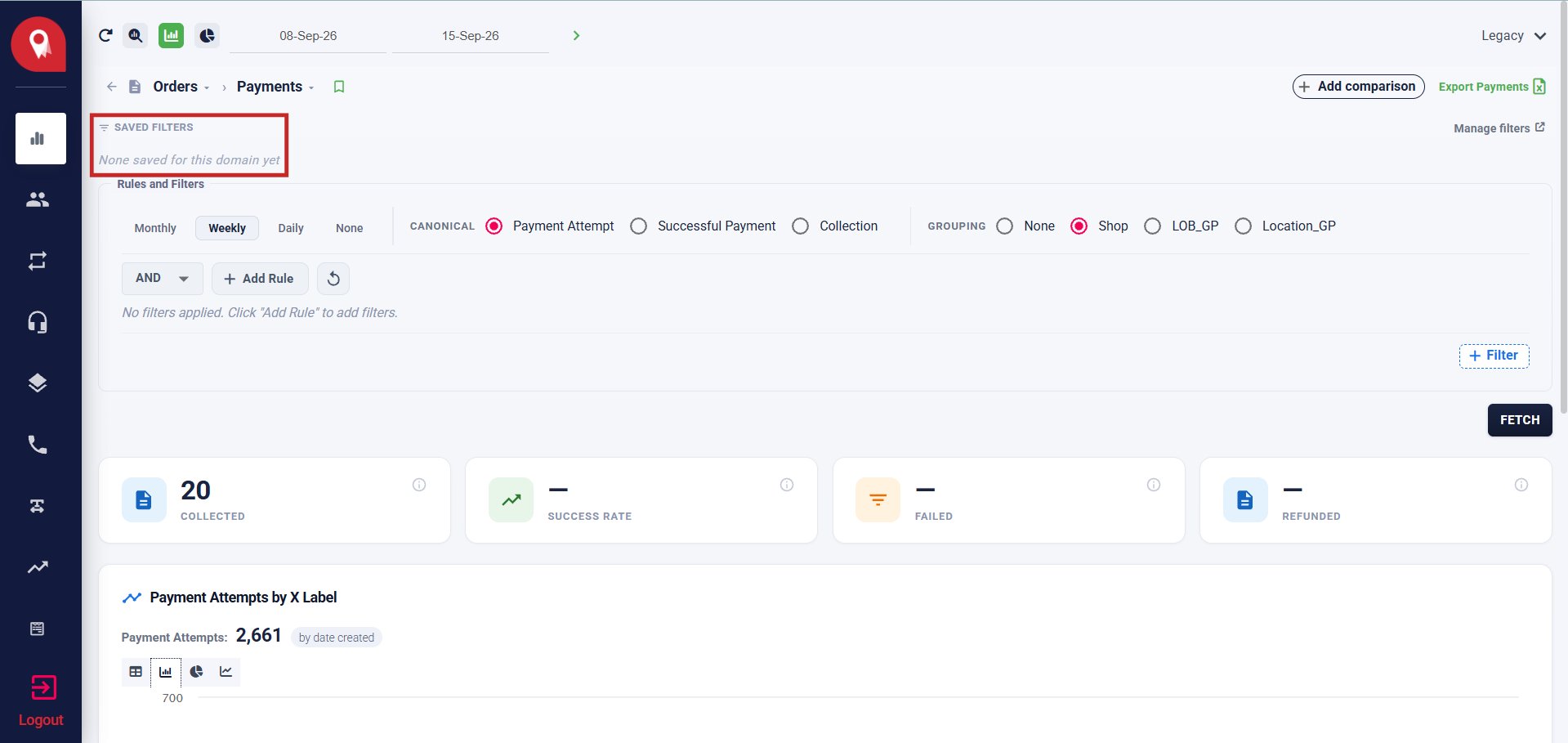
Rules and Filters
Granularity sets how data points are grouped across the date range:
Canonical sets the primary metric the chart and tiles measure:
Collection is a currency value, not a count. Switching to Collection changes the chart y-axis from number of payments to amount collected.
Adding Rules and Fetching
1
Set the combinator
Select AND or OR from the dropdown to control how multiple rules combine.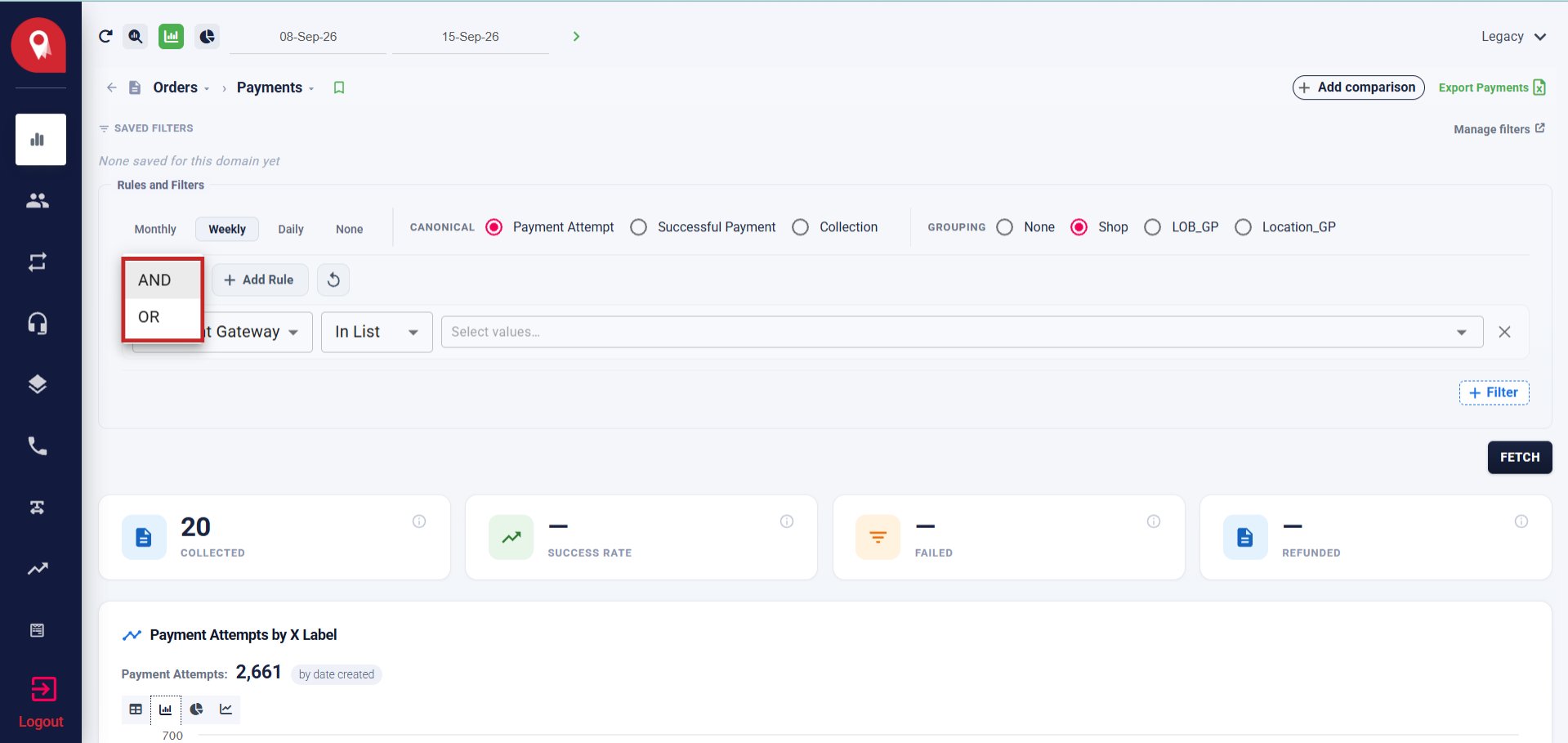
2
Add a rule
Click + Add Rule. Each rule has three parts: field, operator, and value.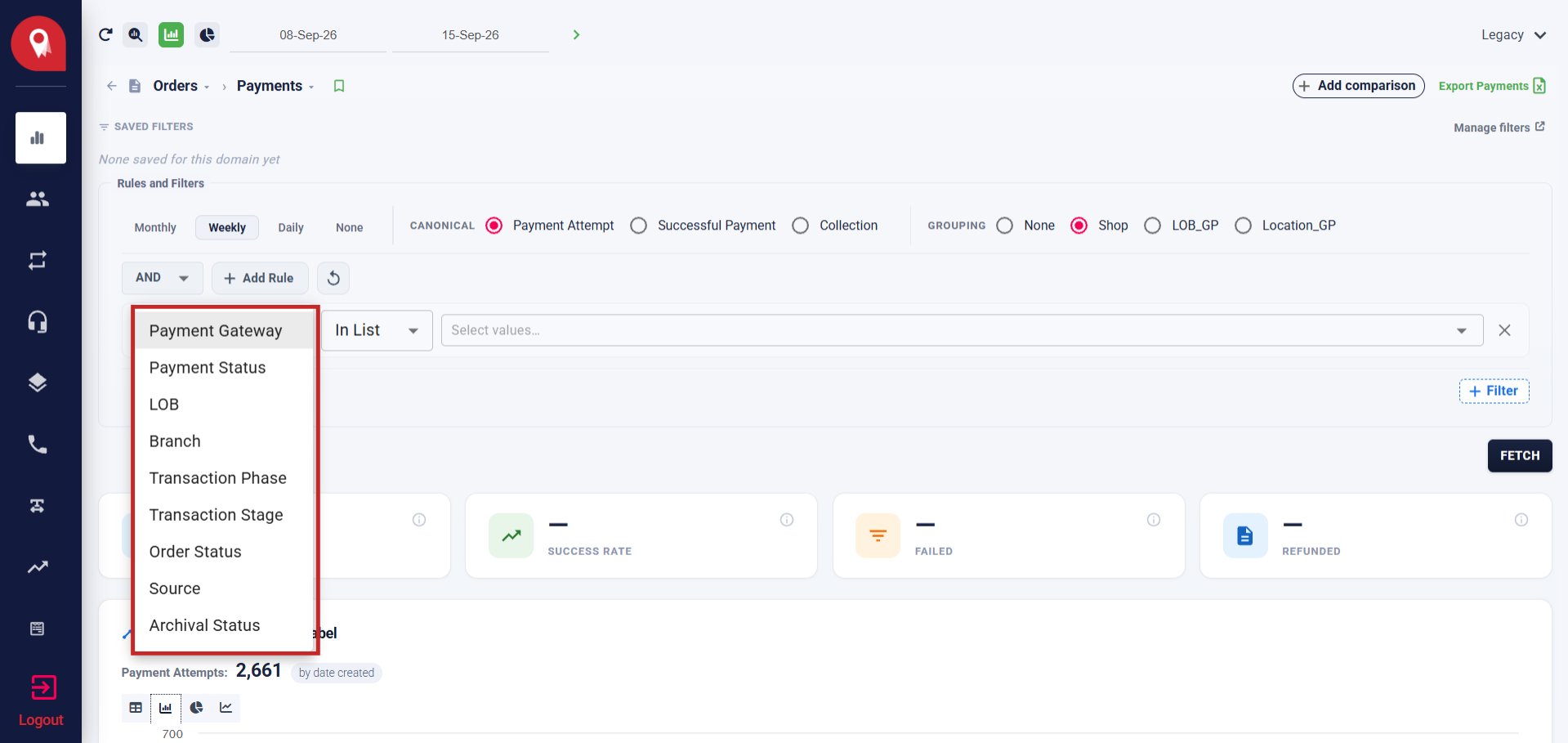
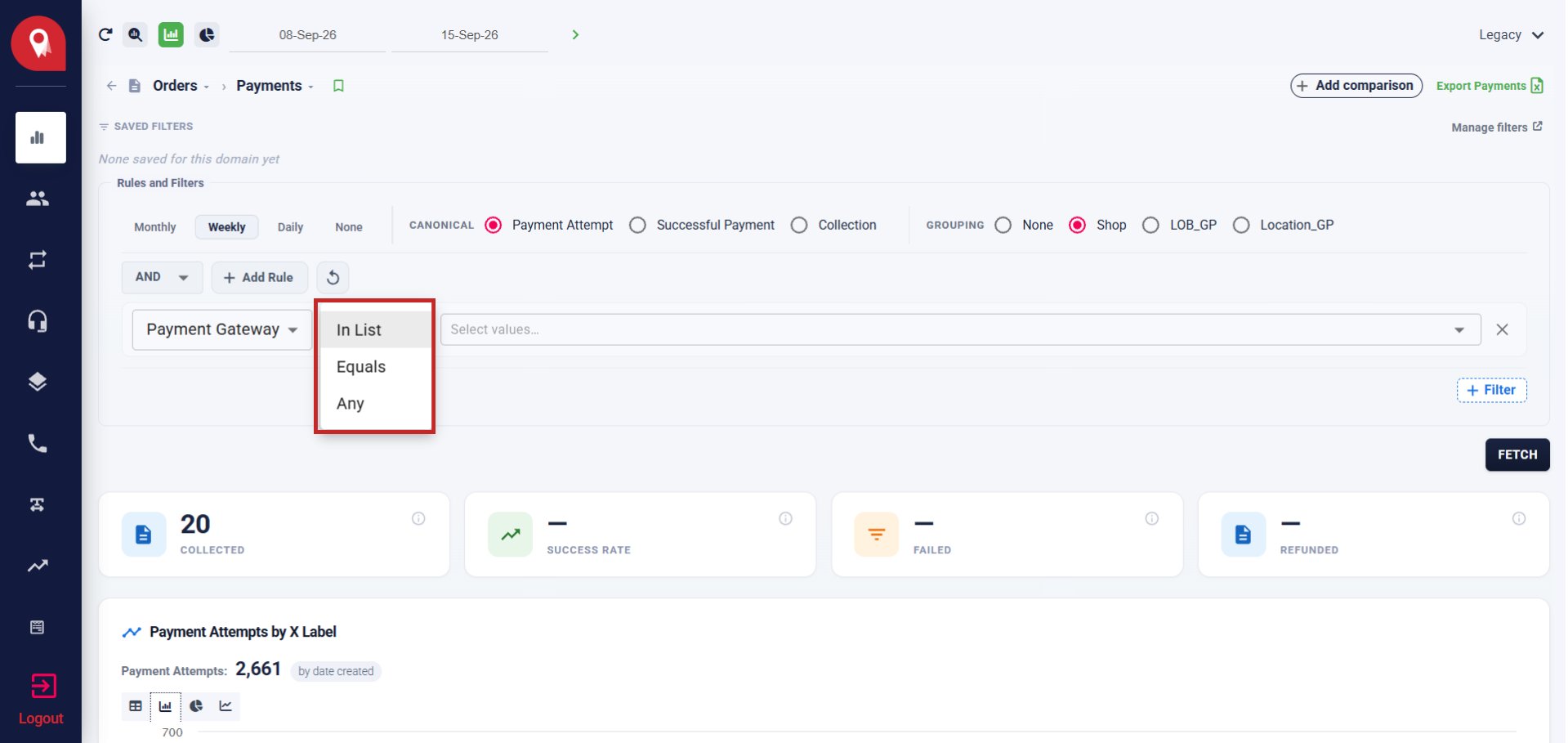
Operators vary by field. For example, Payment Gateway offers In List, Equals, and Any.
3
Fetch the report
Click FETCH to run the query. The summary tiles and chart update with the filtered results.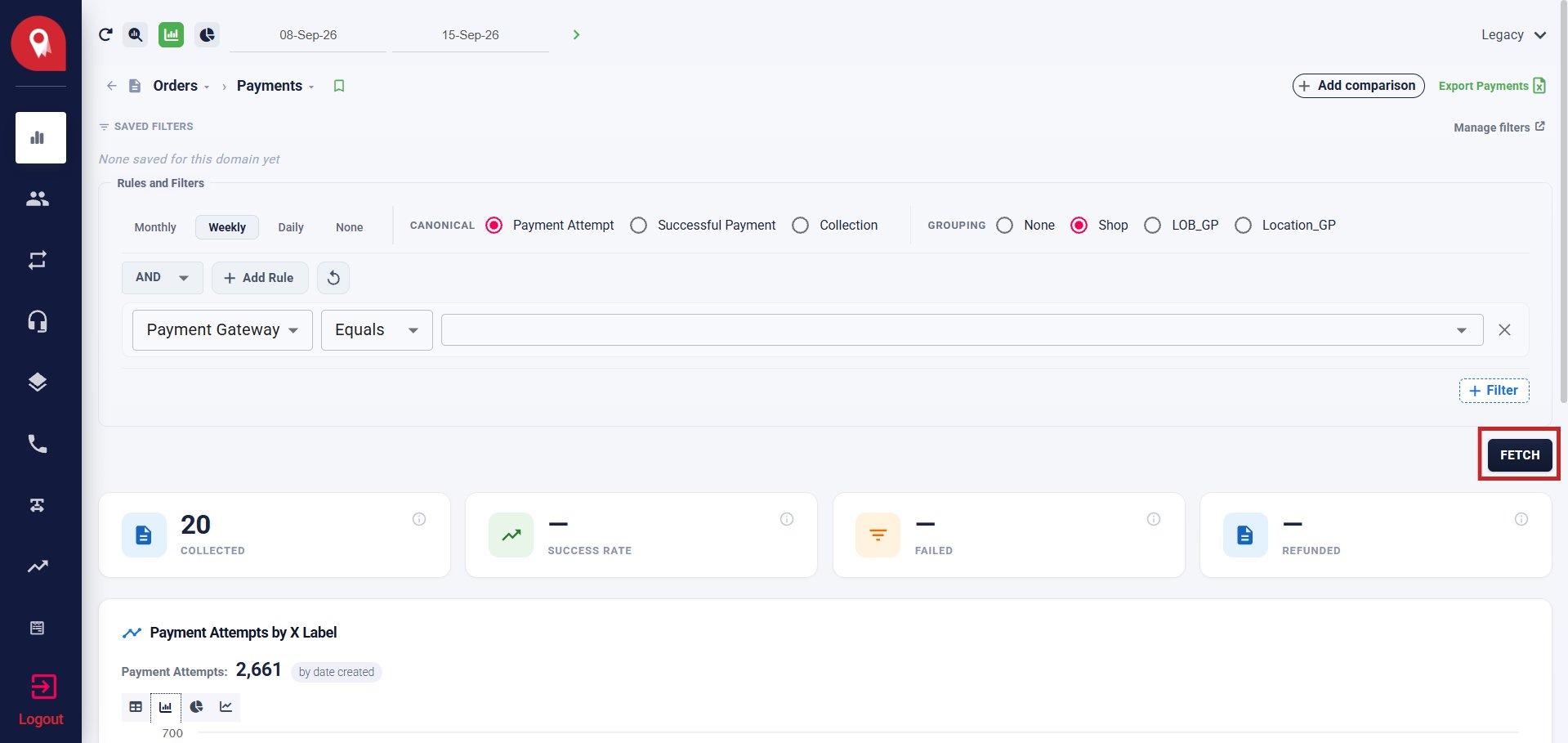
Summary Tiles
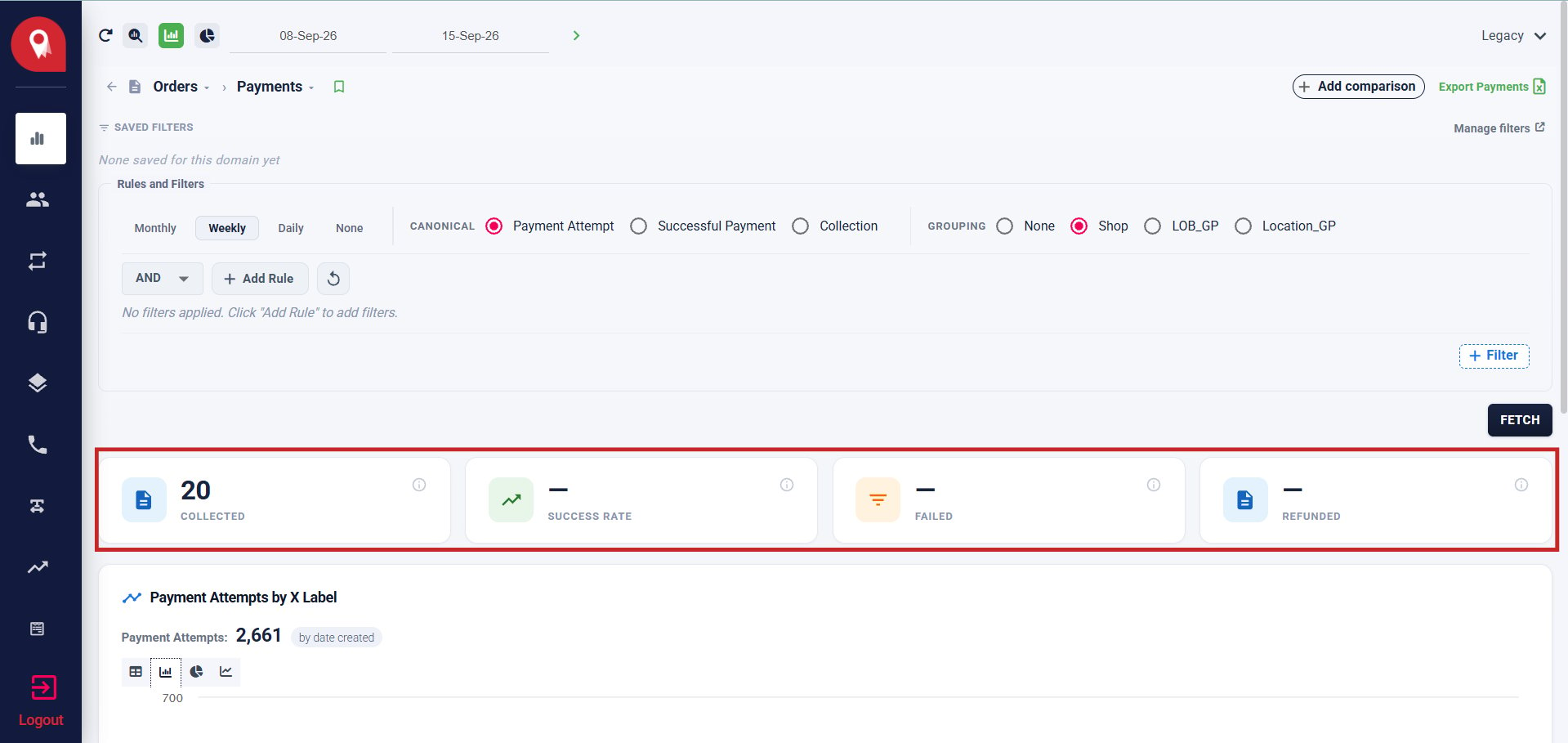
Payment Attempts Chart
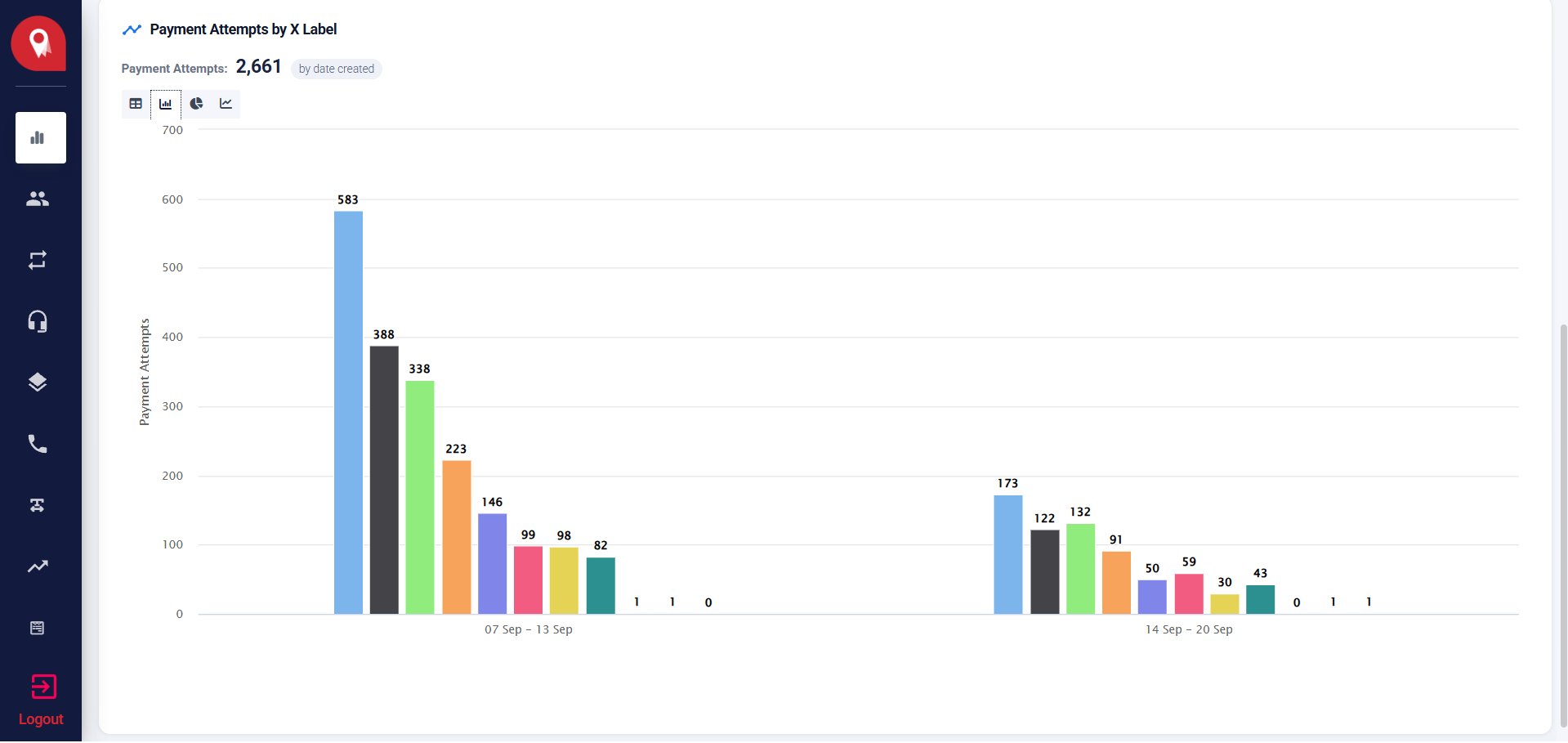
To compare this report against another filter or the previous period, see Comparing Reports.
Exporting Payments
Click Export Payments (top right) to open the export modal.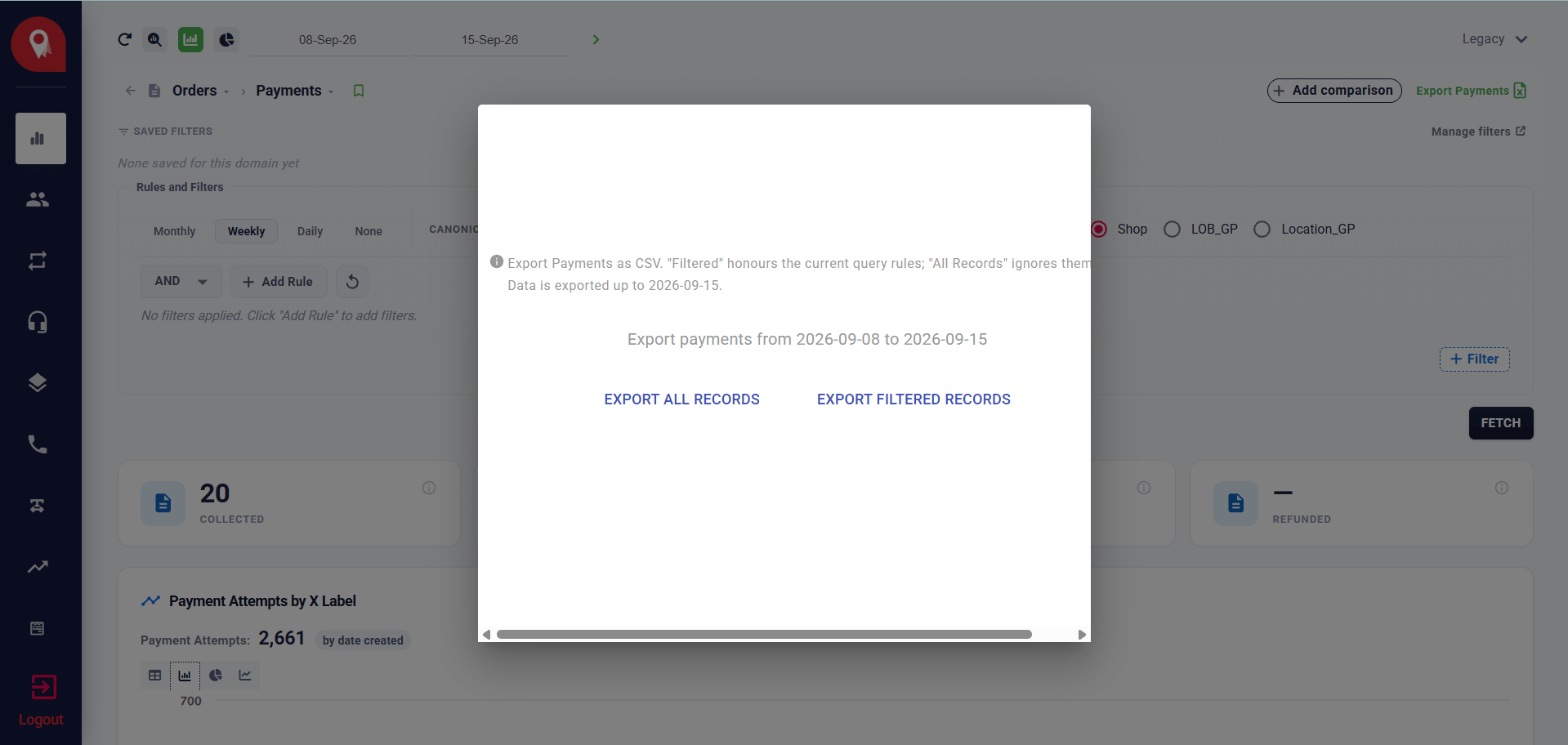
The export is a CSV file with one row per payment submission. The row count and amount totals match what is shown on screen for the same date range and filters.
Exports run as a background job. Download the file once the job completes.