
Overview
External Identity Import matches rows in your sheet to existing customer or patient records, or creates new ones, using the phone number as the join key. It’s used for bulk-linking third-party system IDs — for example from Akhil, EkaCare, or Practo — to NeuronCx users, so searching that external ID in the Transaction Console resolves to the right person. Your sheet doesn’t need to carry a name or email. Matching happens purely on the phone number.A newly created customer can be named from a column in your sheet instead of a generic placeholder name — but only the first time they’re created. An existing customer is never renamed by this import.
Prerequisites
Before running this import, you need a mapping set up that tells NeuronCx how to recognize a person from your sheet.- At minimum, the mapping needs:
- An identifying value — the field used to match a person, such as Mobile No. The name and format must match your sheet exactly.
- A field to import — the value you actually want to bring in, such as Registration No. Its name and format must also match your sheet exactly.
- The attribute definitions for anything you plan to bring in must already exist in NeuronCx. This import never creates a new attribute — it only writes values against ones already set up for your institution.
Preparing Your Sheet
Mapped sheet format (raw third-party export)
Instead of reformatting your sheet, you can import a raw export as it comes from the third-party system. This is the more flexible option and avoids manually relabeling columns every time.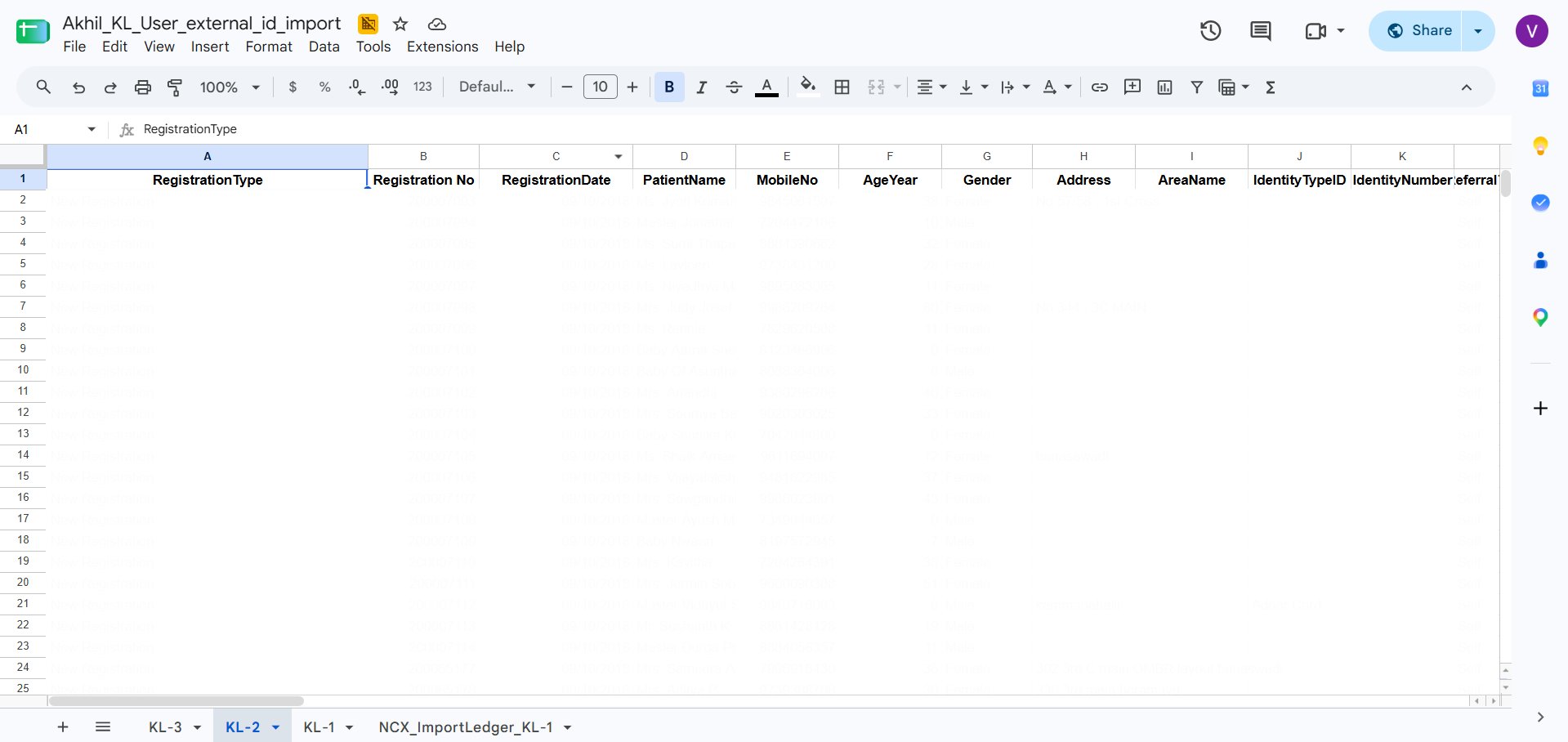
Running the Import
1
Select the mapping
Open the import and choose the mapping you set up.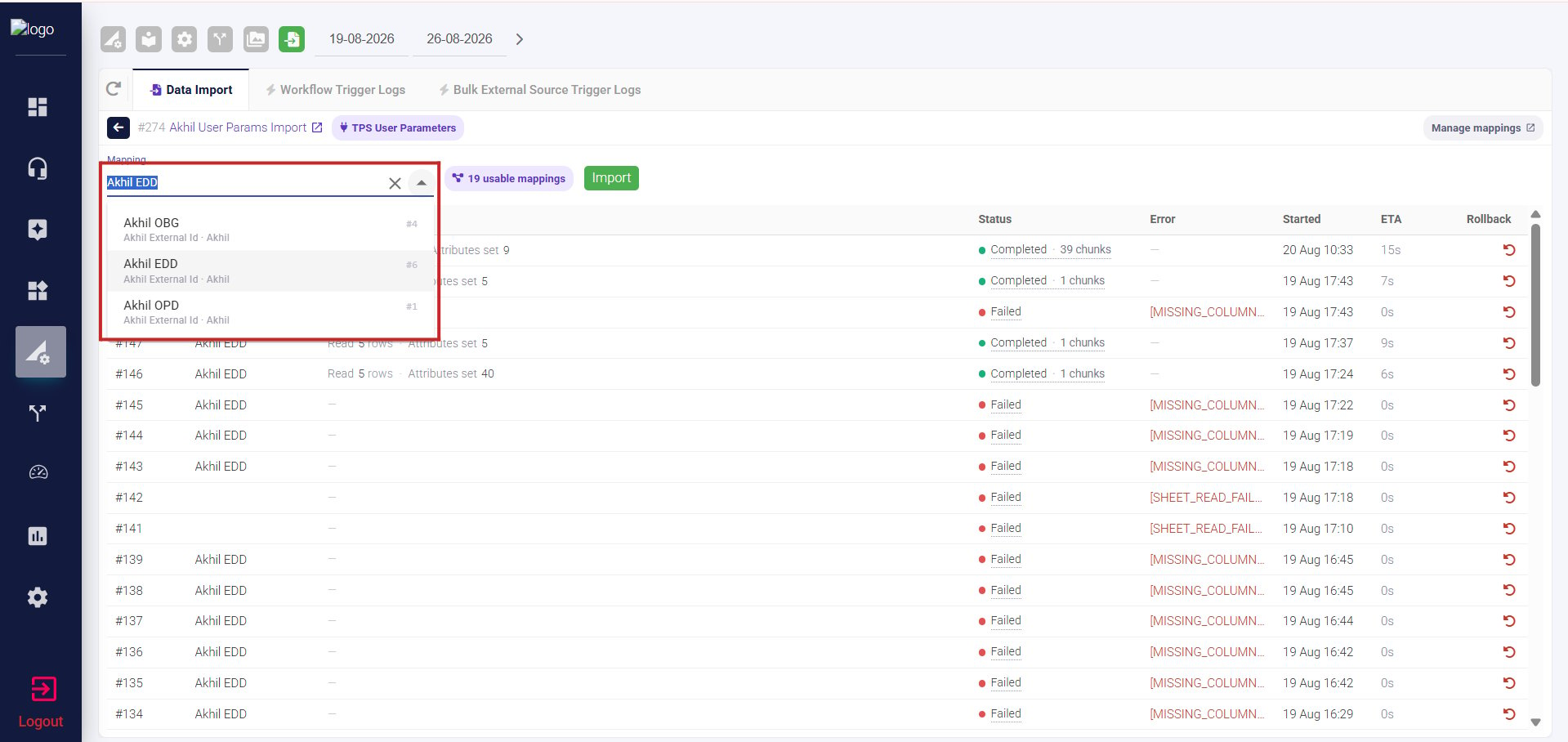
2
Choose what happens when there's no match
Decide what NeuronCx should do if a phone number doesn’t match an existing record. See below for details on each option.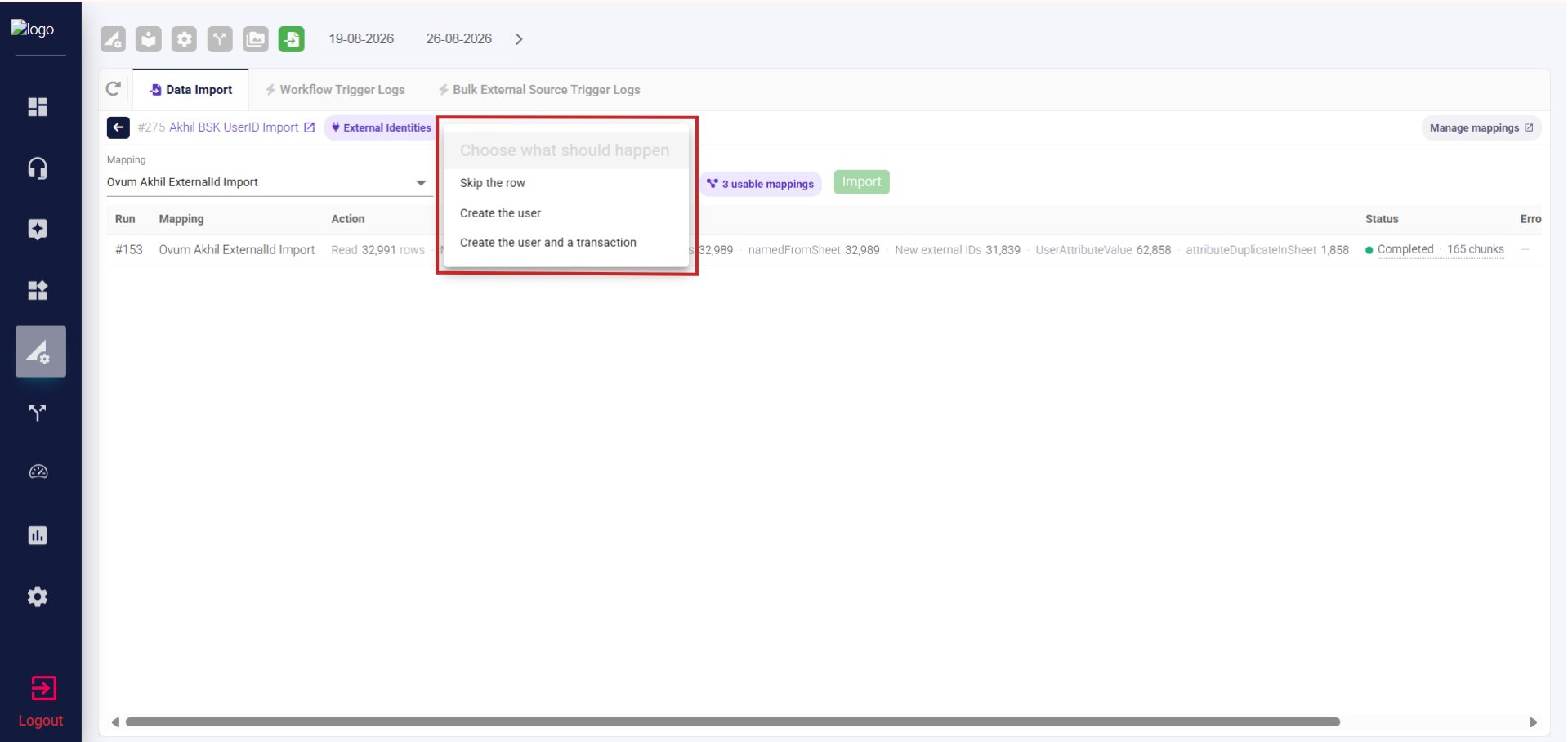
3
Import
Click Import to run it.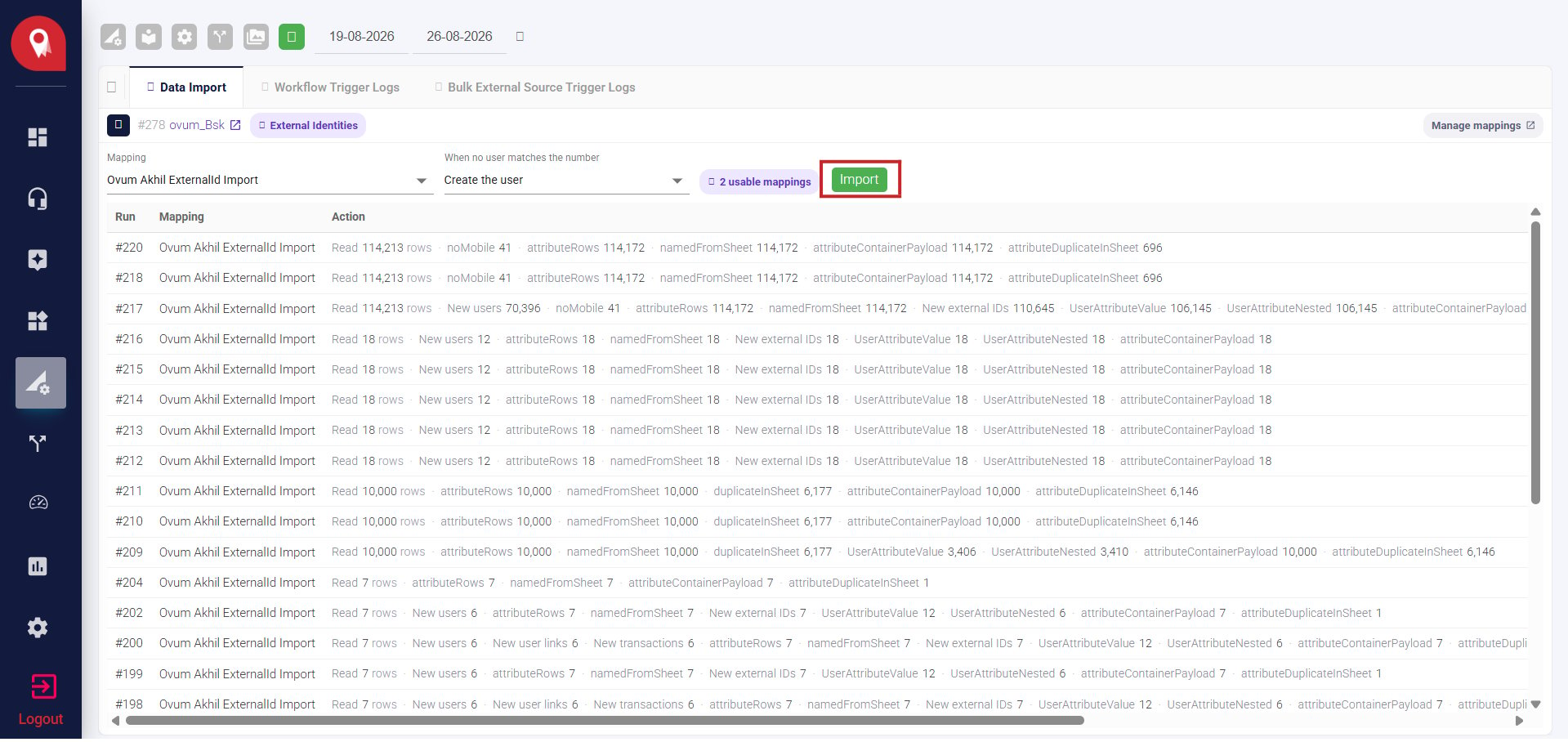
What Happens on No Match
This setting only affects rows where the phone number doesn’t already belong to an existing record. A number that already matches an existing person behaves the same way in every mode — the identity is simply attached to them.“Create the user and a transaction” creates one transaction per newly created person, not one per row. If a new number appears in the sheet with two different external IDs, that person gets two identities but only one transaction.
Checking the Result
Once complete, search the person’s External ID in the Transaction Console to confirm they came through correctly.Rolling Back an Import
1
Remove the import log tab
Open the Google Sheet you imported from and delete the second tab, named NCX_ImportLedger.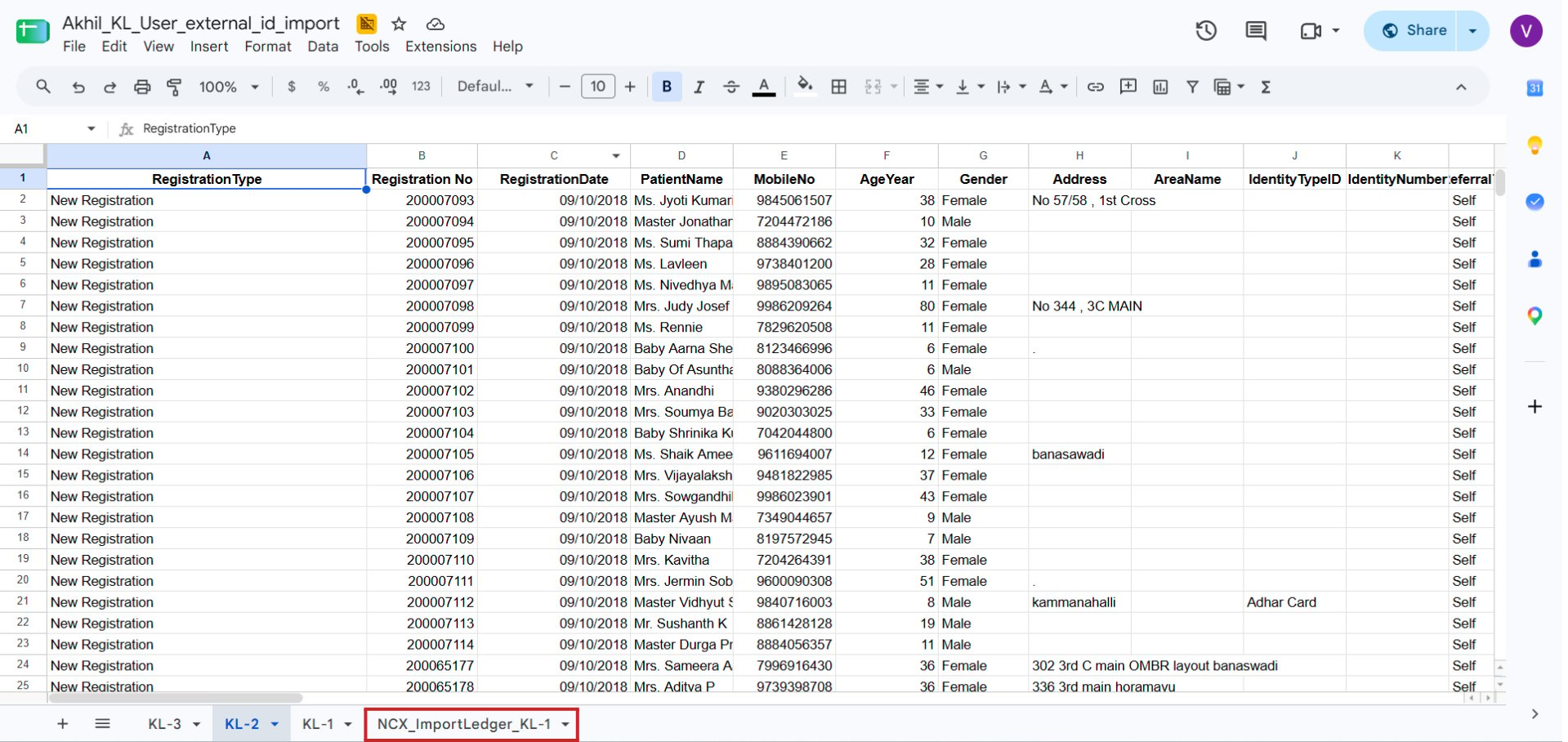
2
Roll back
Return to the import run and select Rollback.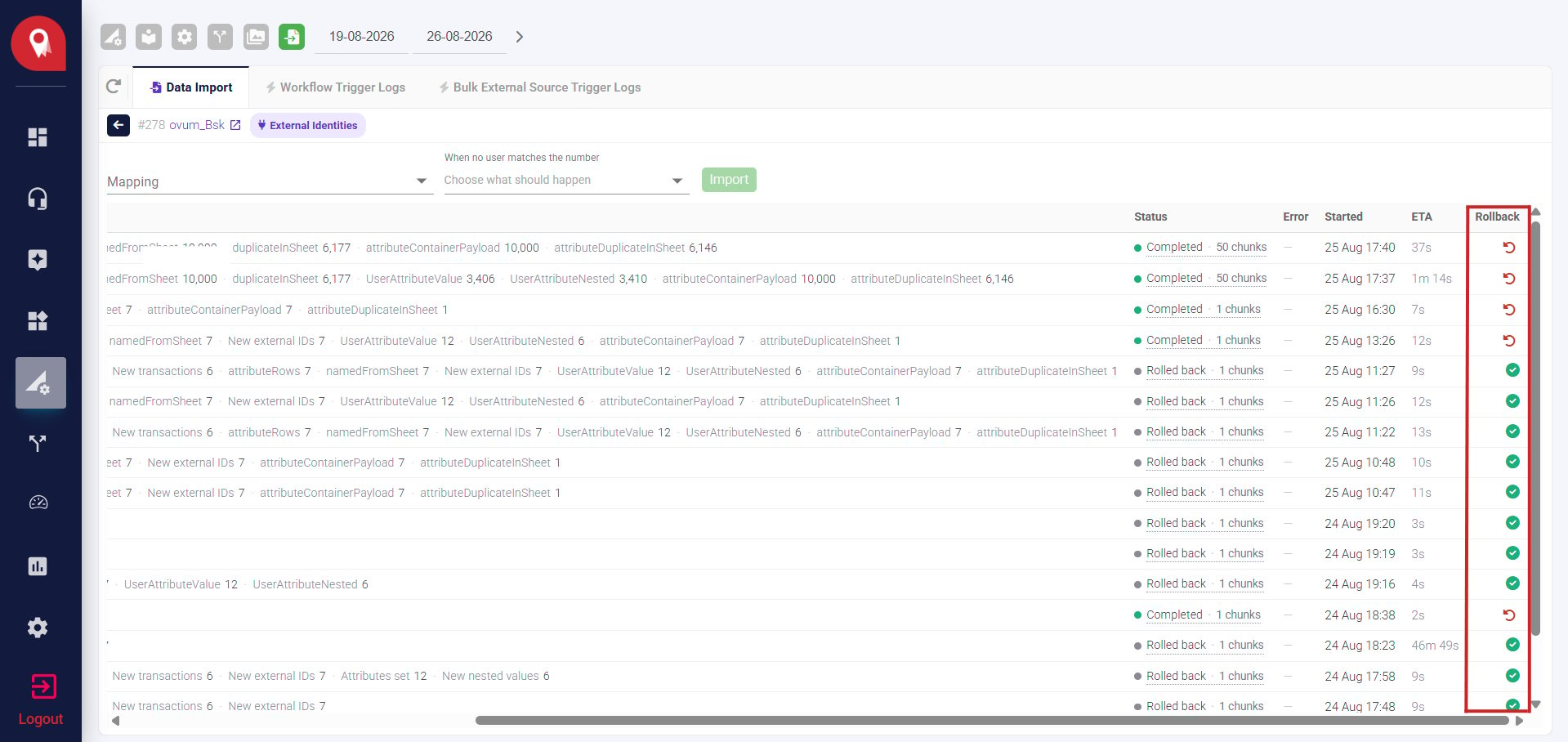
It’s normal for a rollback to leave a few records in place rather than removing everything. This happens when a record has picked up other activity since the import ran — NeuronCx protects that activity rather than deleting it.
Limits to Keep in Mind
- This import only sets values on the person, not on a specific transaction. If you need to set a value tied to a transaction, use External Values Import (Type 25) instead.
- Attribute values that overwrite an existing value can’t be rolled back — the previous value isn’t kept on record.