
Overview
Trx Attribute Entity Import creates new entity records in NeuronCx in bulk from a Google Sheet. For each row in your sheet, NeuronCx creates a new record, assigns it a primary ID, and writes that ID back into your sheet — so you always have a reference to exactly what was created. You can bring in additional datastore values alongside the mandatory fields in the same run, without needing a separate import.This import is for creating new records only (insert). If you need to update values on records that already exist, use Trx Attribute Datastore Value Update or Import (Type 8) instead.
Prerequisites
- Your Google Sheet must be shared with edit access so NeuronCx can read from it and write IDs back to it.
- The attribute entity type you’re importing into must already exist in NeuronCx. This import creates new entity records — but it does not create new attribute definitions.
- The sheet must include
LabelandDescriptioncolumns — these are mandatory for every row. - Leave the
IDcolumn present but empty before running the import — NeuronCx will fill it in automatically for each created record.
Preparing Your Sheet
Your sheet must include the mandatory columns below. Additional datastore columns are optional — include only the ones you need.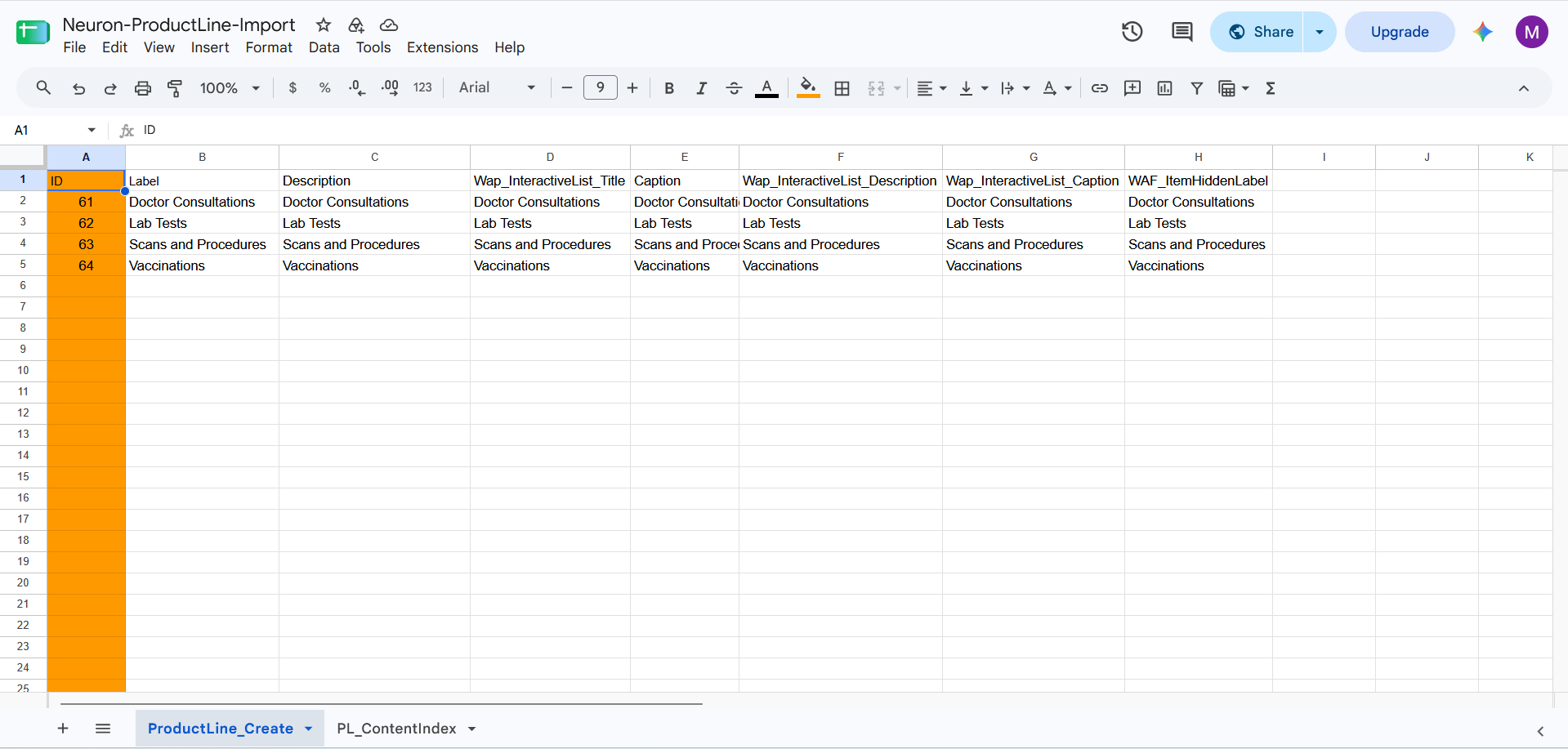
Running the Import
Setting up a new import
1
Open Imports
Navigate to Home > Ontology > Attribute Settings & Bulk Edit, then click the Imports tab.
2
Click + Import
Click the + Import button in the top right to open the New Import modal.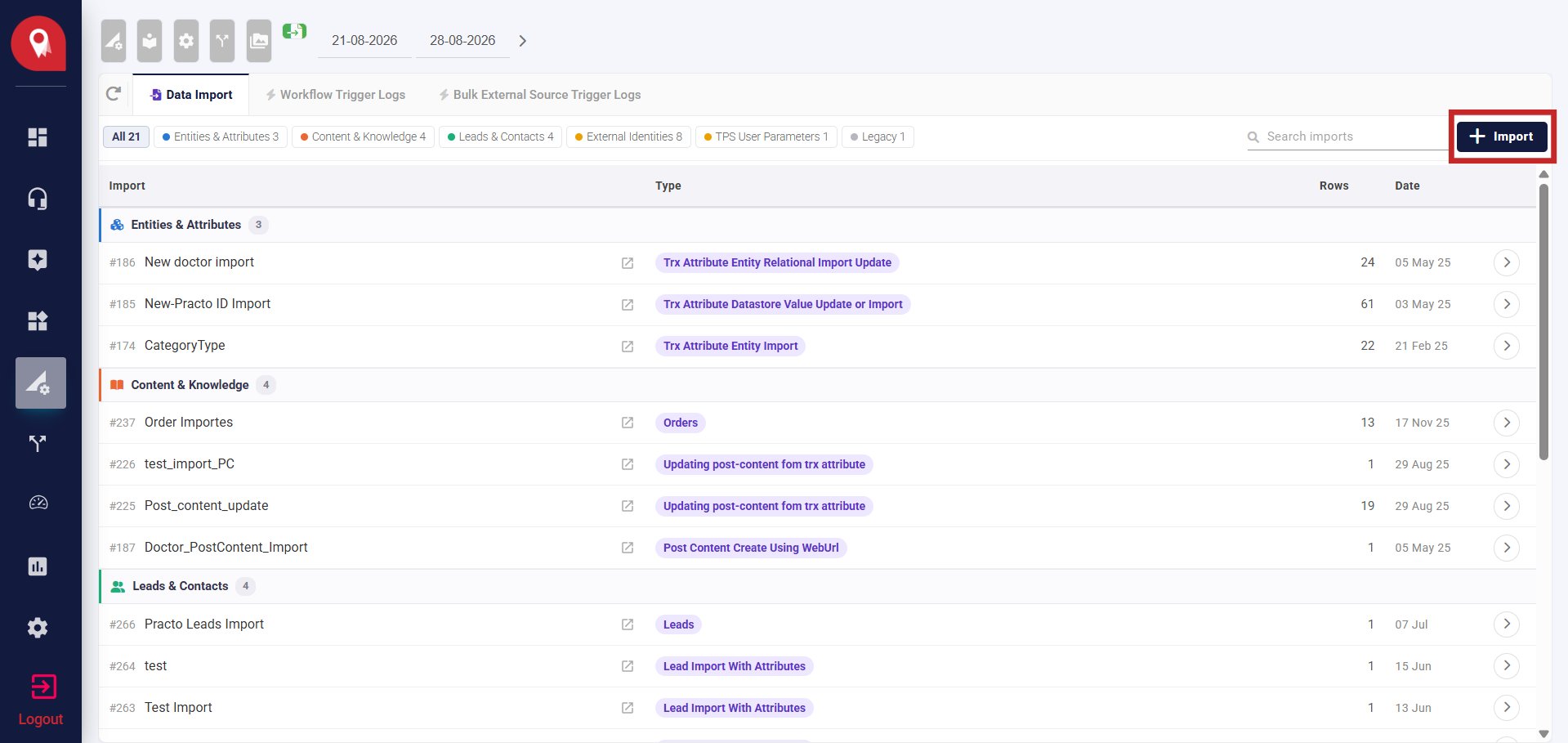
3
Give it a label
Enter a name that describes this import — for example, “Doctor Categories Entity Import.”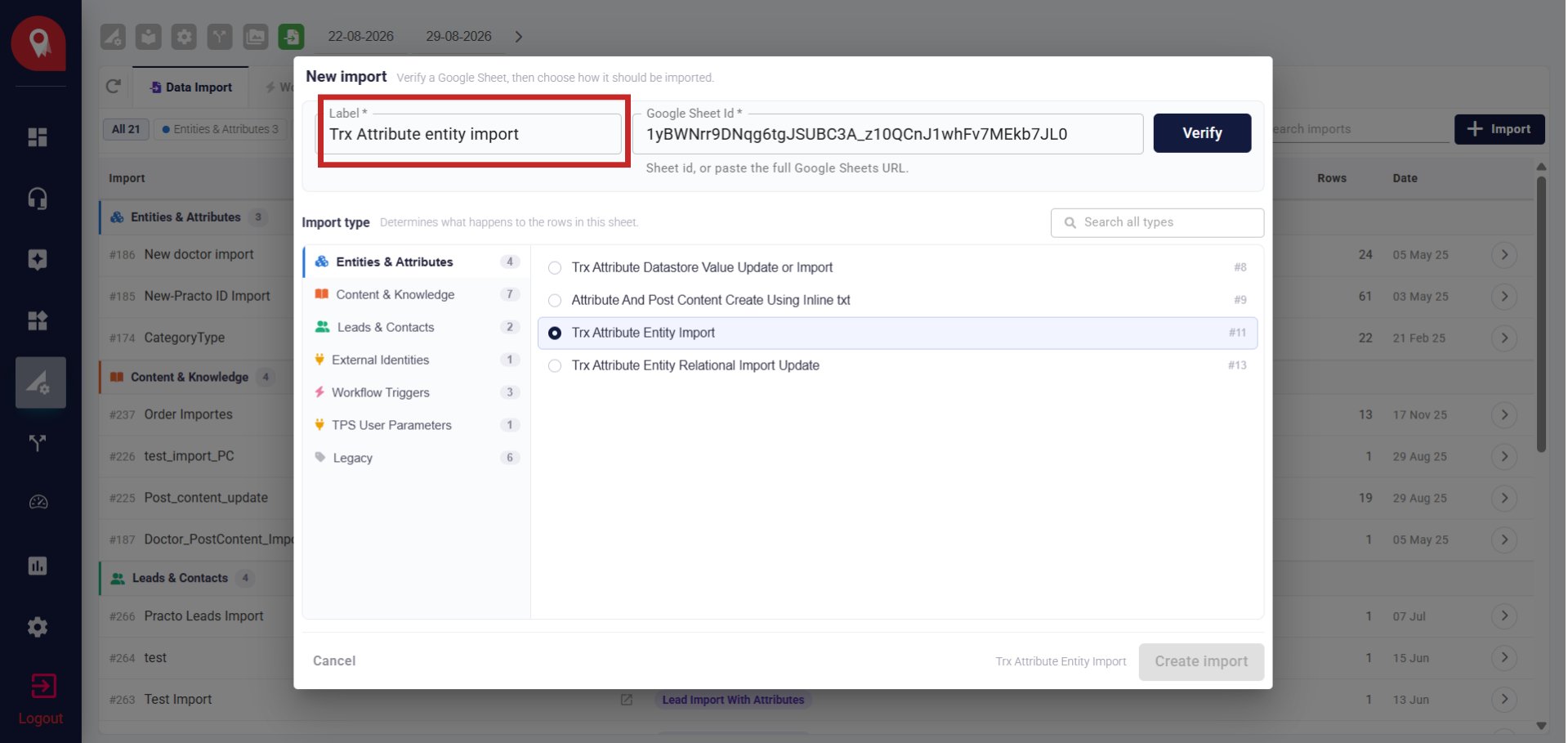
4
Add the Google Sheet ID
Paste the sheet ID or the full Google Sheets URL — NeuronCx will extract the ID automatically.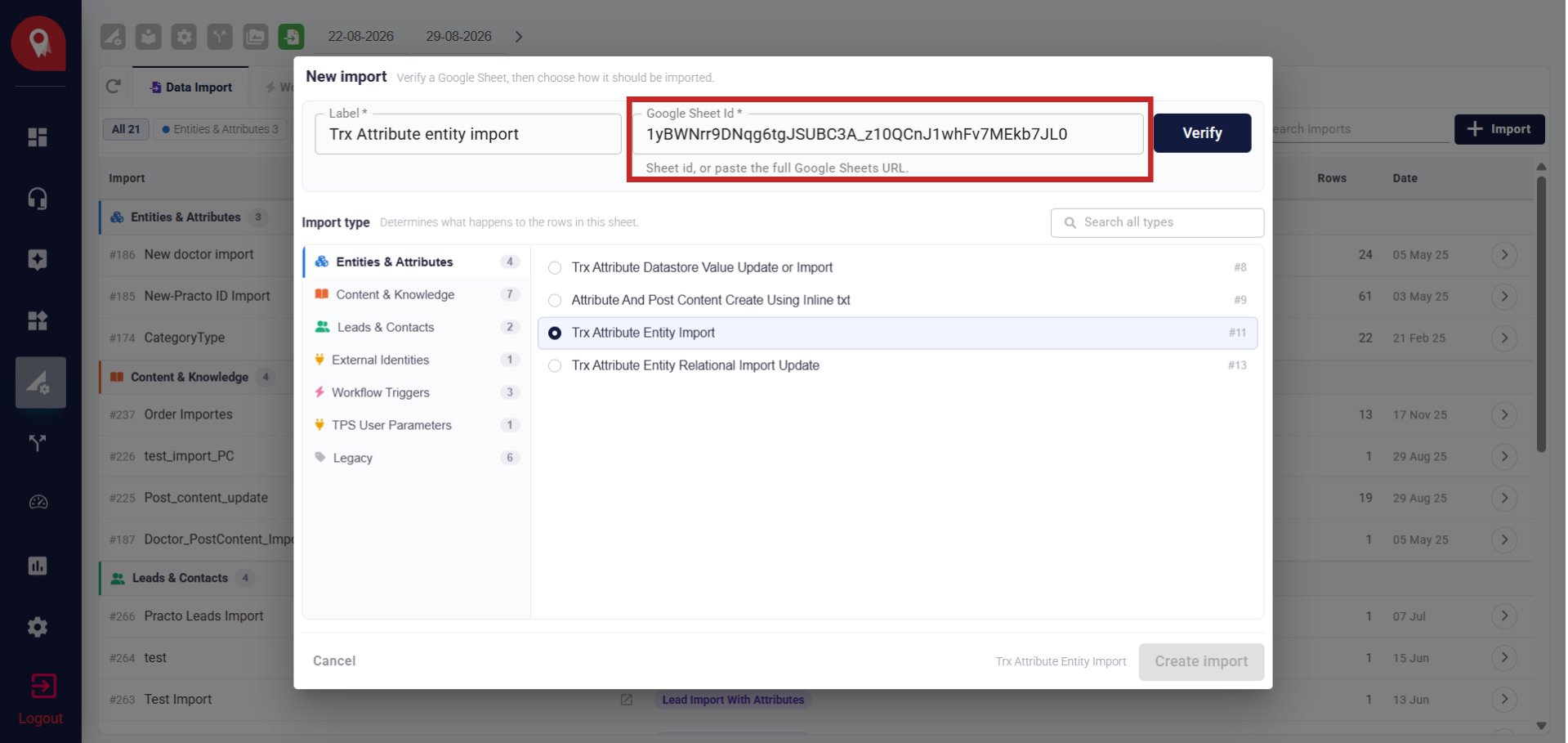
5
Verify
Click Verify. NeuronCx confirms it can read the sheet and shows you the row and column count — use this to catch an empty or wrong sheet before continuing.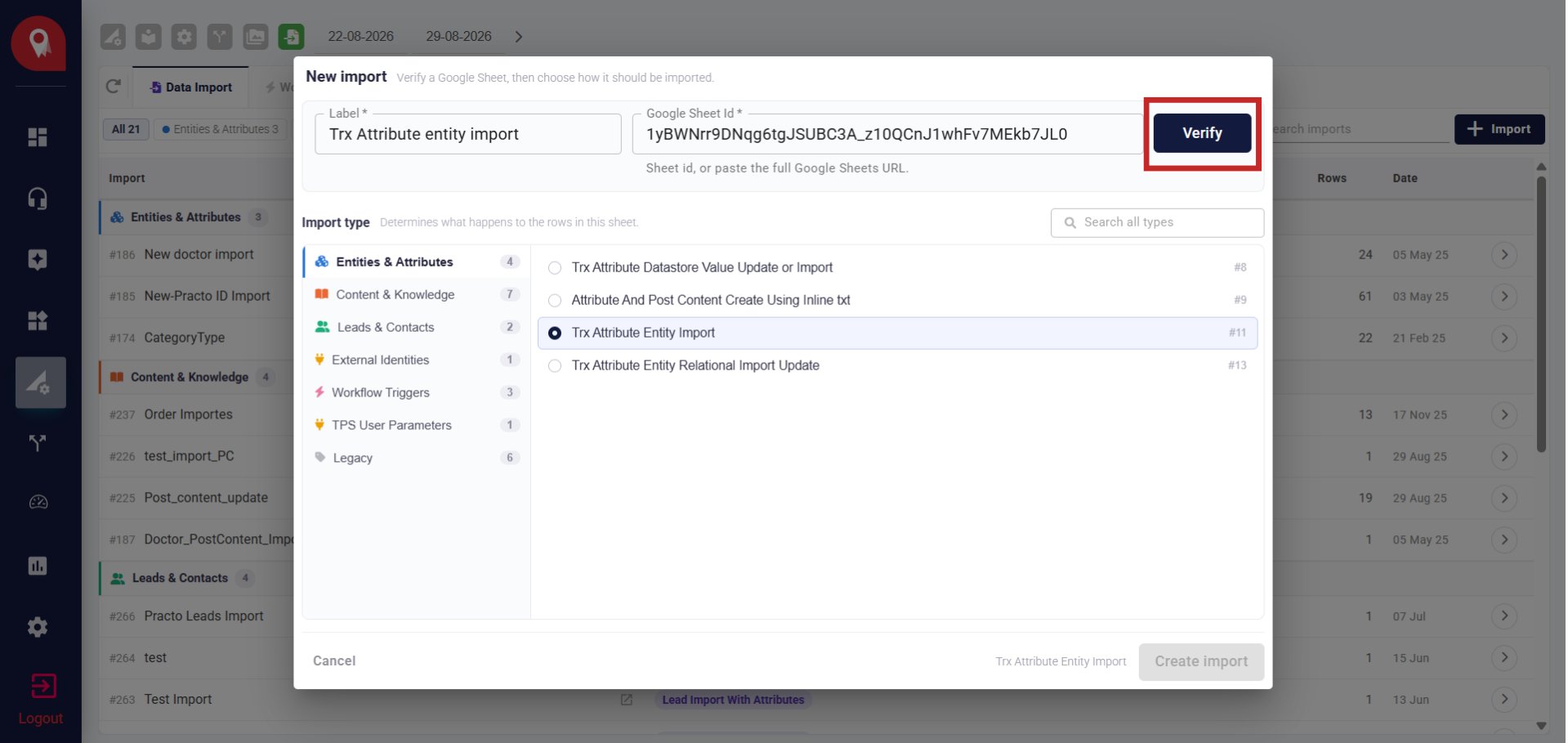
6
Select the import type
In the Import type panel on the left, select Entities & Attributes. Then choose Trx Attribute Entity Import (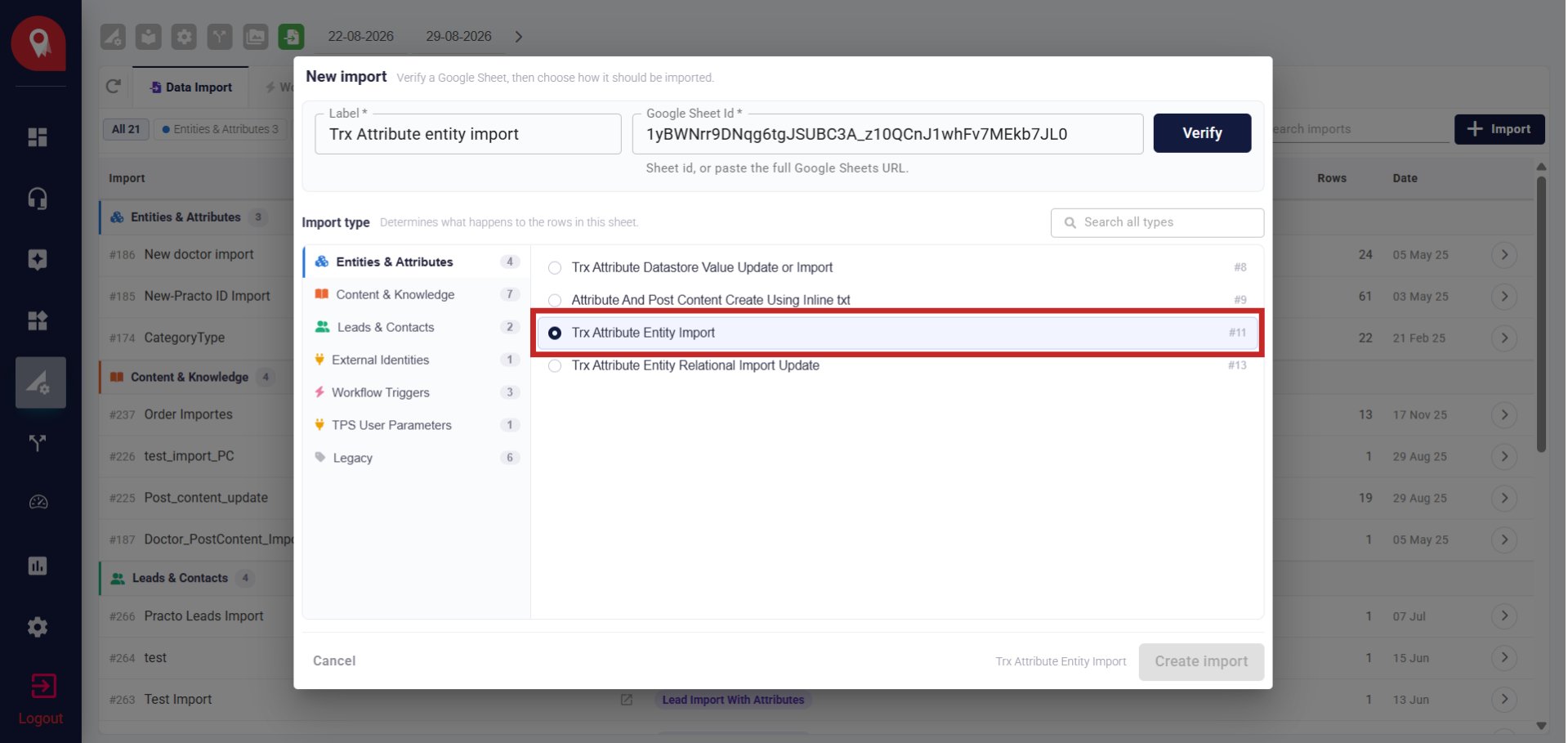
#11) from the list on the right.7
Create the import
Click Create import. The import now appears in your list under Entities & Attributes, ready to run.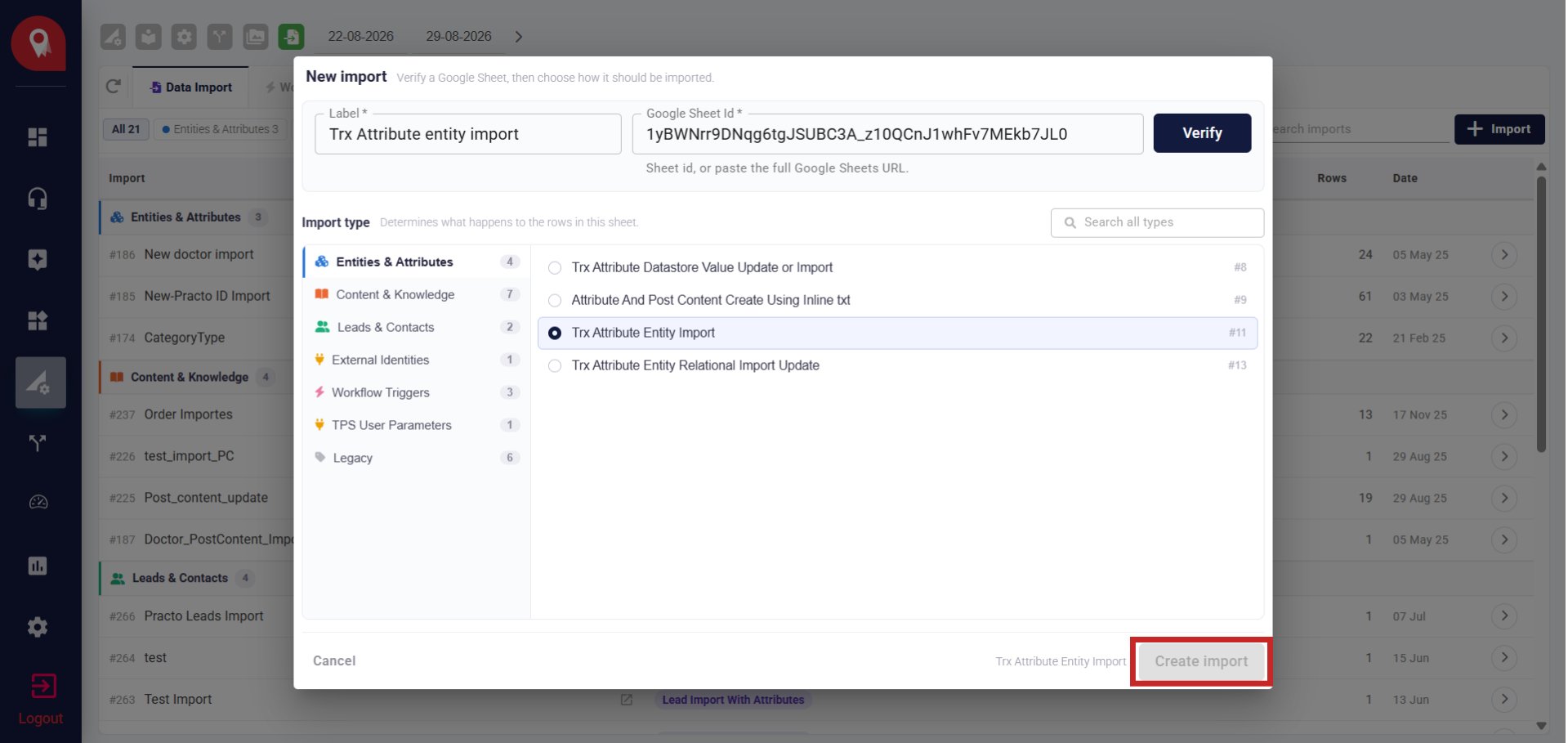
Running the import
1
Find the import
From the Data Import list, locate the import you just created. You can filter by Entities & Attributes to narrow the list.
2
Open the import
Click the arrow icon on the import row to open it.
3
Select the Transaction Attribute
Choose the attribute entity you want to create records for from the Select Transaction Attribute dropdown. This tells NeuronCx which attribute definition to use for the new records.
4
Click Trigger
Click the green Trigger button to run the import.
What Happens After the Import Runs
Once each row is processed, NeuronCx writes the generated primary ID back into theID column of your sheet — matched to the row it was created from.
- Open your sheet after the import completes and confirm the
IDcolumn is filled in for each row. - If a row’s property type isn’t configured for the selected attribute entity, that row is skipped silently — it won’t appear as an error in the run log.
If some rows in your sheet still show an empty
ID after the import, it means those rows were skipped — likely because the property type wasn’t set up for the attribute entity you selected. Check with your administrator.Checking the Result
Once the run completes, the Trigger Log at the bottom of the screen shows each run with the workflow used, the number of rows processed, and when it ran.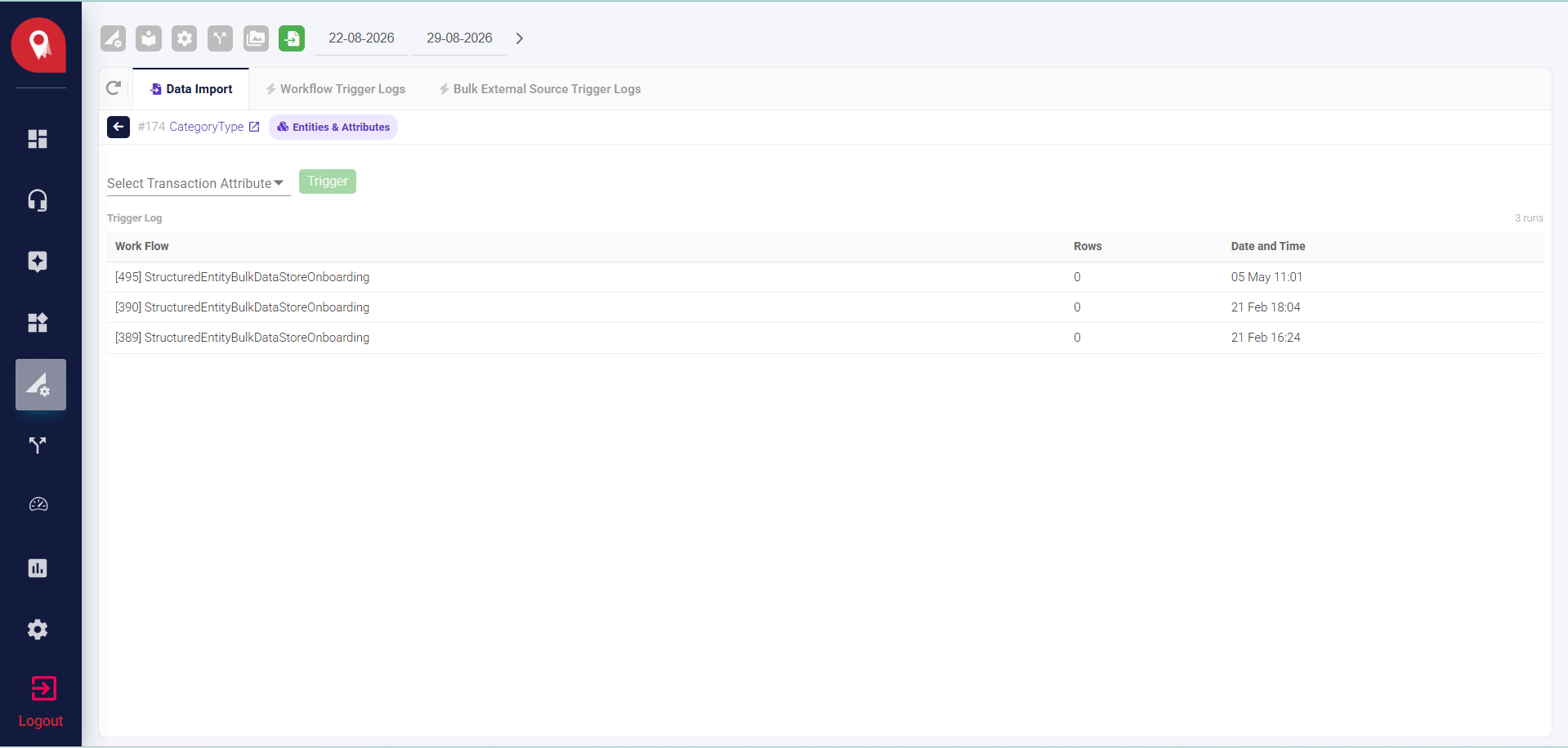
Limits to Keep in Mind
- This import creates new records only. To update existing records, use Trx Attribute Datastore Value Update or Import (Type 8) instead.
LabelandDescriptionare mandatory — rows missing either of these will not be created.- Leave the
IDcolumn blank before running — if it already contains a value, it may interfere with the write-back. - Rows where the property type isn’t configured for the selected attribute entity are skipped silently, without an error.
- Columns without a header are skipped automatically.
- Only one import runs at a time. If another import is already running, this one will queue and wait its turn.