
Overview
This import triggers a workflow once per row in your Google Sheet, using the date and mobile number in each row as the starting input. It’s designed for scenarios where a workflow needs to run for a specific user on a specific date — for example, triggering a call assessment for a patient on the date their appointment occurred. For each row, NeuronCx looks up the user by their mobile number, finds their latest transaction, and fires the selected workflow with the date from the sheet passed in as the starting variable.You need to select the workflow you want to trigger before running the import. The import won’t fire any workflow on its own — the workflow selection is part of the run setup.
Prerequisites
- Your Google Sheet must be shared with edit access so NeuronCx can read from it.
- The sheet must contain the two required columns —
dateand the user mobile number column. - The workflow you want to trigger must already exist and be configured for your institution.
- The mobile numbers in your sheet must match users who already exist in NeuronCx. Rows where the number doesn’t match an existing user will be skipped.
Preparing Your Sheet
Your sheet must include the following two columns. NeuronCx reads one row at a time and uses these values to find the right user and fire the workflow.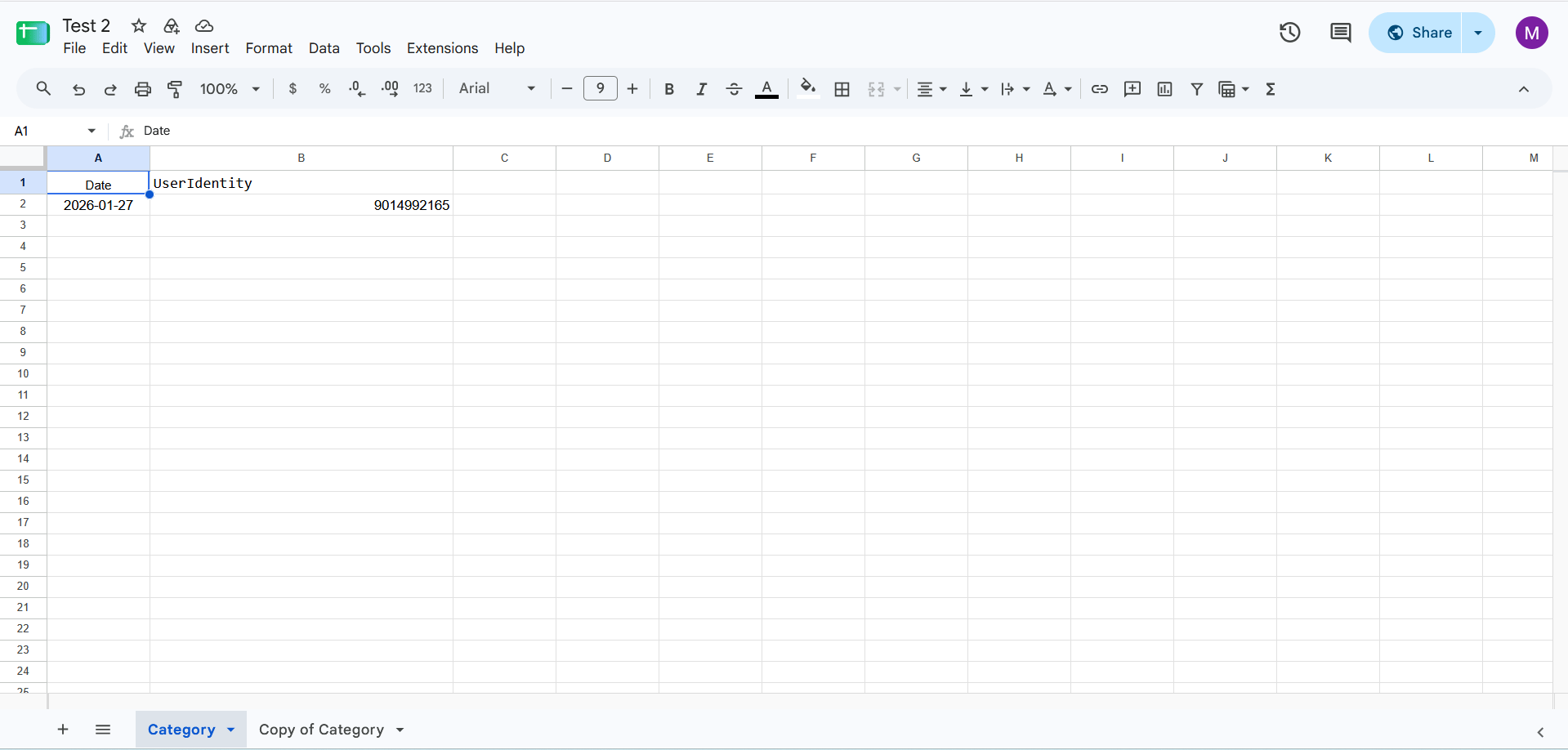
Running the Import
Setting up a new import
1
Open Imports
Navigate to Home > Ontology > Attribute Settings & Bulk Edit, then click the Imports tab.
2
Click + Import
Click the + Import button in the top right to open the New Import modal.
3
Give it a label
Enter a name that describes this import — for example, “Call Assessment Date Trigger.”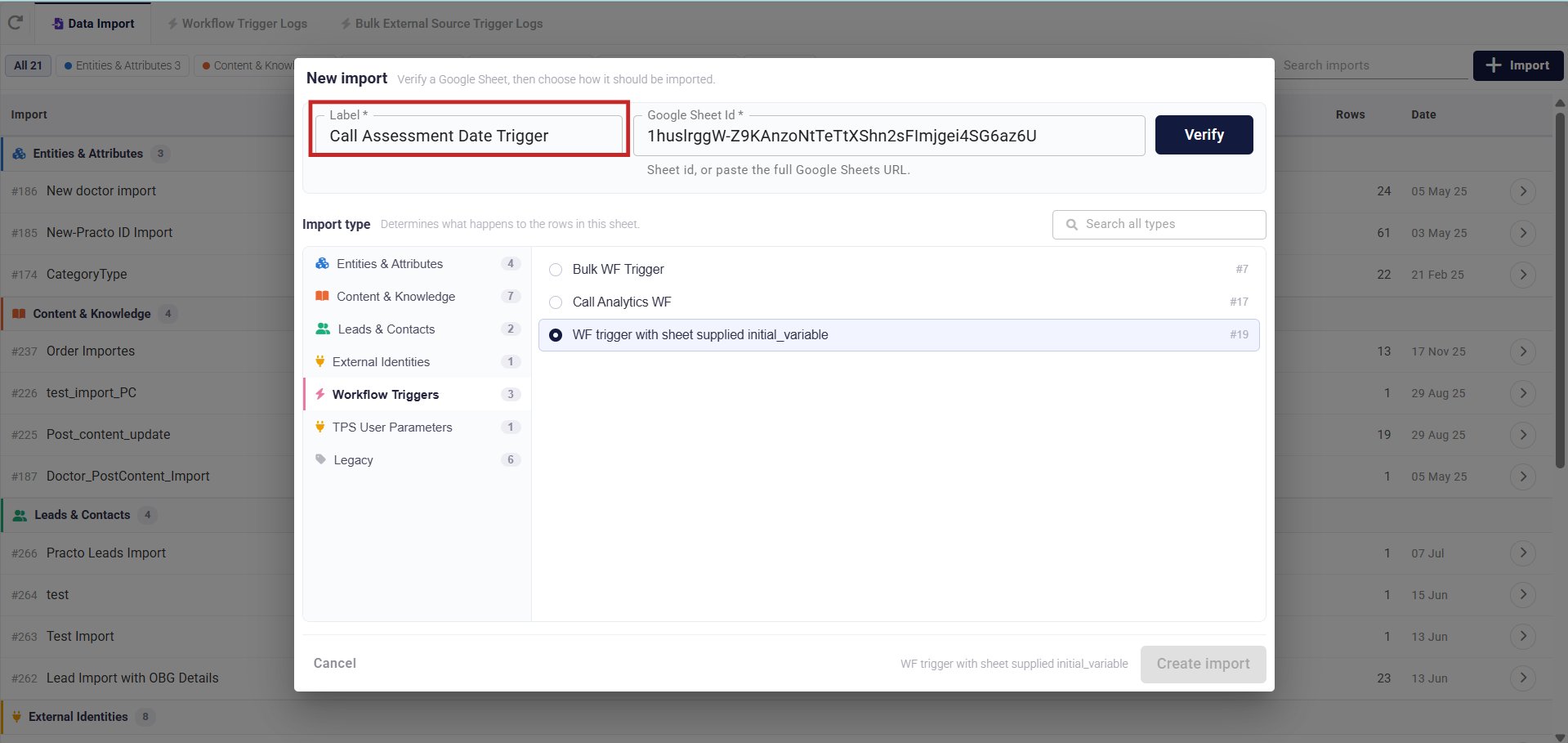
4
Add the Google Sheet ID
Paste the sheet ID or the full Google Sheets URL — NeuronCx will extract the ID automatically.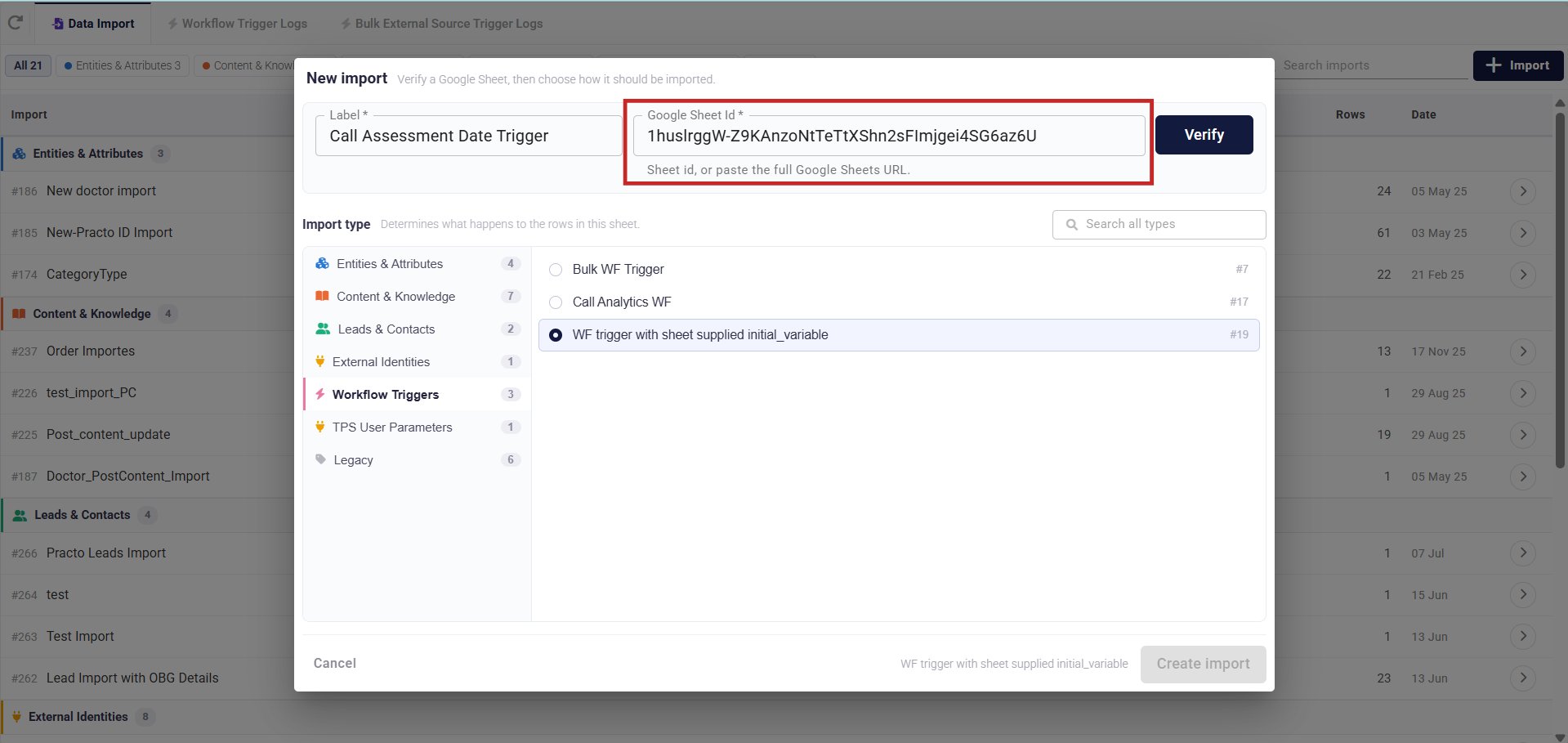
5
Verify
Click Verify. NeuronCx confirms it can read the sheet and shows you the row and column count — use this to catch an empty or wrong sheet before continuing.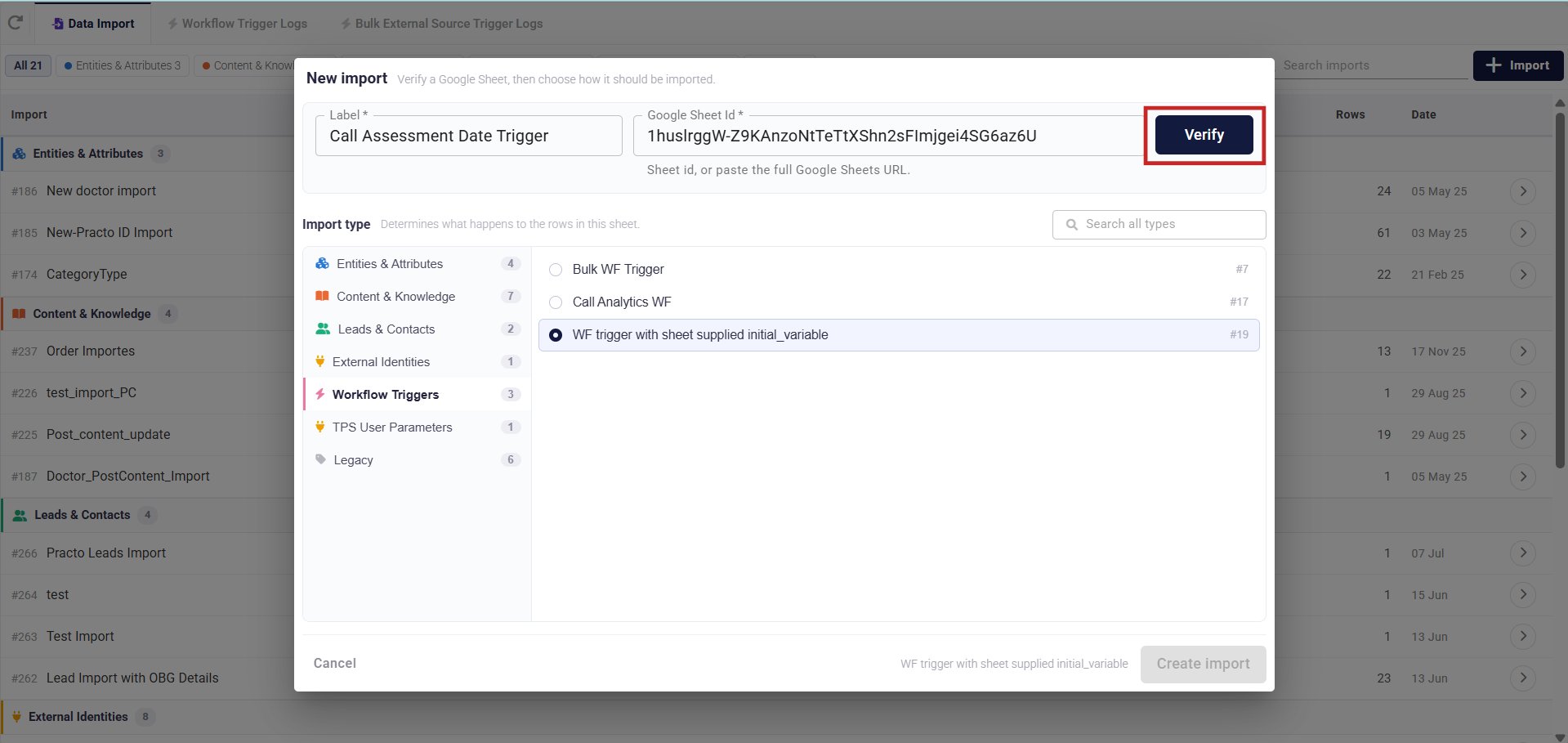
6
Select the import type
In the Import type panel on the left, select Workflow Triggers. Then choose WF trigger with sheet supplied initial_variable (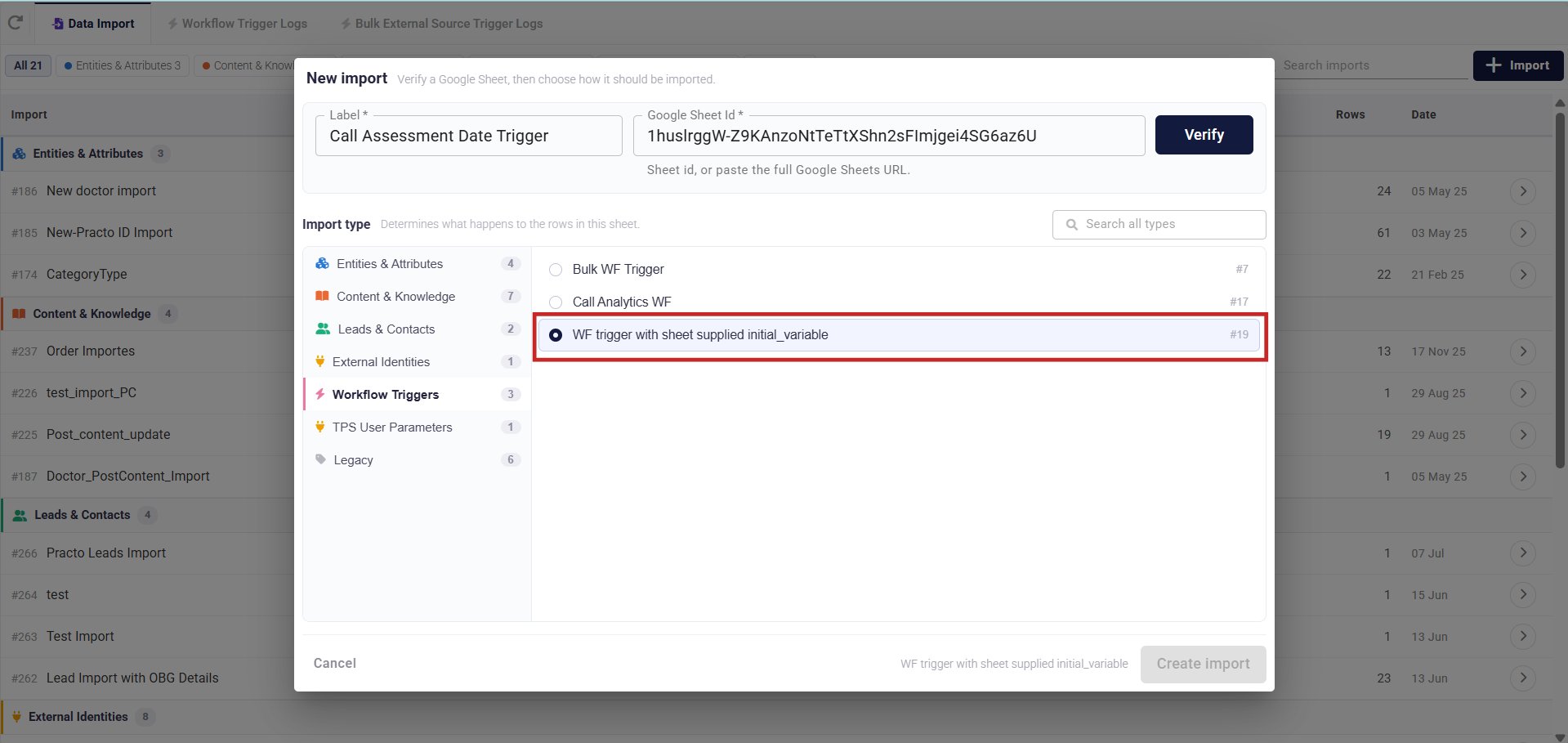
#19) from the list on the right.7
Create the import
Click Create import. The import now appears in your list under Workflow Triggers, ready to run.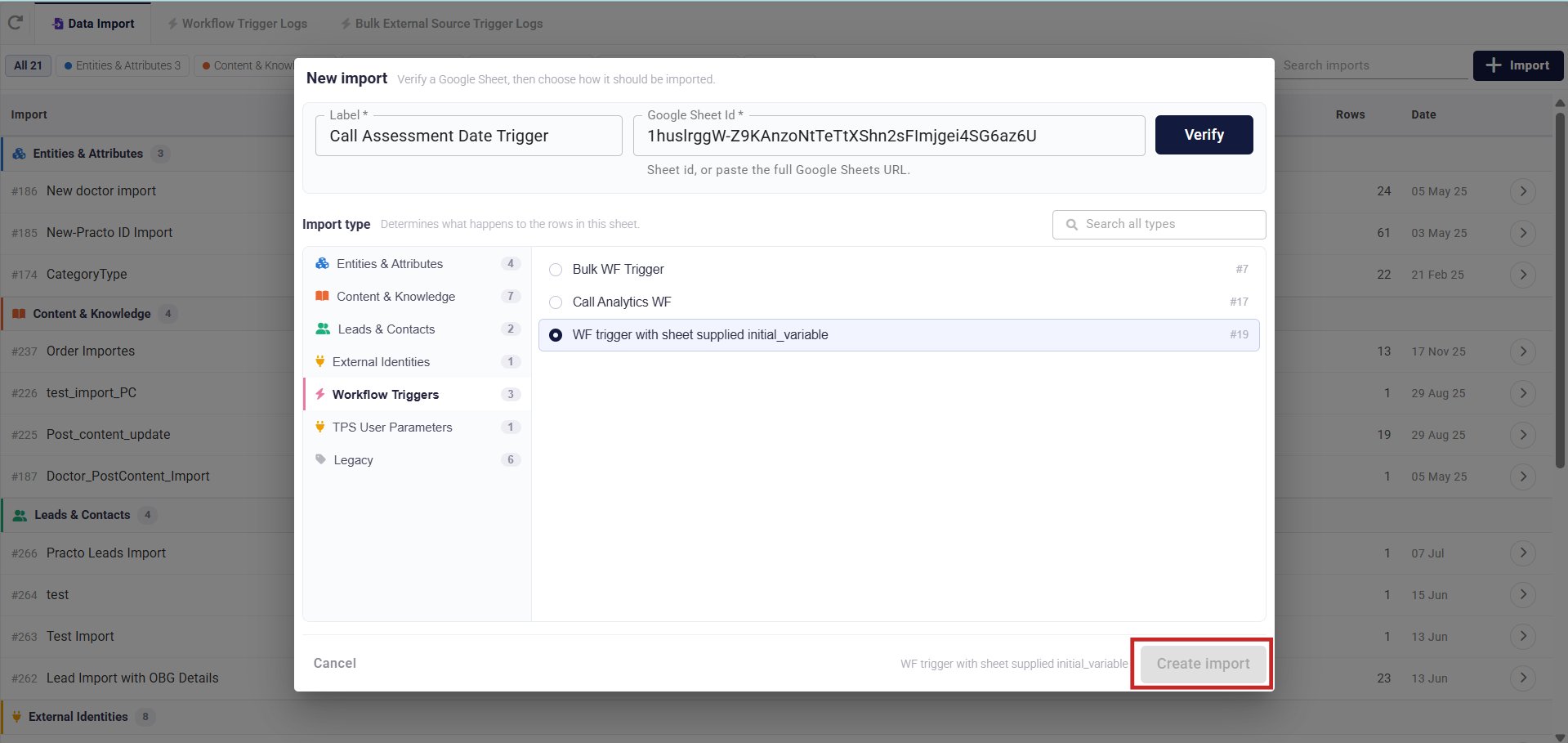
Running the import
1
Find the import
From the Data Import list, locate the import you just created. You can filter by Workflow Triggers to narrow the list.
2
Open the import
Click the arrow icon on the import row to open it.
3
Select the workflow
Before running, select the workflow you want to trigger from the workflow dropdown. Only workflows configured for your institution will appear.The workflow must be selected before clicking Import — the trigger won’t fire without it.
4
Click Import
Click Import to run it. NeuronCx reads each row, looks up the user by mobile number, and fires the selected workflow with the date from that row.
What Happens When the Import Runs
For each row in your sheet, NeuronCx does the following:- Reads the mobile number and date from the row.
- Looks up the user in NeuronCx by their mobile number.
- Fetches the user’s latest transaction and the relevant workflow block.
- Fires the selected workflow with the date from the sheet passed in as the starting variable.
Checking the Result
Once the run completes, the history table shows how many rows were read and how many workflow triggers were fired. Click a run’s Status to open a detailed breakdown showing which rows succeeded and which were skipped.Limits to Keep in Mind
- A workflow must be selected before running the import — the import alone does not trigger anything.
- The
datecolumn must follow theYYYY-MM-DDformat. Incorrect date formats may cause that row to be skipped. - Mobile numbers must match existing users in NeuronCx. Rows with unrecognised numbers are skipped silently.
- Each row triggers one workflow instance. If a user has multiple rows in the sheet, the workflow is triggered once per row.
- Only one import runs at a time. If another import is already running, this one will queue and wait its turn.