
Overview
Post Content Update adds new text onto post content that already exists — it does not replace or edit existing text, only appends to it. After the text is added, NeuronCx regenerates the content’s embedding so it stays accurate for AI retrieval.This import only appends. If you need to correct or replace existing text, this isn’t the right import type for that.
Prerequisites
- Your Google Sheet must be shared with edit access so NeuronCx can read from it.
- The sheet must contain the two required columns —
PCIDandToBeAppendedText. - Each PCID in your sheet must match an existing piece of post content in NeuronCx. Rows where the PCID doesn’t match anything are skipped.
Preparing Your Sheet
Your sheet must include the following two columns. NeuronCx reads one row at a time and uses these values to find the right content and append to it.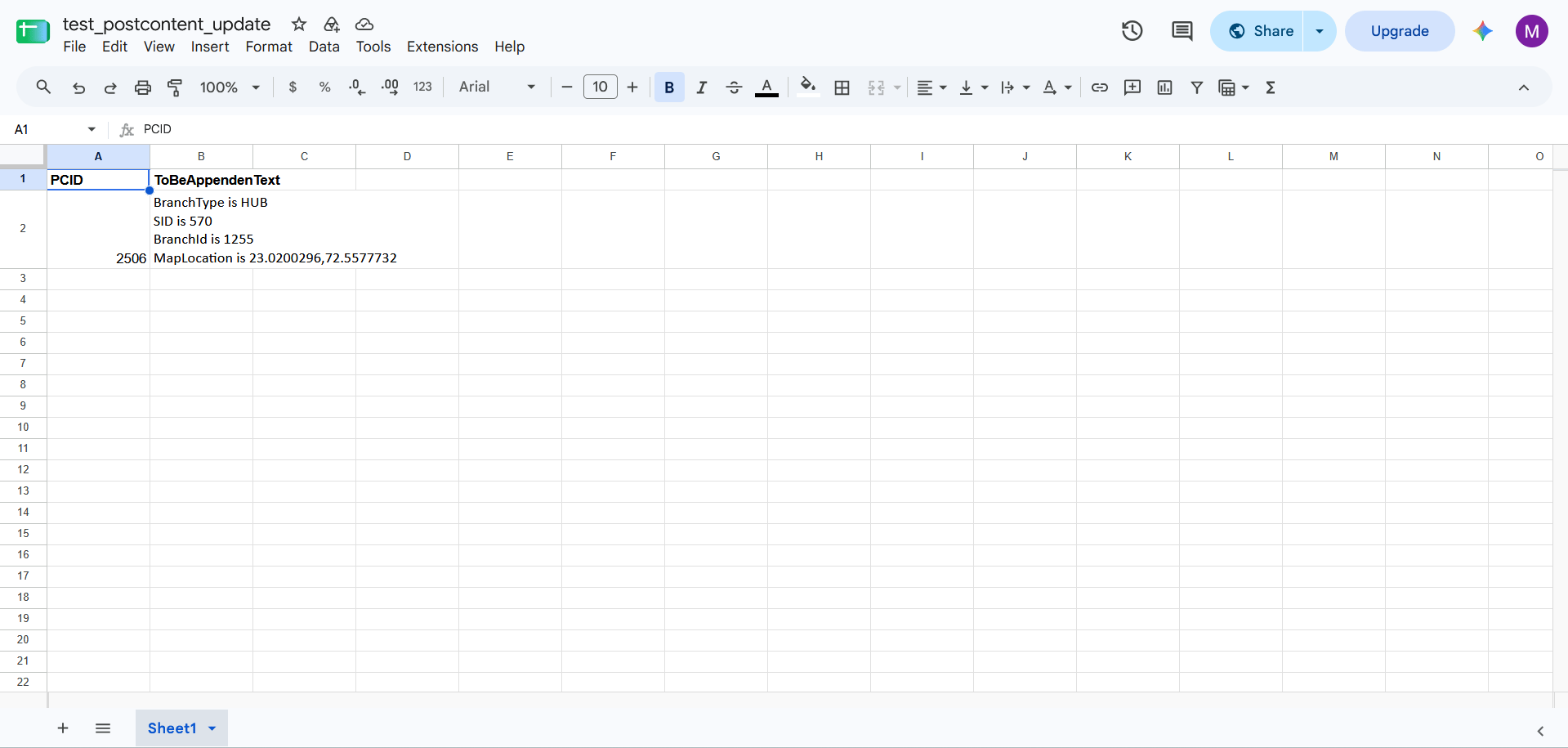
Running the Import
Setting up a new import
1
Open Imports
Navigate to Home > Ontology > Attribute Settings & Bulk Edit, then click the Imports tab.
2
Click + Import
Click the + Import button in the top right to open the New Import modal.
3
Give it a label
Enter a name that describes this import — for example, “Doctor Bio Append.”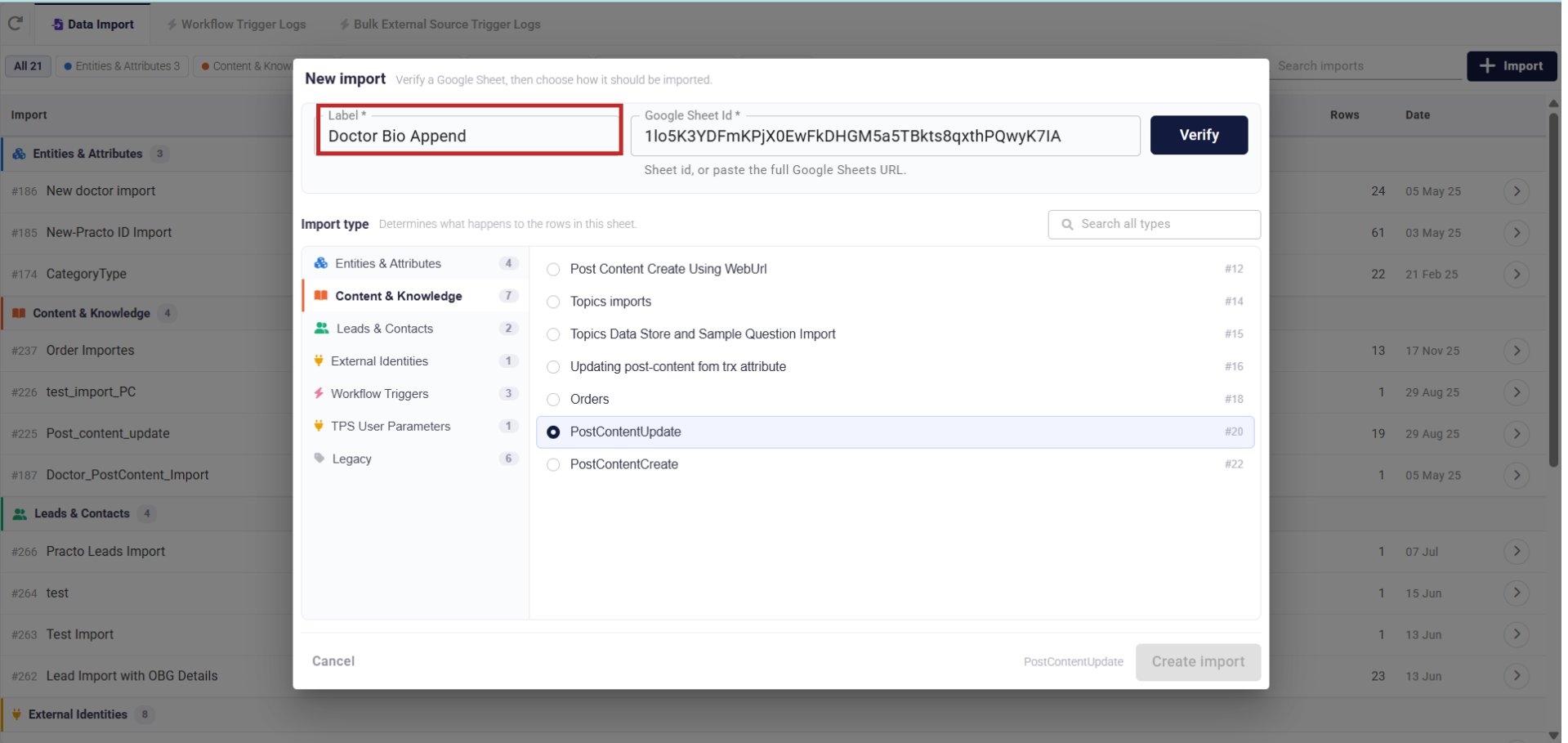
4
Add the Google Sheet ID
Paste the sheet ID or the full Google Sheets URL — NeuronCx will extract the ID automatically.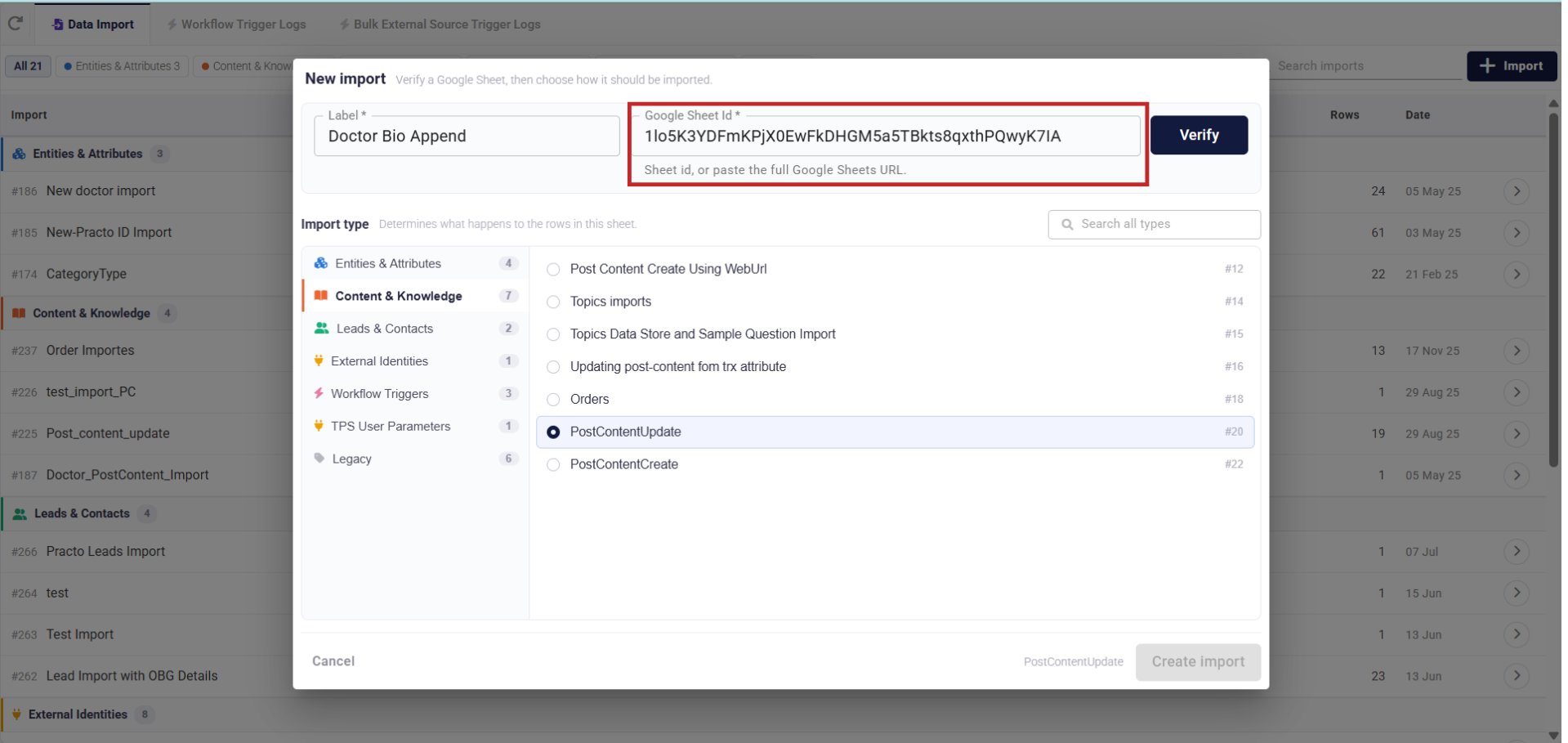
5
Verify
Click Verify. NeuronCx confirms it can read the sheet and shows you the row and column count — use this to catch an empty or wrong sheet before continuing.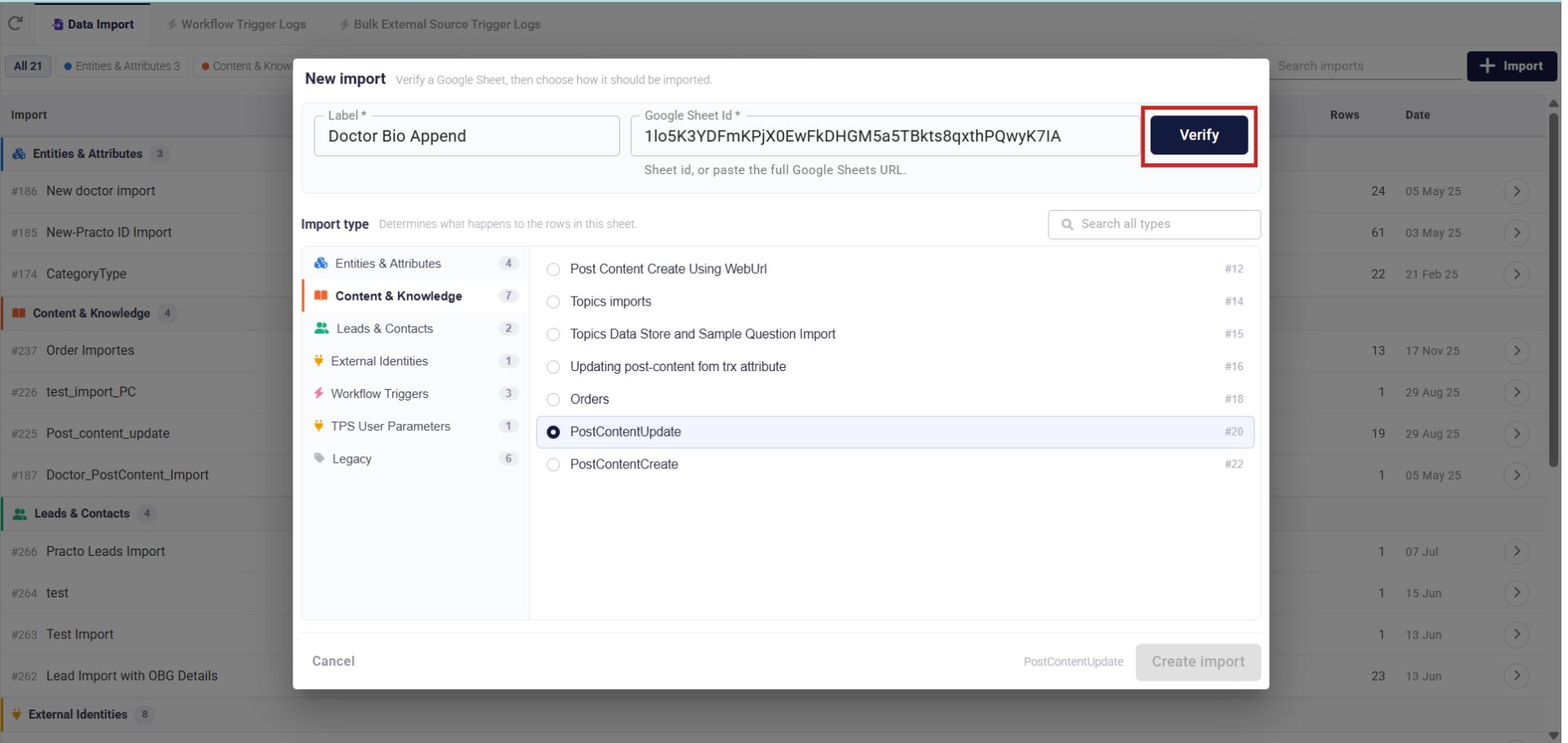
6
Select the import type
In the Import type panel on the left, select Content & Knowledge. Then choose PostContentUpdate (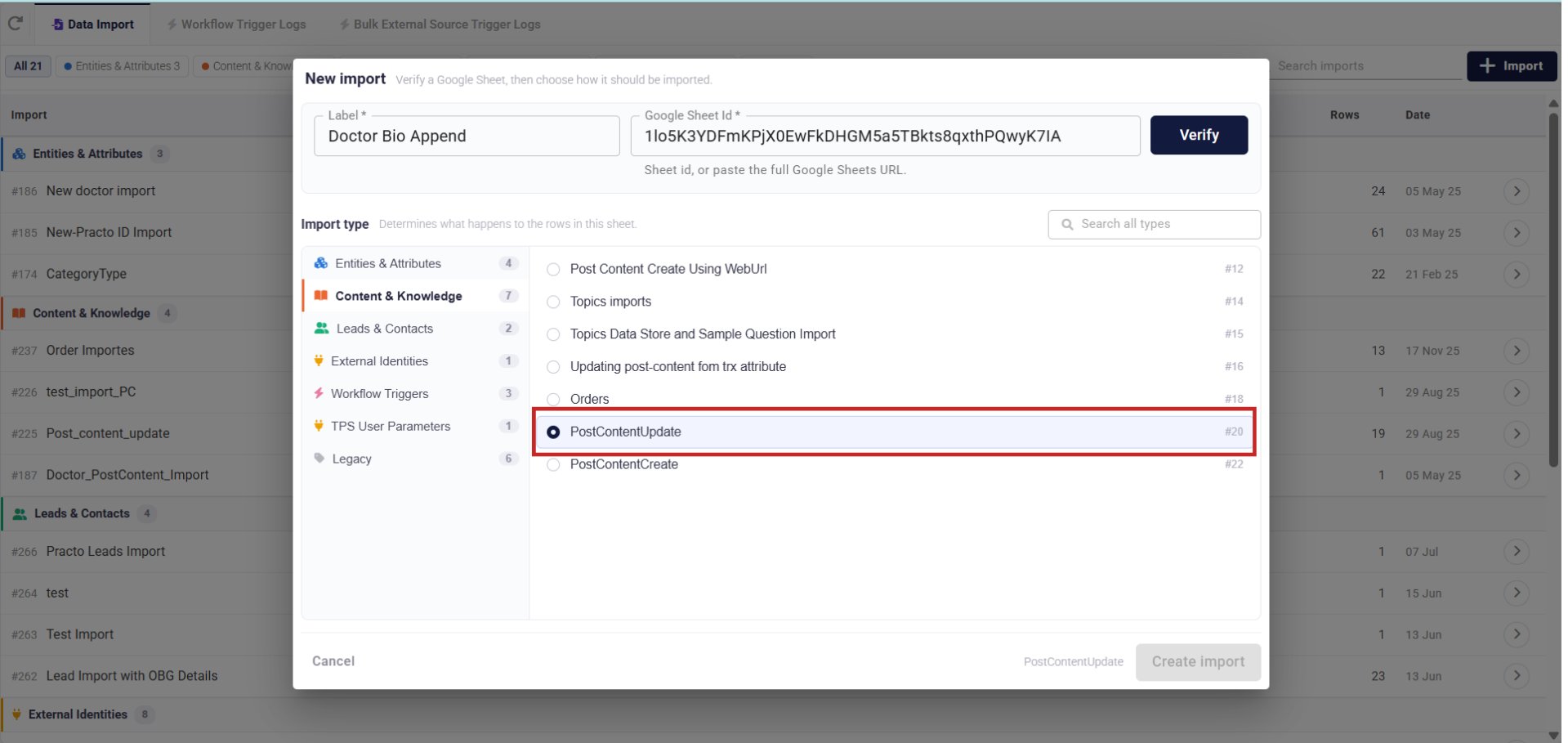
#20) from the list on the right.7
Create the import
Click Create import. The import now appears in your list under Content & Knowledge, ready to run.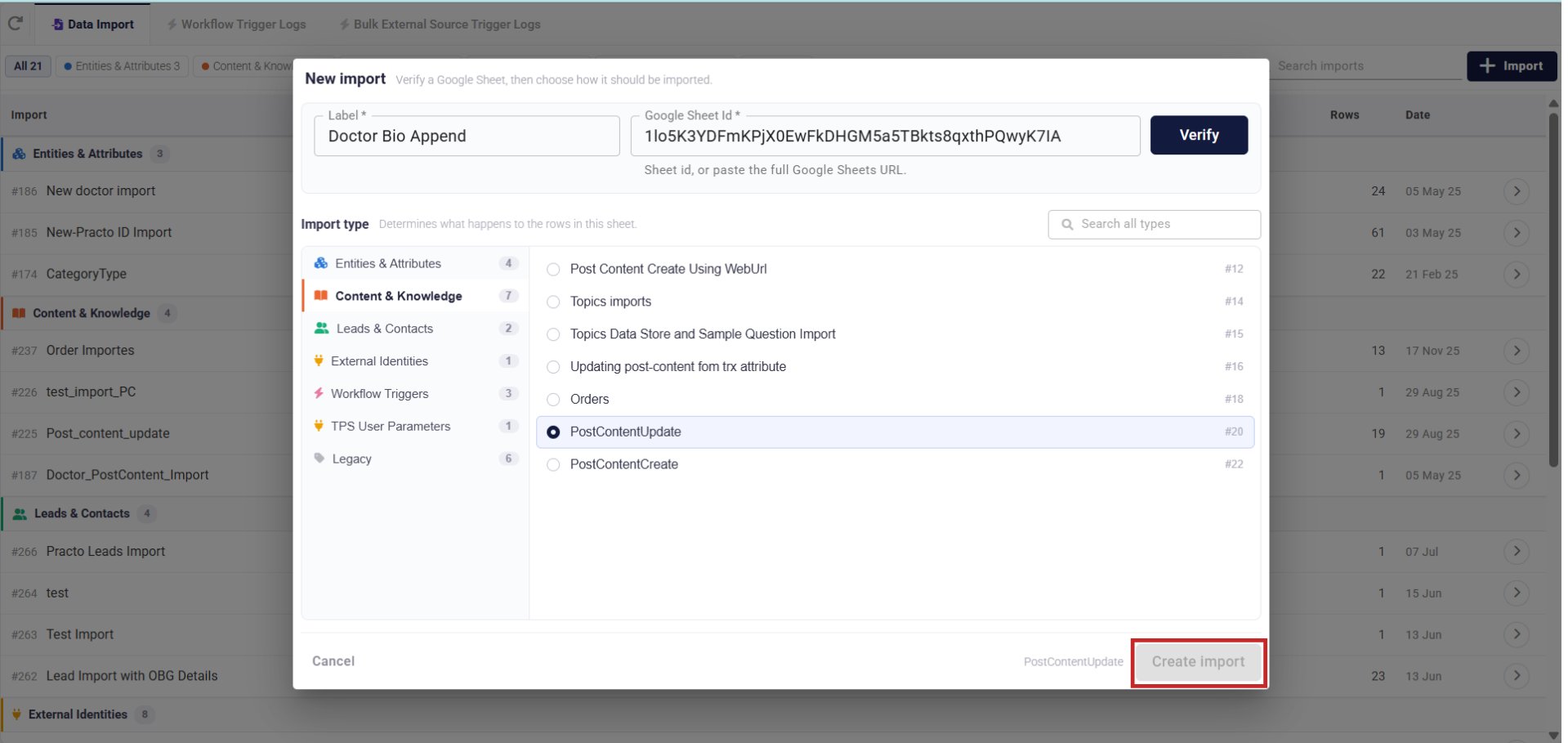
Running the import
1
Find the import
From the Data Import list, locate the import you just created. You can filter by Content & Knowledge to narrow the list.
2
Open the import
Click the arrow icon on the import row to open it.
3
Click Import
Click Import to run it. NeuronCx reads each row, finds the matching post content by PCID, and appends the new text to it.
What Happens When the Import Runs
Rows are processed in batches rather than one at a time, so a large sheet doesn’t need to be imported in pieces. Each batch runs in parallel, and the next batch starts only once the current one finishes. If a row fails, it’s skipped and the rest of the import continues — a failed row does not stop the whole run. For each row, NeuronCx does the following:- Looks up the existing content for that PCID.
- Adds the new text to the end of the existing content, separated by a blank line.
- Regenerates the embedding for the updated content, so it stays searchable and accurate.
If a row’s PCID can’t be matched to existing content, that row is skipped rather than creating something new.
Checking the Result
Once the run completes, the history table shows how many rows were read and how many pieces of content were updated. Click a run’s Status to open a detailed breakdown showing which rows succeeded and which were skipped.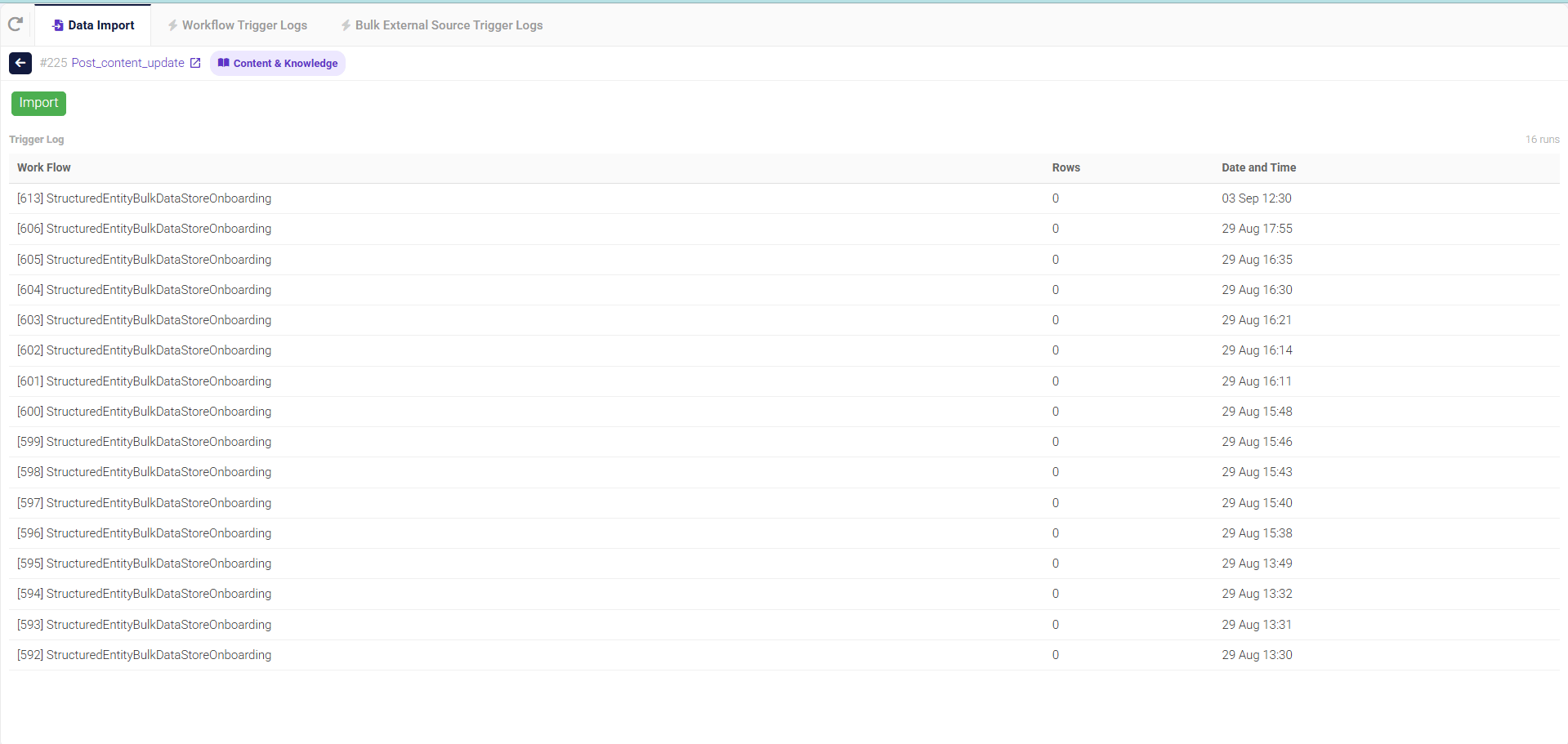
Limits to Keep in Mind
- This import only appends text — it can’t be used to edit or replace existing content.
- A row is skipped, not flagged as an error, when its PCID doesn’t match existing content.
- Only one import runs at a time. If another import is already running, this one will queue and wait its turn.