
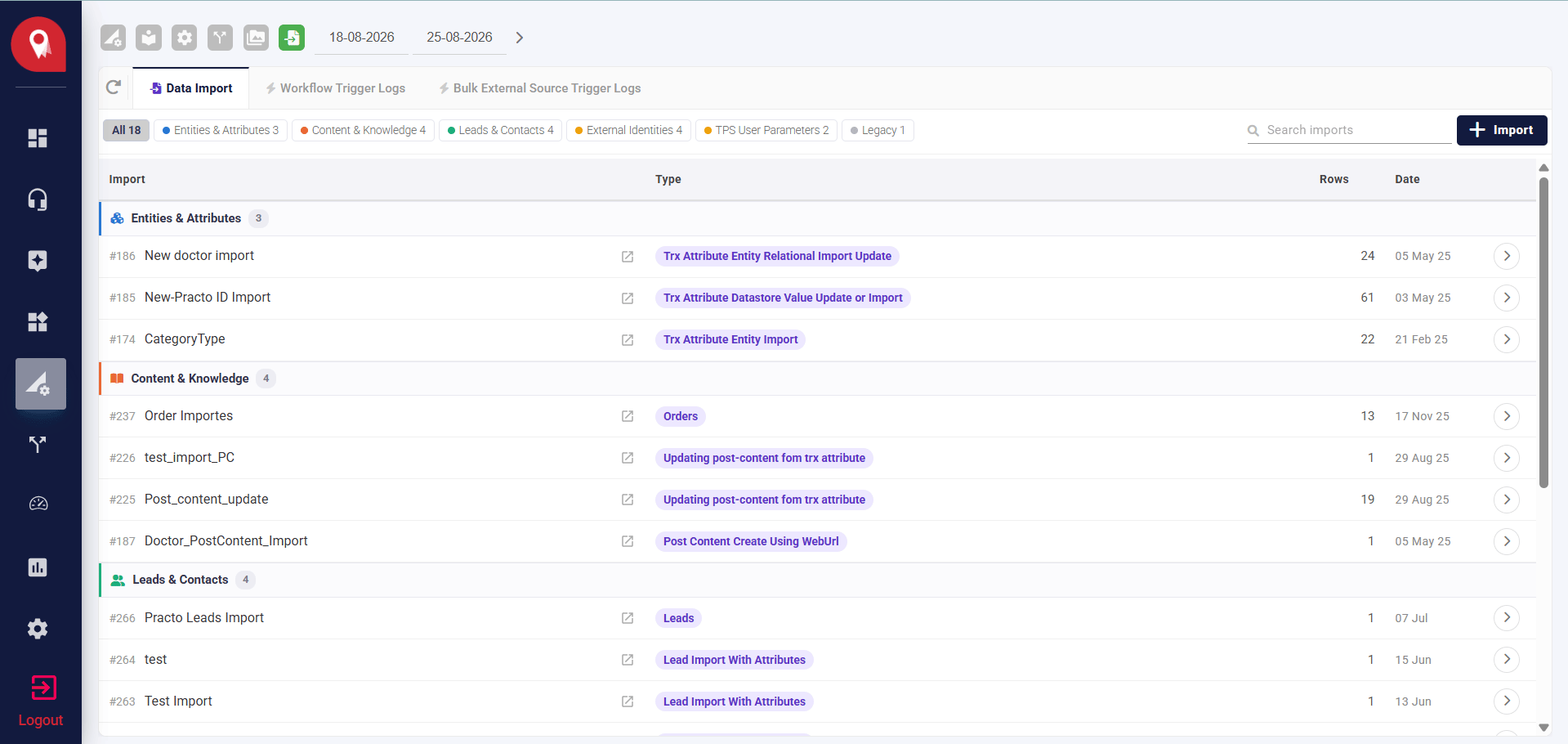
Import Types
NeuronCx supports a number of import types. Each has its own page with the setup, steps, and prerequisites specific to it.Pages not yet linked will be added as we document each type. If you’re looking for one that isn’t linked yet, check back soon.
You don’t have to import every column in your sheet. When you set up a mapping, you choose only the columns you actually need.
Navigation & General Conventions
You’ll find Imports here: Home > Ontology > Attributes > Import A few things apply across every import type, regardless of what you’re bringing in:- Your Google Sheet needs to be shared with edit access, so NeuronCx can read from (and in some cases write back to) it.
- Use a separate sheet when you’re adding new records versus updating existing ones — don’t mix the two in one sheet.
- New records typically use IDs in CAPS. When updating an existing record, the ID should be in lowercase.
- Only one import runs at a time. If you start a new import while another is still running, it will wait its turn rather than run alongside it.
Each import type has its own prerequisites beyond these — check that type’s page before you start.
Starting a New Import
1
Click + Import
From the Data Import list, click the + Import button.
2
Give it a label
Enter a name that describes what this import is for, for example “Product Line Import.”
3
Add the Google Sheet ID
Paste the sheet ID, or paste the full Google Sheets URL — NeuronCx will pull the ID out of it automatically.
4
Verify
Click Verify. NeuronCx confirms it can read the sheet and shows you how many rows and columns it found, so you can catch an empty or wrong sheet before going further.
5
Choose the import type
Pick a category from the list on the left, then the specific import type on the right. You can also search across all categories if you know the type’s name.
6
Create the import
Click Create import to save it. It will now appear in your import list, ready to run.
All of this happens on a single screen — you don’t need to move through separate pages to set up an import.
Import Types List
Each import type has its own page with the setup, steps, and prerequisites specific to it.- 1 — Leads
- 2 — ProductLine
- 3 — CategoryType
- 4 — Category
- 5 — SKU
- 6 — SubCategory
- 7 — Bulk WF Trigger
- 8 — Trx Attribute Datastore Value Update or Import
- 9 — Attribute And Post Content Create Using Inline txt
- 10 — LocationList
- 11 — Trx Attribute Entity Import
- 12 — Post Content Create Using WebUrl
- 13 — Trx Attribute Entity Relational Import Update
- 14 — Topics imports
- 15 — Topics Data Store and Sample Question Import
- 16 — Updating post-content from trx attribute
- 17 — Call Analytics WF
- 18 — Orders
- 19 — WF trigger with sheet supplied initial_variable
- 20 — PostContentUpdate
- 22 — PostContentCreate
- 23 — Lead Import With Attributes
- 24 — External Identity Import
- 25 — External Values Import
Checking Results & Fixing Problems
Every import run is logged, so you can see what happened and step in if something went wrong. This works the same way across all import types.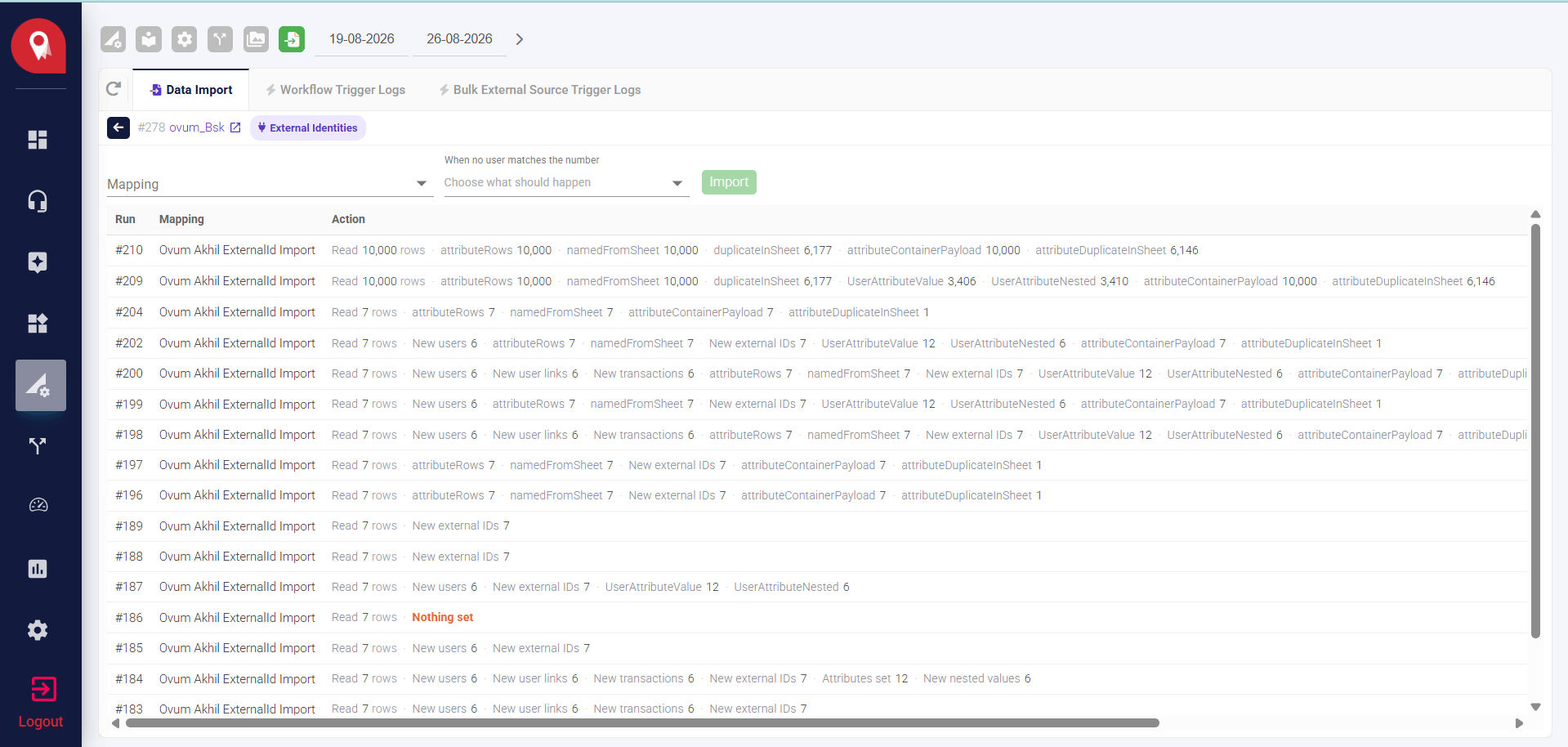
Rollback is currently available for External Identity imports.
Viewing more detail on a run
Click a run’s Status to open a detailed breakdown.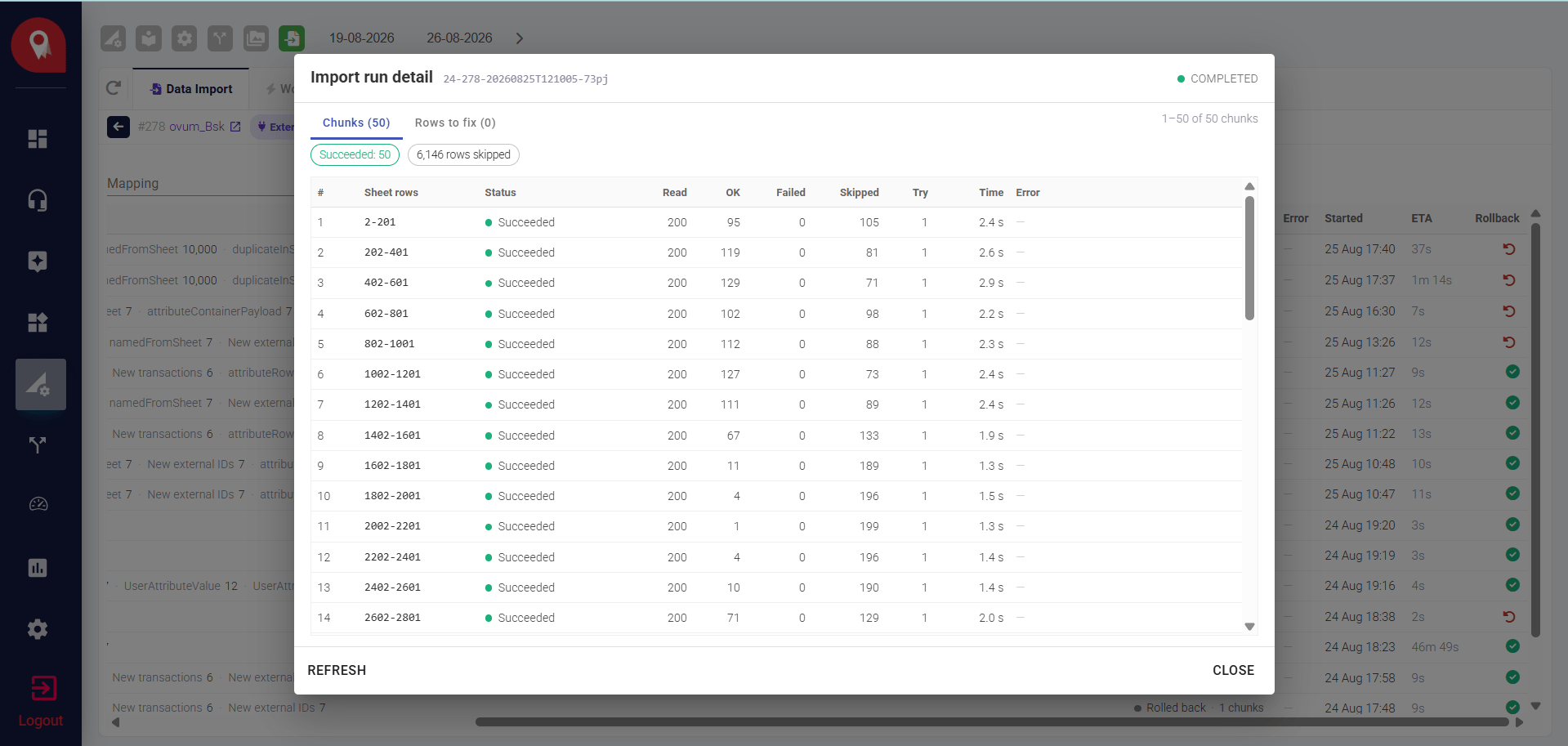
It’s normal for a rollback to leave a few records in place rather than removing everything. This happens when a record has picked up other activity since the import ran — NeuronCx protects that activity rather than deleting it. The run detail will show which records were kept and why.
Quick Reference
My import shows 'Nothing set' after running
My import shows 'Nothing set' after running
This means the run completed but didn’t find any changes to make — double check your mapping and that the sheet data matches what’s expected.
I got an error trying to update a sheet
I got an error trying to update a sheet
Check that you’ve selected the correct import type for an update rather than a new import — using the wrong one will show an error rather than making an incorrect change.
A column in my sheet isn't coming through
A column in my sheet isn't coming through
Make sure the attribute it maps to already exists in NeuronCx, and that it’s included in your mapping — columns without a header are skipped automatically.
I need to undo an import
I need to undo an import
Check the individual import type’s page — rollback support and steps vary by type.