
Overview
Leads Import reads rows from a Google Sheet and creates a user record, a transaction, and a conversation for each one. It’s the standard way to bulk-onboard leads into NeuronCx from an external source. Attributes can be set in the same import — you don’t need a separate step for them. Any column in your sheet whose header matches an existingInstTrxMasterName will be picked up automatically.
After the import runs, NeuronCx writes two values back into your sheet —
UserMasterId and TransactionMasterId — so you have a record of exactly which NeuronCx records were created from each row.Prerequisites
- Your Google Sheet must be shared with edit access so NeuronCx can read from it and write IDs back to it.
- The sheet must contain all mandatory columns — see below. Column headers are case-sensitive and must match exactly.
- Any attribute columns you include must match an existing
InstTrxMasterNamefor your institution. This import never creates new attribute definitions.
Preparing Your Sheet
Your sheet must include the following columns. NeuronCx will read these to create each lead record.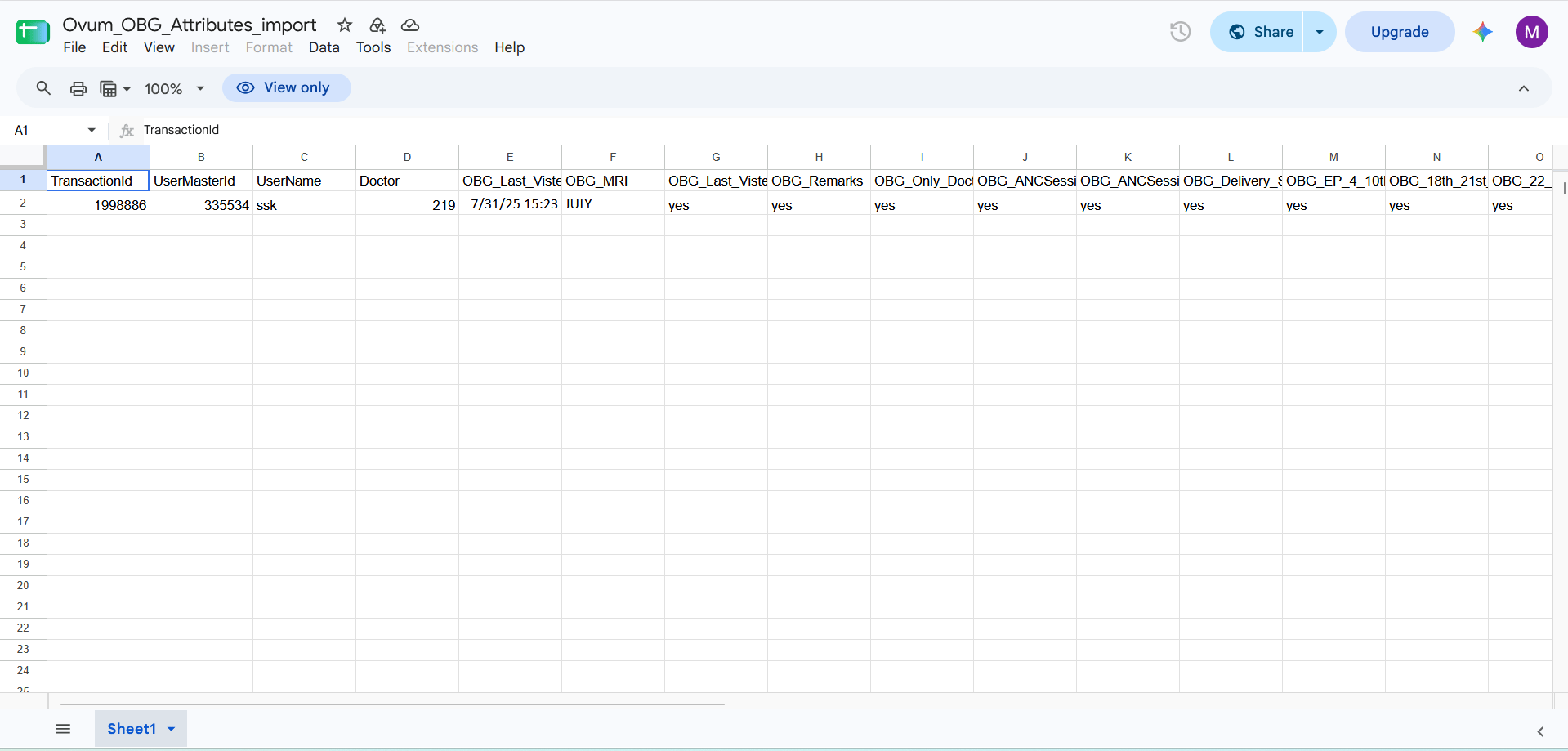
Running the Import
Setting up a new import
1
Open Imports
Navigate to Home > Ontology > Attributes > Import and click + Import.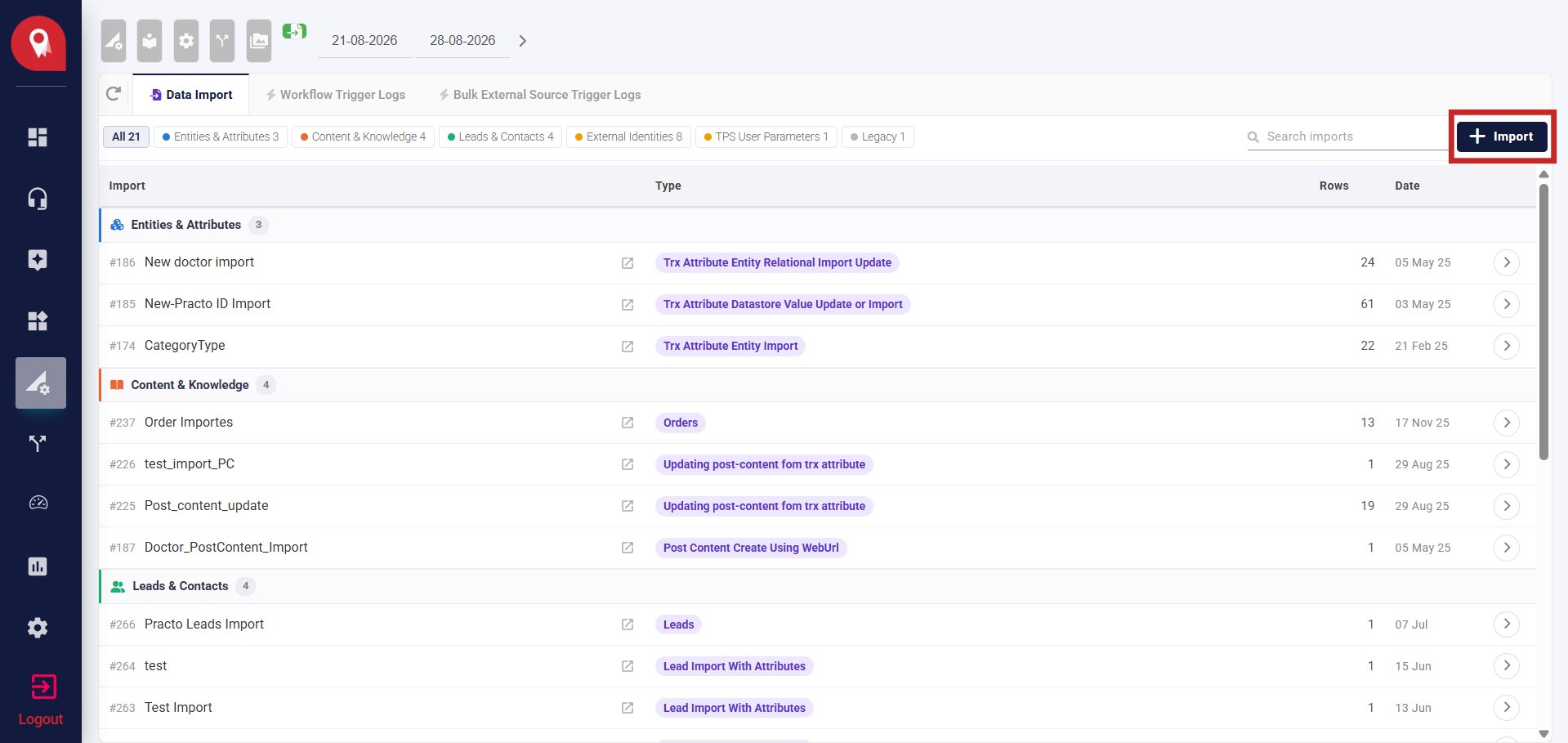
2
Give it a label
Enter a name that describes this import — for example, “June Leads Import.”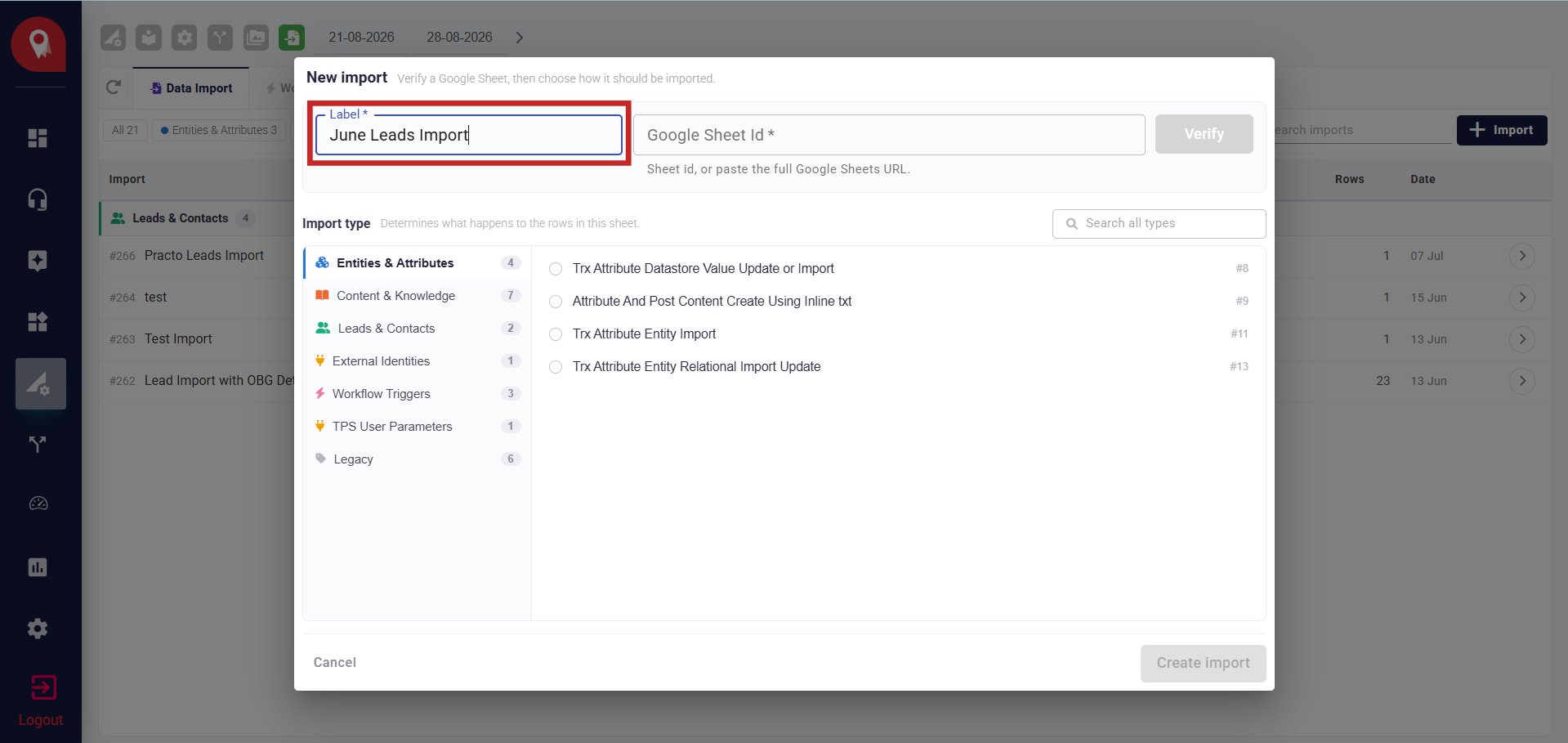
3
Add the Google Sheet ID
Paste the sheet ID, or paste the full Google Sheets URL — NeuronCx will extract the ID automatically.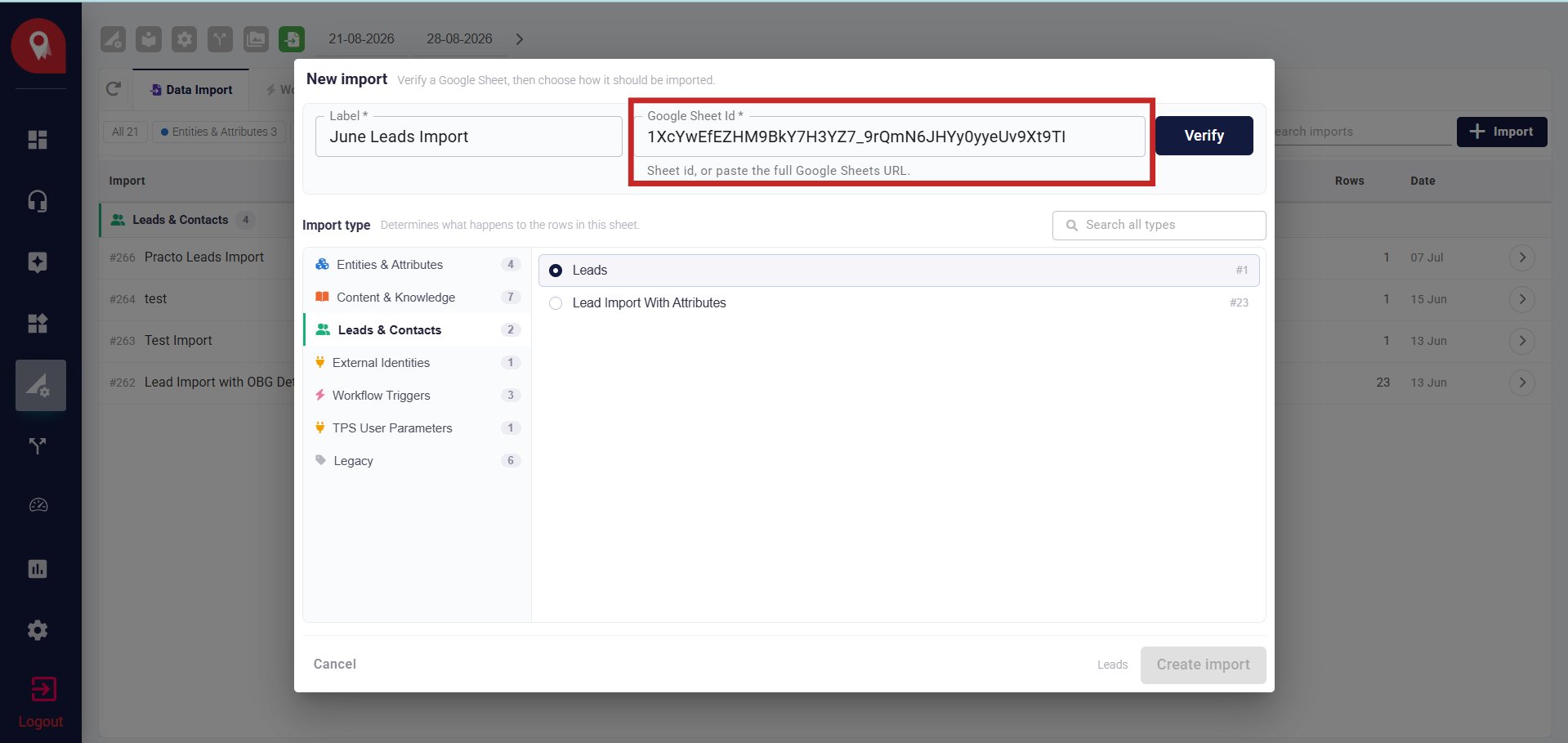
4
Verify
Click Verify. NeuronCx confirms it can read the sheet and shows you the row and column count — use this to catch an empty or wrong sheet before continuing.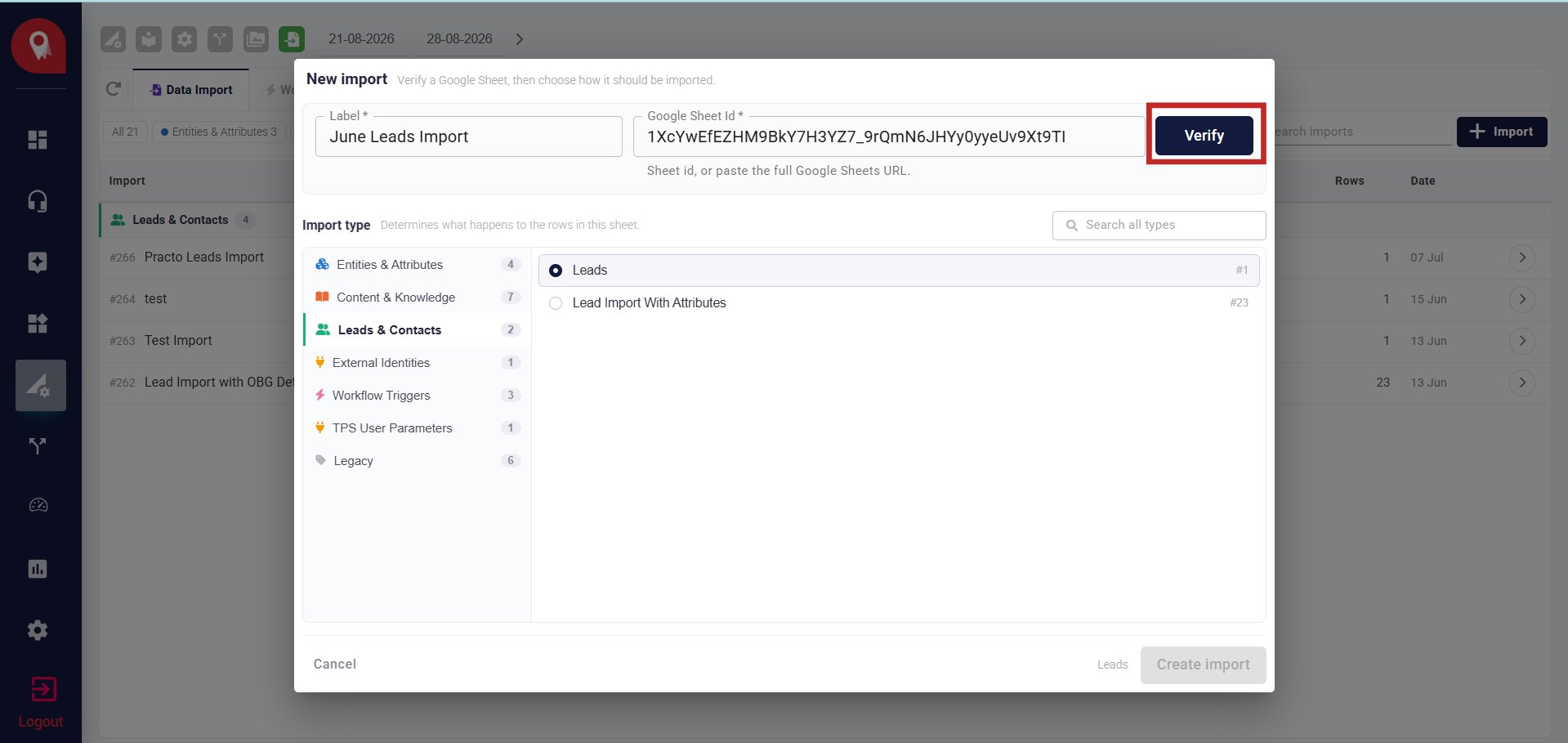
5
Select the import type
Choose Leads from the import type list.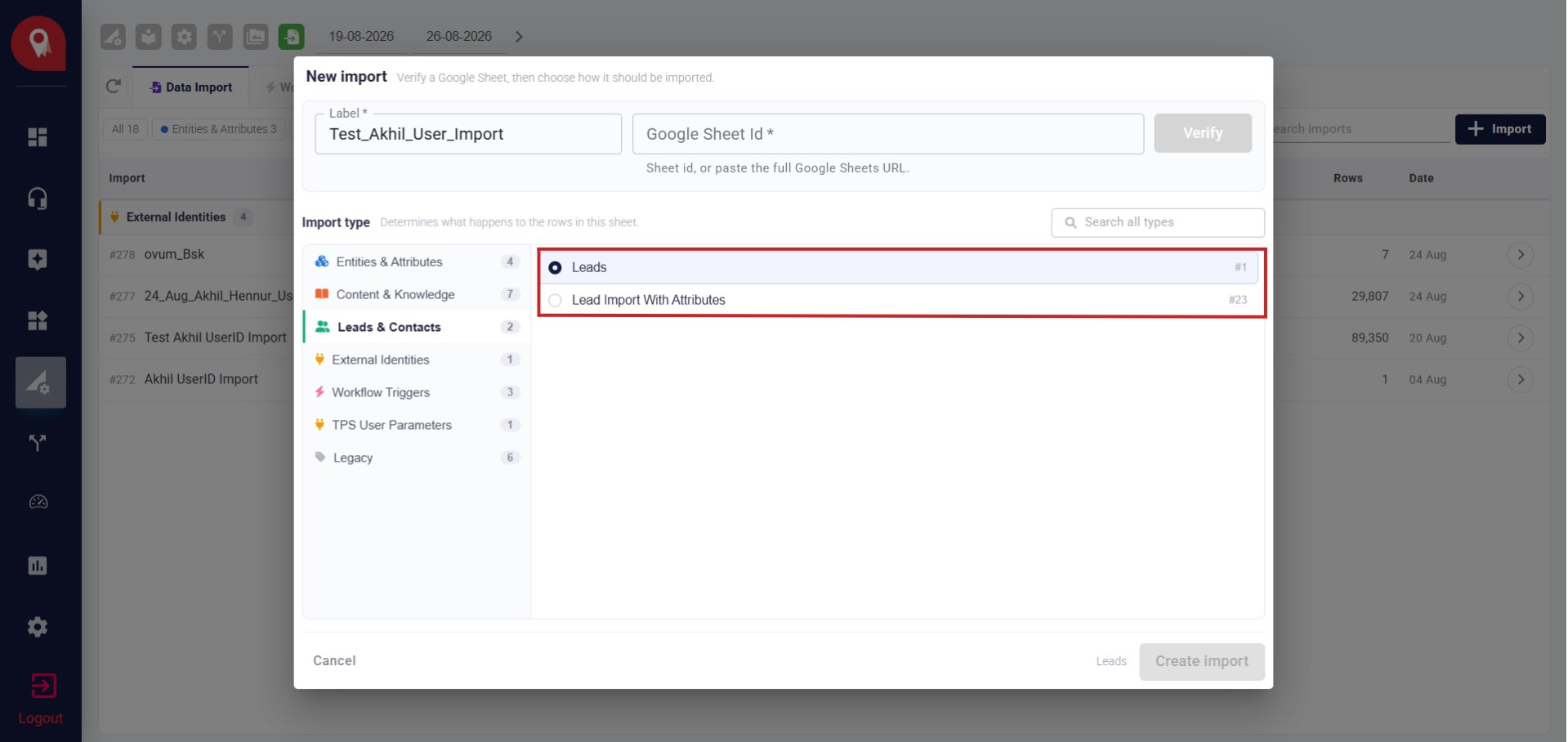
6
Create the import
Click Create import. The import now appears in your list, ready to run.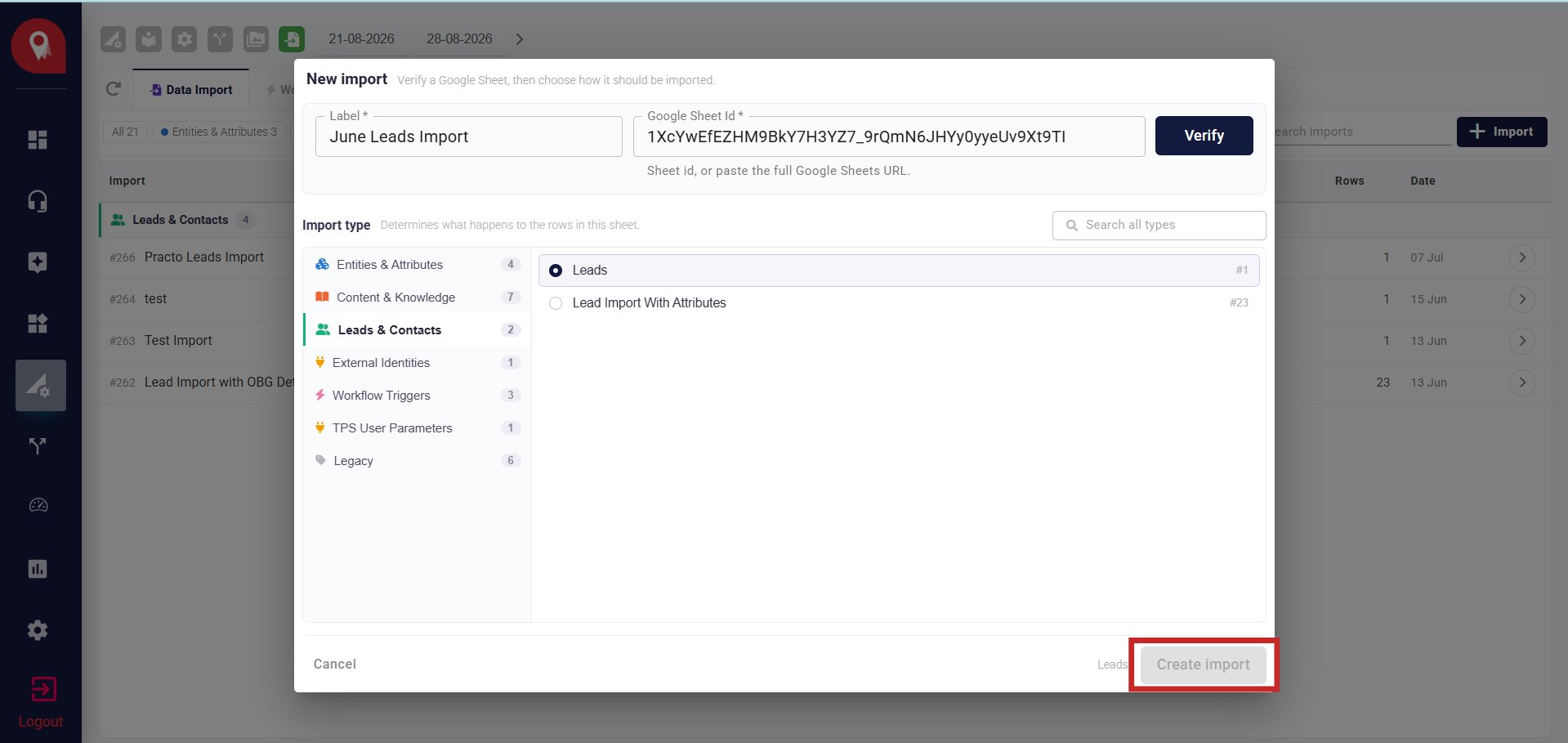
Running an import on an existing sheet
1
Find the import
From the Data Import list, locate the import linked to your sheet.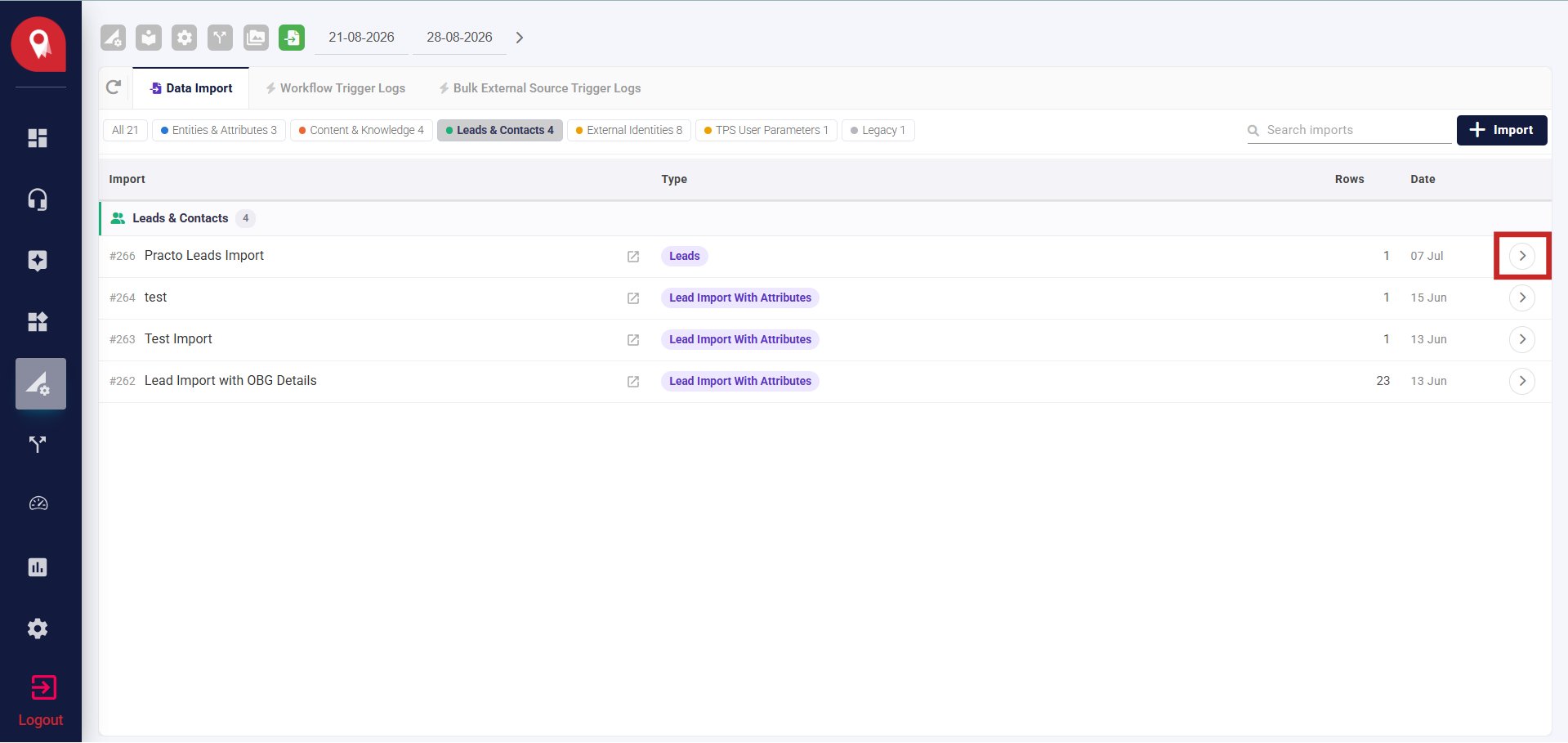
2
Click Import
Click the Import button on that row to run it.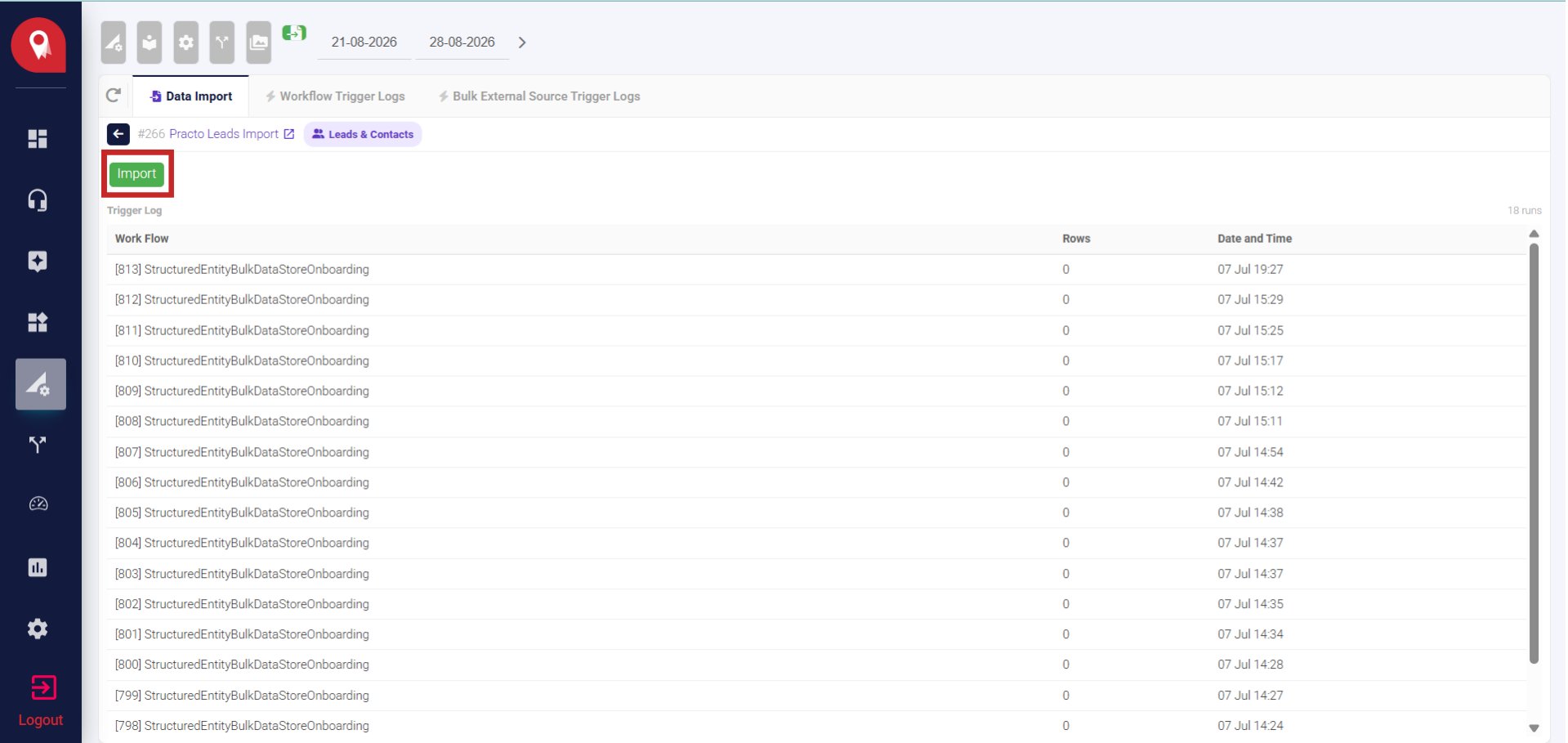
What Happens After the Import Runs
Once each row is processed, NeuronCx schedules a background job to write the generated IDs back into your sheet.UserMasterIdandTransactionMasterIdare written back to each row, matched byUserMobile.- The write-back runs approximately 2 minutes after the import, to allow record creation to complete.
- If the IDs aren’t available yet on the first attempt, the job retries once per minute for up to 3 attempts total.
The write-back matches rows by
UserMobile. Make sure there are no duplicate mobile numbers in your sheet — if a number appears more than once, only one row will be updated reliably.Checking the Result
Once the import completes, the run history table shows how many rows were read and how many records were created. Click a run’s Status to open a detailed breakdown showing which rows succeeded, failed, or were skipped. After the write-back runs, open your sheet and confirm thatUserMasterId and TransactionMasterId are filled in for each row.
Limits to Keep in Mind
- Column headers are case-sensitive.
UserMobileandusermobileare treated as different columns. - Attribute columns must match an existing
InstTrxMasterNameexactly — unrecognised column headers are silently ignored. - This import creates new records only. To update an existing lead’s attributes after the fact, use a different import type.
- Only one import runs at a time. If another import is already running, this one will queue and wait its turn.