
Overview
Call Analytics WF Import lets you bring in a batch of call recordings for quality assessment. You prepare a Google Sheet with the recording details, run the import, and then trigger the assessment workflow — NeuronCx processes each recording and makes the results available in the audit console. This is a two-step process: first you import the sheet, then you trigger the assessment workflow separately.The import only reads four columns from your sheet —
Agent, callRecording, Direction, and PhoneNumber. Any other columns in your sheet are ignored, so you don’t need to remove them before importing.Prerequisites
Before running this import, your recordings need to be prepared and your sheet needs to be ready:- Each call recording (mp3 or wav) must be uploaded to an S3 bucket and made publicly accessible. The public URL is what goes into the sheet.
- Agent IDs must be the numeric IDs from the system — not agent names. Check with your administrator if you’re unsure which ID corresponds to which agent.
- Every phone number in the sheet must be unique. Duplicate phone numbers in the same sheet may cause rows to be skipped.
Preparing Your Sheet
Your sheet can contain as many columns as you like — for example, agent names, dates, drive links, or internal references. NeuronCx only reads the four columns below. Everything else is ignored.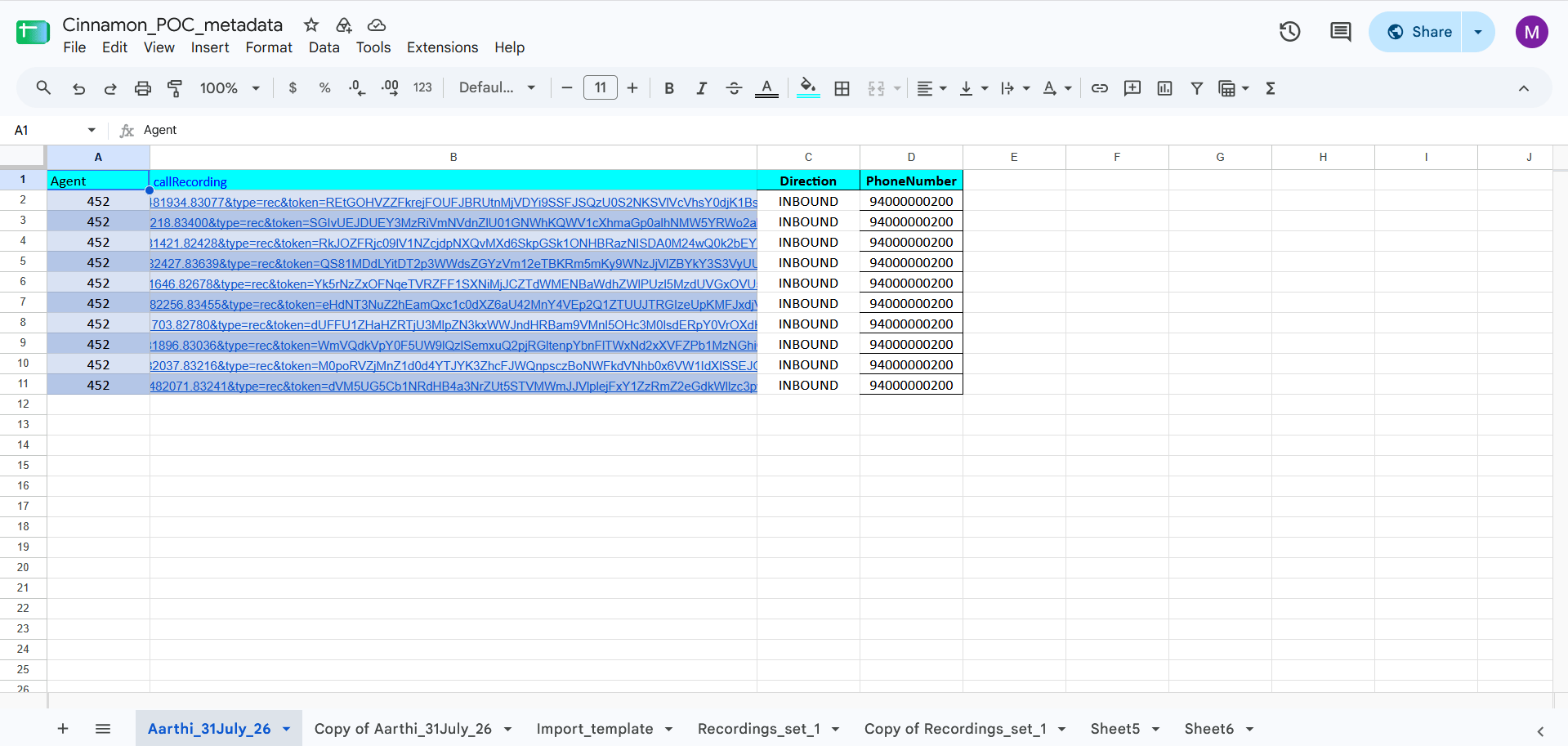
Step 1 — Running the Import
Setting up a new import
1
Open Imports
Navigate to Home > Ontology > Attribute Settings & Bulk Edit, then click the Imports tab.
2
Click + Import
Click the + Import button in the top right to open the New Import modal.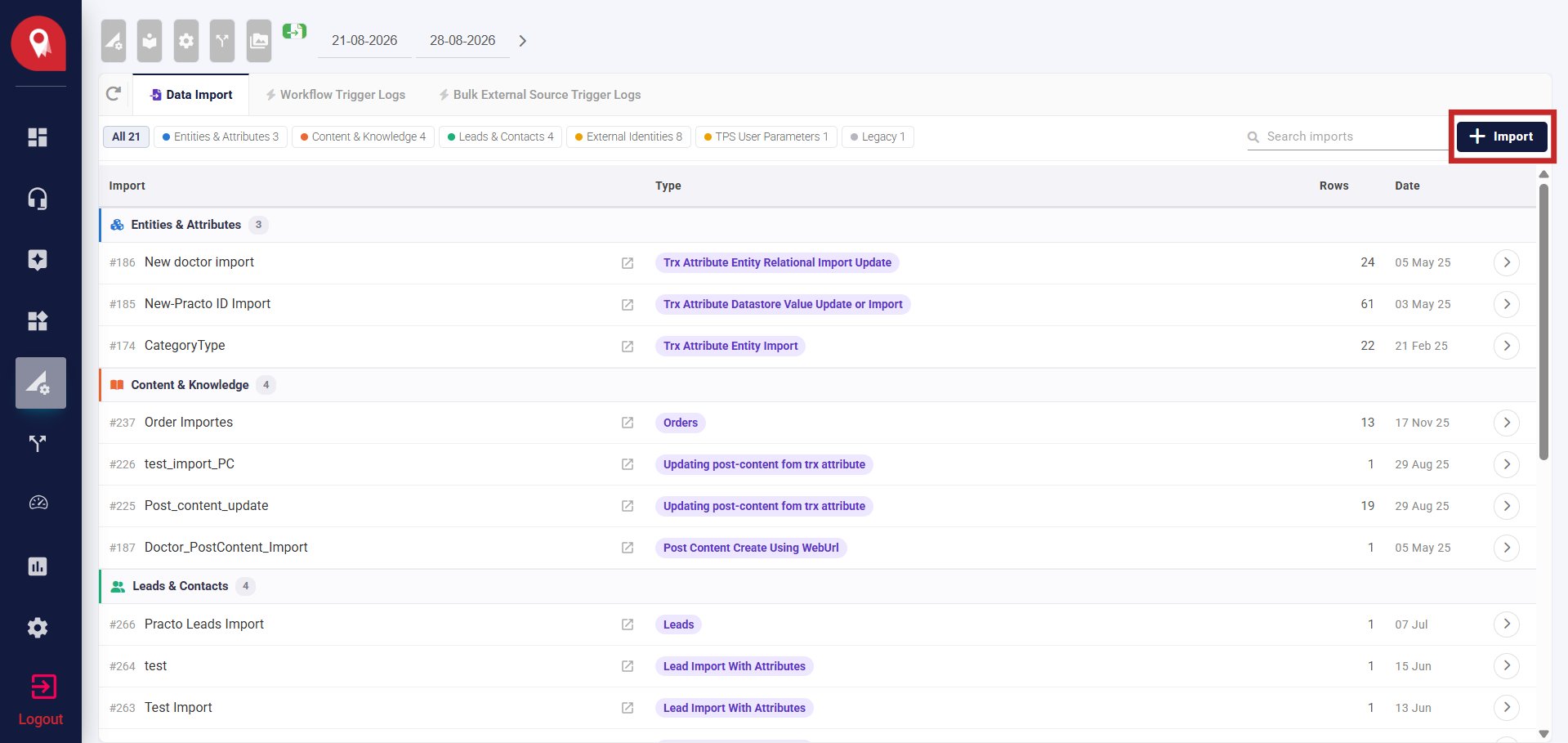
3
Give it a label
Enter a name that describes this import — for example, “Aug 28 Call Assessment Import.”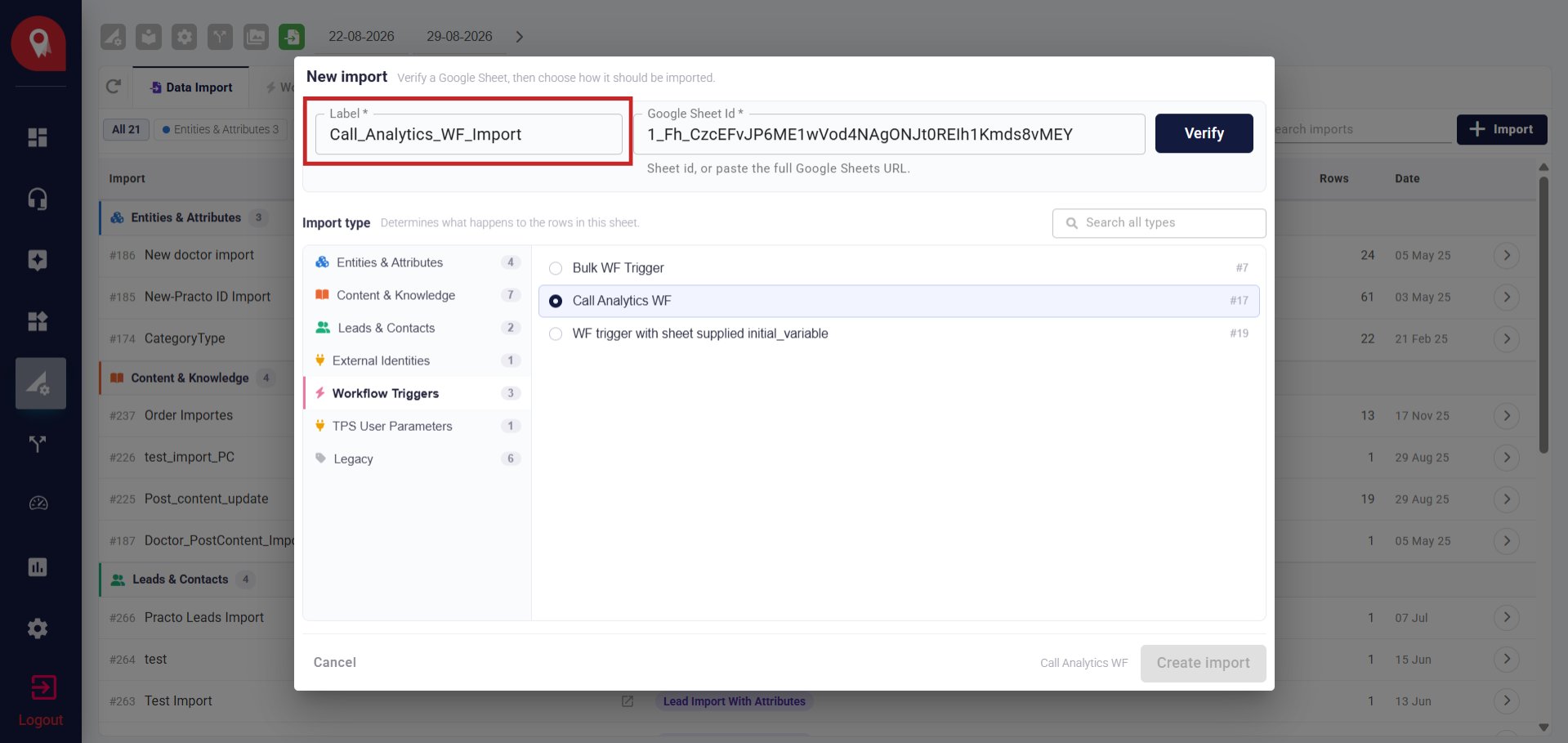
4
Add the Google Sheet ID
Paste the sheet ID or the full Google Sheets URL — NeuronCx will extract the ID automatically.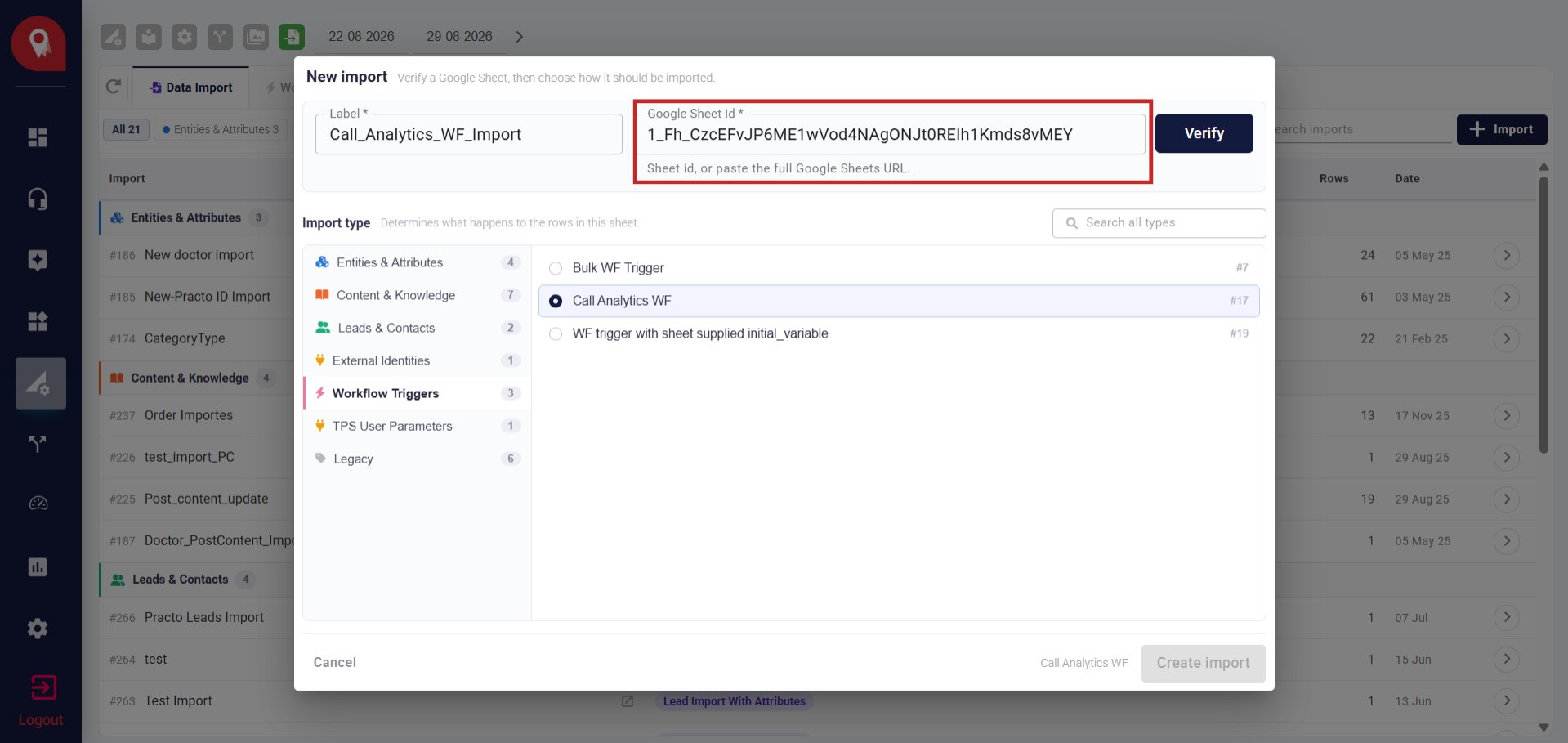
5
Verify
Click Verify. NeuronCx confirms it can read the sheet and shows you the row and column count — use this to catch an empty or wrong sheet before continuing.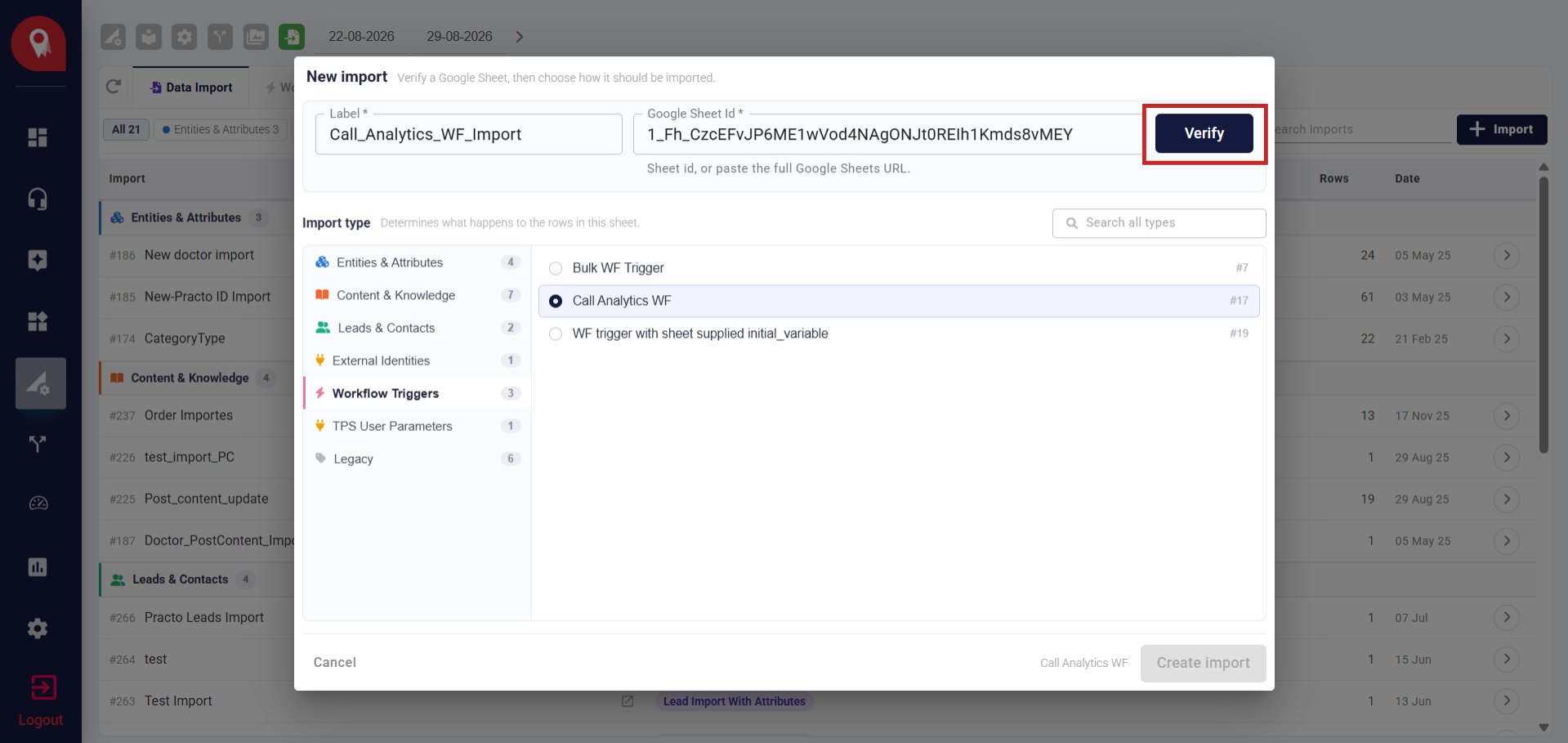
6
Select the import type
In the Import type panel on the left, select Content & Knowledge. Then choose Call Analytics WF (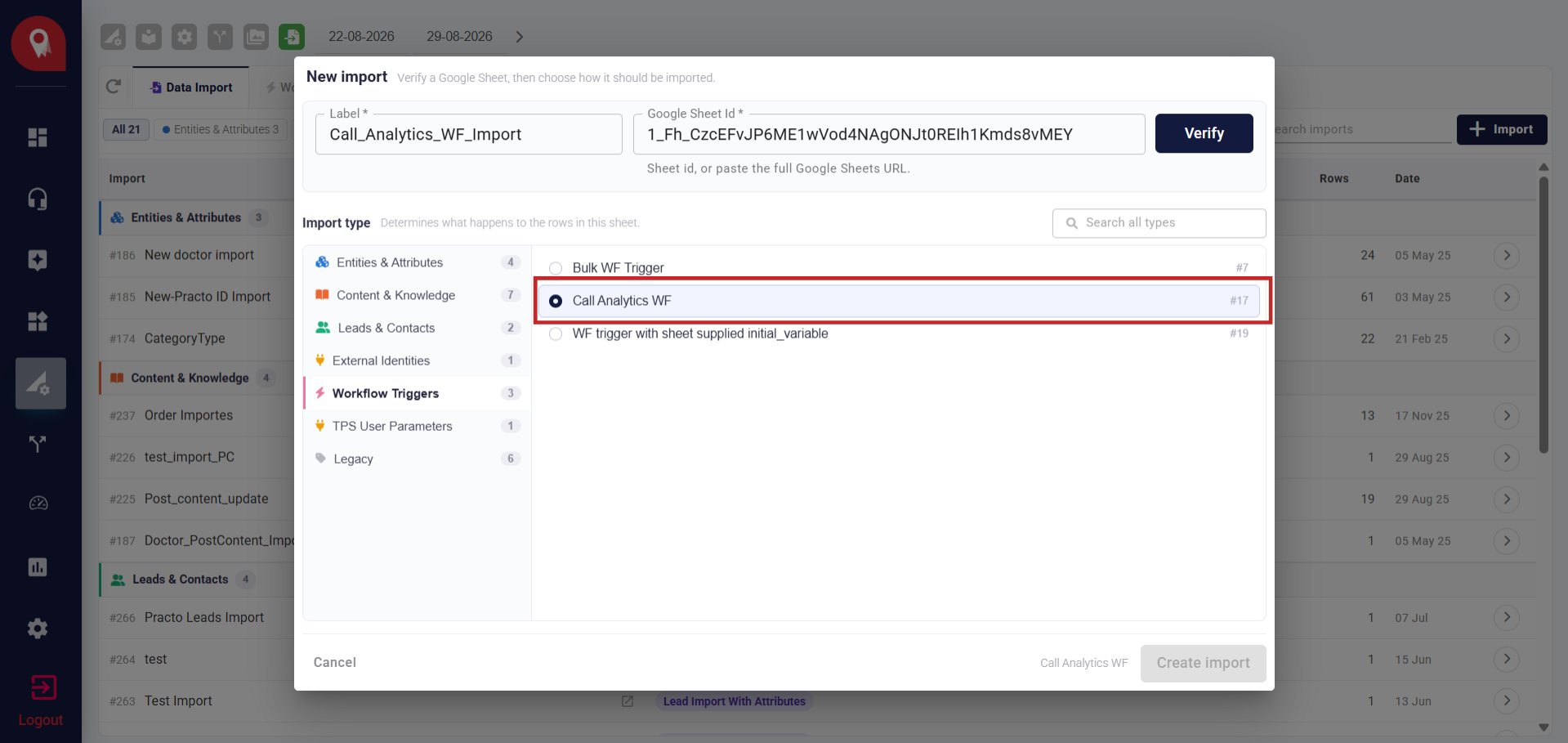
#17) from the list on the right.7
Create the import
Click Create import. The import now appears in your list under Content & Knowledge, ready to run.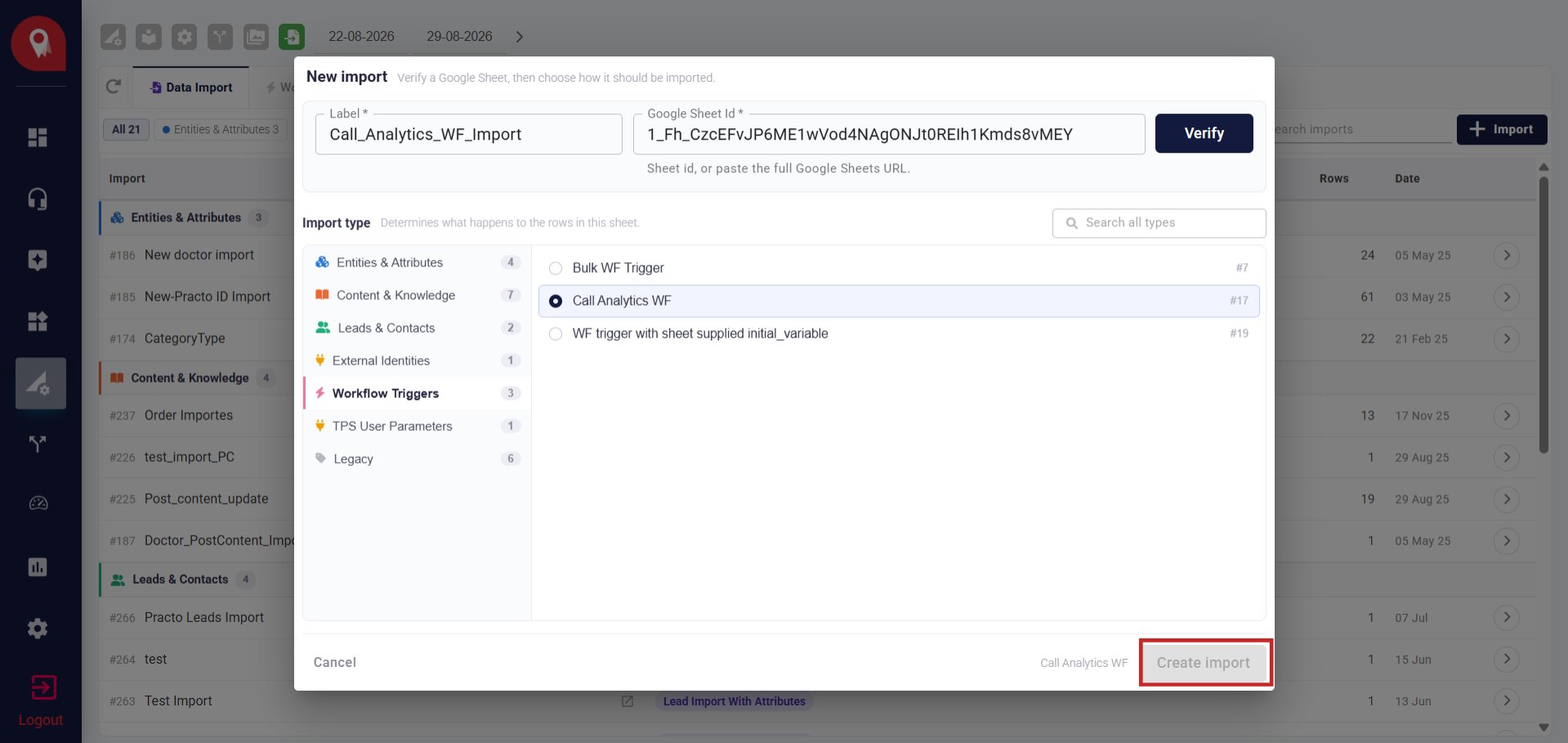
Running the import
1
Find the import
From the Data Import list, locate the import you just created. You can filter by Content & Knowledge to narrow the list.
2
Open the import
Click the arrow icon on the import row to open it.
3
Click Import
Click Import to run it. NeuronCx will read each row and queue the recordings for assessment.
Step 2 — Triggering the Assessment Workflow
Once the import completes successfully, you need to trigger the assessment workflow to start processing the recordings. The workflow ID varies by institution — check with your administrator for the correct one.1
Go to Bulk WF Trigger
Navigate to Home > Ontology > Attribute Settings & Bulk Edit, then click the Bulk External Source Trigger Logs tab.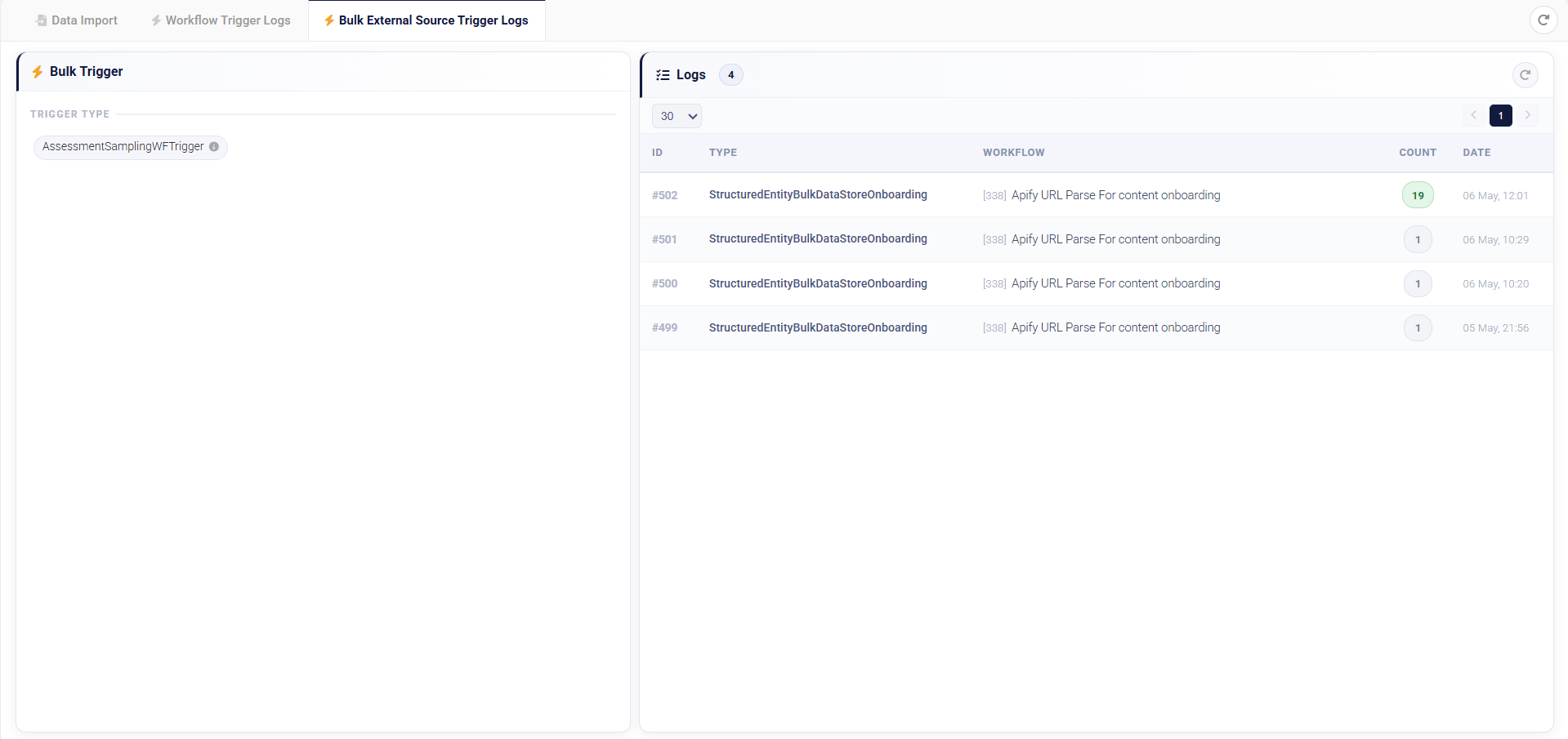
2
Select the trigger type
From the trigger type options, select Assessment Sampling WF Trigger.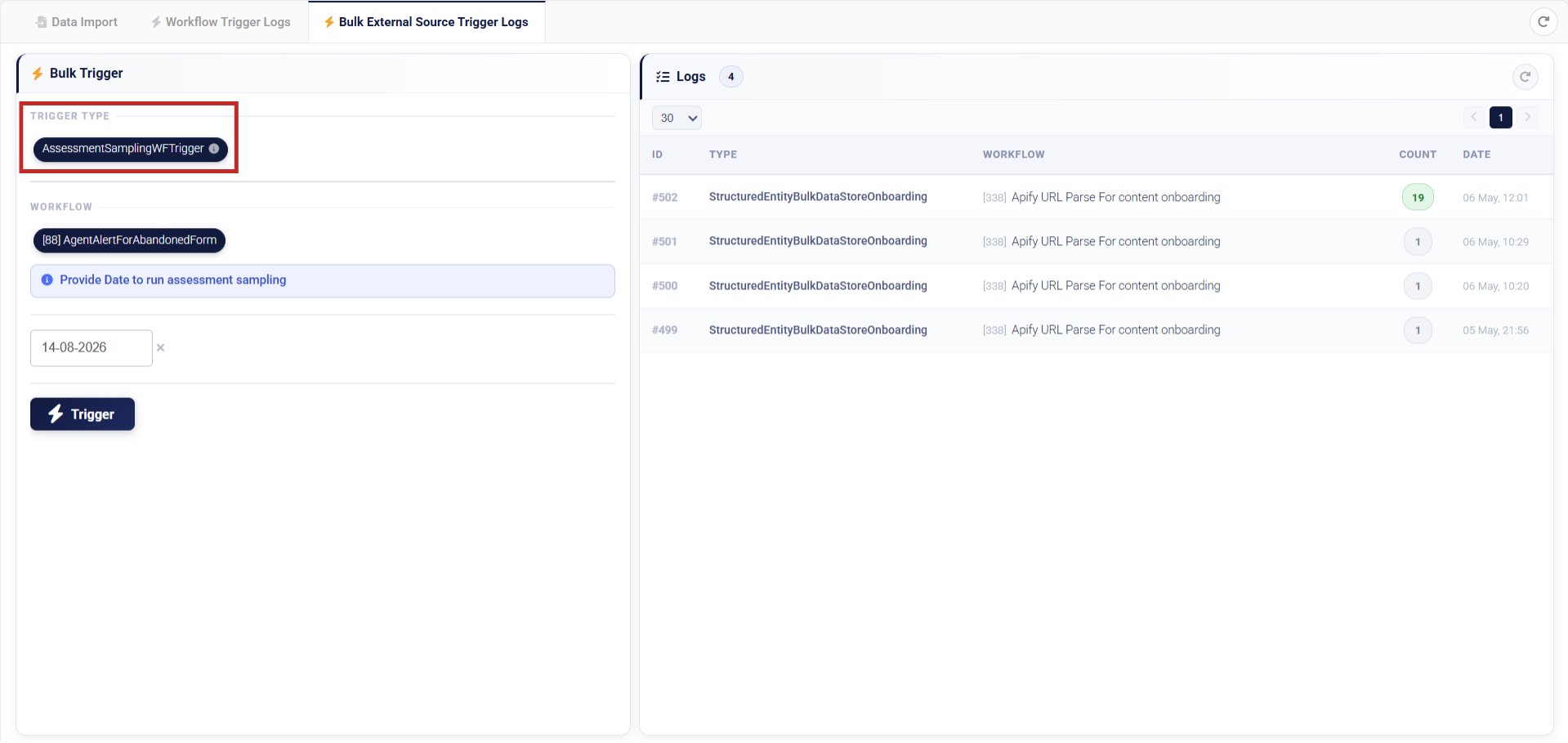
3
Select the workflow
Choose the assessment workflow configured for your institution.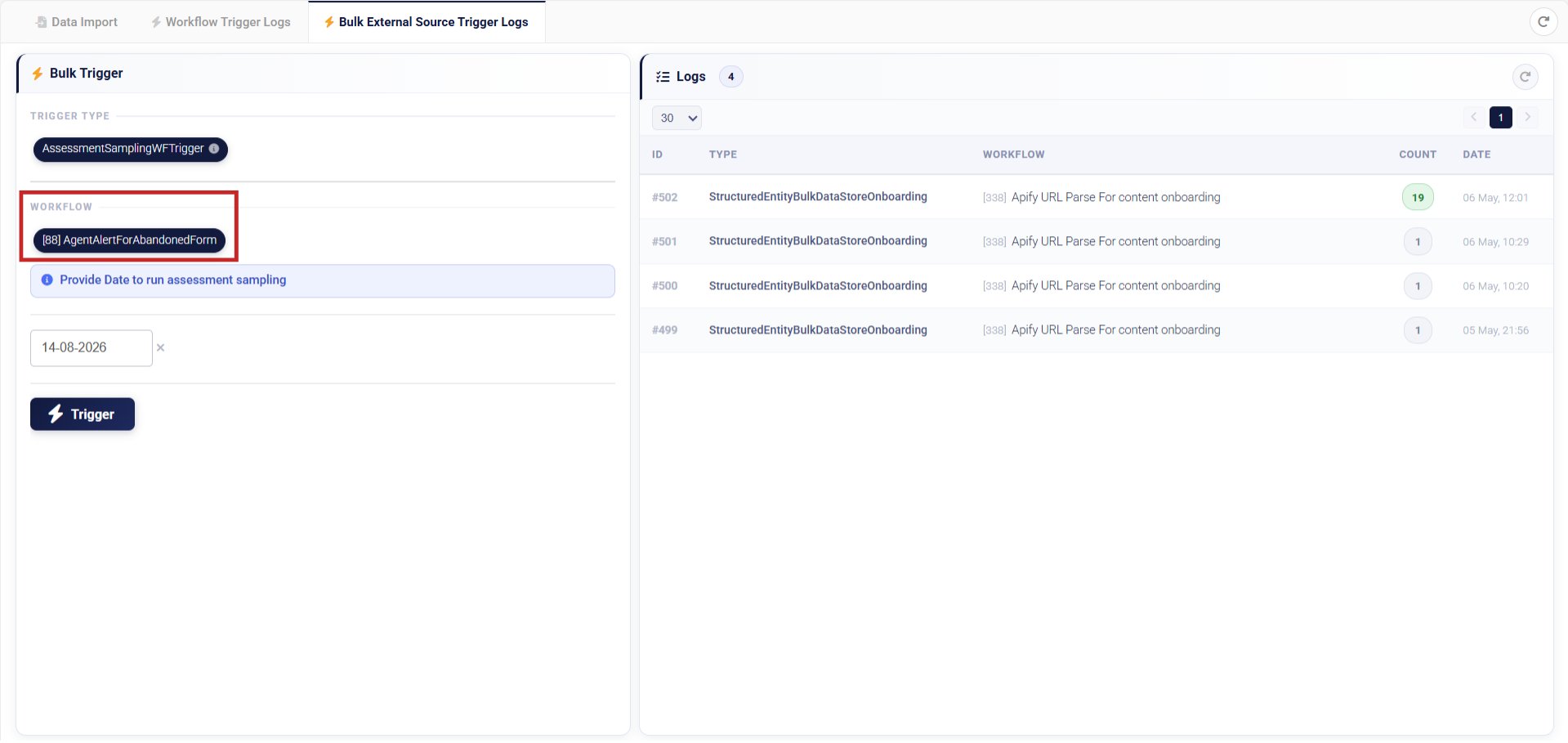
4
Fire the trigger
Click Trigger to start the assessment. NeuronCx will begin processing the recordings from your import.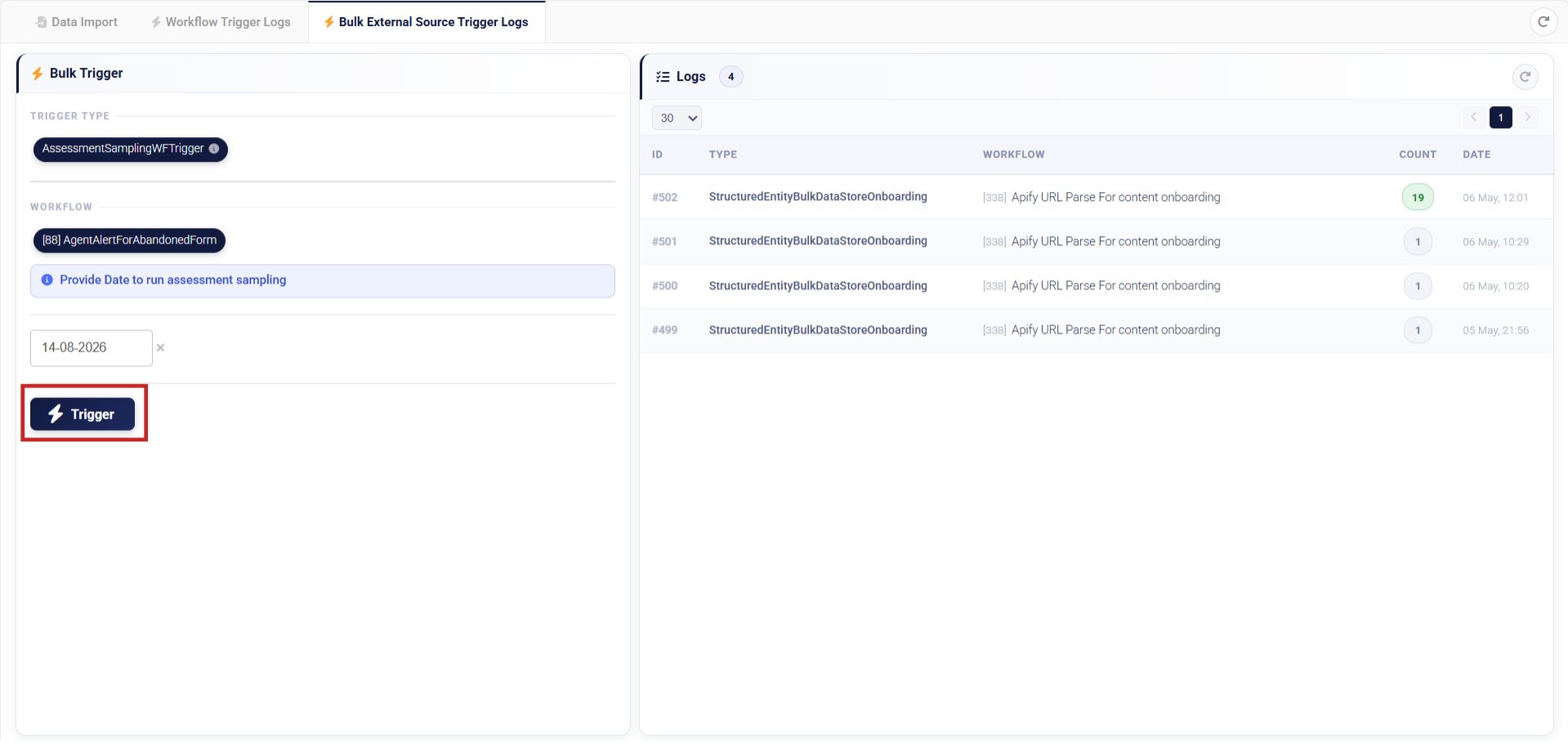
Checking the Results
Once the assessment workflow has run, go to SLI > Audit > Phone to view the call assessment results for each recording. You can also filter the audit view by import name to see only the calls from a specific import run.Limits to Keep in Mind
- Audio files must be uploaded to S3 and made public before running the import. Private URLs or Google Drive links will not work.
PhoneNumbermust be unique for each row. Duplicate numbers in the same sheet may cause rows to be skipped.Agentmust be the numeric Agent ID — not the agent’s name. Using a name instead of an ID will cause that row to fail.Directiononly acceptsOUTBOUNDorINBOUND. Any other value may cause the row to be skipped.- The assessment workflow must be triggered separately after the import — the import alone does not start the assessment.
- Only one import runs at a time. If another import is already running, this one will queue and wait its turn.