
Overview
Trx Attribute Datastore Value Update or Import writes attribute values onto records that already exist in NeuronCx. You prepare a Google Sheet with the record IDs and the values you want to set, and NeuronCx matches each row to the right record and updates it. You can update multiple attributes in a single run — you don’t need to run the import separately for each one.This import updates existing records only. Every row in your sheet must have a primary ID — rows without one are skipped automatically, without an error.
Prerequisites
- Your Google Sheet must be shared with edit access so NeuronCx can read from it.
- Every row must include the primary ID of the record you want to update. Rows without a primary ID are silently skipped.
- The attribute definitions for anything you’re updating must already exist in NeuronCx. This import never creates new attribute definitions — it only writes values against ones already set up for your institution.
- Column headers must be present. Columns without a header are skipped automatically.
Preparing Your Sheet
Your sheet must include the primary ID column — this is how NeuronCx identifies which record to update. Beyond that, include one column per attribute you want to set.
Running the Import
Setting up a new import
1
Open Imports
Navigate to Home > Ontology > Attribute Settings & Bulk Edit, then click the Imports tab.
2
Click + Import
Click the + Import button in the top right to open the New Import modal.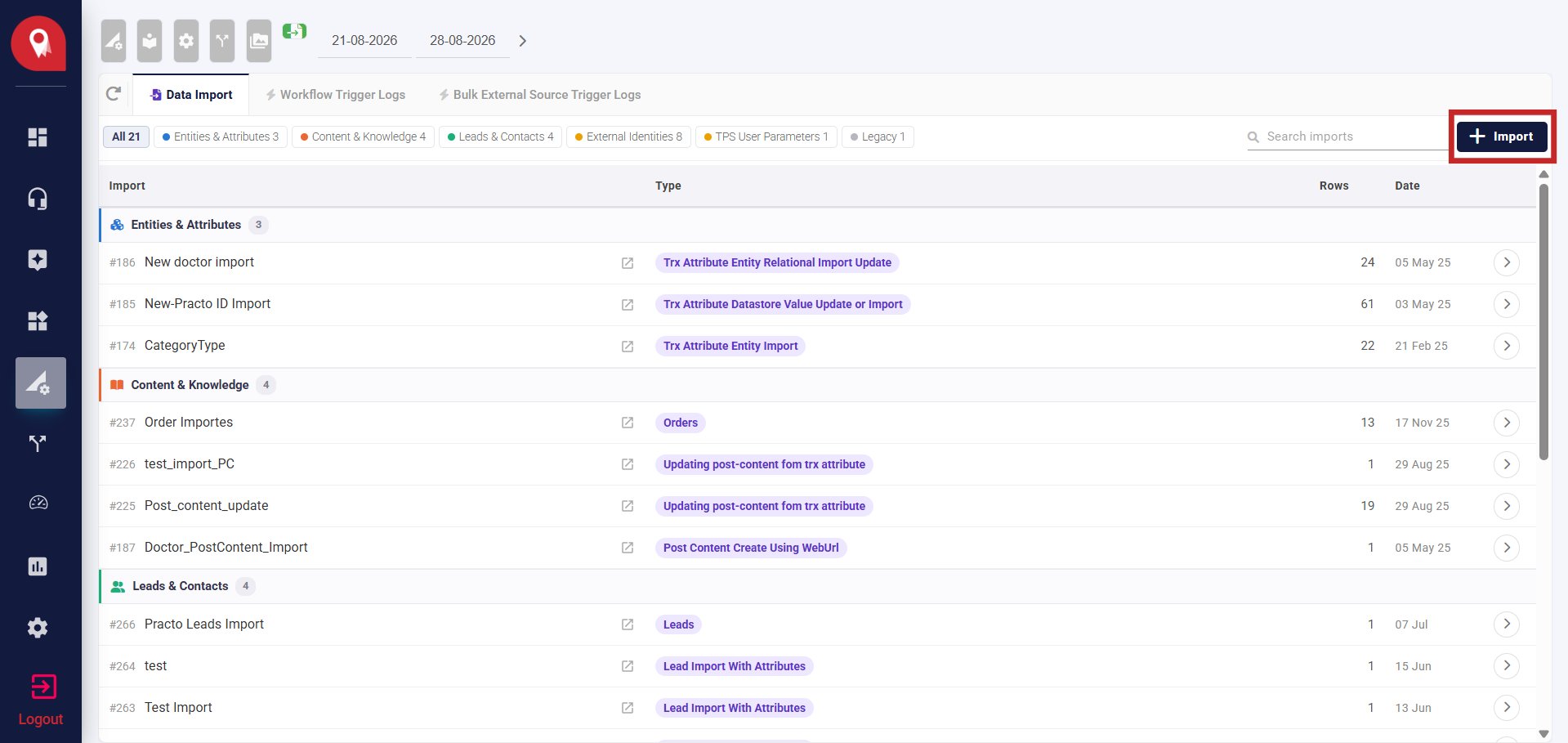
3
Give it a label
Enter a name that describes this import — for example, “Doctor Attribute Update.”
4
Add the Google Sheet ID
Paste the sheet ID or the full Google Sheets URL — NeuronCx will extract the ID automatically.
5
Verify
Click Verify. NeuronCx confirms it can read the sheet and shows you the row and column count — use this to catch an empty or wrong sheet before continuing.
6
Select the import type
In the Import type panel on the left, select Entities & Attributes. Then choose Trx Attribute Datastore Value Update or Import (
#8) from the list on the right.7
Create the import
Click Create import. The import now appears in your list under Entities & Attributes, ready to run.
Running the import
1
Find the import
From the Data Import list, locate the import you just created. You can filter by Entities & Attributes to narrow the list.
2
Open the import
Click the arrow icon on the import row to open it. You’ll see two panels — Transaction Attribute Entity Import on the left and Transaction Attribute Datastore Update on the right.
3
Select the Transaction Attribute
In the Transaction Attribute Entity Import panel on the left, choose the attribute you want to import into from the Select Transaction Attribute dropdown.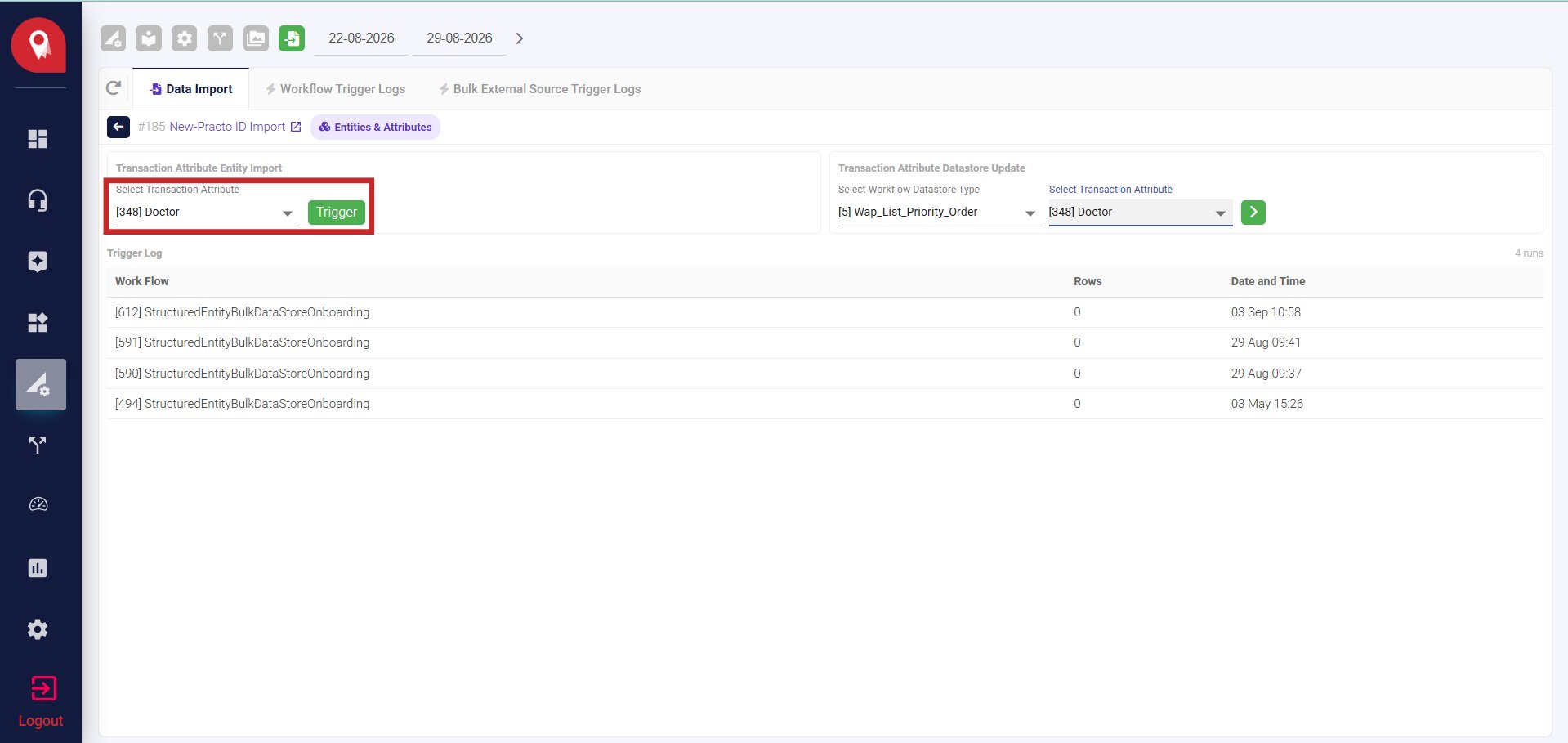
4
Select the Workflow Datastore Type (if updating)
If you also want to update the datastore, use the right panel — Transaction Attribute Datastore Update — to select the Workflow Datastore Type and the Transaction Attribute, then click the arrow button to apply.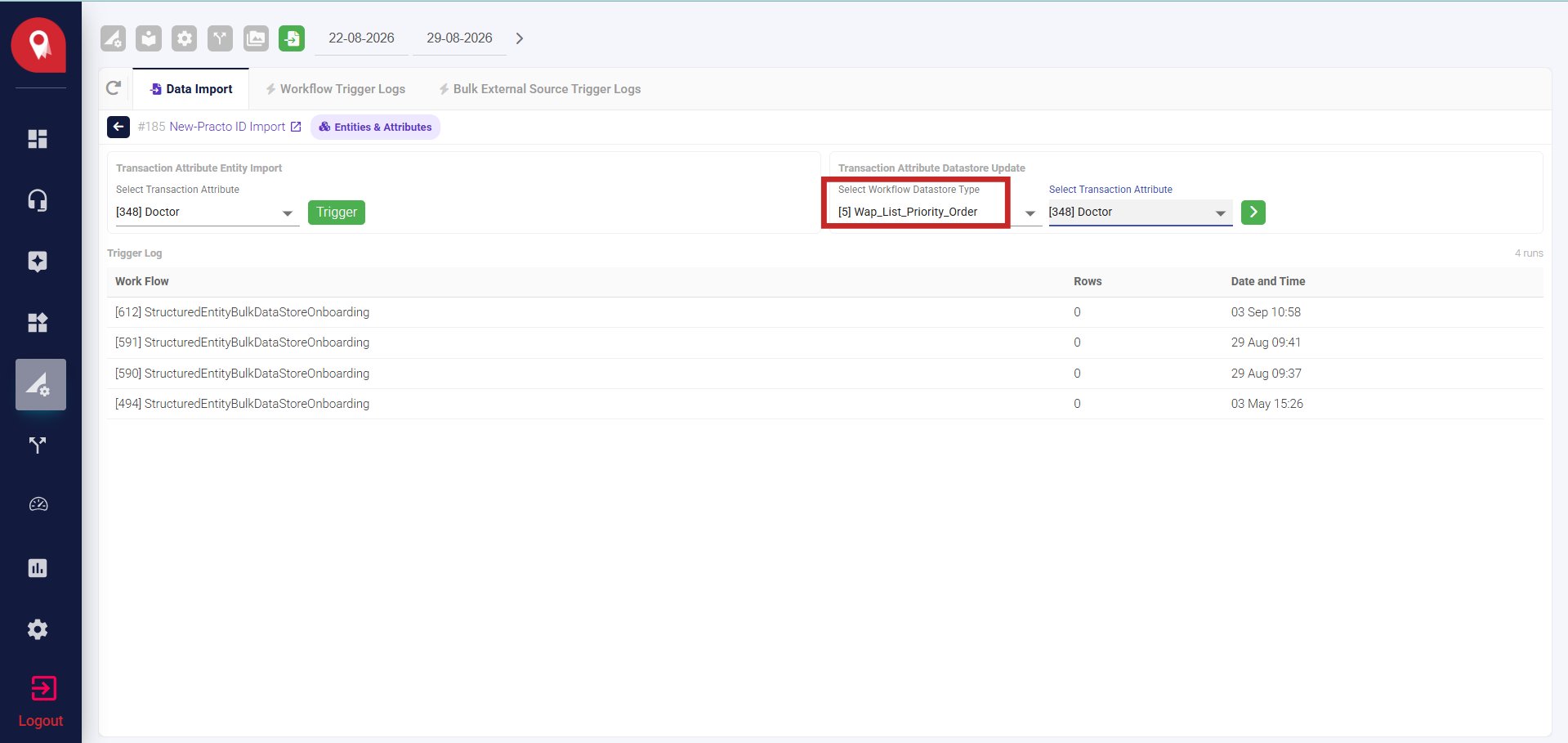
5
Click Trigger
Click the green Trigger button on the left panel to run the import.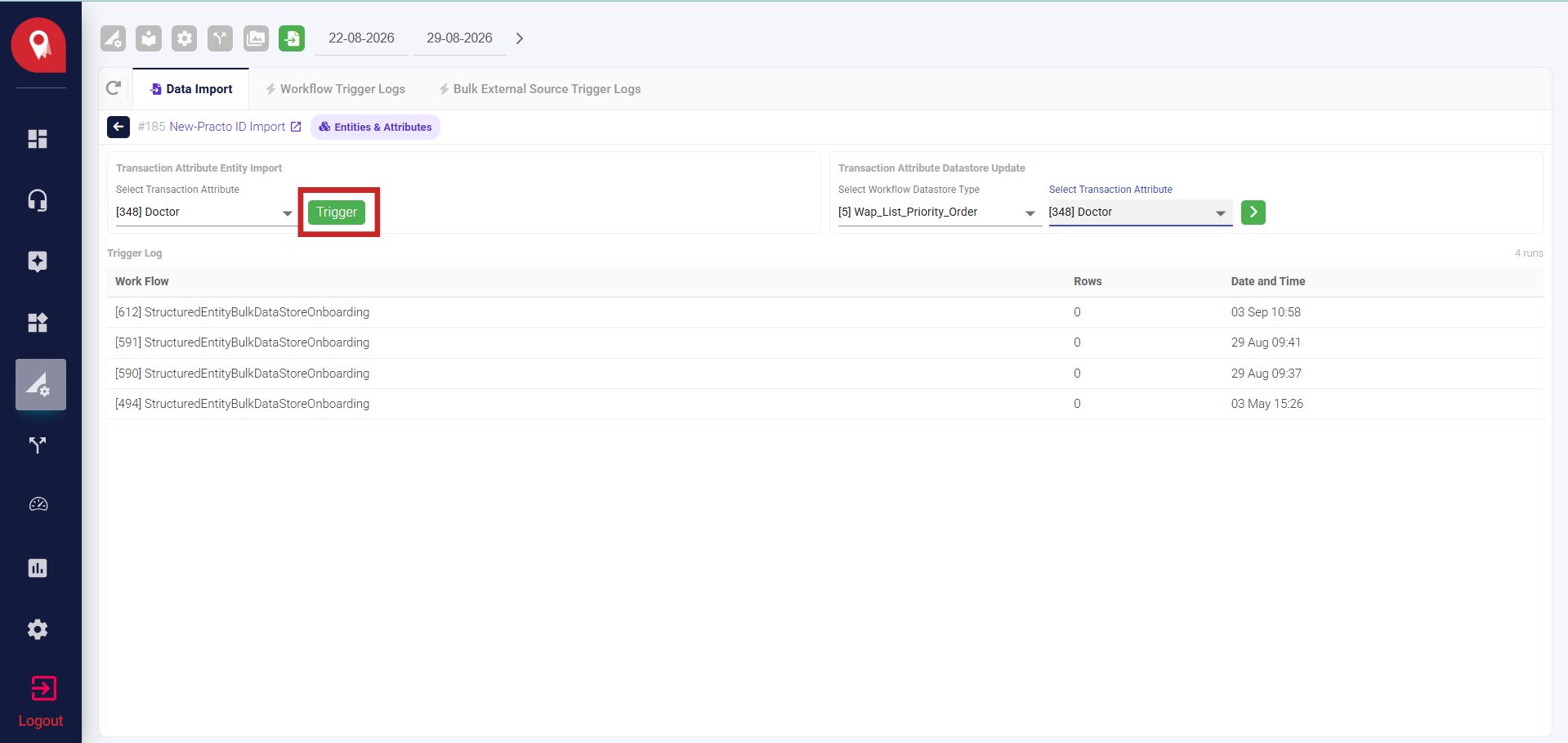
Checking the Result
Once the run completes, the Trigger Log at the bottom of the screen shows each run with the workflow that was used, the number of rows processed, and the date and time it ran.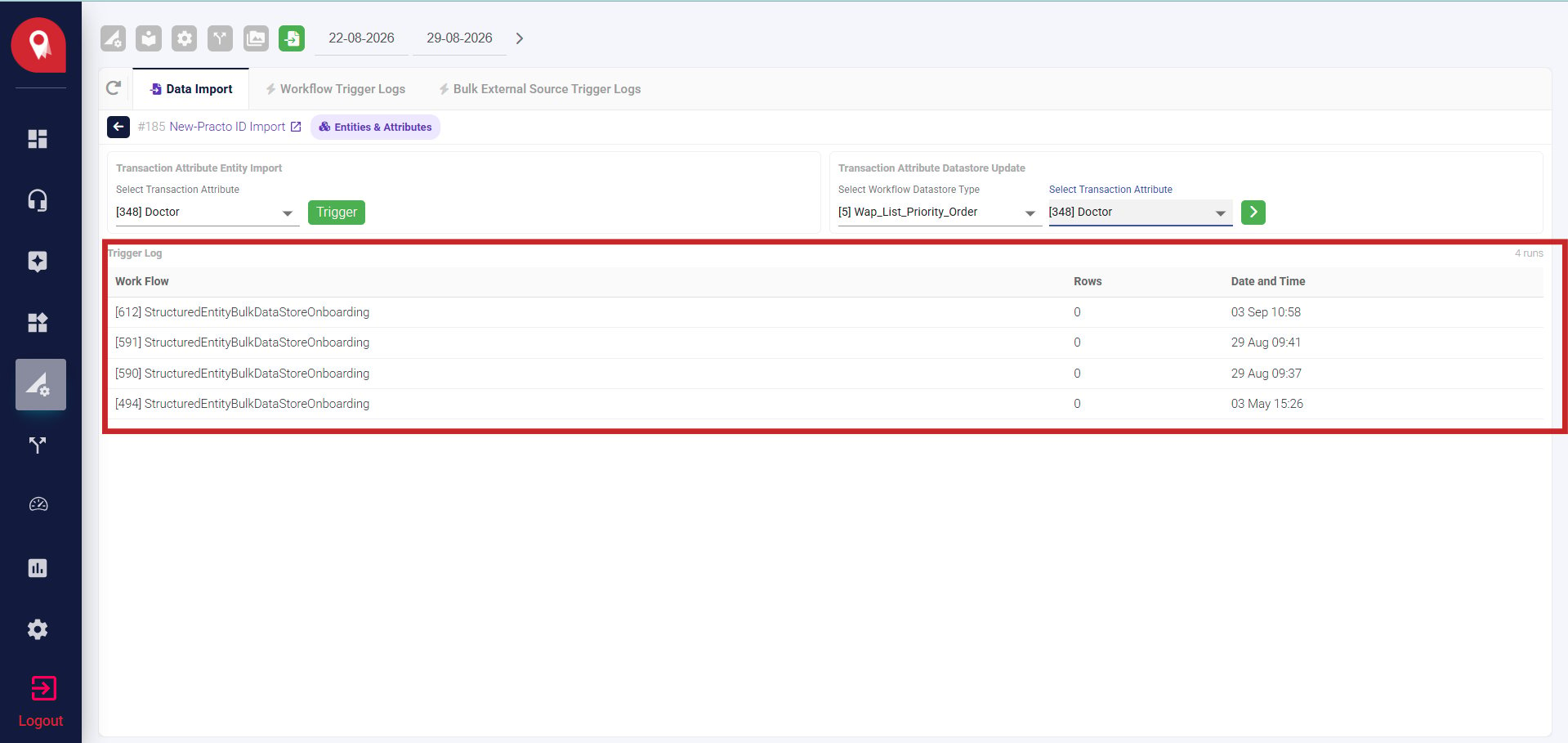
Limits to Keep in Mind
- Every row must have a primary ID. Rows without one are skipped silently — they won’t appear as errors in the run log.
- Columns without a header are ignored automatically — make sure all columns you want imported have a header.
- This import is for updates only. Using it with a sheet intended for new record creation will produce an error.
- Attribute definitions must already exist in NeuronCx before running. This import never creates new attributes.
- Only one import runs at a time. If another import is already running, this one will queue and wait its turn.