
Overview
This import does two things in one run — it brings in attribute values from your Google Sheet and then automatically fires a post content creation workflow using the inline text in your sheet. The result is fully indexed post content, ready to be used in conversations. You don’t need to run a separate step to create the post content — once the import processes your sheet, it hands off to the workflow automatically.The import gives you an immediate success response. The post content creation and text indexing happen in the background — give it a few moments before checking the result.
Prerequisites
Before running this import, two things must already be set up in NeuronCx:- A Text Indexing Workflow must exist for your institution.
- A Treatment must be created with that Text Indexing Workflow attached to it.
Preparing Your Sheet
Your sheet must include the following columns. NeuronCx reads each row and uses the values to create and index the post content.
Running the Import
Setting up a new import
1
Open Imports
Navigate to Home > Ontology > Attribute Settings & Bulk Edit, then click the Imports tab.
2
Click + Import
Click the + Import button in the top right to open the New Import modal.
3
Give it a label
Enter a name that describes this import — for example, “Package Post Content Import.”
4
Add the Google Sheet ID
Paste the sheet ID or the full Google Sheets URL — NeuronCx will extract the ID automatically.
5
Verify
Click Verify. NeuronCx confirms it can read the sheet and shows you the row and column count — use this to catch an empty or wrong sheet before continuing.
6
Select the import type
In the Import type panel on the left, select Content & Knowledge. Then choose Attribute And Post Content Create Using Inline txt (
#9) from the list on the right.7
Create the import
Click Create import. The import now appears in your list under Content & Knowledge, ready to run.
Running the import
1
Find the import
From the Data Import list, locate the import you just created. You can filter by Content & Knowledge to narrow the list.
2
Open the import
Click the arrow icon on the import row to open it.
3
Select the attribute and treatment
Before running, you’ll be asked to select two things:
- TrxAttribute — the attribute set to import values into.
- Treatment and Workflow — the treatment that will fire the post content creation after the import.
4
Click Import
Click Import to run it. You’ll get a success response immediately — the post content creation and text indexing continue in the background.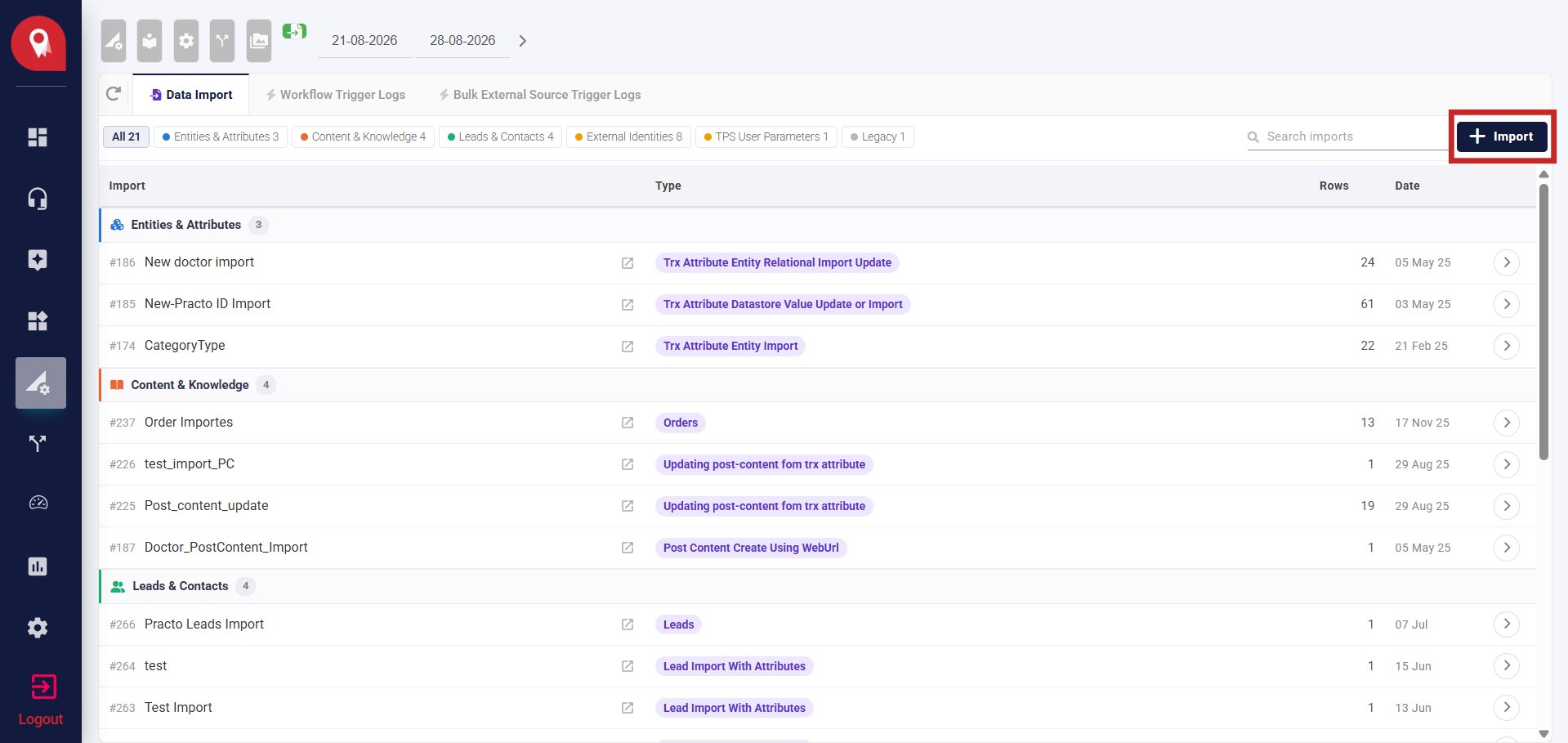
Checking the Result
Once the background processing is done, the run history table updates with how many rows were read and how many values were set. Click a run’s Status to see a detailed breakdown of which rows succeeded, failed, or were skipped.
Limits to Keep in Mind
- A Text Indexing Workflow and a Treatment must already be set up before running this import — the post content step won’t fire without them.
- The
ID,Label,Description,PostContentText, andJourneyInstMasterIdscolumns are required. Rows missing any of these may not process correctly. - Columns without a header are skipped automatically.
- This import is non-blocking — you get a success response right away, but the actual post content creation happens in the background. Don’t re-run immediately if content hasn’t appeared yet.
- Only one import runs at a time. If another import is already running, this one will queue and wait its turn.